

Security class
How to do if the password is lost?
Click "Reset Password" on the Instance Details page and follow the instructions to complete the password reset.
The password reset failed. Are there any password rules?
The current password rules for resetting passwords are as follows: 8-32 characters; there must be at least three of the following: uppercase letters, lowercase letters, numbers and special symbols; symbols limited to !@#$%^*().
Why can't I reset the password for my BCC?
For security reasons, the password rules on the Console page for resetting password are relatively complex and must meet the following requirements:
- 8-32 characters
- There must be at least three of the following: uppercase letters, lowercase letters, numbers and special symbols
- Symbols are limited to !@#$%^*()
Ensure that your new password complies with the specified rules. Only the special symbols listed in the rules are allowed.
Why doesn't the new password take effect after resetting the password for a windows virtual machine?
Resetting the password for a Windows virtual machine relies on the cloudinit service. If the cloudinit service is disabled or restricted by security management software within the virtual machine, the password reset may fail.
First check whether the cloudinit service within the system is running normally to ensure that the password reset takes effect:
- Log in to the Windows virtual machine, click Start, and navigate to Management Tools -> Services.
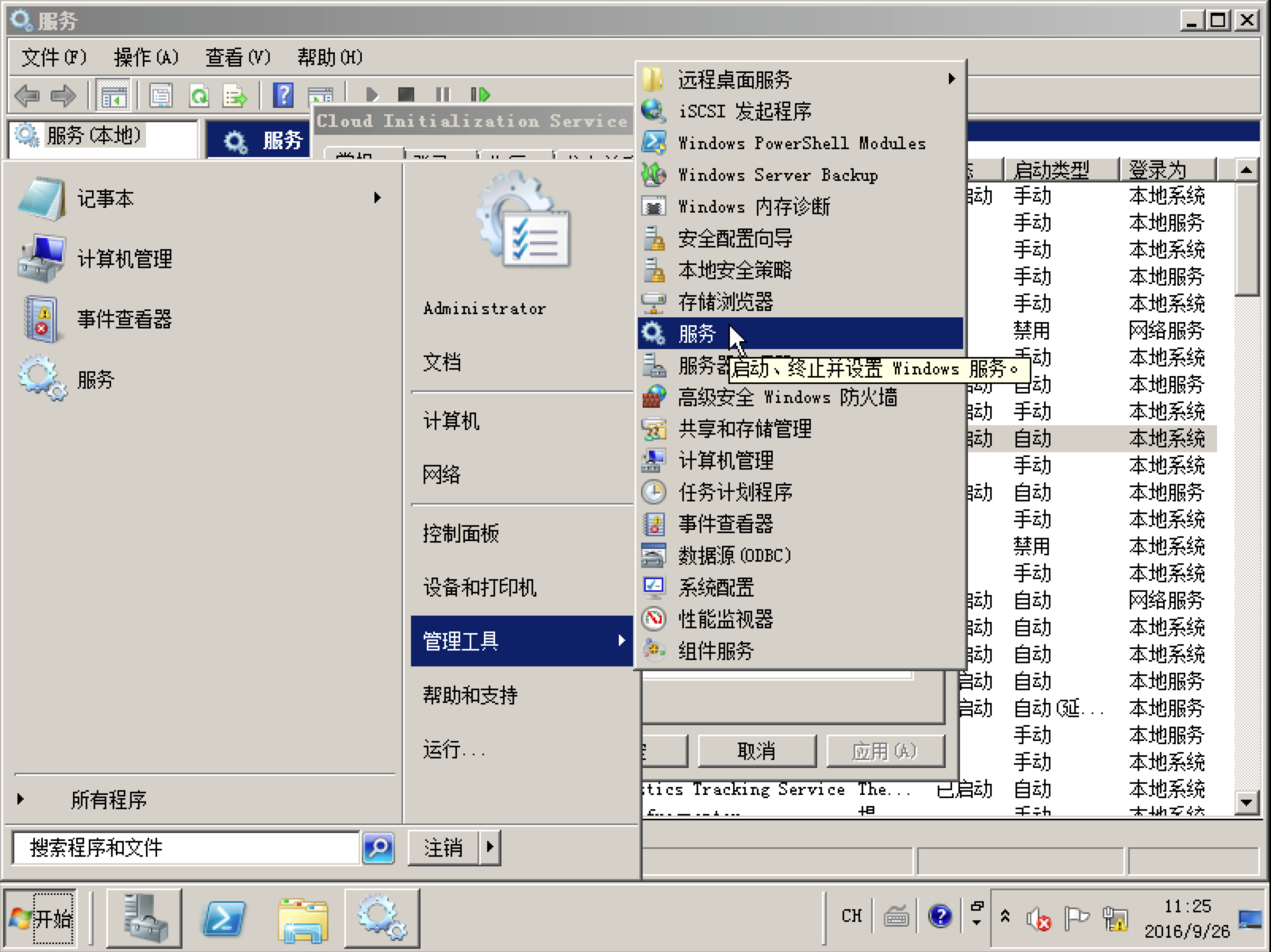
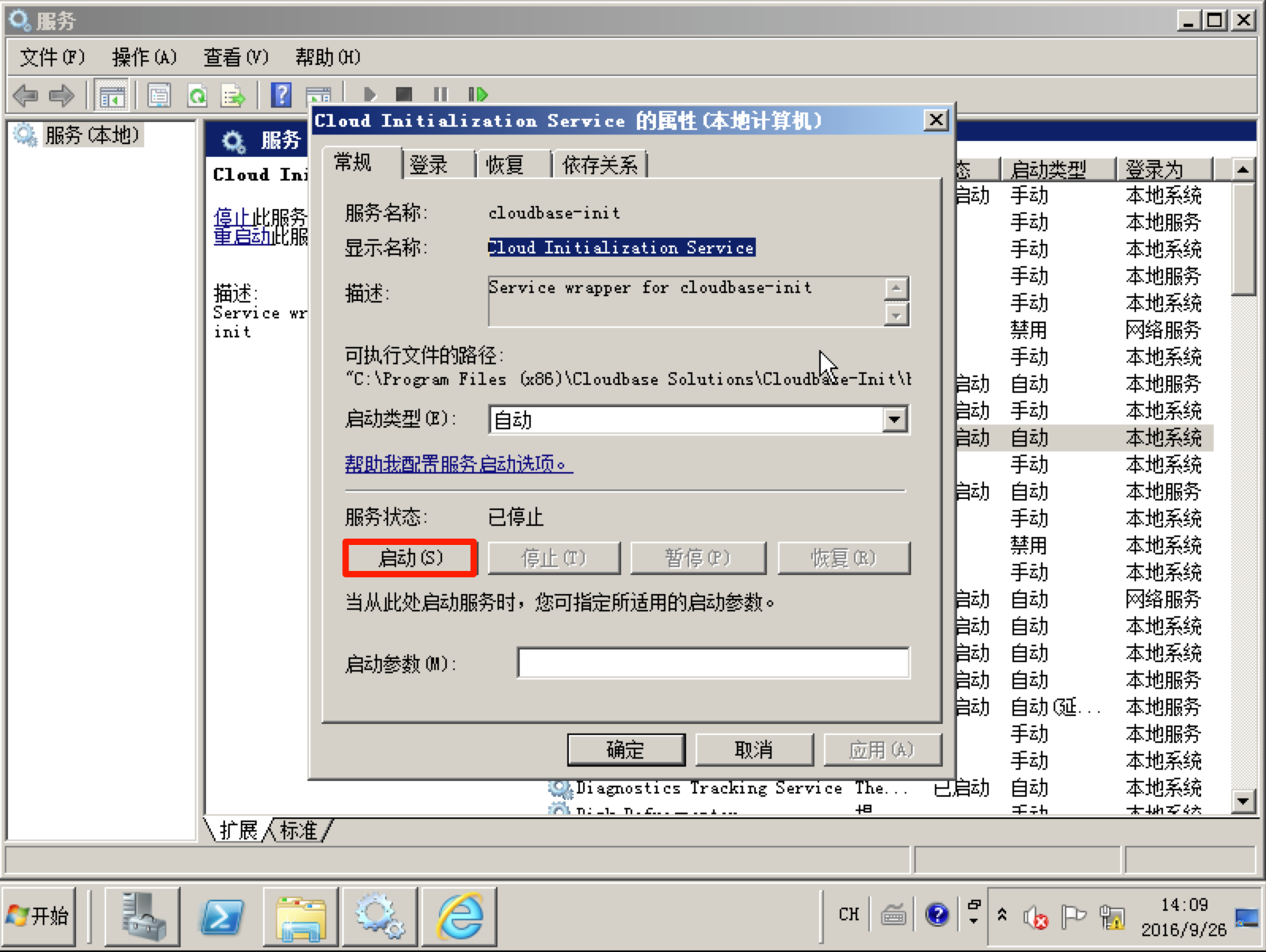
- Double-click the Cloud Initialization Service, and in the pop-up box, click the Start button.
- If the cloudinit service starts normally, the service is functioning correctly, and you can proceed with resetting the password in the BCC console.
- If an error occurs while starting the cloudinit service, the issue lies with the service itself. Proceed to step 3.
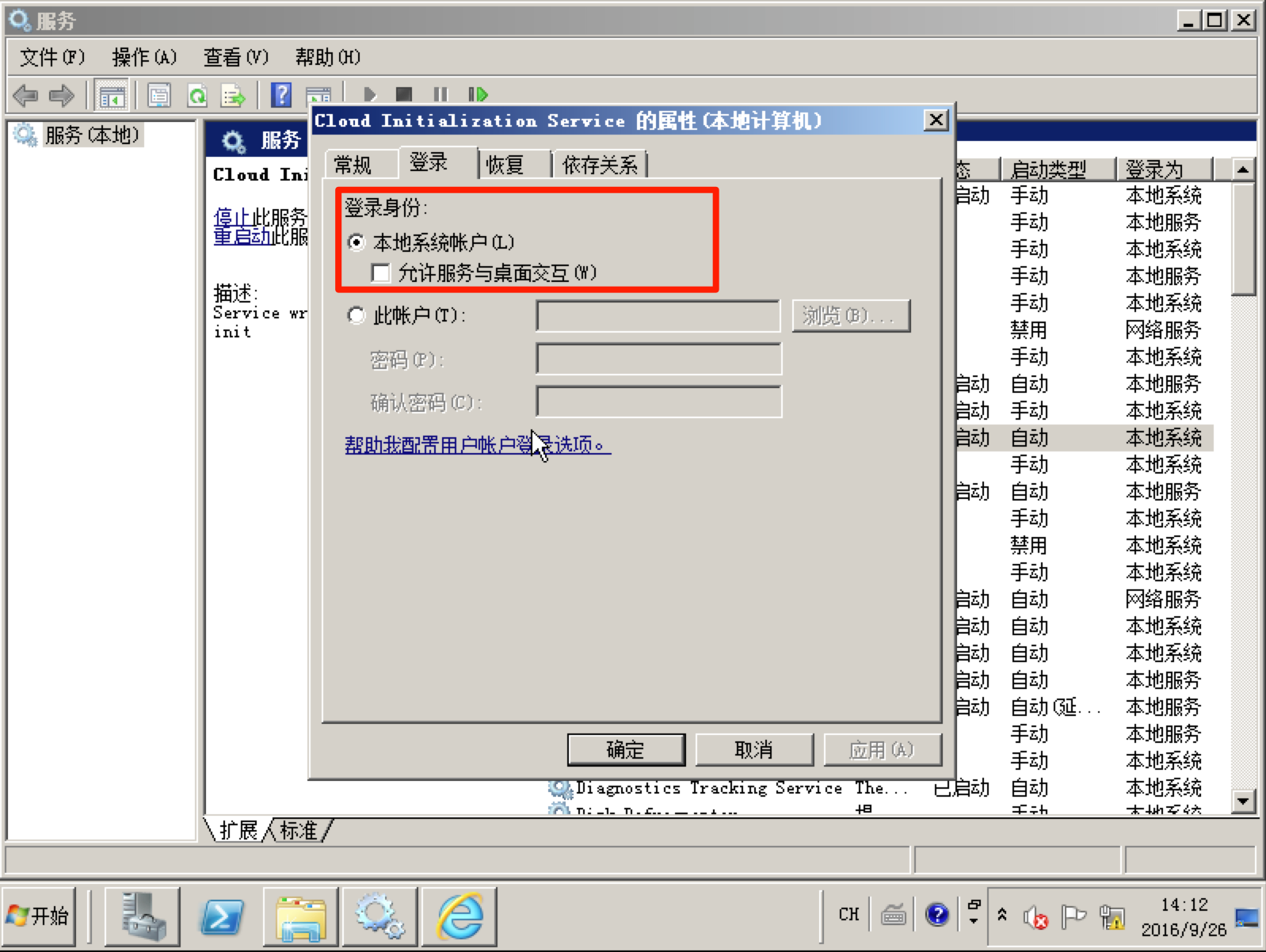
- Switch to the "Log On" tab and verify the login account used for the cloudinit service. Ensure the login account is set to "Local System Account" as improper permissions may prevent the cloudinit service from running correctly.
- If you still cannot sign in to the Windows virtual machine with the new password, please enter a ticket with details.
Note:
After installing the security software, manually "start" the cloudinit service once (see step 2). If the security software shows pop-ups indicating that the cloudinit service is calling system commands, make sure to approve them. Otherwise, cloudinit won't be able to execute system commands properly, making the service unavailable.
How to do if the server is invaded since the server password is set too simply, and antivirus measures are ineffective?
You can reset the password in the Baidu AI Cloud console. On the Instance Details page of BCC, you'll find the Reset Password option.
If the system already contains viruses or Trojans, you can select Reinstall OS to clean the system, but be aware that this will result in the loss of system disk data!
It's recommended to check for vulnerabilities and backdoors in the program to minimize the risk of unauthorized access.
How to perform regular comprehensive checks on the status of BCC resources?
You can activate the "Cloud Advisor" service to regularly receive inspection reports on the security, availability, performance and cost of cloud resources.
The reports include several BCC-related inspection items, such as BCC-Host Security Inspection Results, BCC-Low Utilization, BCC-Shared Images, BCC-Availability Zone Distribution, BCC-Security Risk Detection (SRD) Inspection Results, BCC-Install Host Security Client, BCC-Instance Deactivation, BCC-OS Version and BCC-High Utilization.
Please visit Cloud Advisor Homepage to learn about or activate the Cloud Advisor service
How to quickly check which ports are open on BCC and whether they are accessible?
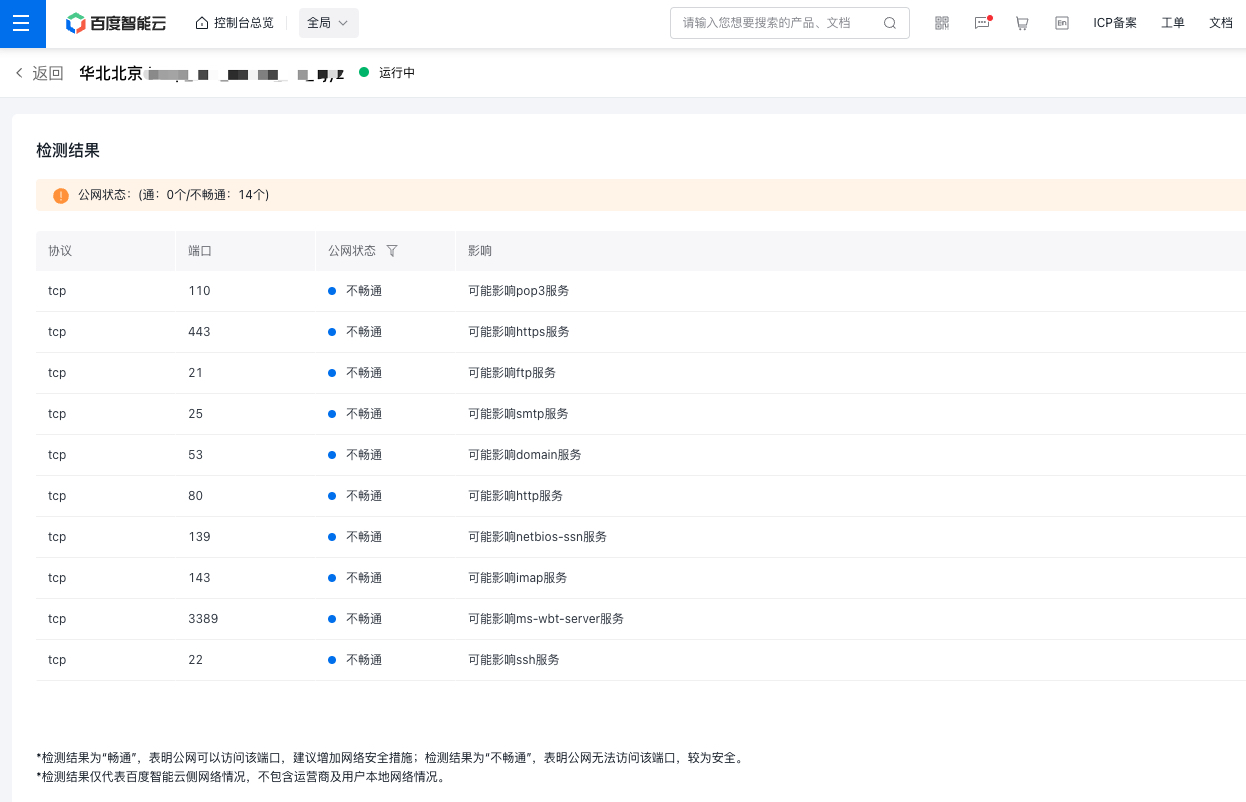
You can use BCC Port Verification Tool for rapid detection
to quickly check which ports are currently open on the BCC server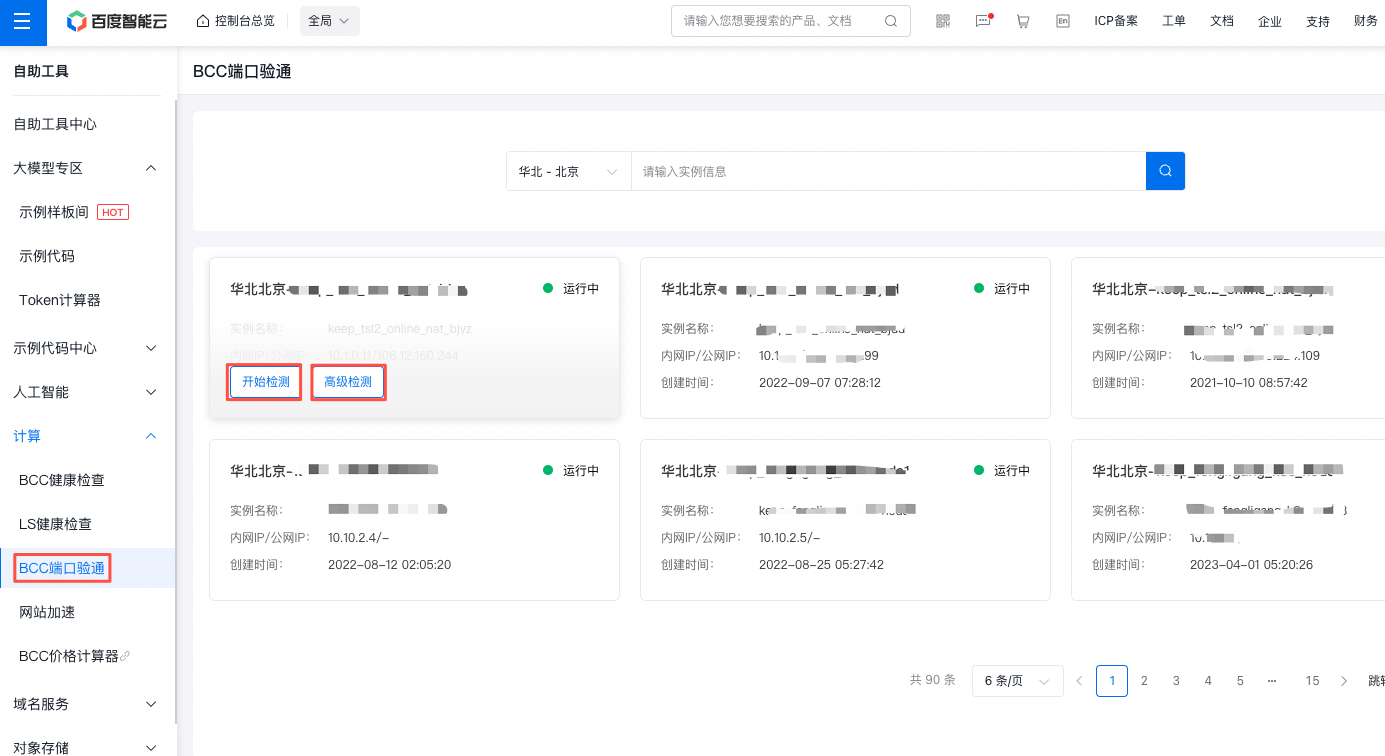
- Basic detection: Click Start Detection to check whether some commonly used ports are accessible
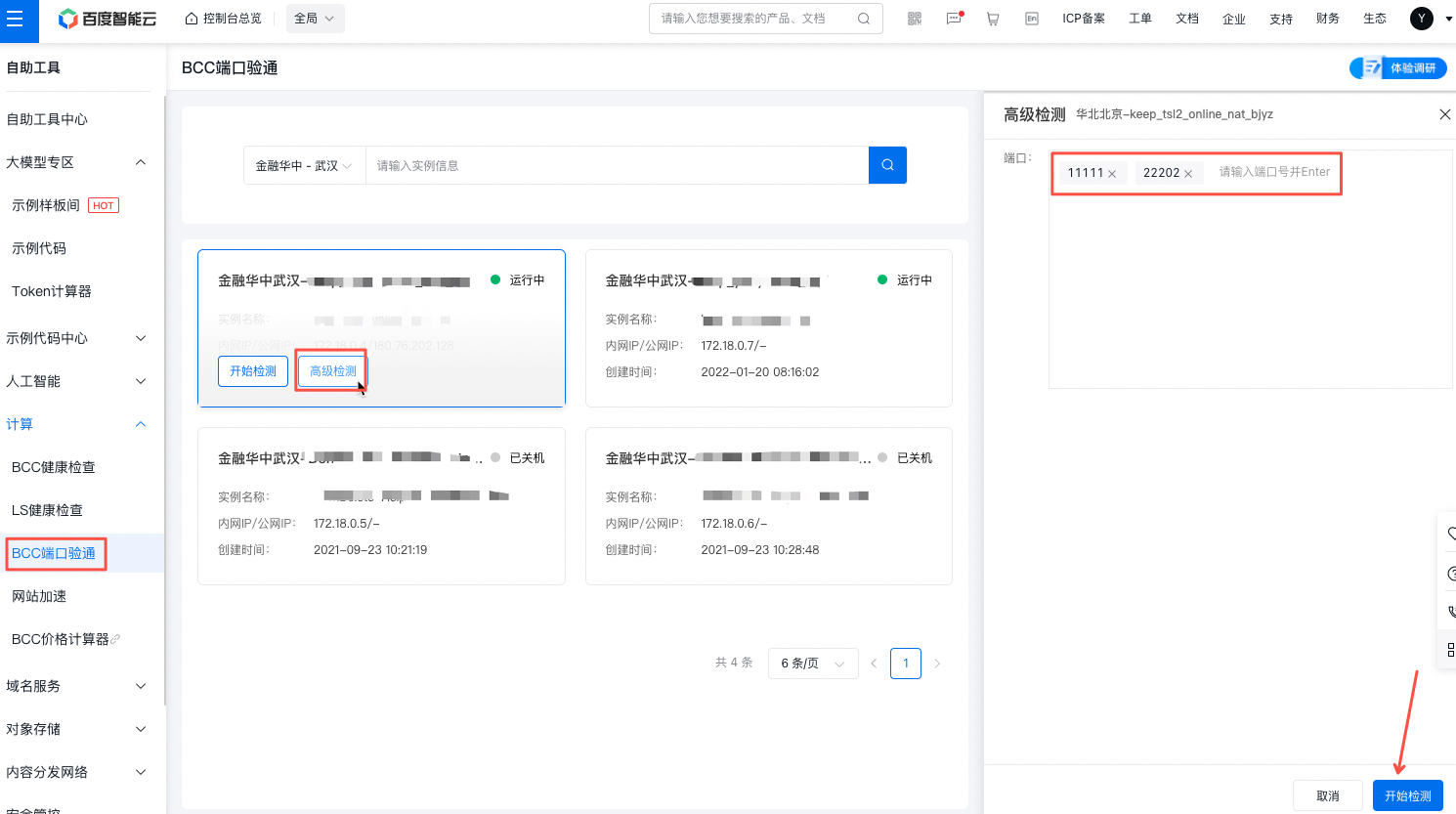
- Advanced detection: Click Advanced Detection to customize the port to be detected. You can select multiple ports.
How to add an IP to sign in to the allow list?
Baidu AI Cloud blocks IPs that fail multiple password attempts in a short time. If you believe your IP has been blocked and want to unblock it, go to the console, find the Host Security product, select Configuration Management - Sign-in Management Settings, click Add Allow List, and add your public IP to unblock it.
Changes generally take effect within 10 minutes. If you're still unable to establish a remote connection after 10 minutes, the issue likely isn't due to our block. In this case, we recommend submitting a Compute and Network/Baidu Cloud Compute (BCC) ticket, providing details about your issue along with the instance ID, instance IP, and remote port. Our engineers will investigate and resolve the issue for you.
Is the "Network Level Authentication" function required for signing in to windows BCC?
Method 1: For security reasons, the remote desktop on cloud servers running Windows systems is set by default to allow only "Remote desktop computer connections with network-level authentication.\
The local Windows server must support the "Network Level Authentication" function; otherwise, you will not be able to sign in to the Windows cloud server. The method for checking is as follows: a. Start remote desktop connection b. Right-click the window title bar and click About c. In the pop-up window, you should see the text "Support network level authentication" If you do not see the text "Support network level authentication" in the above operations, you will need to install the corresponding patch package to support this function.
Method 2: Disable the "Network Level Authentication" function. First, the user needs to remotely sign in to the Windows BCC server with VNC: a. Enter gpedit.msc in the running status to access the local group policy settings; b. Navigate to Computer Configuration - Management Template - Windows Component - Remote Desktop Service - Remote Desktop Session Host - Security - Require User Authentication for Remote Connection by Network Level Authentication and set it to Disabled; c. Open Computer - Attributes - Advanced System Settings - Remote, and select "Allow connections from computers running any version of remote desktop (less secure)" under Remote Desktop.
What should I do if a new security group is created and associated with the original instance, but one still remains in the default security group?
- A security group can only be deleted when all BCC instances have been disassociated from it. The Count of Associated Instances column in the security group list indicates How many BCC instances are currently associated with the security group?
-
Cloud servers can be assigned to multiple security groups. For instance, Security Group A might allow access only to port 22, while Security Group B allows pinging. Combining Security Group A and B will allow both access to port 22 and pinging. After associating a new security group, you can manually disassociate any unneeded security groups via the cloud server's security group page.
Note: Every cloud server must be associated with at least one security group.
How to prevent DDOS attacks and CC attacks?
Baidu AI Cloud provides a free BSS (Baidu Security Service) product to protect against CC and DDoS attacks for BCC. Users can configure traffic cleaning thresholds based on their application needs.
How to deal with the IP attacked by DDOS?
The default DDoS protection threshold for BCC servers is currently 5 Gbps (BCC in mainland regions is 5 Gbps, and BCC in Hong Kong region is 1 Gbps). Once the threshold is triggered and blackholing occurs, the IP will be blocked by the ISP for 24 hours and cannot be unblocked.
If you want better protection against DDoS attacks, we recommend using our DDoS High Defense service. For details, please refer to DDoS High Defense IP
Is it possible to enable SSH access between several BCC instances without requiring a password?
You can achieve this by using key pairs. For details, please refer to the Key Pair Document
How to prevent servers and websites from being attacked by hackers?
Server security:
- It is recommended to block ports not required by your applications in the firewall or security group settings and not expose them externally. Please refer to the Security Group Document
- Regularly change passwords and increase password complexity
- Install security antivirus software on OS
- Use automatic snapshot policies to regularly create snapshots. This allows you to roll back data promptly in case of issues. Please refer to Automatic Snapshot
For more security recommendations, you can search for "security hardening" on Baidu to find relevant tutorials for reference
How to fix Dirty COW (CVE-2016-5195) Linux vulnerability?
A race condition occurred in the Linux kernel's memory subsystem during copy-on-write (COW) operations. A malicious user could exploit this to trick the system into altering read-only user-space code and executing it. A local user with low privileges could use this vulnerability to write to otherwise read-only memory mappings.
- Vulnerability number: CVE-2016-5195
- Vulnerability impact: After retrieving low-privilege user access through remote intrusion, a hacker can exploit this vulnerability on all versions of the Linux system to achieve local privilege escalation and gain root access to the server.
-
Affected scope: This vulnerability can be exploited for privilege escalation on all versions of the Linux system (Linux kernel >= 2.6.22):
Plain Text1CentOS 6.5 32-bit/64-bit 2 CentOS 7.1 32-bit/64-bit 3 Debian 7.5 64-bit 4 Debian 8.1 64-bit 5 Ubuntu Server 12.04.4 LTS 32-bit/64-bit 6 Ubuntu Server 14.04.1 LTS 32-bit/64-bit - Vulnerability fix solution:
- Download the fix-tool-allinone.tar compressed package provided by Baidu AI Cloud to the server.
-
Unzip the compressed package
Plain Text1root@linux ~]# tar xf fix-tool-allinone.tar.gz -
Enter the
fix-tool-allinonedirectoryPlain Text1[root@linux ~]# cd fix-tool-allinone 2[root@linux fix-tool-allinone]# ls 3fix-tool-32-bit.tar.gz 4fix-tool-64-bit.tar.gz 5run.sh -
Run run.sh.
Plain Text1[root@linux fix-tool-allinone]# ./run.sh 2DirtyCow check and fix needs quite some time, please be patient. 3 4pokeball 5 (___) 6 (o o)_____/ 7 @@ ` \ 8 \ ____, /miltank 9 // // 10 ^^ ^^ 11mmap 7f804ec7f000 12 13madvise 0 14 15ptrace 0 16 17Your kernel is 3.10.0 which IS vulnerable. 18Updating linux kernel to fix DirtyCow vulnerablity! 19Please confirm whether to continue the operation or not.[y/n]
This tool integrates the pokemon program, which exploits the DirtyCow vulnerability to enable a regular user to modify files with read-only permissions. The tool first creates a regular user and copies the test program and the test file used by the program to the regular user's home directory. Then, it runs the pokemon program to detect the vulnerability.
If the vulnerability is detected, the above prompt will be displayed. If the user enters 'y', the kernel will be upgraded to fix the vulnerability. If the user enters 'n', the program will exit directly.
- After upgrading the kernel, users must manually restart the server. If ongoing application operations make it inconvenient to upgrade the kernel immediately, users can enter 'n' after the detection completes and perform the upgrade when the server is idle.