

Deploy LAMP Environment on CentOS-7_2
This document explains how to set up a LAMP environment, using a BCC instance running CentOS 7.2 as an example. The detailed steps are as follows.
1. Configure firewall
Systems running CentOS 7.0 or later use firewalld as the default firewall.
Disable firewall:
1systemctl stop firewalld.service  # Stop firewall
2 systemctl disable firewalld.service   # Disable firewall from starting at boot
2. Install and configure Apache
(1) Install directly using the built-in yum repository on the server;
yum install -y httpd
(2) Start httpd;
systemctl start httpd
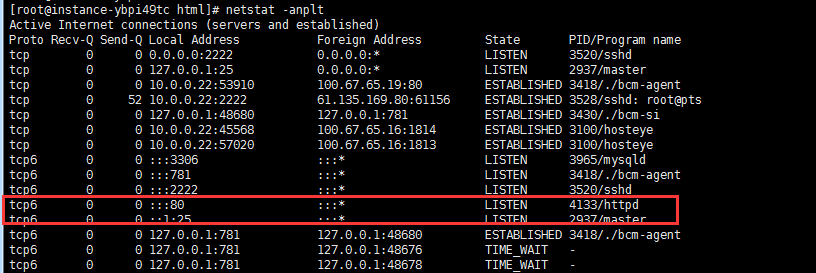
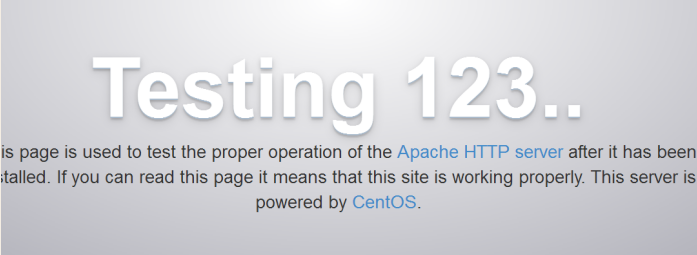
(3) View and access; Use netstat -anplt to view that port 80 has been opened and use the public IP to open the default homepage of Apache.
3. Install php and its dependent extensions and enable php
(1) Install php environment;
yum install -y php
(2) Install extensions;
yum install -y php-gd php-mysql libjpeg* php-imap php-ldap php-odbc php-pear php-xml php-xmlrpc php-mbstring php-mcrypt php-bcmath php-mhash libmcrypt
(3) Modify Apache configuration file;
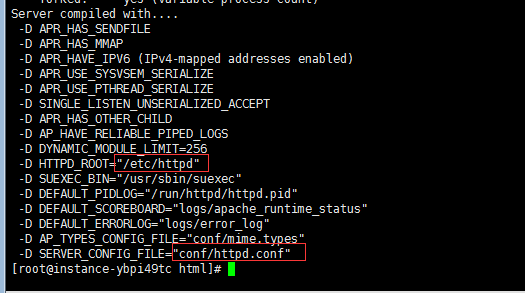
- The default Apache configuration file can be viewed using the httpd -V command:
/etc/httpd/conf/httpd.conf
vim /etc/httpd/conf/httpd.conf
- Add
index.phpafter DirectoryIndex - At the end of the configuration file, add:
1 LoadModule php5_module modules/libphp5.so
2 AddType application/x-httpd-php .php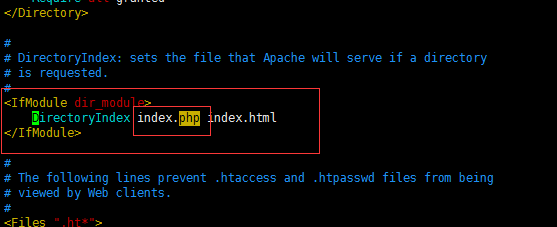
(4) Restart Apache and test it by accessing it.
systemctl restart httpd
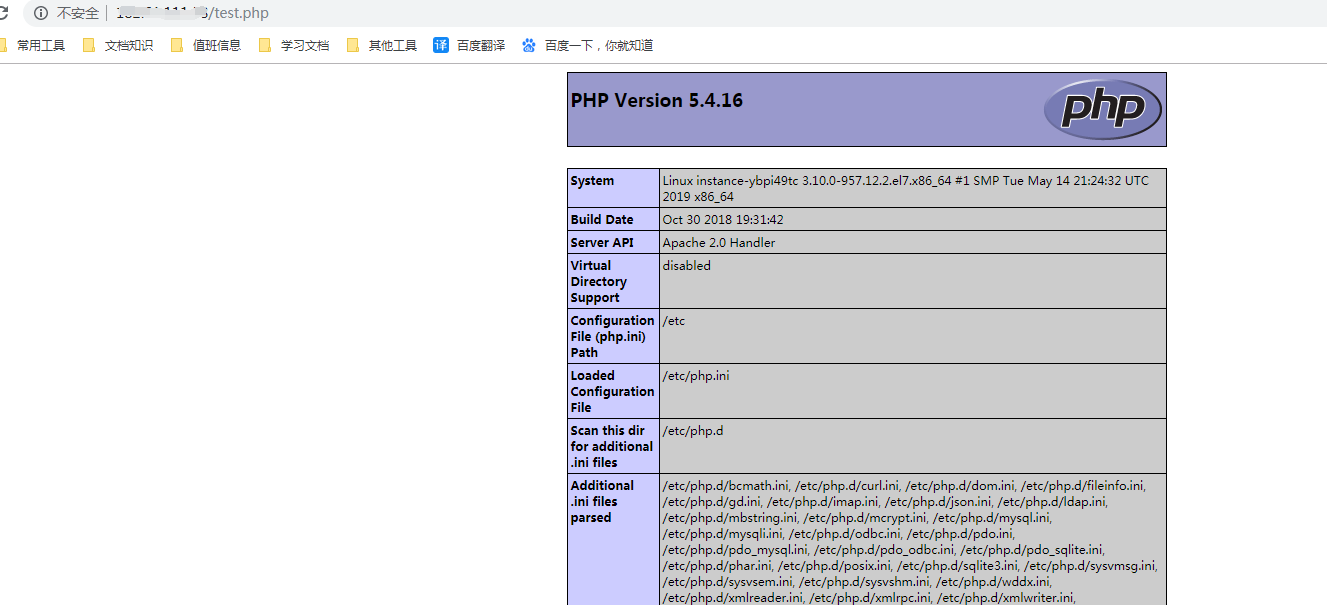
Navigate to Apache’s default root directory, /var/www/html/, and create a phpinfo file.
vim /var/www/html/index.php
1 <?php
2         phpinfo();
3 ?>
At this point, you can see it by accessing ip/index.php
4. Install MySQL and connect it to php for verification
(1) For systems running CentOS 7 or later, MariaDB is the default database, so you need to download the MySQL repository for installation.
1wget http://dev.mysql.com/get/mysql-community-release-el7-5.noarch.rpm
2rpm -ivh mysql-community-release-el7-5.noarch.rpm
3yum install -y mysql-community-server
After successful installation, restart the MySQL service:
systemctl start mysqld
(2) The installed MySQL database does not have a password. Enter the database to grant permissions and set a password.
1mysql -u root
2mysql> use mysql;
3 mysql> update user set password=PASSWORD("Enter the root user password here") where user='root';
4mysql> flush privileges;
5mysql> exit
(3) Write PHP code to test MySQL connectivity and verify access.
vim /var/www/html/index.php
1<?php
2 $link=mysql_connect("localhost","root","The database password just set");
3if(!$link) echo "FAILD!error";
4else echo "OK!You succeeded.";
5?>
At this point, you can see it by accessing IP/index.php

The LAMP environment for the CentOS 7.2 system has been successfully set up.