Linux Modify Default Remote Connection Port
This document introduces how to modify the default SSH remote port for Baidu AI Cloud public image Linux systems (including an operational guidance video). You can refer to the key step guidance in the following video to use AI Cloud products or troubleshoot issues yourself. Click here to watch the video "Linux Modifies the Default SSH Port Number".
Description:
If the interface elements or operation methods shown in the video guidance are updated, please rely on the AI Cloud console interface for the most accurate information. The video aims to demonstrate the functional operation process, and minor interface changes will not affect the overall functionality or presentation.
Step 1: Sign in to the server
You can use SSH to remotely connect to the server. If remote connection fails, use VNC to log in.
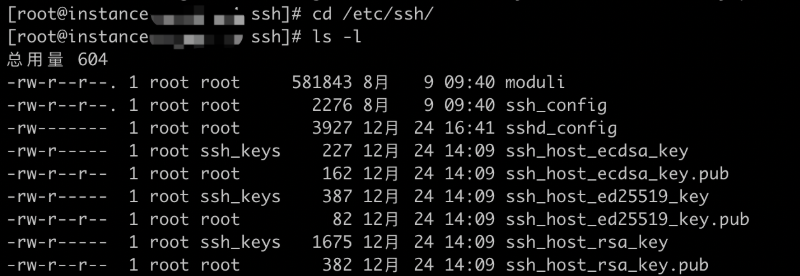
Step II Locate the SSH service configuration file
This file is typically located in the sshd_config directory under /etc/ssh/.
Step III Modify the port to a custom port
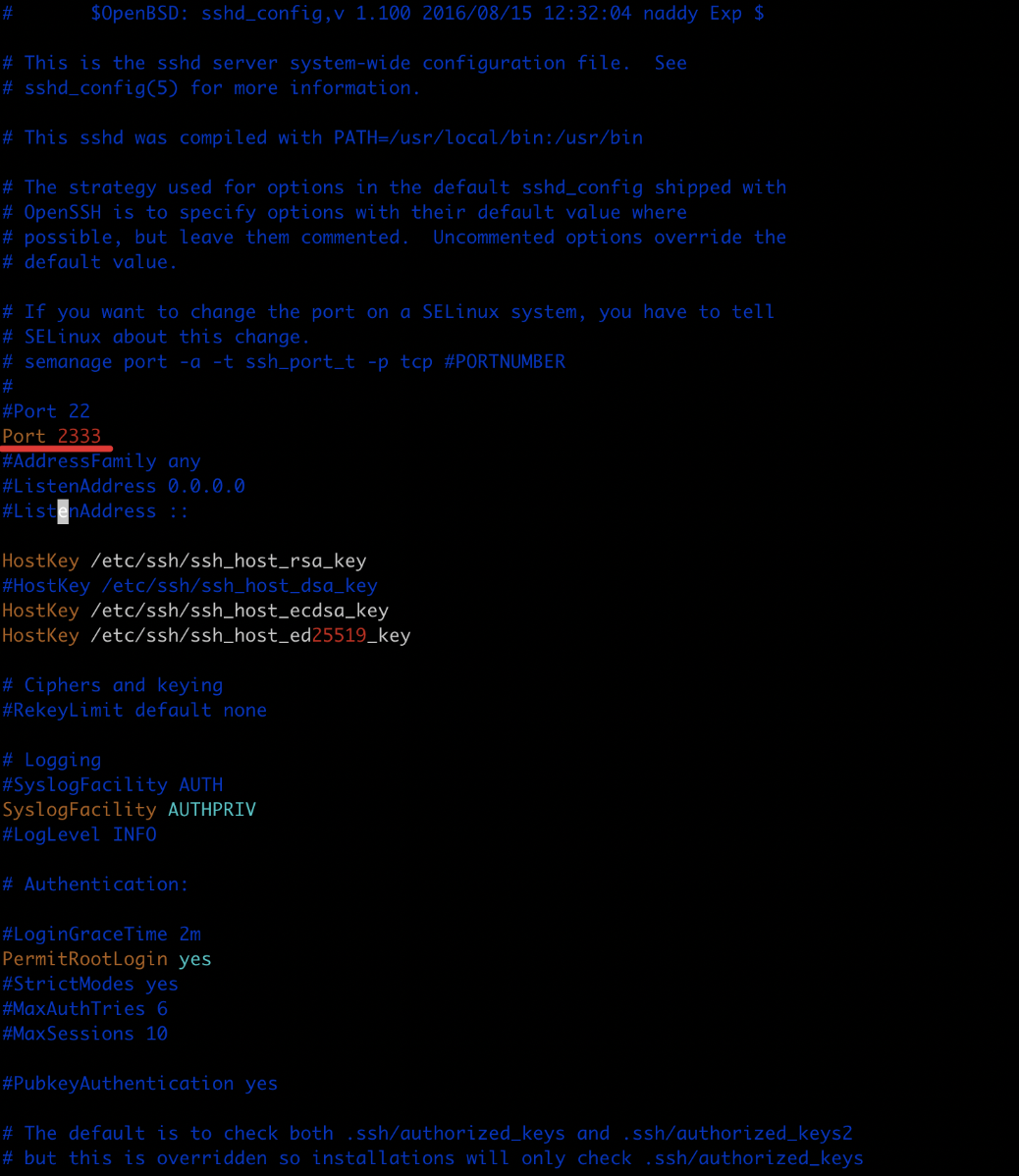
Edit the /etc/ssh/sshd_config file as root. Find the line #Port 22, and it’s recommended to add a new port below it, such as Port 2333. Save the file after making the changes.
Step IV Configure firewall rules
If the firewall is active, create new firewall rules. If it’s inactive, you can skip this step.
1#Check the firewall status. If it is running, follow the steps below for operation
2[root@insta...sq4 ~]#  systemctl status firewalld.service
3● firewalld.service - firewalld - dynamic firewall daemon
4   Loaded: loaded (/usr/lib/systemd/system/firewalld.service; disabled; vendor preset: enabled)
5 Active: active (running) since II 2019-12-24 16:48:44 CST; 17min ago
6     Docs: man:firewalld(1)
7 Main PID: 31543 (firewalld)
8   CGroup: /system.slice/firewalld.service
9           └─31543 /usr/bin/python -Es /usr/sbin/firewalld --nofork --nopid
10
11 December 24 16:48:44 instance-yg8jrsq4 systemd[1]: Starting firewalld - dynamic firewall daemon...
12 December 24 16:48:44 instance-yg8jrsq4 systemd[1]: Started firewalld - dynamic firewall daemon.
13 12月 24 16:49:16 instance-yg8jrsq4 firewalld[31543]: WARNING: ALREADY_ENABLED: 2333:tcp
14 #Add Port 2333 for firewall rules
15[root@insta...sq4 ~]# firewall-cmd --zone=public --add-port=2333/tcp --permanent
16 #Check if Port 2333 is added successfully
17[root@insta...sq4 ~]# firewall-cmd --zone=public --query-port=2333/tcp
18 #Reload firewall rules
19[root@insta...sq4 ~]# firewall-cmd --reload
20 #Check the port that has been released by the firewall
21[root@insta...sq4 ~]# firewall-cmd --zone=public --list-ports
Step V Reboot the ssh service and check the ssh service status and port occupancy
1#Restart the SSH service
2[root@insta...sq4 ~]# systemctl restart sshd
3 #Check the port occupied by ssh
4[root@insta...sq4 ~]# netstat -ntlp  | grep ssh
5tcp        0      0 0.0.0.0:2333            0.0.0.0:*               LISTEN      31881/sshd
6tcp6       0      0 :::2333                 :::*                    LISTEN      31881/sshd
Step VI Connect using a custom port
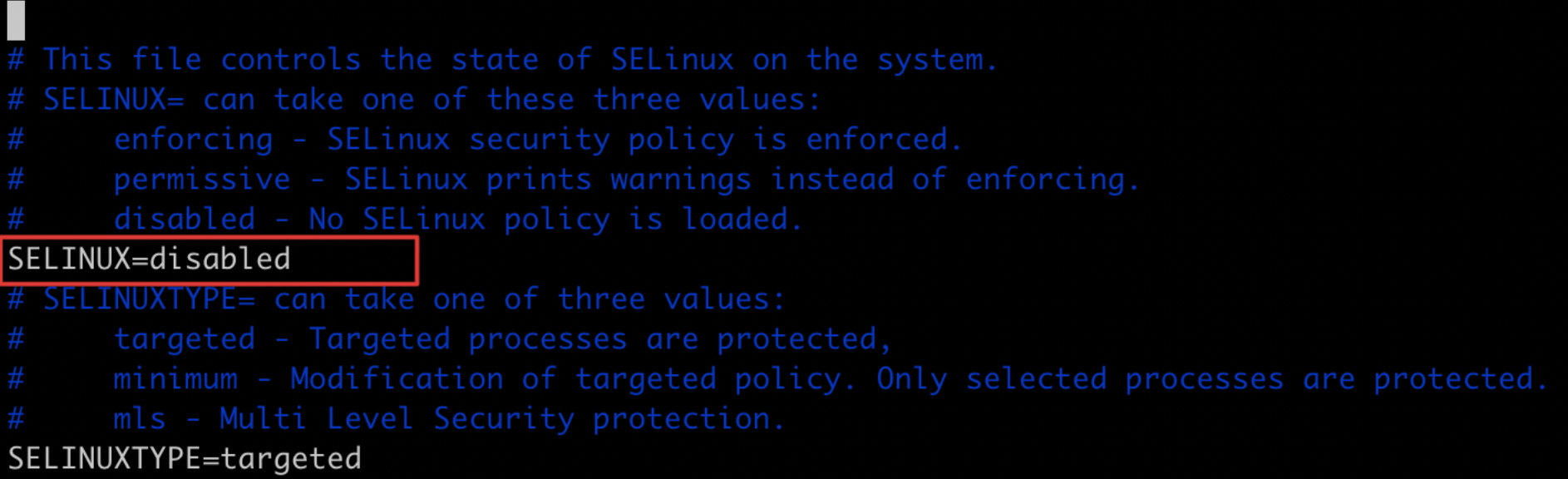
1ssh -p 2333 root@ipIf connecting to the server remotely using the new port fails, access the server via VNC, open the /etc/sysconfig/selinux configuration file, set SELINUX to disabled (SELINUX=disabled), save the file, and try again.