Sign in to Linux instances via SSH key in Xshell
This document explains the method of "Logging in to Linux Servers Using Keys" of Baidu AI Cloud (including an instructional video). You can refer to the key steps in the video to use intelligent cloud products or solve problems independently. Click here to watch the video "Logging in to Linux Server Using Keys".
Description:
If the interface elements or operation methods shown in the video guidance are updated, please rely on the AI Cloud console interface for the most accurate information. The video aims to demonstrate the functional operation process, and minor interface changes will not affect the overall functionality or presentation.
-
Launch Xshell on your local Windows system.
- On the toolbar, open Tools > New User Key Generation Wizard
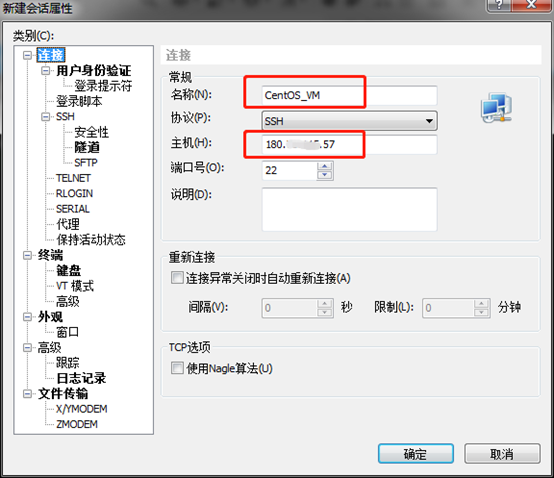
- In the Connection configuration of the new session properties, enter the session name and your Baidu Cloud Compute IP address
-
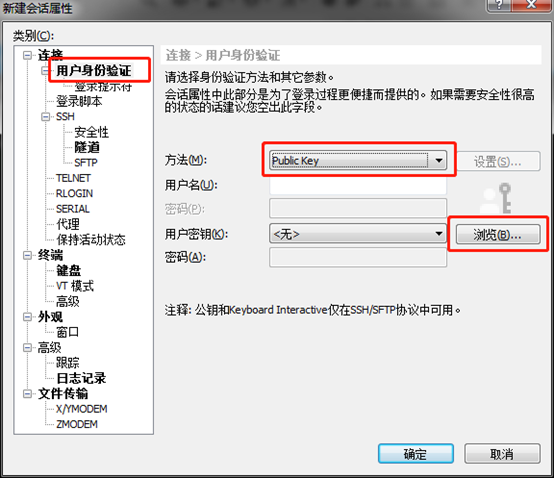
Click User Certification in Connection, select Public Key as the method, and then click Browse at the user key field.
-
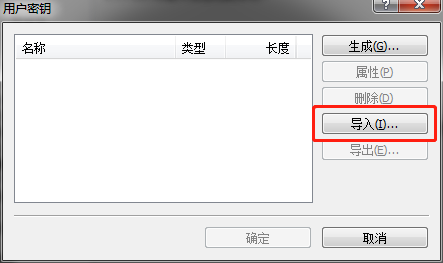
In the pop-up user key interface, click Import.
-
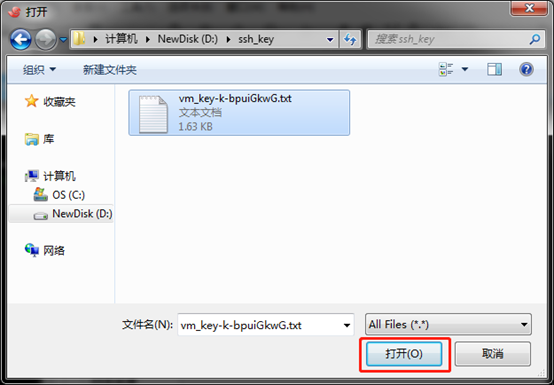
Select the key pair file saved to your local system, and then click Open.
-
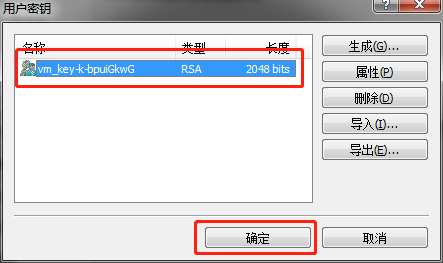
Click the generated user key, and then click OK.
-
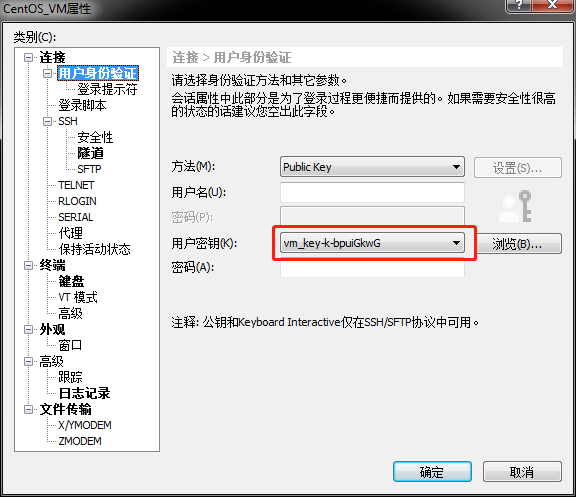
At this time, you can see the user certification interface and the newly created user key is displayed. Click OK to save the connection session.
-
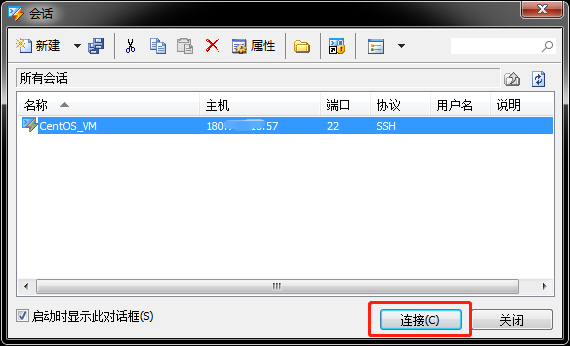
On the session interface, select the newly created session, and then click Connect.
-
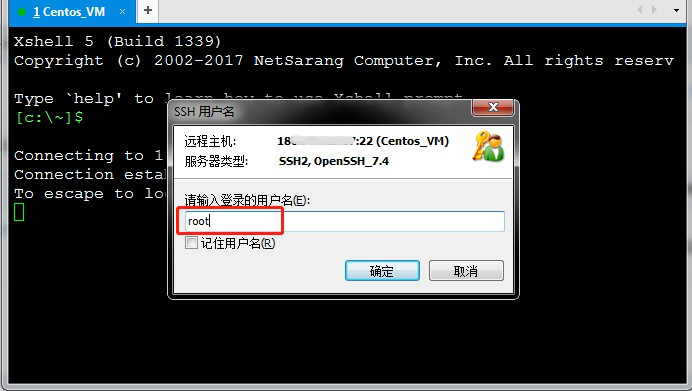
Enter the user name root to sign in to your Linux Baidu Cloud Compute via key.