

Blue Screen Crash General Handling Method
Method to proactively enter Windows safe mode
When the system is infected with a virus or there are other conditions requiring entering safe mode, users can proactively configure the system to boot into Windows safe mode. The configuration is as follows:
- Open a command line tool with administrator permissions, enter msconfig to access the System Configuration interface, and check the options shown below.
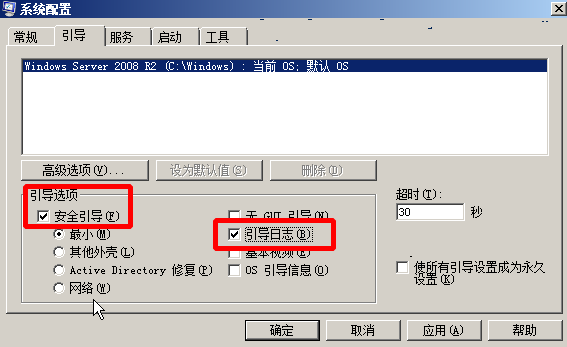
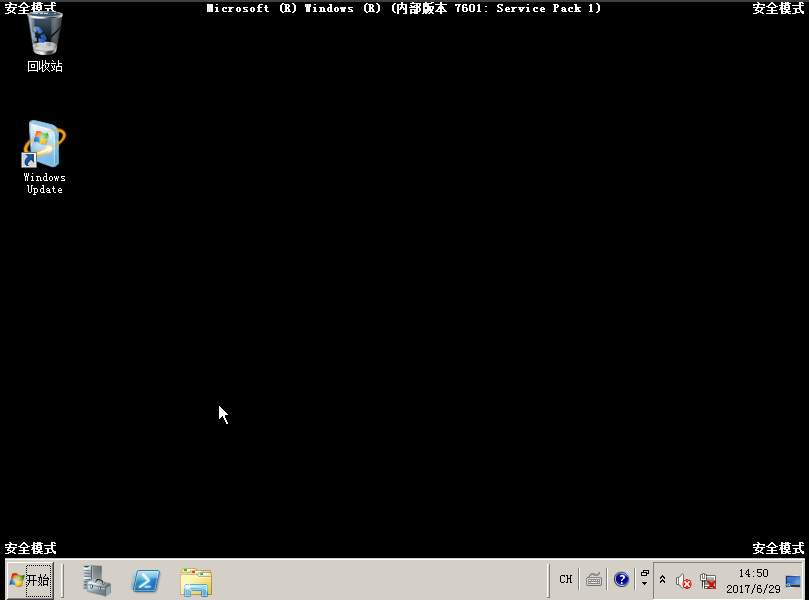
- Click Apply, then click OK to reboot the OS. The system will automatically enter safe mode. In this mode, "Safe Mode" watermarks will appear in all four corners of the desktop, as shown below.
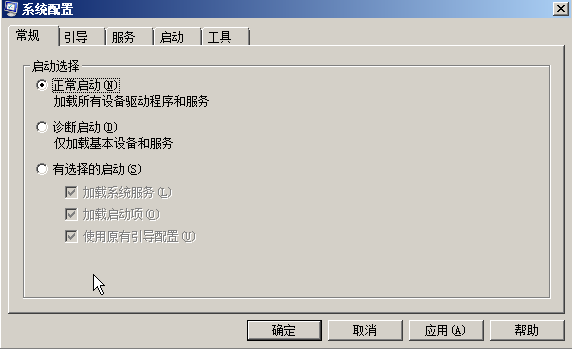
- After completing the tasks, you need to switch back to normal boot mode. Reopen the System Configuration interface and set the startup option to Normal Startup.
Windows core dump configuration
Baidu AI Cloud's Windows virtual machines enable the small memory dump (core dump) function by default. In scenarios like blue/black screens or system freezes, developers can use these dump files to quickly pinpoint and resolve problems.
Under the small memory dump configuration, dump files are saved in %SystemRoot%\Minidump (e.g., C:\Windows\Minidump). These files are named based on the date. To find the most recent dump file, look for the filename containing the current system date.
Additionally, there are several other types of memory dumps: kernel memory dump, complete memory dump, and automatic memory dump. Dump files for all these types are stored in %SystemRoot%\MEMORY.DMP (e.g., C:\Windows\MEMORY.DMP). These files automatically overwrite earlier dump files.
You can manually adjust the method for generating dump files using the following steps.
- Open Control Panel, click System, then double-click Advanced System Settings in the System page.
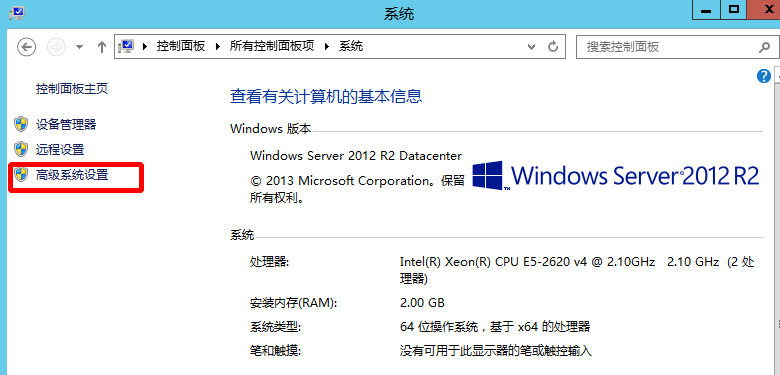
- On the Advanced System Settings page, click the Advanced page and complete configuration under Startup and Fault Recovery.

- On the Startup and Fault Recovery page, select the Write Debugging Information method.

Note:
If there is insufficient space on drive C, consider saving dump files on another disk.
Configure the paging file:
To configure the paging file, make sure you understand the operating system. In certain situations, the system may require additional virtual memory. When physical memory is insufficient, Windows can utilize a designated area on the hard drive (as a paging file) to act as RAM.
The configuration method is as follows:
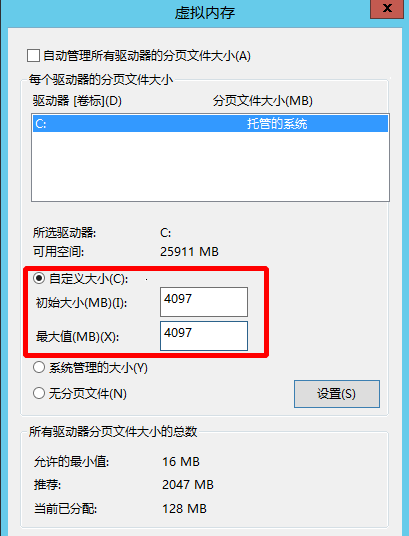
- In the Advanced System Settings window, navigate to the Advanced page, click Performance settings to enter the Advanced page, and then double-click Change to modify virtual memory.

- Set the paging file size to be slightly larger than the memory currently in use.
Microsoft's Official Reference Documentation
- [How to generate core or complete memory dump files in Windows Server 2008 and Windows Server 2008 R2]https://support.microsoft.com/zh-cn/kb/969028.
- [Microsoft "Blue Screen" or Stop Error Troubleshooting] https://support.microsoft.com/kb/3106831
Windows system displays system recovery options after a reboot
Sometimes, after rebooting, the Windows system might fail to start normally. In such cases, the System Recovery interface will appear.
If the System Recovery interface appears, it means the system can no longer function properly. This could be due to various reasons, including registry corruption, system file damage, BCD issues, and more. These problems are often triggered by third-party antivirus software, misoperations, abnormal reboots, or third-party applications.
The System Recovery interface will guide the user into Windows recovery environment. For recovery mode, refer to Understanding Windows Recovery

Handling method
Baidu AI Cloud utilizes Microsoft's official system recovery solution.
How Windows RE Works
Additionally, Baidu AI Cloud may attempt to repair the system using Windows commands such as the sfc tool. However, severe corruption could result in recovery failure.
Recommendations
To better use the OS, avoid system crash and improve the possibility of recovery from system crash, Baidu AI Cloud recommends:
- Create system disk and data disk snapshots regularly
- Run system updates regularly to ensure the latest update packages are installed
- Use and update commercial antivirus software regularly
- Try to use data disks to protect data systems, and perform regular backups
- Don't modify system files or registries you are unfamiliar with. If modifications are absolutely necessary, create backups first
General troubleshooting for Windows blue screen
Blue screen error, also known as Blue Screen of Death (BSoD), corresponds to the stop error mentioned in English documentation. It refers to a computer screen of Microsoft's Windows OS displayed forcedly when the system fails to recover from an error or has reached an unsafe operation status in order to protect data from corruption. Baidu AI Cloud employs the small memory dump method. When a blue screen occurs, the collected information will be stored in %SystemRoot%\Minidump (e.g. C:\Windows\Minidump). For specific details, please refer to [Windows Core Dump Settings] (#Windows Core Dump Settings)
Causes of blue screen
- Windows kernel-mode program error
- Corruption of OS files or registry
- Antivirus software-induced anomalies
- Virus infection
- Incompatibility with the third-party software
- Hardware damage
- Insufficient resources
Blue screen information
An error code is usually displayed on a blue screen interface, as shown below. Win32k.sys indicates the program where an memory error occurred; 0x00000050 represents a PAGE_FAULT_IN_NONPAGED_AREA error and relevant parameters. The specific meanings of error codes are explained in Bug Code Reference on Microsoft's official website
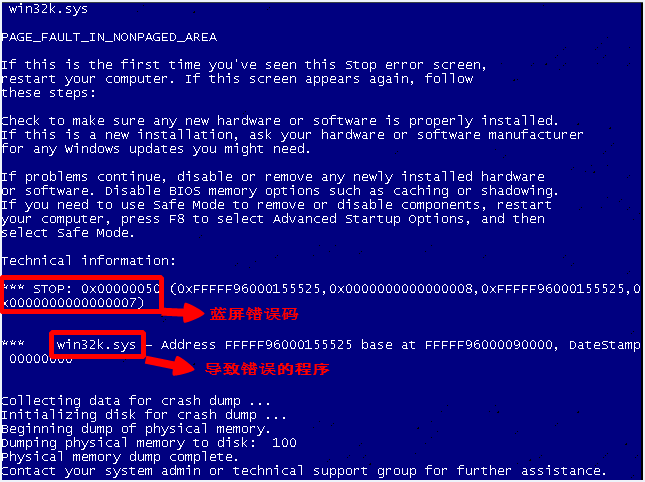
After collecting the crash dump, the computer can be restarted. Details about the blue screen can be accessed in the system event log once the computer is rebooted. If the reboot fails, try restoring the system from a snapshot or backup (note that partial data loss may occur). For other issues, contact Baidu AI Cloud's official support center.
Blue screen details can be found in a BugCheck event (ID 1001). Additionally, a prior system reboot is indicated by a power event (ID 41) from the source kernel-power. If the customer has disabled the core dump generation by modifying related settings, a core dump failure event (ID 46) from the source volmgr will be recorded.
Handling method
Blue screen analysis can be time-consuming. In the event of a blue screen, we suggest rebooting the computer to restore services swiftly. Baidu AI Cloud recommends the following to users:
- Create system disk and data disk snapshots regularly
- Run system updates regularly to ensure the latest update packages are installed
- Use and update commercial antivirus software regularly
- Try to use data disks to protect data systems, and perform regular backups
- Avoid modifying system files or registries unless you are fully confident. If changes are absolutely necessary, ensure backups are created beforehand.
Based on Baidu AI Cloud's experience in handling blue screen errors, common causes of blue screen include:
- Windows kernel-mode program error (e.g., system driver error)
- Virus infection
- OS file corruption
To solve virus infection problem, we recommend that you:
- Install the latest Windows system updates and patches
- In safe mode, run antivirus software to perform virus scanning [Method to Proactively Enter Windows Safe Mode](#Method to Proactively Enter Windows Safe Mode)
To solve the file system corruption problem, we recommend that you:
- If the system reboots successfully, enter the system and open a CMD with administrator permissions, and enter sfc /scannow to finish system integrity check and repair.
- If the system start fails, the System Recovery Options interface will usually appear. For details, please refer to [Windows system displays system recovery options after a reboot](#Windows system displays system recovery options after a reboot)
For Windows system driver errors, restarting the computer often resolves the issue. Users can also provide relevant dump files to Baidu AI Cloud's customer service for analysis by R&D teams.