

Identity and access management
Introduction
Identity and Access Management helps users manage resource access permissions within cloud accounts. It caters to various enterprise roles by granting different staff levels access to specific product permissions. For enterprises requiring multi-user collaboration for resource operations, using Identity and Access Management is recommended.
It is applicable to the following usage scenarios:
- Medium and large enterprise customers: Authorization management for multiple employees in the enterprise;
- Technology-oriented vendor or SAAS platform provider: Resource and permission management for proxy clients;
- Small and medium-sized developers or small enterprises: Add project members or collaborators for resource management.
Create User
-
After logging into the root account, select Identity and Access Management from the console to access the user management page.
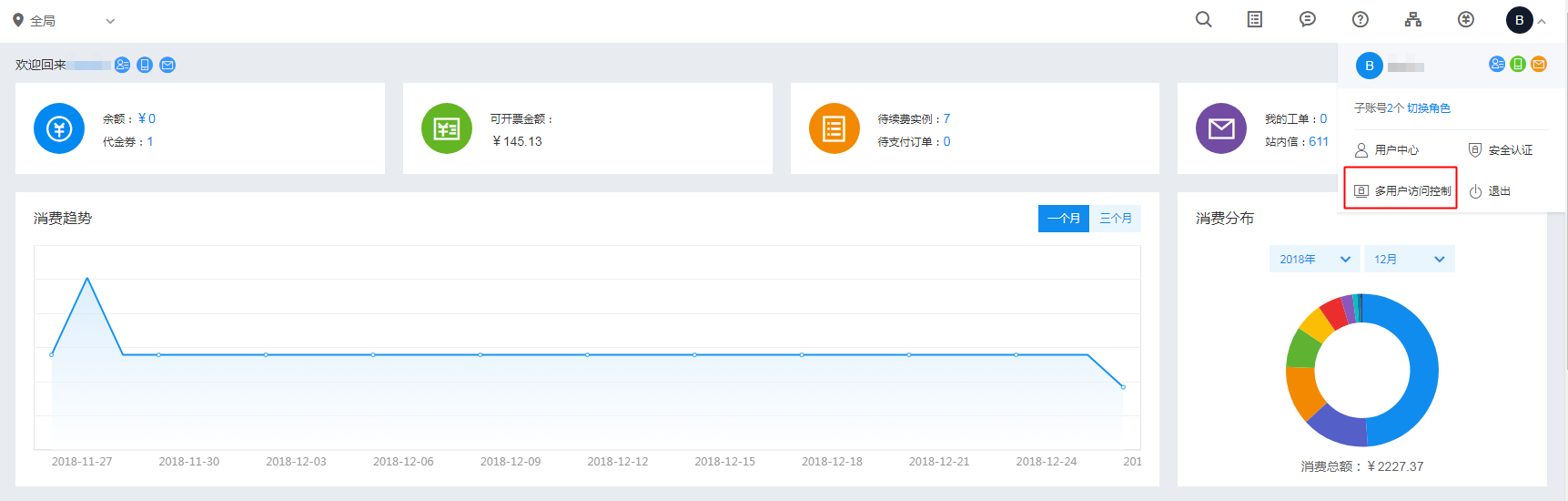
- Click on User Management in the left navigation bar, then click New User on the IAM User Management List page.
- In the New User dialog box that appears, enter the username, confirm the details, and return to the IAM User Management List to view the newly created IAM user.
Configuration Policy
Cloud Assistant supports system policies for product-level permission control of its features.
- System policy: A pre-defined set of permissions provided by the Baidu AI Cloud system for resource management. These can be directly assigned to IAM users, but users cannot modify them.
System Policy
The system policy includes 2 types of policies: management permission, and read-only permission. The scope of permission is as follows:
| Policy name | Permission | Permission scope |
|---|---|---|
| CAFullControlAccessPolicy | Full control permission for cloud assistant management | Create execution commands, upload files, view command lists, view command details, modify commands, delete commands, view historical records lists, view historical records details |
| CAReadAccessPolicy | Read-only permission for cloud assistant access | View command list, view command details, view historical records list, view historical records details |
User Authorization
In User Management > IAM User List, use the Add Permission option in the Operations column for the relevant IAM user and authorize them with a System Policy.
Note: To change an IAM user's permissions without modifying existing policy rules, you must delete the current policy and assign a new one since existing policy permissions cannot be unchecked or edited directly.
Users must have both cloud assistant management permissions and Baidu Cloud Compute resource viewing permissions to run commands and upload files to servers.
Sign in as IAM User
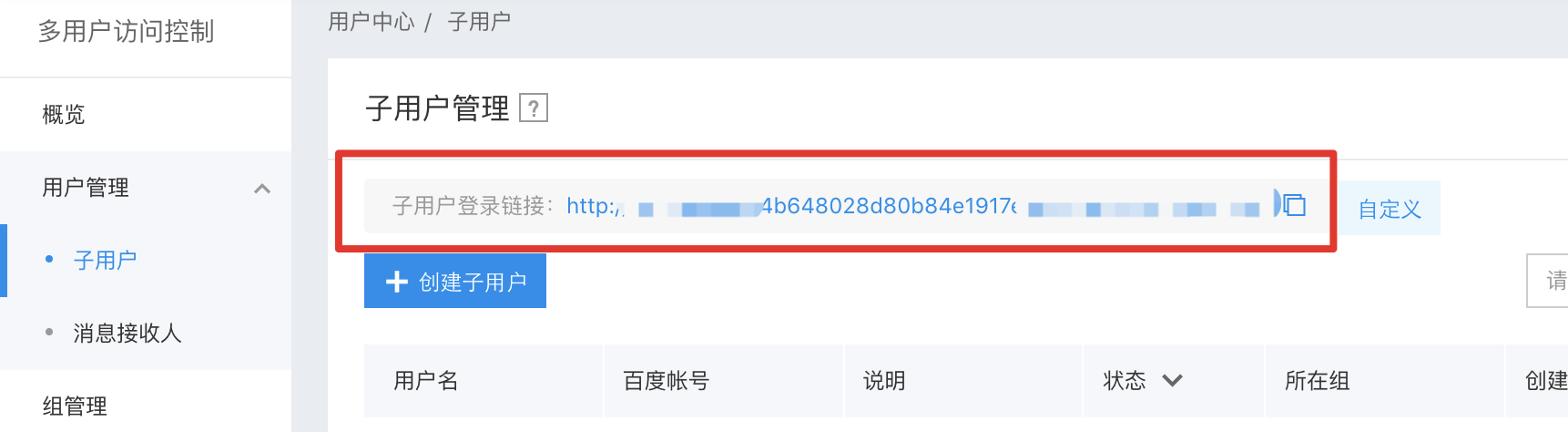
After the root account authorizes the IAM user, it can send the link to the IAM user, who can then sign in to the root account's management console via the IAM user login link and operate or view the root account's resources based on the authorized policies.
For other detailed operations, refer to: Multi-User Access Control.