

Change Instance Configuration
You can adjust the configuration of BCC instances flexibly as required, including CPU, memory, system disk, elastic bandwidth, and more.
Instance specifications to support resizing
Note: Only general-purpose g4, compute-optimized c4, intensive compute ic4, and memory-optimized m4 support online configuration changes (hot upgrades). For limitations on other online configuration changes, please refer to [Limitations on Online Resizing (Hot Upgrades)](BCC/FAQs/Instances.md#What are the limitations of online resizing (hot upgrades)?).
For certain instance families, a restart is necessary for resizing changes to take effect.
| Source instance family | Resizable target instance families |
|---|---|
| General-purpose g7, compute-optimized c7 and memory-optimized m7 |
|
| General-purpose g6, compute-optimized c6 and memory-optimized m6 |
|
| Economy e1 | |
| General-purpose g5, compute-optimized c5, intensive compute ic5 and memory-optimized m5 |
|
| General-purpose g4, compute-optimized c4, intensive compute ic4 and memory-optimized m4 |
|
| General-purpose ga3, compute-optimized ca3 and memory-optimized ma3 |
|
| General-purpose ga2, compute-optimized ca2 and memory-optimized ma2 |
|
| General-purpose ga1, compute-optimized ca1 and memory-optimized ma1 |
|
| General-purpose g3, compute-optimized c3, intensive compute ic3 and memory-optimized m3 |
Single instance CPU and memory modification
Background information
- For subscribed BCC instances, upgrading resources like CPU, memory, and network bandwidth from lower to higher specifications is supported.
- For postpaid BCC instances with public IPs, you can dynamically adjust CPU, memory, network bandwidth, and other parameters to increase or decrease as needed.
- After changing CPU and memory configurations, the system will automatically restart by default after payment confirmation to apply the new settings. However, changes to the bandwidth configuration alone will not trigger a restart.
- If online resizing is selected, the configuration changes can be applied without restarting.
Operation step
- Sign in to BCC Console and enter the Instance List page.
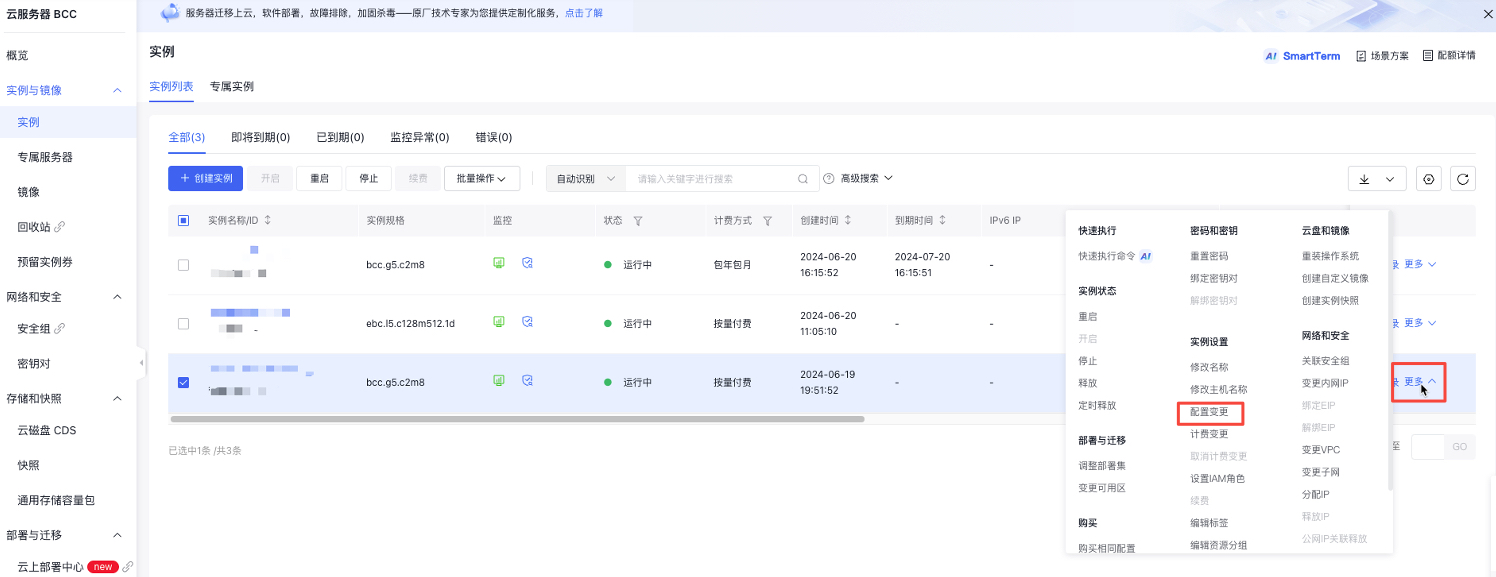
- Select the instance needing configuration changes and click on More - Instance Settings - Configuration Change in the right-hand operation bar, as shown in the following image.
- On the Configuration Change page, select the desired configuration. If the selected configuration does not support online resizing, you will need to check the Automatically Restart Server option.
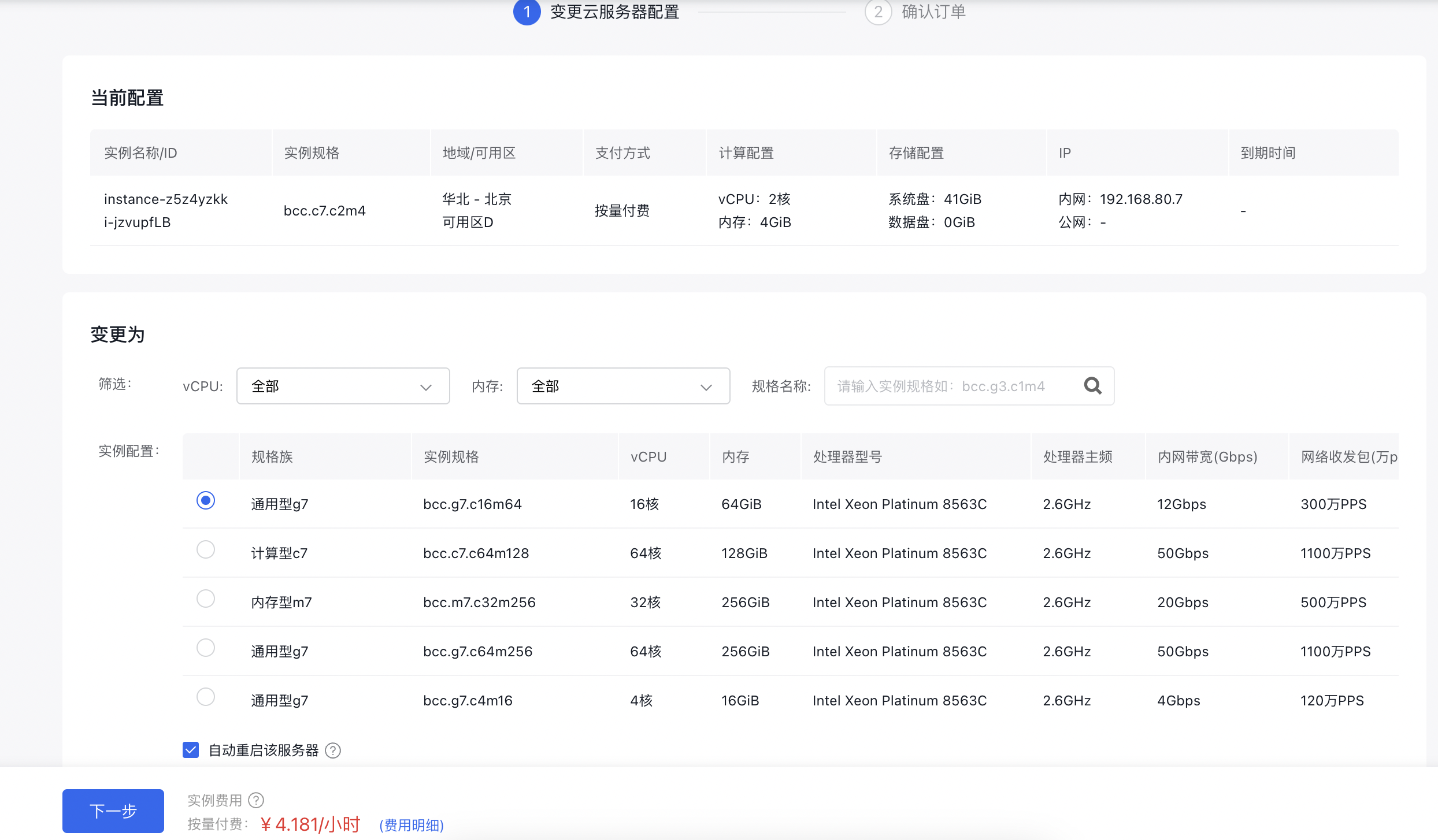
Note: Not all configurations support online resizing. For specific support details, please refer to [Limitations on Online Resizing (Hot Upgrades)](BCC/FAQs/Instances.md#What are the limitations of online resizing (hot upgrades)?).
- Click Next and proceed to complete the payment process.
Note: For subscribed BCC instances, only upgrades to memory and CPU with a one-time fee deduction are allowed during the usage period. Downgrading CPU or memory is not supported. Make configuration adjustments carefully as needed.
- After configuration change is successful, the instance status will be changed to Resource Expansion in Progress.
Batch CPU and memory modification
Operation step
- Sign in to BCC Console and enter the Instance List page.
- Select the instance requiring configuration changes and click Batch Operation - Configuration Change in the top operation bar, as shown in the following image.
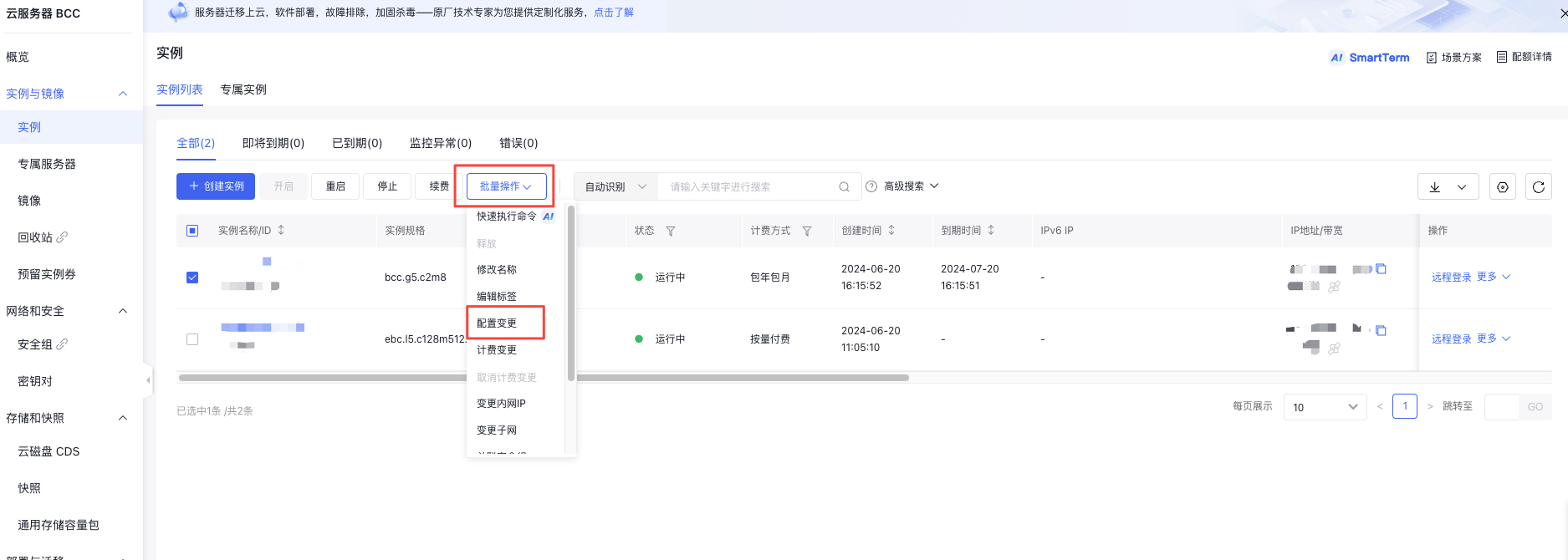
Note: You can perform batch configuration changes for up to 50 instances at a time.
- On the Configuration Change page, select the desired configuration. If the selected configuration does not support online resizing, you will need to check the Automatically Restart Server option.
Note: Not all configurations support online resizing. For specific support details, please refer to [Limitations on Online Resizing (Hot Upgrades)](BCC/FAQs/Instances.md#What are the limitations of online resizing (hot upgrades)?).
- Click Next and proceed to complete the payment process.
Note: For subscribed BCC instances, only upgrades to memory and CPU with a one-time fee deduction are allowed during the usage period. Downgrading CPU or memory is not supported. Make configuration adjustments carefully as needed.
- After configuration change is successful, the instance status will be changed to Resource Expansion in Progress.
System disk expansion
For details, refer to [System Disk Expansion](BCC/Operation guide/Storage/System disk expansion.md) under the storage document.
Elastic bandwidth adjustment
Prerequisites
If Baidu Cloud Compute (BCC) requires public network functionality, instances with adjusted bandwidth must be linked to EIPs.
Background information
- For subscribed EIPs, only bandwidth upgrades are supported.
- For postpaid EIPs, bandwidth can be adjusted dynamically (both increased and decreased) at any time.
Operation step
- Sign in to EIP Console and enter the EIP Instance List page.
- Choose the EIP instance where bandwidth needs adjustment and click Adjust Bandwidth in the operations toolbar.
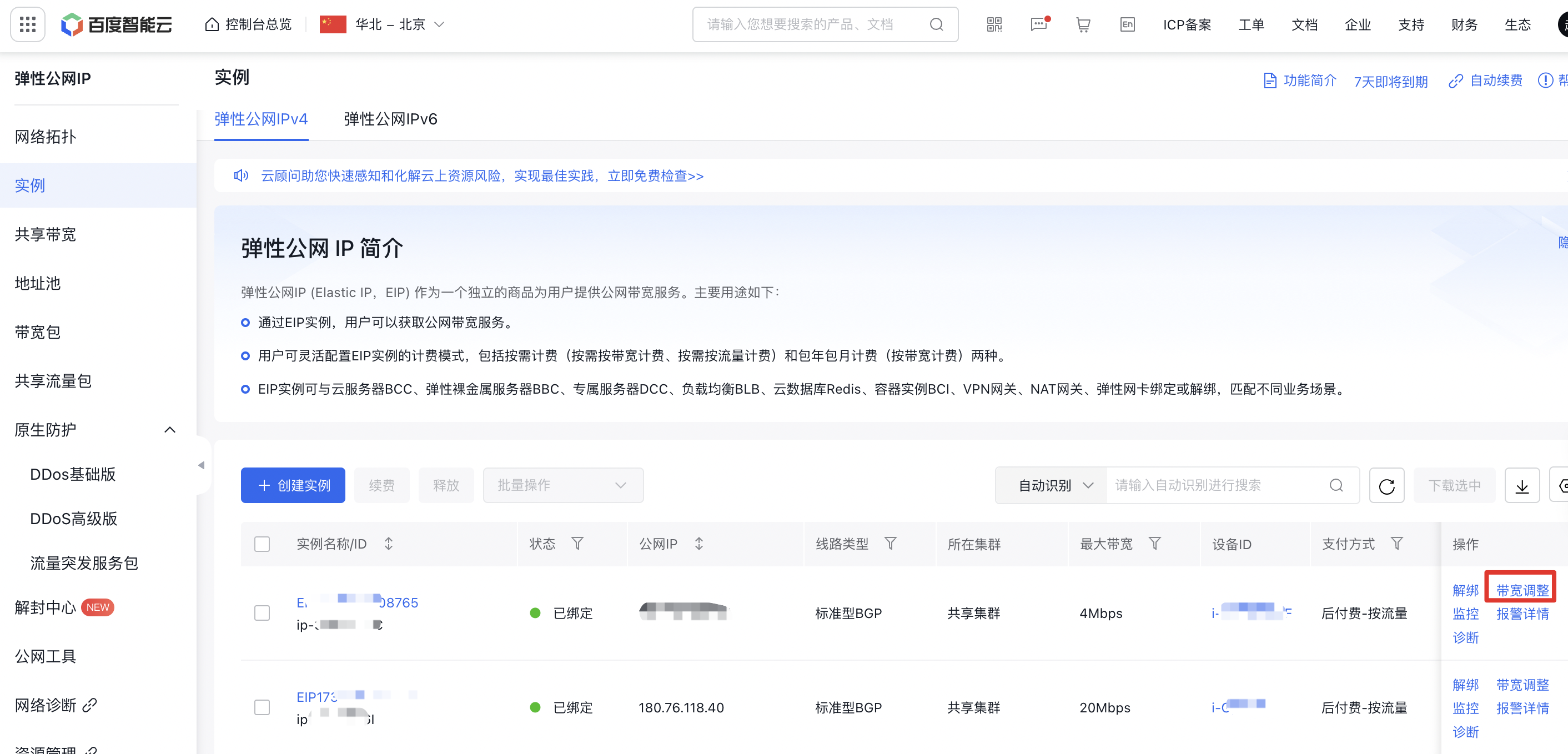
- After setting the desired bandwidth, click Confirm Order, proceed to the Confirm Order page, and finalize the changes.
Note: For subscribed BCC instances, bandwidth upgrades during the usage period require a one-time fee deduction. Please make selections based on your actual needs.