Windows Modify Default Remote Connection Port
This document explains how to "Modify the Default Remote Port on Windows Servers" of Baidu AI Cloud (including an operation guidance video). You can refer to the key steps in the video to use AI cloud products or solve problems independently. Click here to watch the video "Modify the Default Remote Port on Windows Servers".
Description:
If the interface elements or operation methods shown in the video guidance are updated, please rely on the AI Cloud console interface for the most accurate information. The video aims to demonstrate the functional operation process, and minor interface changes will not affect the overall functionality or presentation.
This document uses the Baidu AI Cloud Public Image Windows Server 2012 as an example to show how to modify the server's default remote port. This method is also applicable to other versions.
Step 1: Sign in to the server
Log in to the server using the built-in remote connection tool on Windows. If remote connection fails, try logging in using VNC.
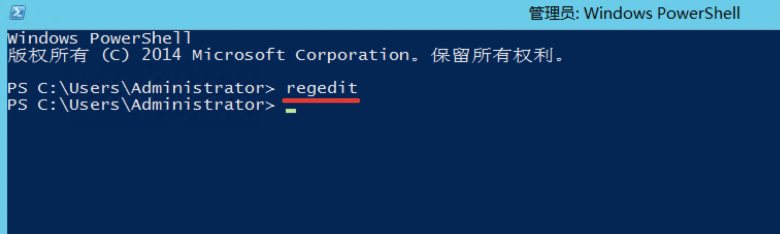
Step 2: Open powershell and enter regedit
Step 3: Modify registry information
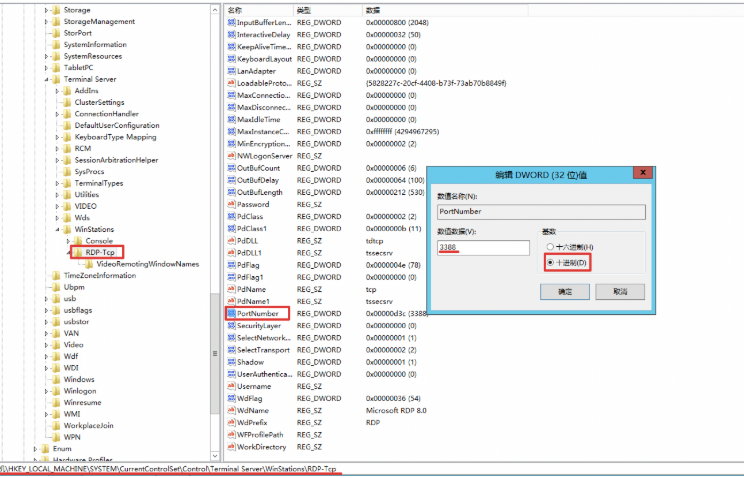
Locate "PortNumber" under HKEY_LOCAL_MACHINE\System\CurrentControlSet\Control\Terminal Server\WinStations\RDP-Tcp, and view it in decimal format (default: 3389). Change it to a desired port (e.g., 3388) as long as that port is not being used by other services.
Step 4: Configure firewall
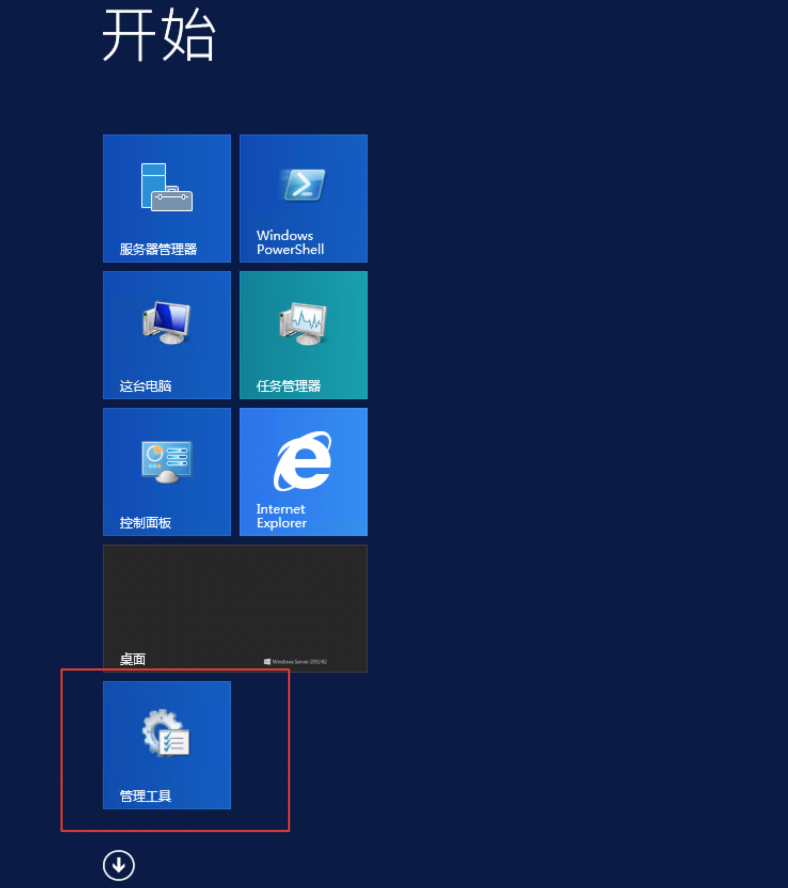
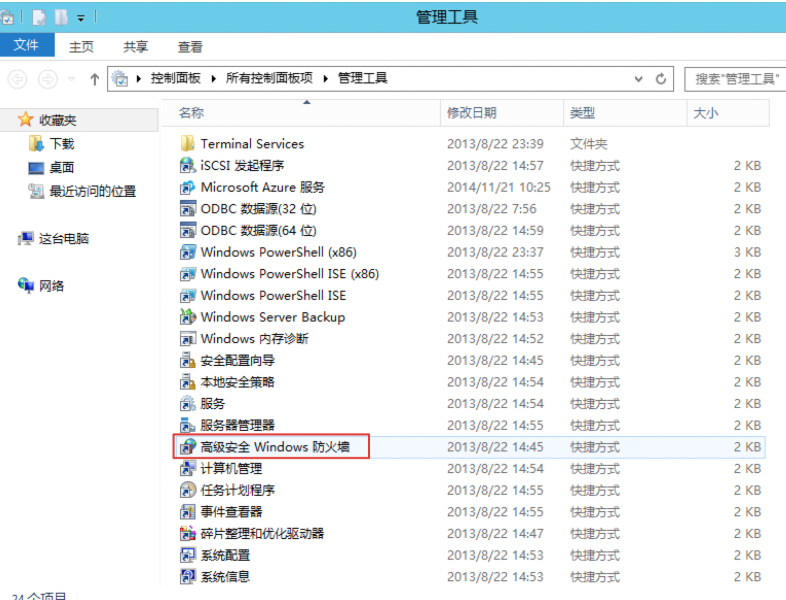
- Open the Management Tool, then double-click to access the Advanced Security Windows Firewall.
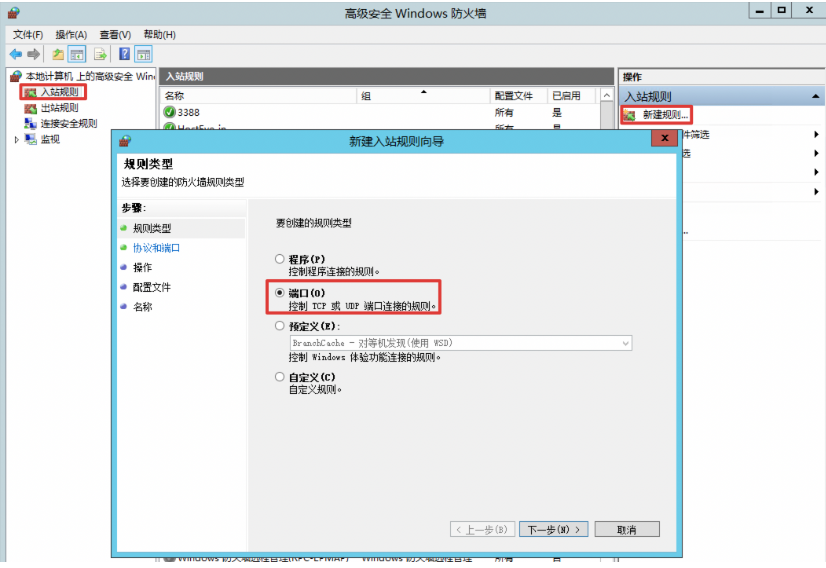
- Go to Ingress Rule, click New Rule, set up the new ingress rule, and open custom ports.
Step 5: Restart the server
After changing the port, restart the server either internally or directly through the console.
Step 6: Verify connection
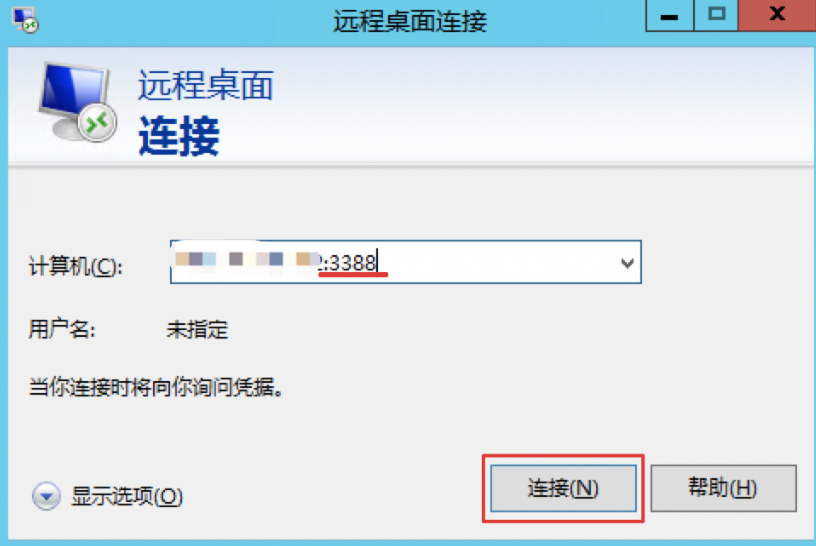
Connect using the IP address and port (ip:port).