

Configure elastic network interface
Depending on the image used by your instance, some images may require configuration with an elastic network interface if necessary.
Prerequisites
You have successfully bound the elastic network interface to the BCC instance.
Preparation
Configuration tool for elastic network interface
-
After binding the elastic network interface to a BCC/EBC instance and ensuring the interface is recognized within the instance, execute the following scripts to configure the IP address and route table based on the image version. For CentOS/CentOS Stream/RockyLinux/BaiduLinux/AlmaLinux, use the CentOS version scripts.
CentOS:bcc_elastic_net_centos_20241121.sh
- Windows systems need to be configured manually.
The configuration tool will set up a static route. After restarting the network or the instance, no additional route settings are required.
Run configuration tool
- Log into the created BCC server and grant executable permissions to the configuration tool.
- After completing Mount Elastic Network Interface operation, execute the configuration tool.
- Run the configuration tool to modify an IP address or to unbind/rebind a network interface card.
As shown below:
1----------------------------------
2  Disable NetworkManager.
3  Begin to config network...
4    create/recreate network config file [OK]
5  Begin to create route table...
6    add 192.168.32.212 to route table: rt_ens3 [OK]
7    add 192.168.32.228 to route table: rt_ens3 [OK]
8    add 192.168.32.209 to route table: rt_ens6 [OK]
9    add 192.168.32.210 to route table: rt_ens6 [OK]
10    add 192.168.32.211 to route table: rt_ens6 [OK]
11    add 192.168.32.226 to route table: rt_ens7 [OK]
12    add 192.168.32.227 to route table: rt_ens7 [OK]
13    add 192.168.32.229 to route table: rt_ens7 [OK]
14  Restart network...  [OK]
15----------------------------------
After configuration, check if the IP address is enabled via the ip addr command (taking Centos for example)
1[root@instance-h1q92lvr ~]# ip addr
21: lo: <LOOPBACK,UP,LOWER_UP> mtu 65536 qdisc noqueue state UNKNOWN
3    link/loopback 00:00:00:00:00:00 brd 00:00:00:00:00:00
4    inet 127.0.0.1/8 scope host lo
5    inet6 ::1/128 scope host
6       valid_lft forever preferred_lft forever
72: eth0: <BROADCAST,MULTICAST,UP,LOWER_UP> mtu 1400 qdisc pfifo_fast state UP qlen 1000
8    link/ether fa:16:3e:7d:2d:ad brd ff:ff:ff:ff:ff:ff
9    inet 192.168.32.212/20 brd 192.168.47.255 scope global eth0
10    inet 192.168.32.228/20 brd 192.168.47.255 scope global secondary eth0:1
11    inet6 fe80::f816:3eff:fe7d:2dad/64 scope link
12       valid_lft forever preferred_lft forever
133: eth1: <BROADCAST,MULTICAST,UP,LOWER_UP> mtu 1400 qdisc pfifo_fast state UP qlen 1000
14    link/ether fa:16:3e:a6:69:8f brd ff:ff:ff:ff:ff:ff
15    inet 192.168.32.209/20 brd 192.168.47.255 scope global eth1
16    inet 192.168.32.210/20 brd 192.168.47.255 scope global secondary eth1:1
17    inet 192.168.32.211/20 brd 192.168.47.255 scope global secondary eth1:2
18    inet6 fe80::f816:3eff:fea6:698f/64 scope link
19       valid_lft forever preferred_lft forever
204: eth2: <BROADCAST,MULTICAST,UP,LOWER_UP> mtu 1400 qdisc pfifo_fast state UP qlen 1000
21    link/ether fa:16:3e:93:e5:44 brd ff:ff:ff:ff:ff:ff
22    inet 192.168.32.226/20 brd 192.168.47.255 scope global eth2
23    inet 192.168.32.227/20 brd 192.168.47.255 scope global secondary eth2:1
24    inet 192.168.32.229/20 brd 192.168.47.255 scope global secondary eth2:2
25    inet6 fe80::f816:3eff:fe93:e544/64 scope link
26       valid_lft forever preferred_lft forever
Configure elastic network interface
Based on the OS of the BCC instance, choose the method to configure the elastic network interface:
- [Configuration of elastic network interface by Windows system](#Configuration of elastic network interface by Windows system)
- [Configuration of elastic network interface by CentOS system](#Configuration of elastic network interface by CentOS system)
- [Configuration of elastic network interface by Ubuntu/Debian system](#Ubuntu/Debian System Configuration for Elastic Network Interface)
Configuration of elastic network interface by Windows system
Preparation
Before setting up an elastic network interface for your Windows instances, first bind the elastic network interface to the instance. You can assign one or more secondary private IP addresses to the elastic network interface as needed. Using multiple private IP addresses enhances the utilization of Windows instances and allows traffic failover in case of a load failure.
Configuration method
The following example demonstrates how to configure a secondary IP address on a Windows system running Windows Server 2012R2.
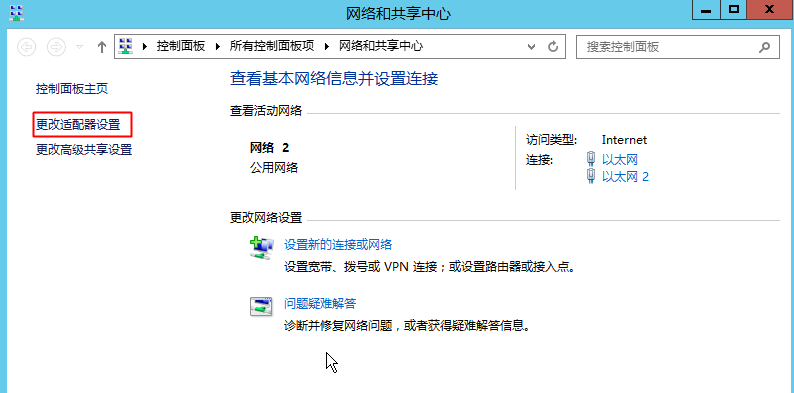
- Open the Network and Sharing Center, and select Change Adapter Settings.
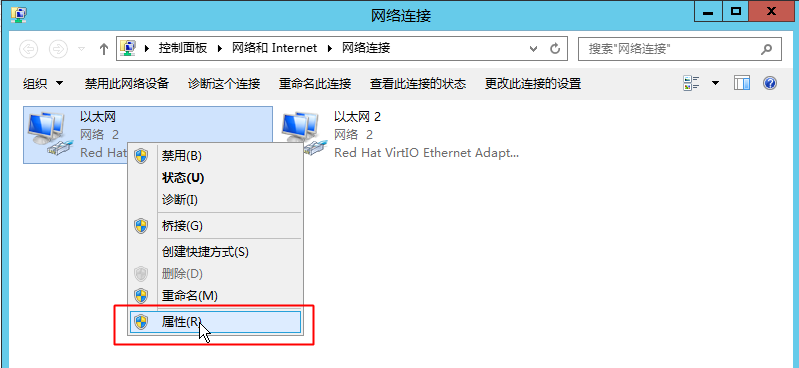
- In the window that appears, select a network interface card, right-click, and choose Properties.
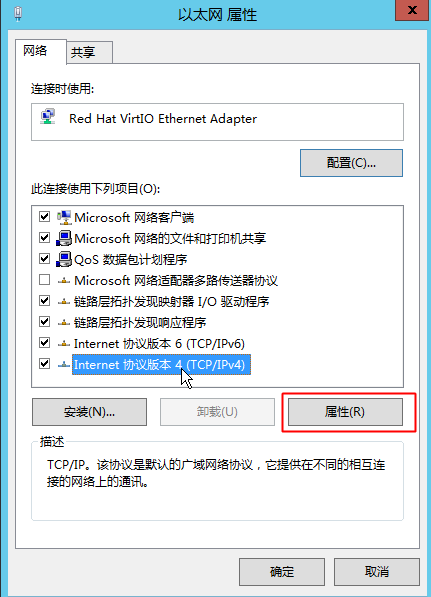
- Select Internet Protocol Version 4 (TCP/IPv4) and click Properties.
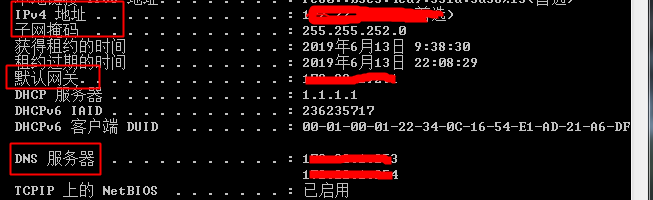
- In the dialog box that appears, select Use the Following IP Address and input the IP address, subnet mask, DNS server, etc. This information can be retrieved by running the ipconfig /all command in the command line. Once executed, a list of details will appear. Take note of the IPv4 address, subnet mask, default gateway, and DNS server information.
- Return to the properties dialog box to configure a static IP address. Enter the noted IP address, subnet mask, default gateway, DNS server address, etc., as demonstrated in the example. Click OK. Note: A brief network interruption lasting a few seconds during this process is normal.
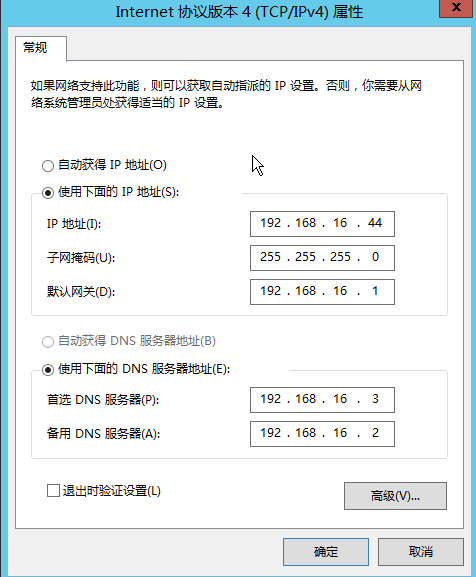
- After setting up the static IP address, proceed to add a secondary IP address if it has already been added in the console.
- In the Internet Protocol Version 4 (TCP/IPv4) Properties window, click Advanced. In the pop-up dialog, click Add to add IP addresses. Input the secondary IP addresses added in the console one by one to complete the configuration.
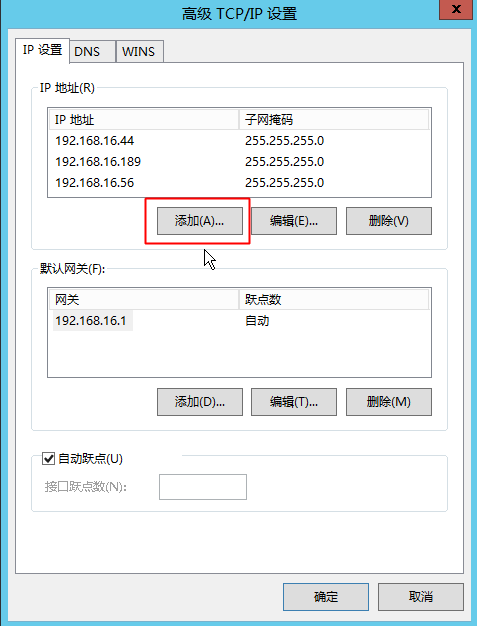
- To confirm that the secondary IP address has been successfully added to the OS, run the ipconfig /all command in the command line and check if the newly added IP address is listed.
Configuration of elastic network interface by CentOS system
Preparation
-
To stop cloud-init from overwriting your custom network setup, disable its network configuration feature by editing /etc/cloud/cloud.cfg and adding the following content.
network: {config: disabled}
- The NetworkManager installed on BCC instances might alter the routing configuration, so it should be disabled.
-
How to disable NetworkManager on CentOS 7
Plain Text1 systemctl stop NetworkManager 2 systemctl disable NetworkManager -
How to disable NetworkManager on CentOS 6
Plain Text1 service NetworkManager stop 2 chkconfig NetworkManager off
Configure network interface card
- Obtain the name of network interface (name of network interface card)
-
Once you add an elastic network interface to a BCC instance, use the following command to retrieve its name.
Plain Text1 ls /sys/class/net -
Output result (example)
Plain Text1 eth0 eth1 eth2 lo - The primary network interface card on BCC instances is typically named eth0 or ens3 (ens3 in some cases). In the results above, the names for the added elastic network interfaces are eth1 and eth2.
-
Create a configuration file for the elastic network interface. For instance, take eth1 as an example:
Plain Text1vim /etc/sysconfig/network-scripts/ifcfg-eth1
Add the following contents:
1    DEVICE=eth1
2    BOOTPROTO=dhcp
3    ONBOOT=yes
4    TYPE=Ethernet
5    USERCTL=no
6    PEERDNS=no
7    IPV6INIT=no
8    PERSISTENT_DHCLIENT=yes
9    HWADDR=fa:16:3e:6a:14:b5
10    DEFROUTE=no
Note:
- Enter the MAC address of elastic network interface in the configuration file. (You can view the MAC address of elastic network interface via cat /sys/class/net/[name of network interface card ]/address).
- To avoid changes to default routes, include the DEFROUTE=no option in the elastic network interface's configuration file.
If the network interface card has multiple IP addresses, include the secondary IP in the configuration file.
1    DEVICE=eth1
2    BOOTPROTO=dhcp
3    ONBOOT=yes
4    TYPE=Ethernet
5    USERCTL=no
6    PEERDNS=no
7    IPV6INIT=no
8    PERSISTENT_DHCLIENT=yes
9    HWADDR=fa:16:3e:6a:14:b5
10    DEFROUTE=no
11    IPADDR1=192.168.32.210
12    PREFIX1=24
13    IPADDR2=192.168.32.211
14 PREFIX2=24-
Restart network
Plain Text1systemctl restart network / service network restart
Configure routes
To ensure data transmits through the appropriate network interface, create a new route table and corresponding rules for the elastic network interface.
- Create route table
Modify /etc/iproute2/rt_tables to establish a dedicated route table for each elastic network interface.
1    10 rt_eth1
2 20 rt_eth2- Set routing rules (taking eth1 as an example)
Run the following command in the terminal:
1    ip route add default via 192.168.32.1 dev eth1 table rt_eth1
2
3    ip route add 192.168.32.209 dev eth1 table rt_eth1
4    ip route add 192.168.32.210 dev eth1 table rt_eth1
5    ip route add 192.168.32.211 dev eth1 table rt_eth1
6
7    ip rule add from 192.168.32.209 lookup rt_eth1
8    ip rule add from 192.168.32.210 lookup rt_eth1
9    ip rule add from 192.168.32.211 lookup rt_eth1
Notes:
- The IP addresses 192.168.32.209 / 210 / 211 belong to the elastic network interface.
- The default gateway for the elastic network interface is 192.168.32.1.
After configuration, you can check the routing details of each IP on the elastic network interface using ip route show table rt_eth1.
- Create a static route file for the elastic network interface (taking eth1 as an example)
Set up static route and rule files for elastic network interfaces to ensure they persist after restarting the BCC instance or network, removing the need for manual reconfiguration.
Create the static route file for route-eth1 via vim /etc/sysconfig/network-scripts/route-eth1, and add the following contents:
1    default via 192.168.32.1 dev eth1 table rt_eth1
2
3    192.168.32.209 dev eth1 table rt_eth1
4    192.168.32.210 dev eth1 table rt_eth1
5    192.168.32.211 dev eth1 table rt_eth1
Create or edit the rule files of rule-eth1: vim /etc/sysconfig/network-scripts/rule-eth1, and add the following contents:
1    from 192.168.32.209 lookup rt_eth1
2    from 192.168.32.210 lookup rt_eth1
3    from 192.168.32.211 lookup rt_eth1
Configuration of elastic network interface by Ubuntu/Debian system
Preparations before configuration
-
To prevent cloud-init from resetting your custom network configuration, please disable network configuration in cloud-init as follows. Edit /etc/cloud/cloud.cfg to add the following content.
Plain Text1network: {config: disabled} - The NetworkManager installed on BCC instances might alter the routing configuration, so it should be disabled and remain disabled after a system reboot.
-
Unmount NetworkManager for Ubuntu14
Plain Text1 service network-manager stop 2 apt-get --purge remove -y network-manager -
How to disable NetworkManager on CentOS 6
Plain Text1 systemctl stop NetworkManager 2 systemctl disable NetworkManager
Configure network interface card
- Obtain the name of network interface (name of network interface card)
Once you add an elastic network interface to a BCC instance, use the following command to retrieve its name.
1 ls /sys/class/netOutput result (example)
1 eth0 eth1 eht2 loThe primary network interface card on BCC instances is typically named eth0 or ens3 (ens3 in some cases). In the results above, the names for the added elastic network interfaces are eth1 and eth2.
- Edit /etc/network/interfaces
Edit the network interface file - /etc/network/interfaces to modify it to the following content:
1    auto lo
2    iface lo inet loopback
3    source /etc/network/interfaces.d/*
For BCC Ubuntu16 instances, edit /etc/network/interfaces.d/50-cloud-init.cfg to modify it to the following content:
1    auto ens3
2    iface ens3 inet dhcp
Moreover, rename the file to ens3.cfg
1 mv /etc/network/interfaces.d/50-cloud-init.cfg /etc/network/interfaces.d/ens3.cfgFor BCC Ubuntu20 instances, edit /etc/netplan/01-netcfg.yaml to modify it to the following content:
1    network:
2        version: 2
3        renderer: networkd
4        ethernets:
5            eth0:
6                dhcp4: yes
7            eth1:
8                dhcp4: yes
9            eth2:
10 dhcp4: yes- Create a configuration file for the elastic network interface. For instance, take eth1 as an example:
Create a new eth1.cfg file in the /etc/network/interfaces.d/directory.
1 vim /etc/network/interfaces.d/eth1.cfgAdd the following contents:
1    auto eth1
2    iface eth1 inet dhcp
3    hwaddress=fa:16:3e:6a:14:b5
Note:
- Enter the MAC address of elastic network interface in the configuration file. (You can view the MAC address of elastic network interface via cat /sys/class/net/[name of network interface card ]/address).
If the network interface card has multiple IP addresses, include the secondary IP in the configuration file.
1    auto eth1
2    iface eth1 inet dhcp
3    hwaddress=fa:16:3e:6a:14:b5
4
5    iface eth1 inet static
6    address 192.168.32.210
7    netmask 255.255.240.0
8
9    iface eth1 inet static
10    address 192.168.32.211
11 netmask 255.255.240.0- Create a restrict-default-route file to prevent the default route from being overwritten.
vim /etc/dhcp/dhclient-enter-hooks.d/restrict-default-route, add the following content:
1    case ${interface} in
2 eth0)           #  ubuntu16/debian9 is ens3
3        ;;
4      *)
5        unset new_routers
6        ;;
7 esac- Restart the network service.
-
Ubuntu14
Plain Text1 ifdown eth1 && ifup eth1 -
Ubuntu16
Plain Text1 systemctl restart networking -
Ubuntu20
Plain Text1 netplan apply
Configure routes
To ensure data transmits through the appropriate network interface, create a new route table and corresponding rules for the elastic network interface.
- Create route table
Modify /etc/iproute2/rt_tables to establish a dedicated route table for each elastic network interface.
1    10 rt_eth1
2 20 rt_eth2- Define routing rules, using eth1 as an example.
Run the following command in the terminal:
1    ip route add default via 192.168.32.1 dev eth1 table rt_eth1
2
3    ip route add 192.168.32.209 dev eth1 table rt_eth1
4    ip route add 192.168.32.210 dev eth1 table rt_eth1
5    ip route add 192.168.32.211 dev eth1 table rt_eth1
6
7    ip rule add from 192.168.32.209 lookup rt_eth1
8    ip rule add from 192.168.32.210 lookup rt_eth1
9    ip rule add from 192.168.32.211 lookup rt_eth1
Notes:
- 192.168.32.209 / 210 / 211 is the IP of the elastic network interface.
- 192.168.32.1 is the default gateway for the elastic network interface.
After configuration, you can check the routing details of each IP on the elastic network interface using ip route show table rt_eth1.
- Create a static route file for the elastic network interface, using eth1 as a reference.
Edit /etc/network/interfaces.d/eth1.cfg
1    auto eth1
2    iface eth1 inet dhcp
3    hwaddress=fa:16:3e:6a:14:b5
4
5    iface eth1 inet static
6    address 192.168.32.210
7    netmask 255.255.240.0
8
9    iface eth1 inet static
10    address 192.168.32.211
11    netmask 255.255.240.0
12
13    # default gateway for eth1
14    up ip route add default via 192.168.32.1 dev eth1 table rt_eth0
15
16    # route for every IP
17    up ip route add 192.168.32.210 dev eth1 table rt_eth0
18    up ip route add 192.168.32.211 dev eth1 table rt_eth0
19
20    # policy rule for every IP
21    up ip rule add from 192.168.32.210  lookup rt_eth0
22    up ip rule add from 192.168.32.210  lookup rt_eth0