

Unable to Remotely Connect to Windows Instance
Faults
The user cannot remotely connect to the Windows cloud server
Fault causes
- [Incorrect login password](#Incorrect login password)
- [Public IP not bound or incorrect IP entered](#Public IP not bound or incorrect IP entered)
- [Network exception](#Network exception)
- [System failure](#System failure)
- [Exceptional CPU and memory usage on server](#Exceptional CPU and memory usage on server)
- [Remote connection not permitted](#Remote connection not allowed)
- [Port not permitted](#Port not permitted)
- [Incorrect security group rule setting](#Incorrect security group rule setting)
- [Host Security blocks local IP](#Host Security blocks local IP)
Troubleshooting process
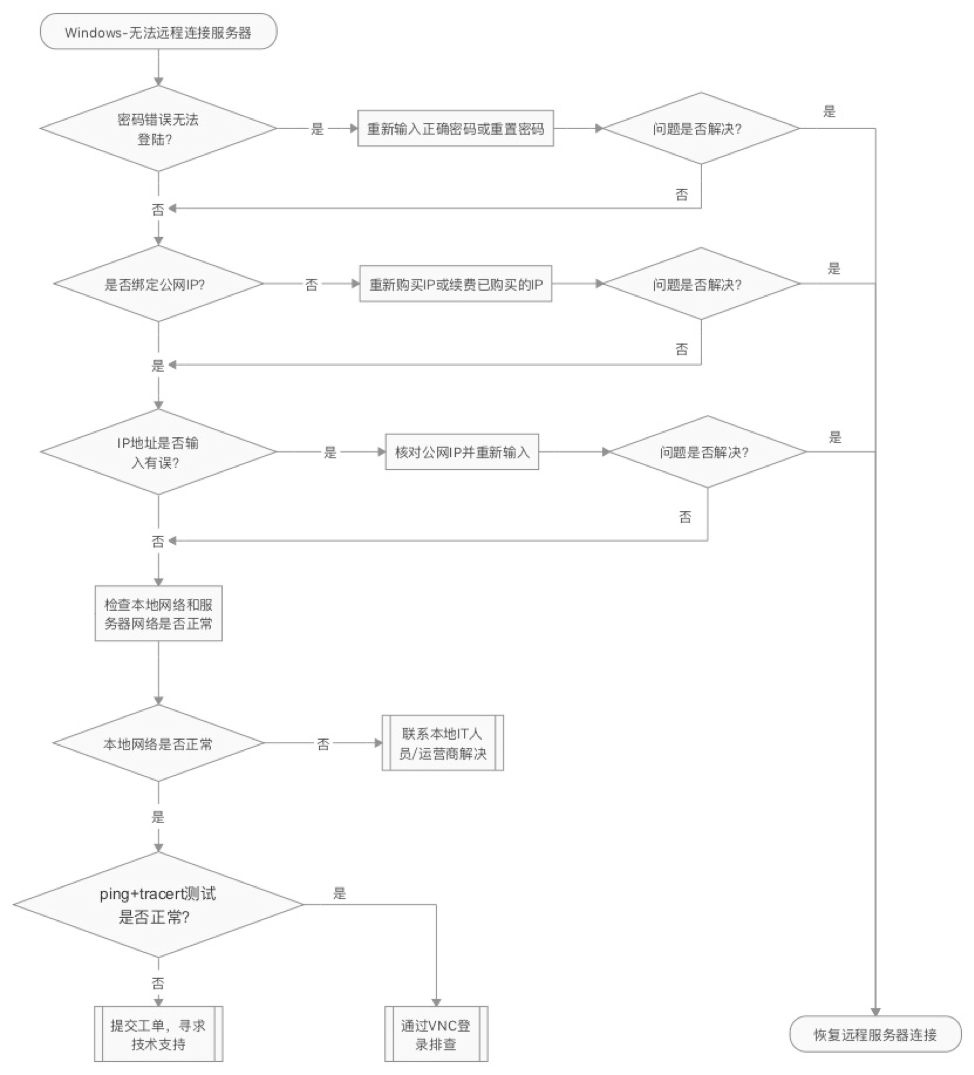
If you cannot log in to a Windows instance using remote connection software, it is recommended to first check the local environment to ensure it is functioning properly. If the issue persists, log in to the cloud server using VNC and troubleshoot step by step.
Local detection process
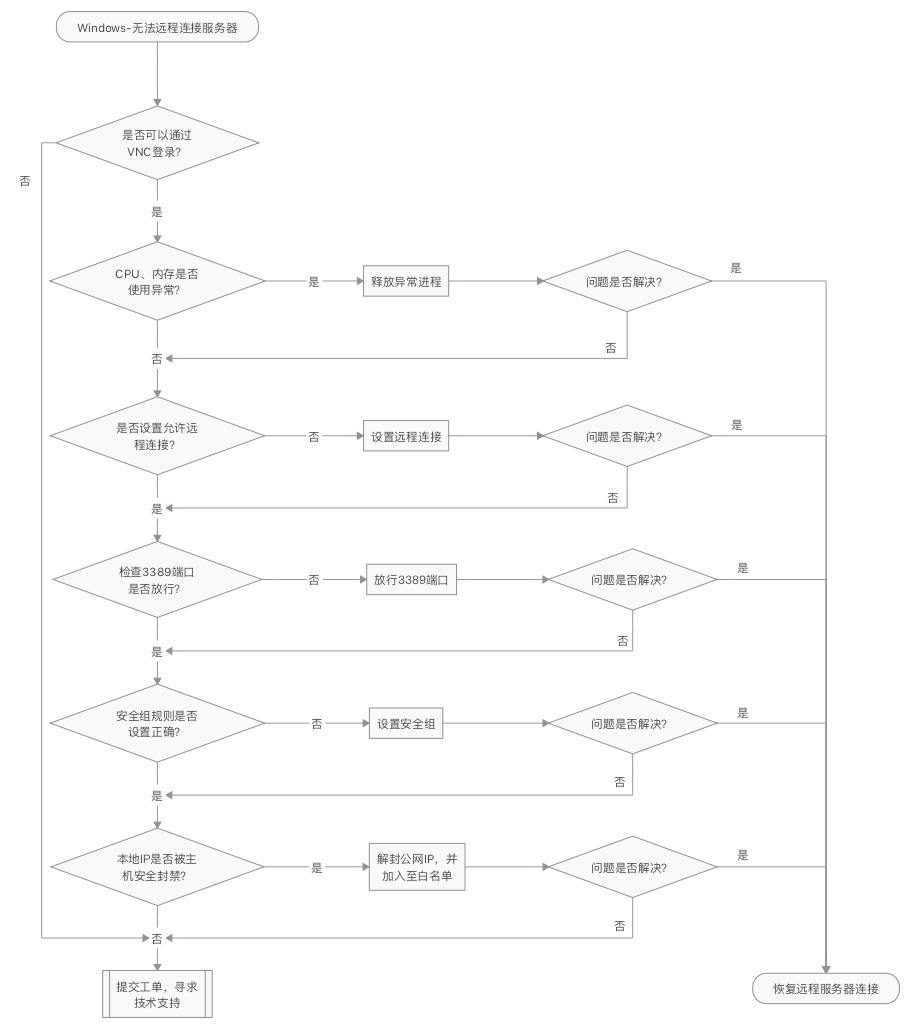
Fault diagnosis process via VNC login
Fault handling
Incorrect login password
Verify whether the password is entered correctly. If you forget the password, you can reset the password according to the [reference](BCC/Operation guide/Instance/Reset password.md):
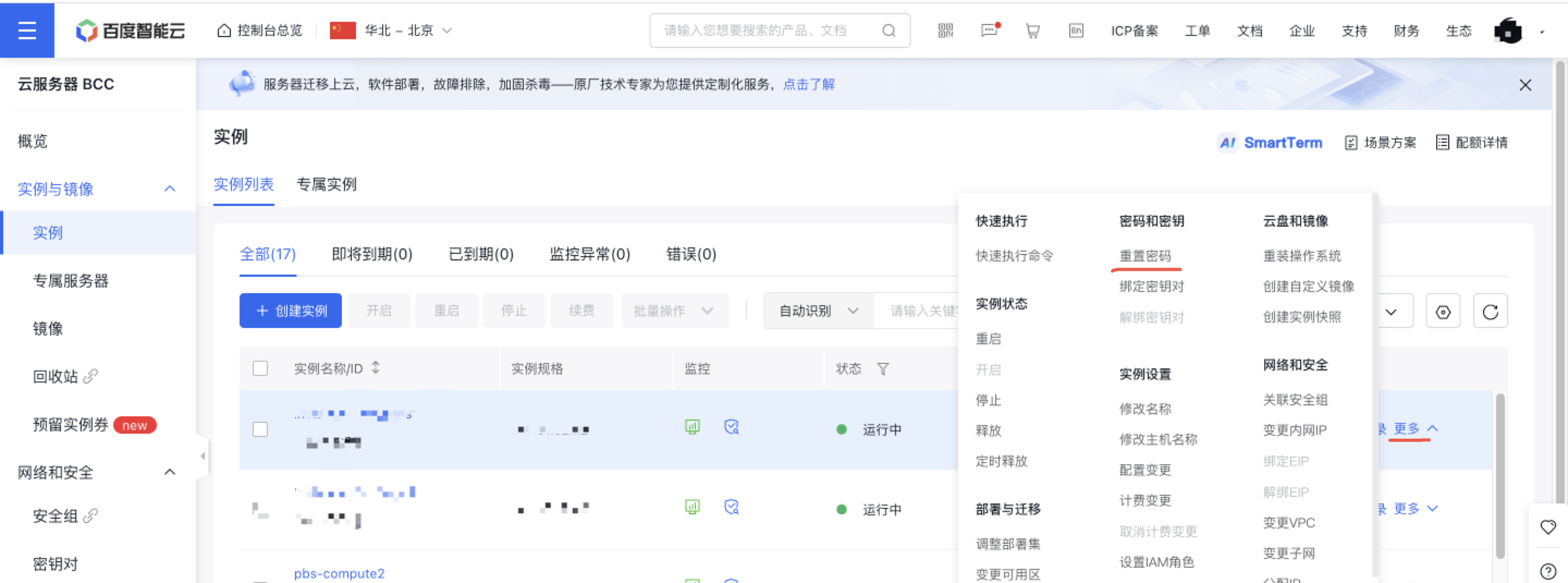
- Sign in to Baidu AI Cloud console, select Products - Compute - Baidu Cloud Compute (BCC).
- Locate the instance, click "More" on the right, and select Instance Settings - Reset Password. Note that as resetting password will force a reboot of the server, it is recommended that this operation should be performed during off-peak business hours.
If you confirm the entered password is correct but receive an error report "Incorrect password", report the problem via the Ticket System for assistance from the technical personnel of Baidu AI Cloud.
Public IP not bound or incorrect IP entered
- You can check the EIP binding status in the console. For details, click the BCC Instance Name, then view the Basic Information to check whether an EIP is bound. If not, or if the bound EIP has expired, you can directly repurchase or renew. If an EIP is already bound, proceed with the troubleshooting according to the following steps.
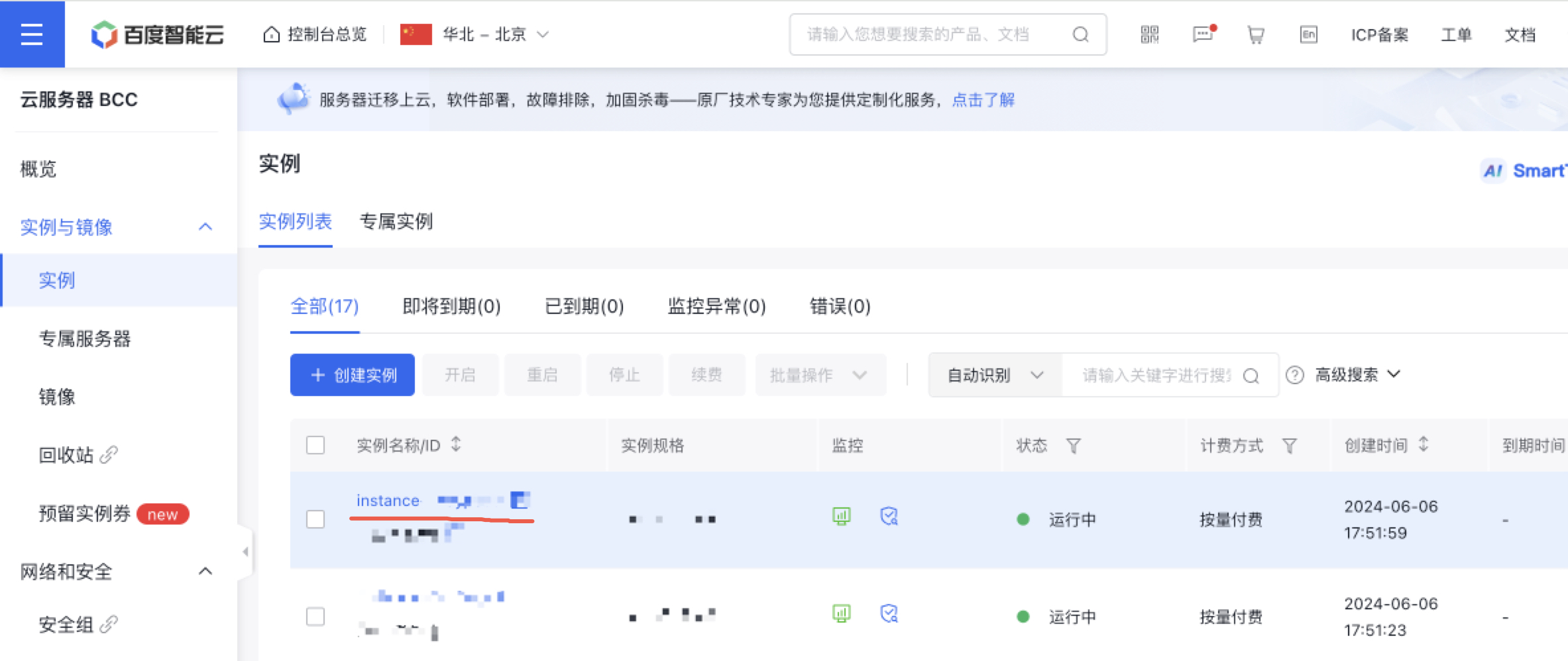
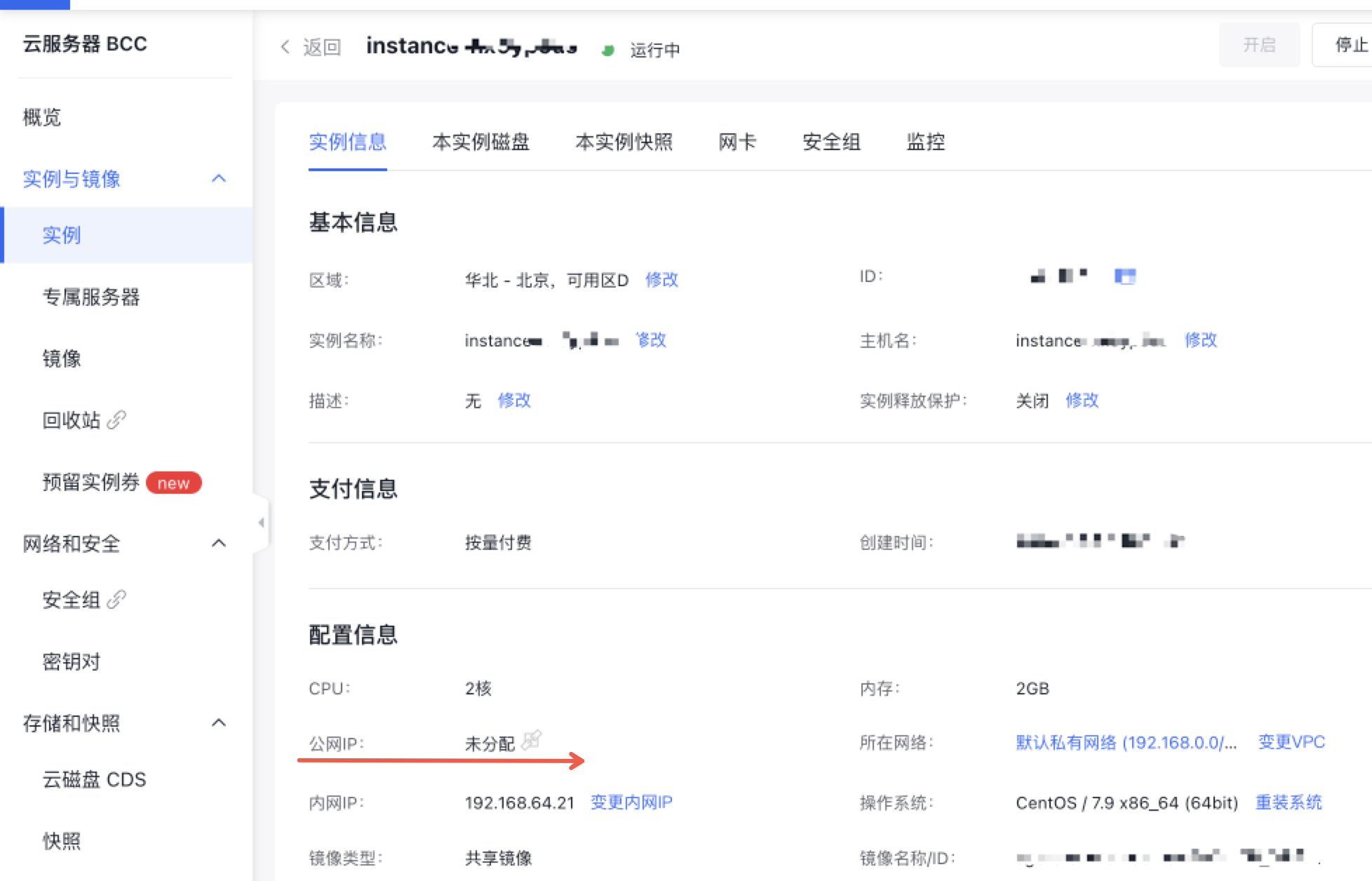
- Ensure the IP address used for the remote connection matches the one shown in the console. If the address is incorrect or a private IP is used directly, the connection will fail. If the connection still doesn't succeed after confirming the correct IP, proceed with further troubleshooting.
Network exception
Verify whether the local network and server network function normally. The troubleshooting steps are as follows:
- Access other websites from the local computer to confirm the local network functions normally.
- Attempt the remote connection via another local computer. If the problems persist, contact local IT or the operator to resolve network problems before proceeding to the next step.
- Perform
ping+tracerttests on the public IP from your local computer. Note that as Windows disables ping by default, you need to enable ping before testing. Enable the "File and Printer Sharing (Echo Request - ICMPv4-In)" rule in the ingress settings of the advanced security firewall, and refer to [Windows cloud server cannot be pinged](BCC/Fault handling/Windows Server Cannot Ping.md).
Note:
2008 Firewall position: Server Manager - Configuration - Advanced Security Windows Firewall - Ingress Rules
2012 Firewall position: Server Manager - Tools - Advanced Security Windows Firewall - Ingress Rules
If the ping+tracert is normal after testing but remote connection still fails, proceed with the troubleshooting according to the following steps. If ping+tracert is exceptional, provide complete screenshots of the tests in the Ticket System to the technical personnel of Baidu AI Cloud for the assist in troubleshooting.
System failure
If remote connection fails, attempt to sign in to the server via VNC to determine whether the server system functions normally. Subsequent troubleshooting can also be performed via VNC. For details, refer to Remotely log in to Baidu Cloud Compute via VNC as follows:
- Log in to the Baidu AI Cloud console, and navigate to Product Service - Compute - Baidu Cloud Compute (BCC).
- Find the instance that can't be remotely connected, click "Remote Login" on the right, and select "VNC Login.\
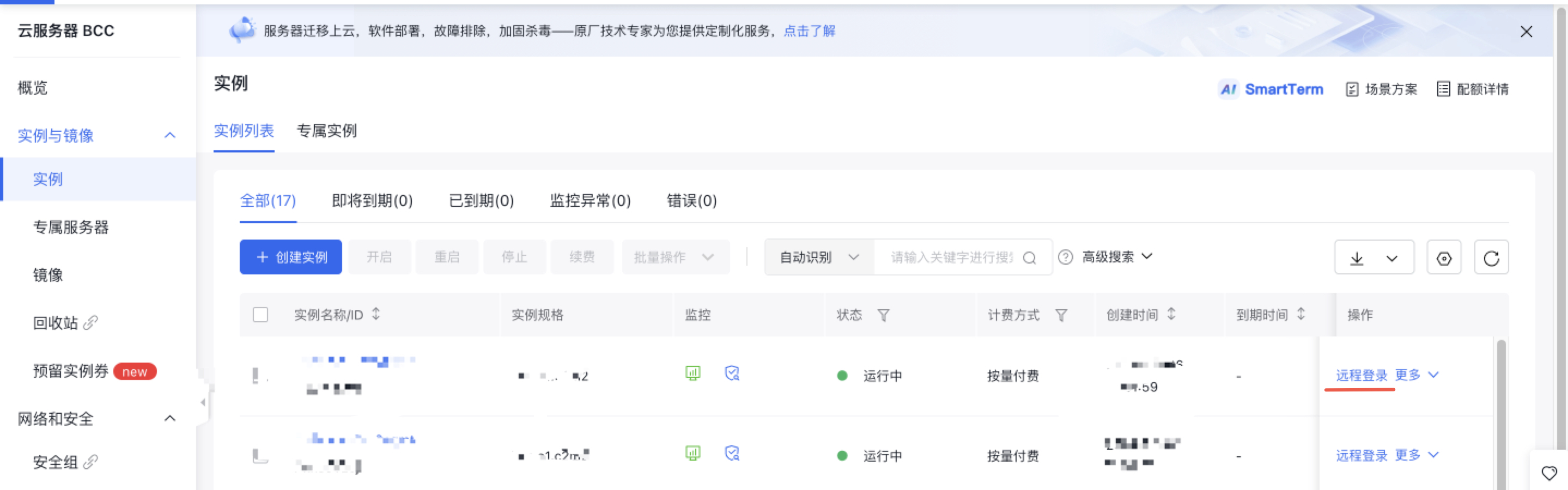
If you can sign in to the server via VNC, the system will operate normally and troubleshooting can be conducted step by step. If VNC login fails, report the problem via the Ticket System for assistance from the technical personnel of Baidu AI Cloud.
Exceptional CPU and memory usage on server
If VNC login succeeds, check the server CPU and the memory usage as follows:
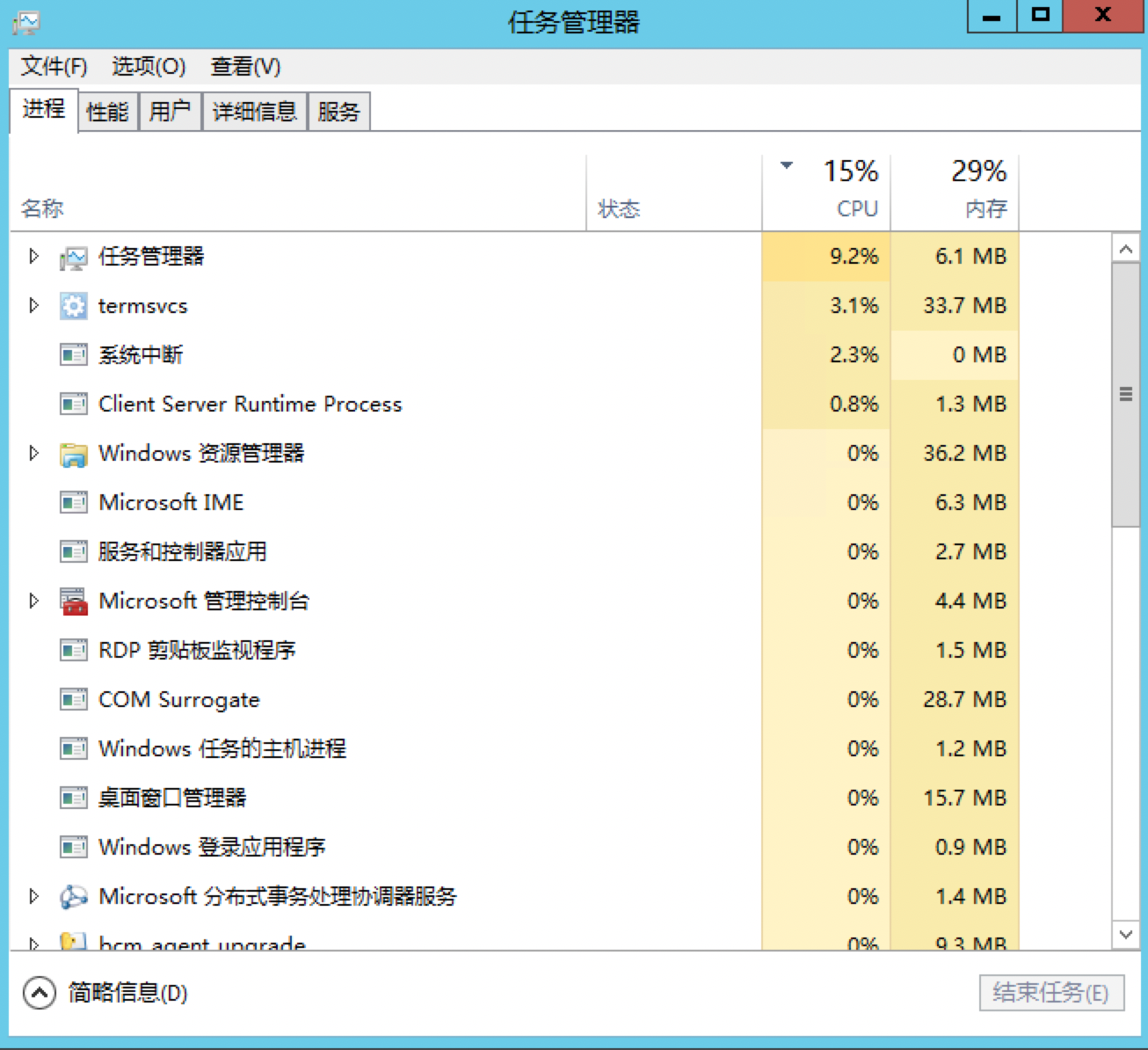
- Right-click the taskbar and select "Task Manager.\

- Check the current CPU and memory usage. If any process is consuming excessive resources, terminate the process after creating a snapshot, and then observe whether the remote connection works. If it still fails, proceed with the troubleshooting steps below.
Remote connection not allowed
Verify whether the server permits the remote connection. Taking Windows 2012 as an example, sign in for setting via VNC and proceed with the troubleshooting according to the following steps:
- Open "Control Panel" and select "System.\
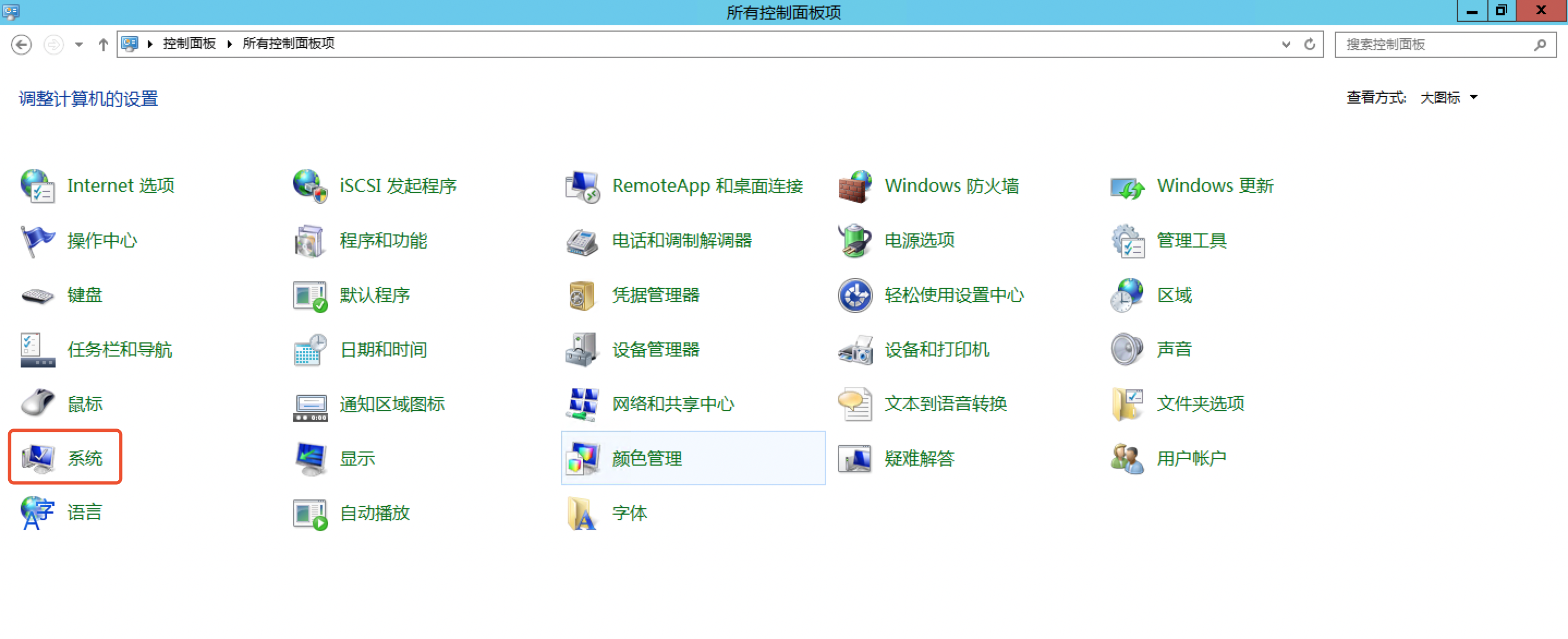
- Click "Remote Settings," choose "Allow remote connections to this server," then click on "Select Users," add Administrator or other non-administrator accounts, and click "Confirm" to save.
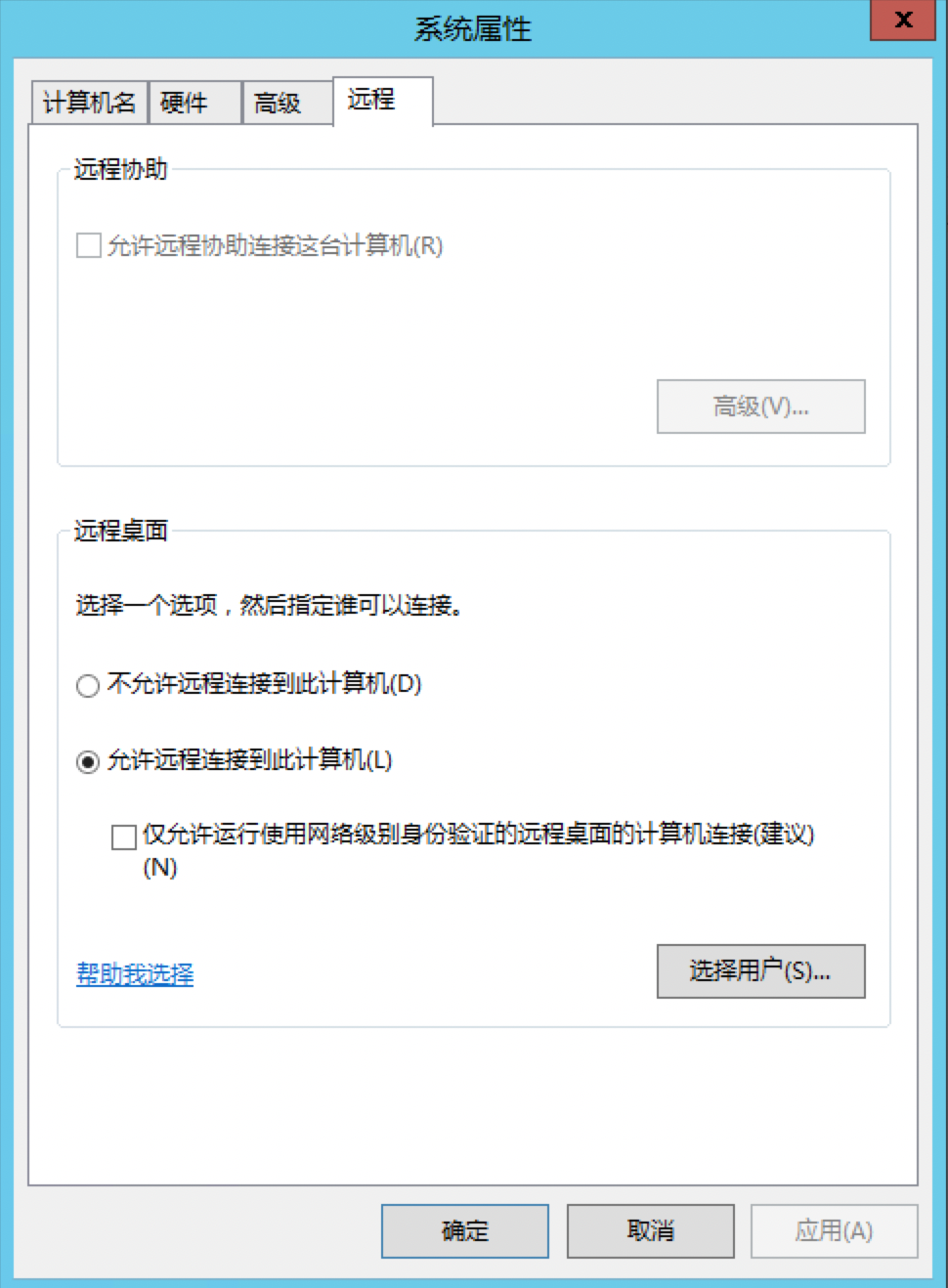
If servers of other versions encounter similar issues, search on Baidu for specific instructions on enabling remote connections for those versions. Confirm the functionality, and proceed with the subsequent operations as outlined.
Port not permitted
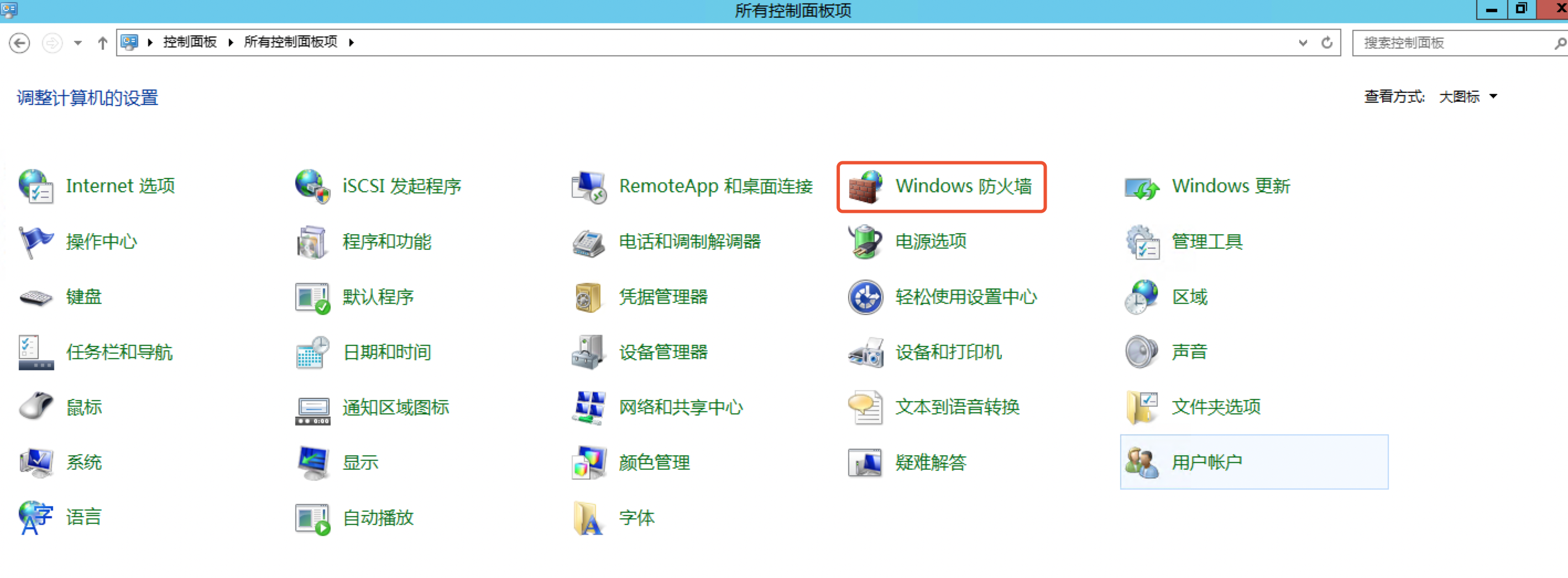
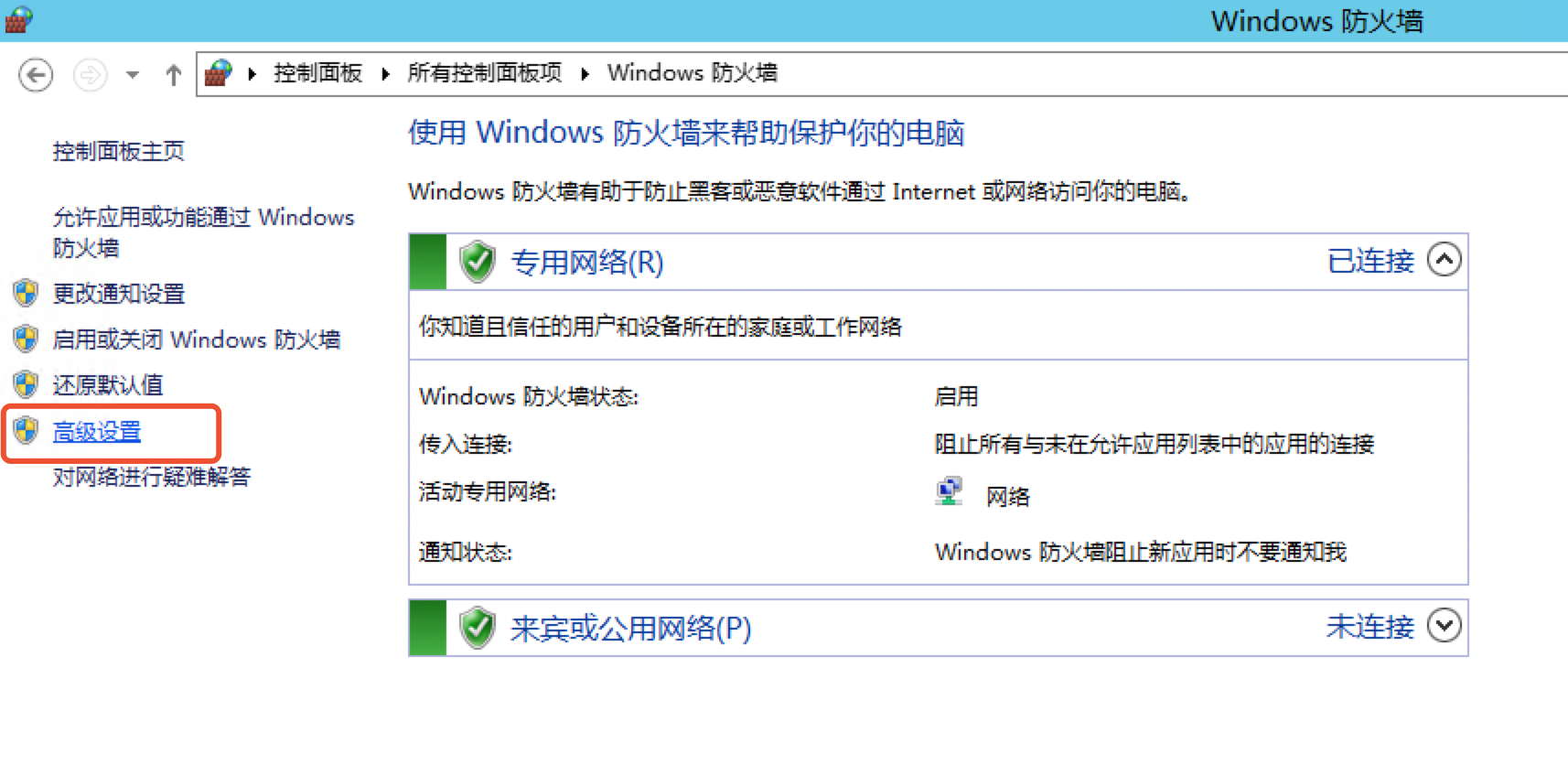
If the default remote connection port has not been changed, check whether port 3389 on the server is enabled. If not, add Firewall egress and ingress rules to permit port 3389. Taking Windows 2012 as an example, proceed with the troubleshooting according to the following steps:
- Open the "Control Panel" and click on "Windows Firewall.\
- Click on "Advanced Settings.\
- Go to "Inbound Rules" -> "New Rule.\
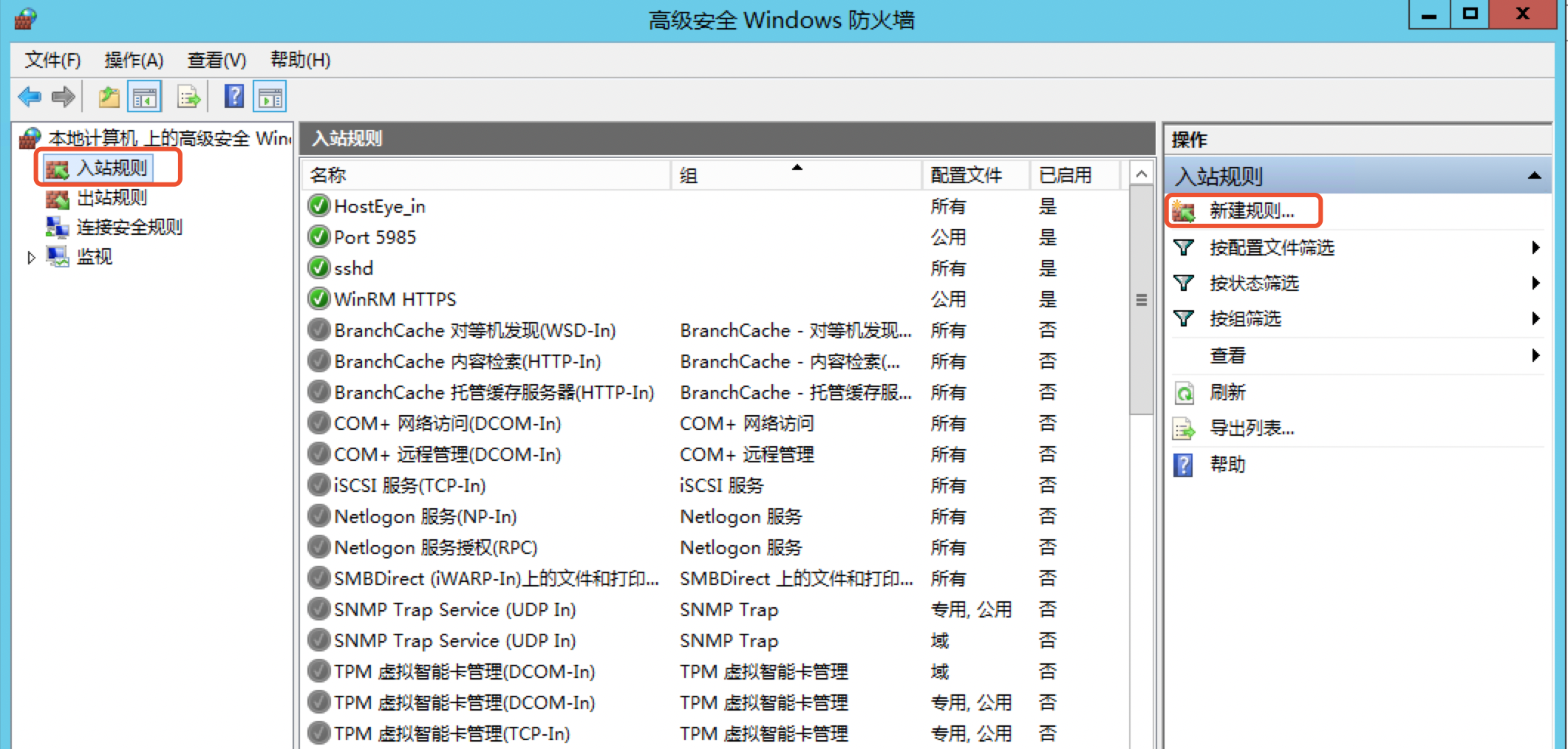
- Select the port and add 3389.
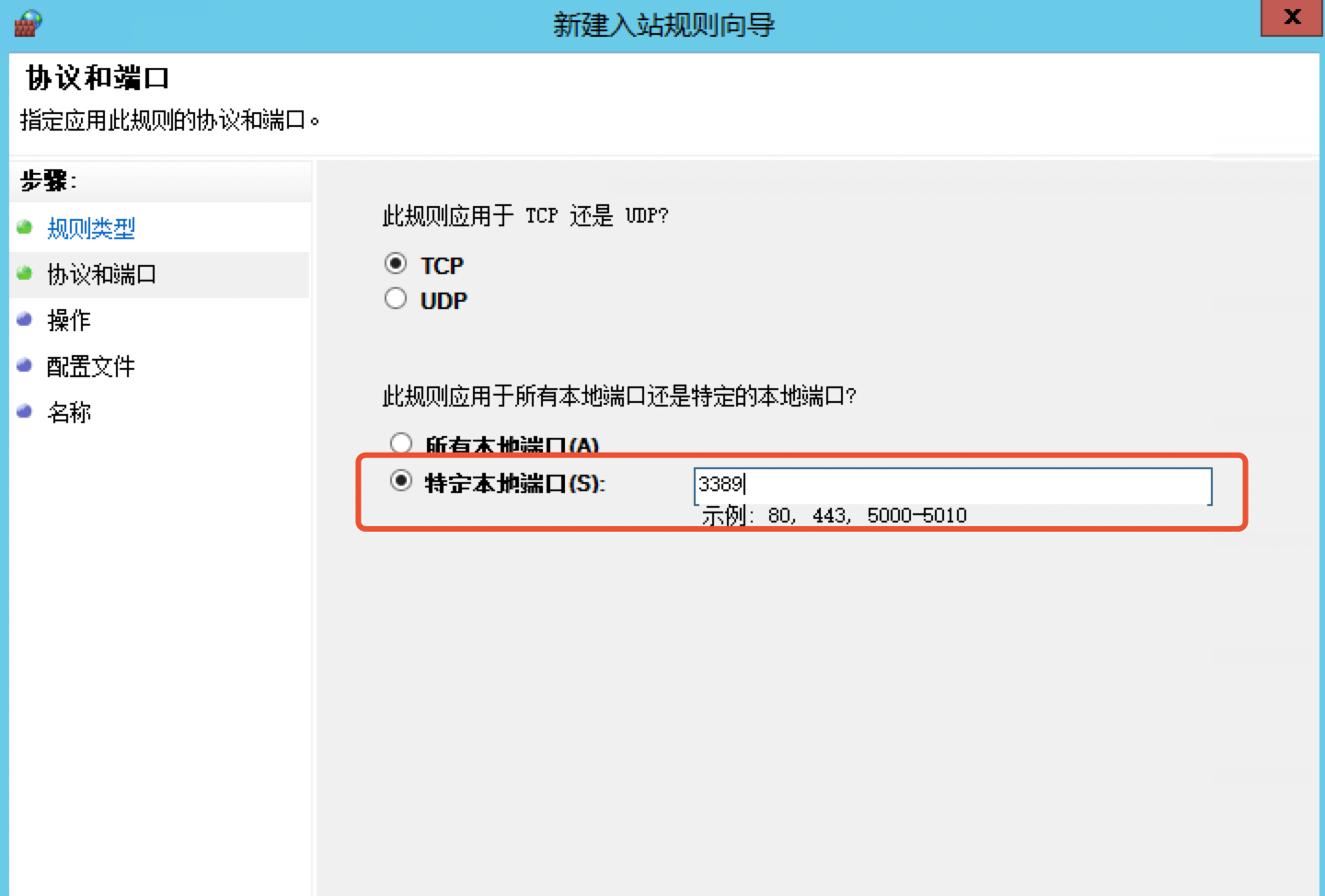
- Add new egress rules according to similar steps as above.
If servers of other versions encounter similar problems, search on Baidu for specific steps of enabling permitting port 3389 in relevant versions. If port 3389 is already permitted, proceed with the troubleshooting according to the following steps. If problems arise during the port 3389 permission, report the problem via the Ticket System for assistance from the technical personnel of Baidu AI Cloud.
Incorrect security group rule setting
Verify whether port 3389 is permitted in the Security Group and whether a fixed source IP is set. First, [Create a Default Security Group](BCC/Operation guide/Security/Security group/Create a security group.md), and then proceed with testing:
If the security group is set correctly but remote connection still fails, proceed with the troubleshooting according to the following steps.
Host Security blocks local IP
Attempt to connect with the server from another computer. If the connection succeeds from another computer but fails locally, check whether the local IP is blocked by Host Security. Refer to [Login Management](HOSTEYE/Operation guide/Login management.md) for specific steps of troubleshooting as follows:
- In the Baidu AI Cloud console, navigate to Product Services - Security & Management - Host Security.
- Click the BCC instance that cannot be signed in to, and then click "View Details" on the right-hand side.
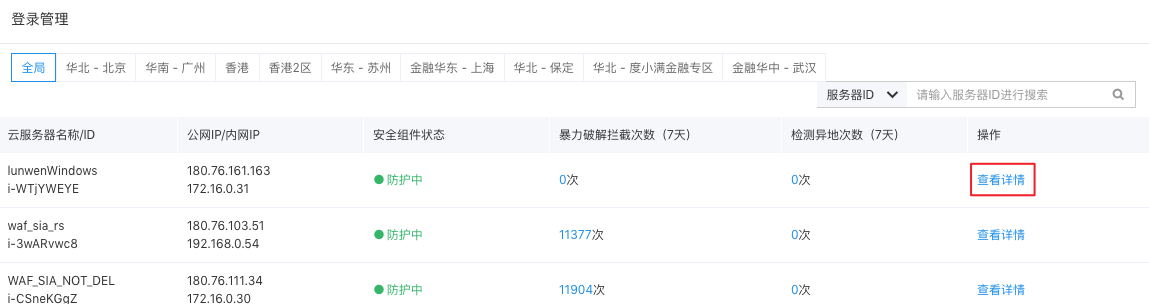
- Review the login events to determine if the local IP address has been blocked.
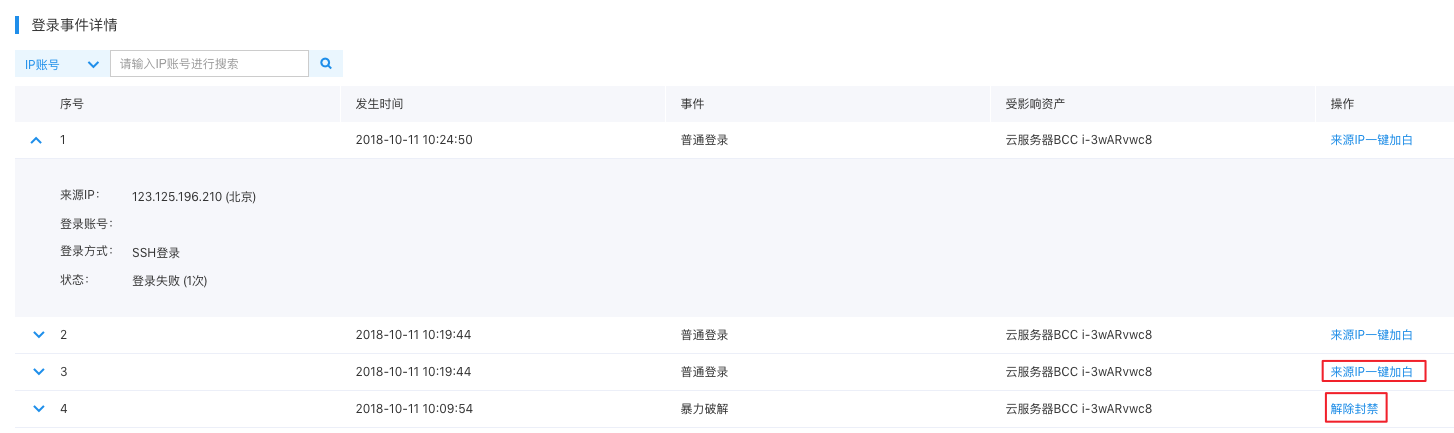
- If your public IP has been blocked, unblock it and add the IP to the Allow List.
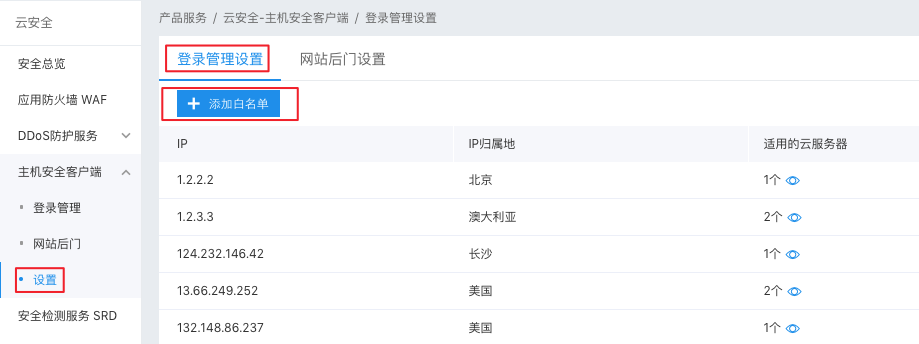
- After adding the IP to the Allow List, attempt the remote connection again. If the connection failure persists, report the problem via the Ticket System for assistance from the technical personnel of Baidu AI Cloud.