

Resource Assessment
Overview
During migration from other cloud providers or an IDC to Baidu Cloud Compute (BCC), Resource Assessment or Resource Discovery can recommend BCC configurations based on assessed attributes of source resources, such as region, specifications, disks, and public networks. You can also manually adjust the recommended configurations.
Usage restrictions
- Resource Assessment or Resource Discovery can recommend matching product specifications for Baidu Cloud Compute (BCC), cloud disk service (CDS), and elastic public IP (EIP) based on computing specifications, disks, and public networks.
- Resource Assessment or Resource Discovery supports only file imports.
- The resource inventory file import accepts csv, xls, and xlsx formats, with a maximum file size of 5 MB.
- Only one file can be uploaded per import task.
Pre-operation preparation
Resource Assessment or Resource Discovery supports model matching for instance inventories from Alibaba Cloud and Tencent Cloud and provides import templates for reference.
- If your source resources are from Alibaba Cloud or Tencent Cloud, sign in to the respective provider's console to export the instance inventory. Ensure all fields are included during export, and do not delete the headers.
If data security is a concern, retain essential resource-related fields such as specifications, charge types, disks, and networks, and clear other non-essential field information.
Detailed field requirements are available in the instructions on the Import page of the Resource Assessment or Resource Discovery tool in the console.
- If your source location resources come from other cloud providers or self-built data centers, you can download the import template, fill it out, and then upload the data.
Import
Function description
You can effortlessly get recommended instance types and pricing with just one click using the resource file import function.
Operation steps
- Log in to the BCC console and go to the Instance List page.
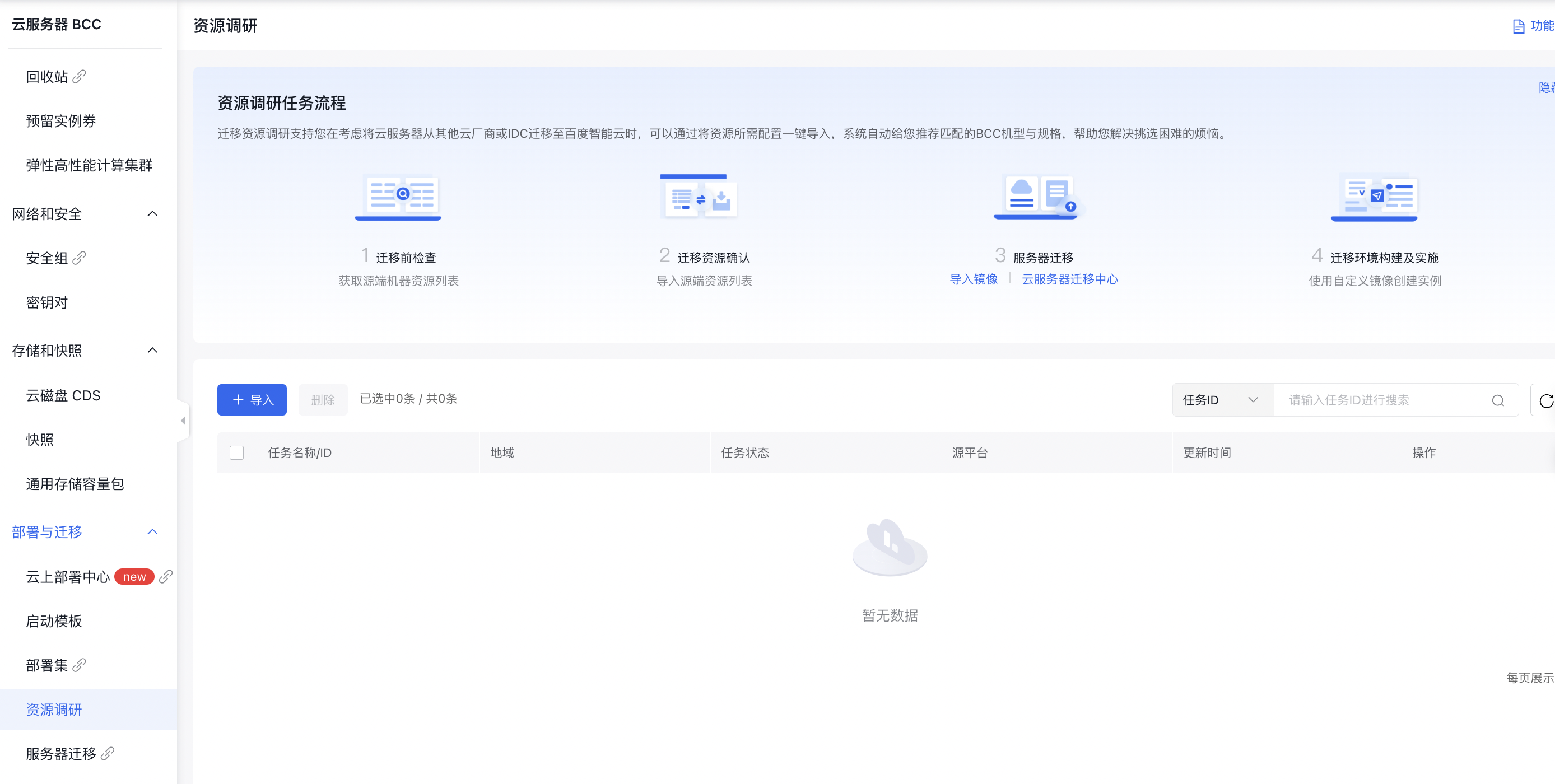
- Select Deployment & Migration - Resource Assessment or Resource Discovery in the left navigation to enter the Resource Assessment or Resource Discovery page.
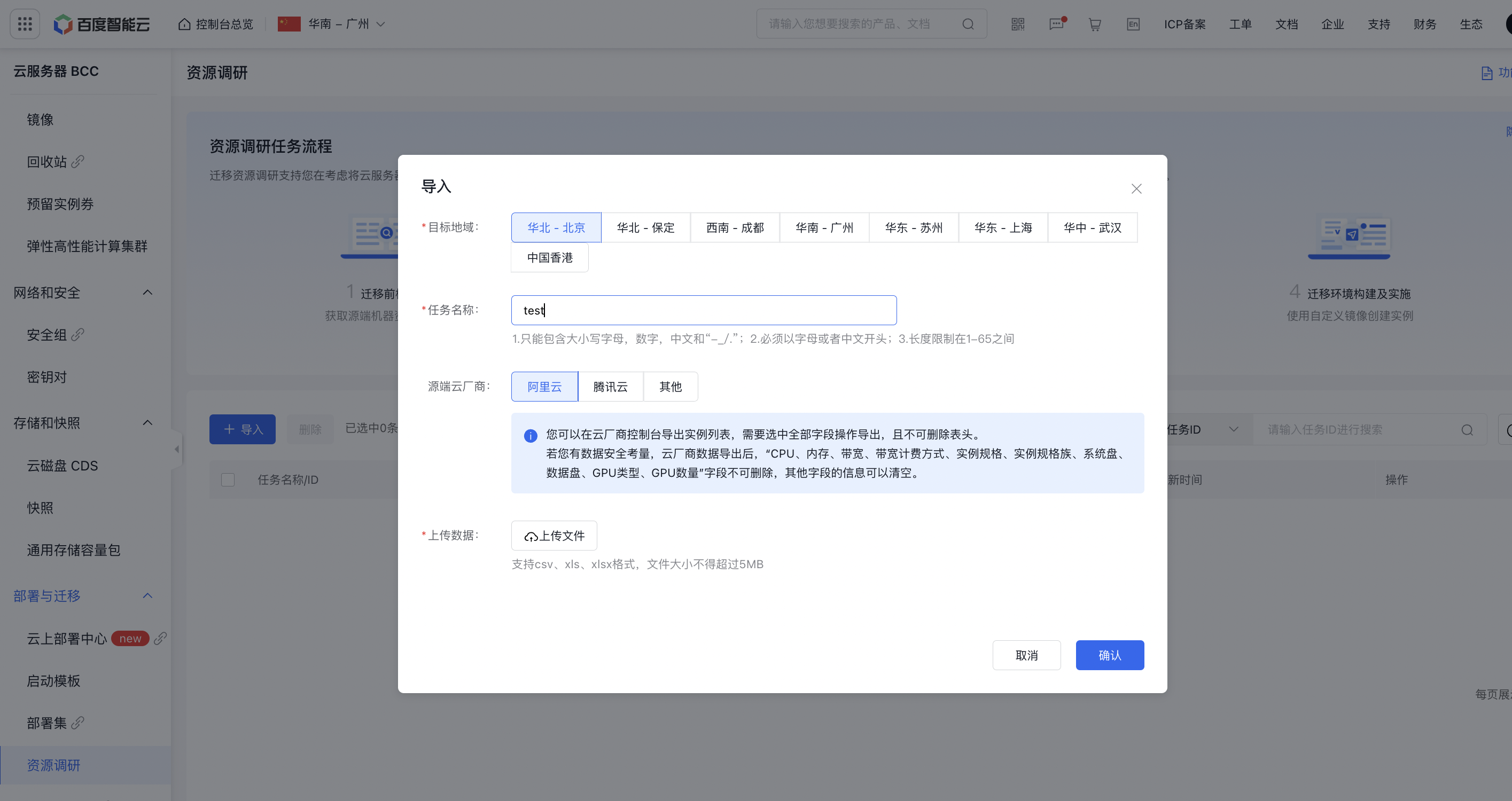
- Click Import, select the target region and Source Location cloud provider, upload the file, and then click Confirm.
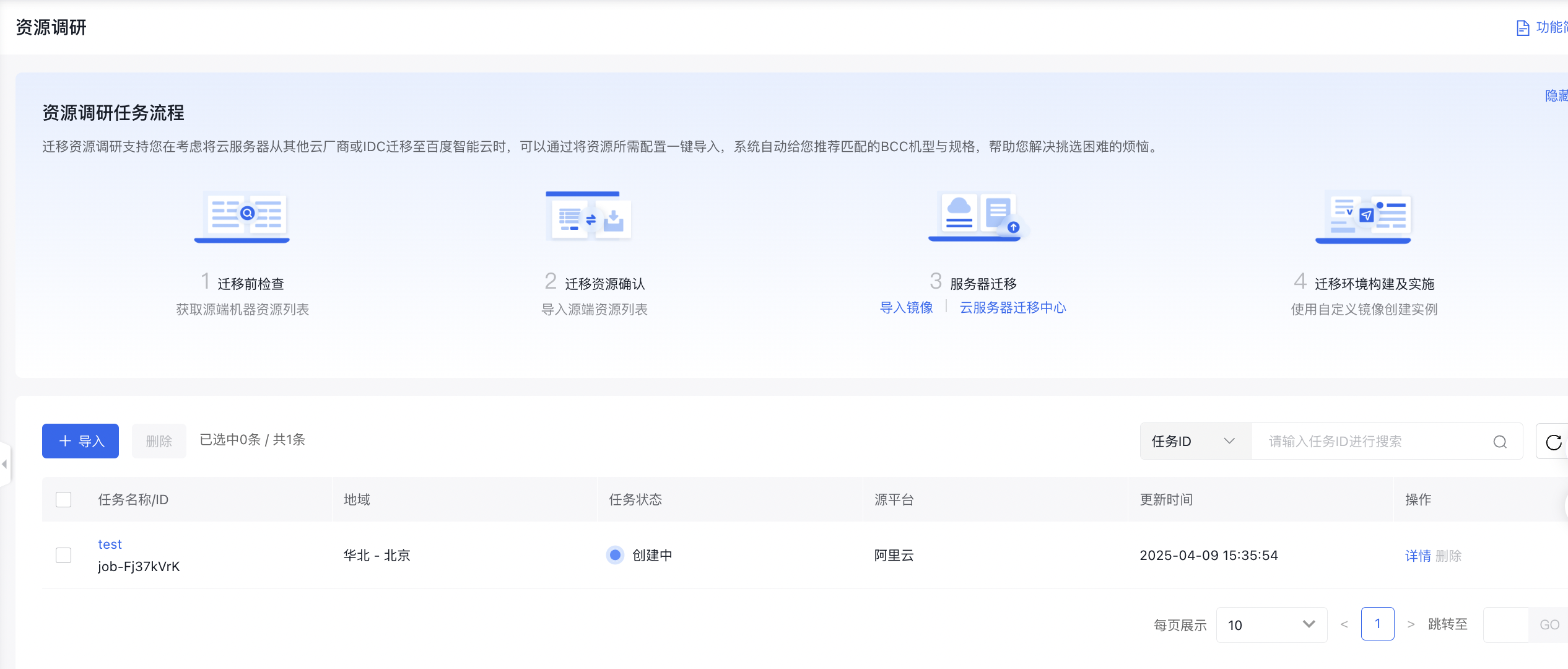
- An assessment task will appear in the list page with the status Creating.
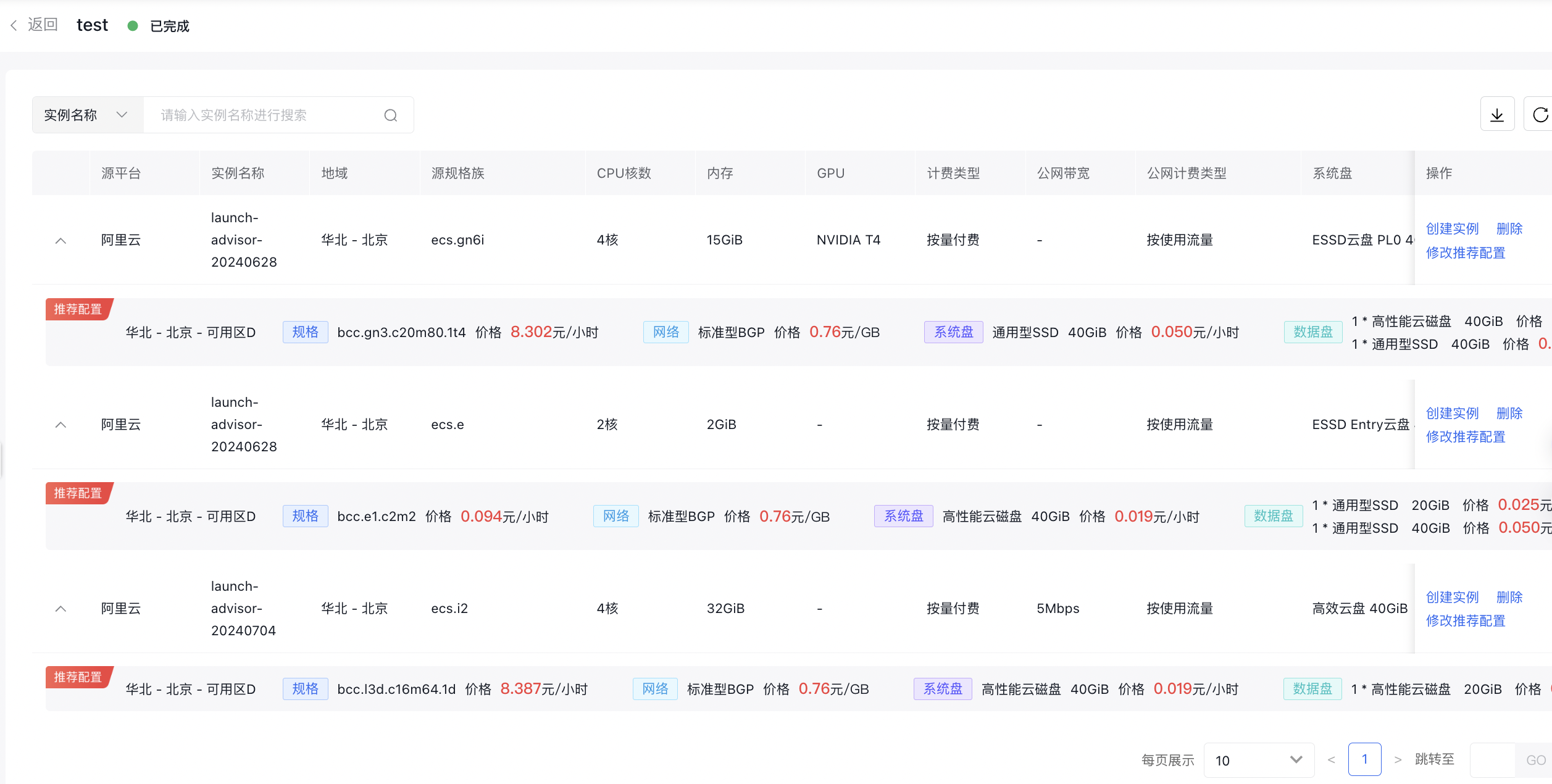
- After the task status changes to Completed, click the task name to view details and check resource recommendations.
Download
After the task is finished, click Download to export all source location resource details and matching instance types and prices in Excel format for cost analysis and comparison.
Modify recommended configuration
If the default recommended configuration does not meet your needs, you can click Modify Recommended Configuration to select your target configuration. The resource list will automatically refresh with the recommended configuration and prices based on your selection.
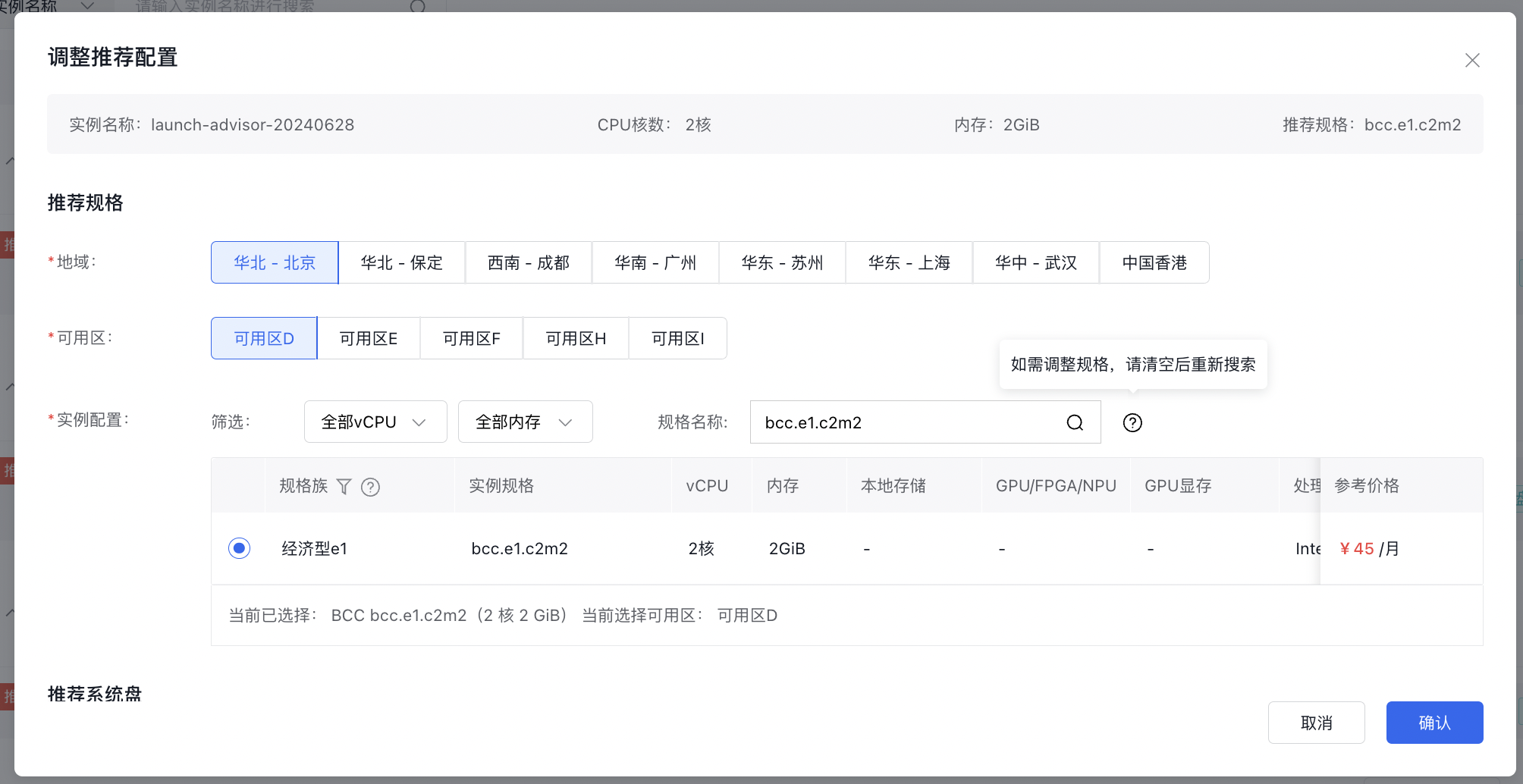
Create instance
After clicking Create Instance, you will be redirected to the Create BCC page with the recommended configuration by default.
Delete
If certain resource data is not needed, you can delete it. Deleted data cannot be recovered. To retrieve it, you will need to re-import the file.