

Bind and Unbind EIP
Elastic IP (EIP), as a standalone product, offers public network bandwidth services. EIP can be bound or unbound to BCC or BLB instances to accommodate varying business needs.
Prerequisites
If you need to bind an EIP to a BCC instance, ensure the BCC instance meets the following conditions:
- The EIP's region must align with the region of the instance.
- The instance must be in stopped or running status.
- The primary network interface card of the instance is not linked to an EIP.
Bind EIP
- Sign in to the Baidu Cloud Compute (BCC) Console and enter the Instance List page.
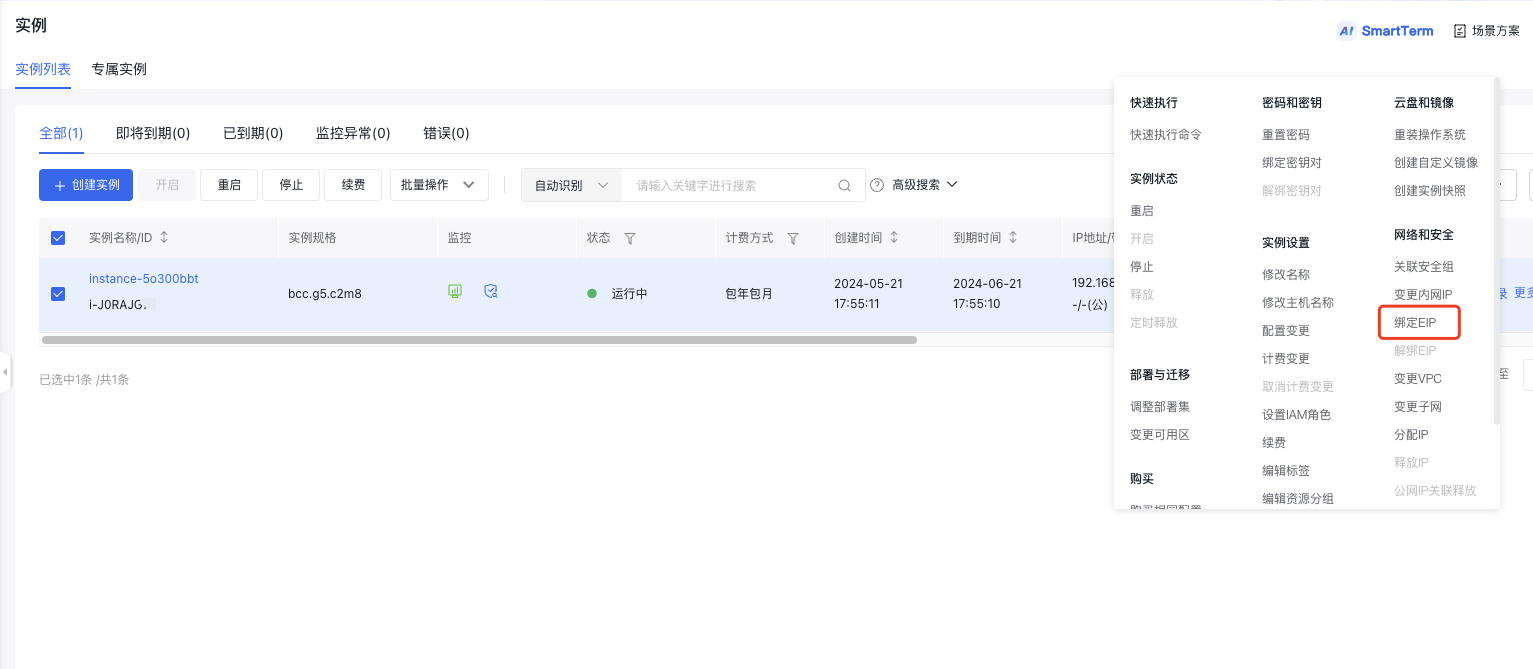
- Select the instance to which the EIP is bound, then click More > Network & Security > Bind EIP in the right operation bar.
- Select the EIP to be bound in the EIP Binding dialog box.
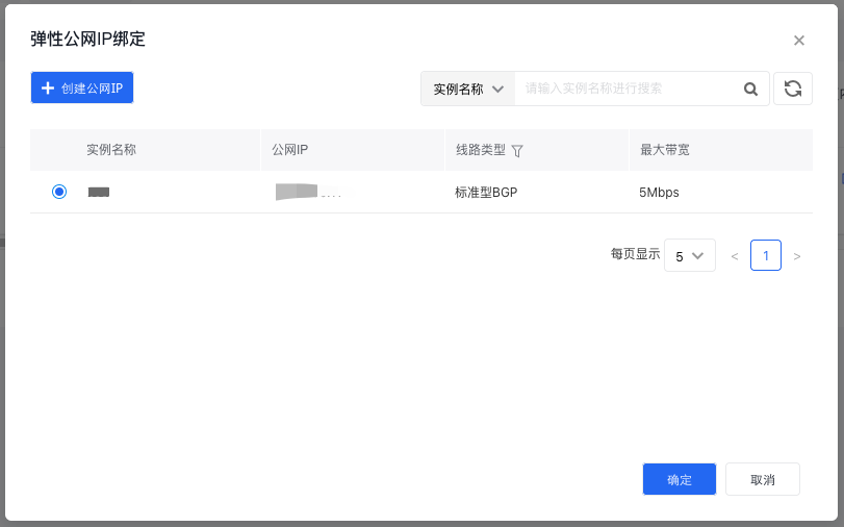
Click OK. After successful binding, the EIP bound and bandwidth value (e.g., 10.1.XX.XX/5Mbps (public network)) will be displayed in the IP Address/Bandwidth field on the BCC Instance page.
Unbind EIP
- Sign in to the Baidu Cloud Compute (BCC) Console and enter the Instance List page.
- Locate the instance not linked to an EIP, then click More > Network & Security > Unbind EIP in the right-side operation bar.
- Confirm the prompt message in the Unbind EIPdialog box.
Click OK. After successful unbinding, the EIP will no longer be displayed in the IP Address/Bandwidth field on the BCC Instance page.
Note: The unbound EIP will continue to incur charges. If you no longer need the unbound EIP, manually release it. For more information, refer to EIP Operations.
Once unbinding is successful, the BCC instance will no longer have public network access via the EIP. To regain public network access, re-bind the EIP.