

Windows Allow Single User to Connect Multiple Sessions Method
This guide explains how to configure Windows for single-user multi-session connections, using Windows Server 2008 R2 as an example.
Problem description
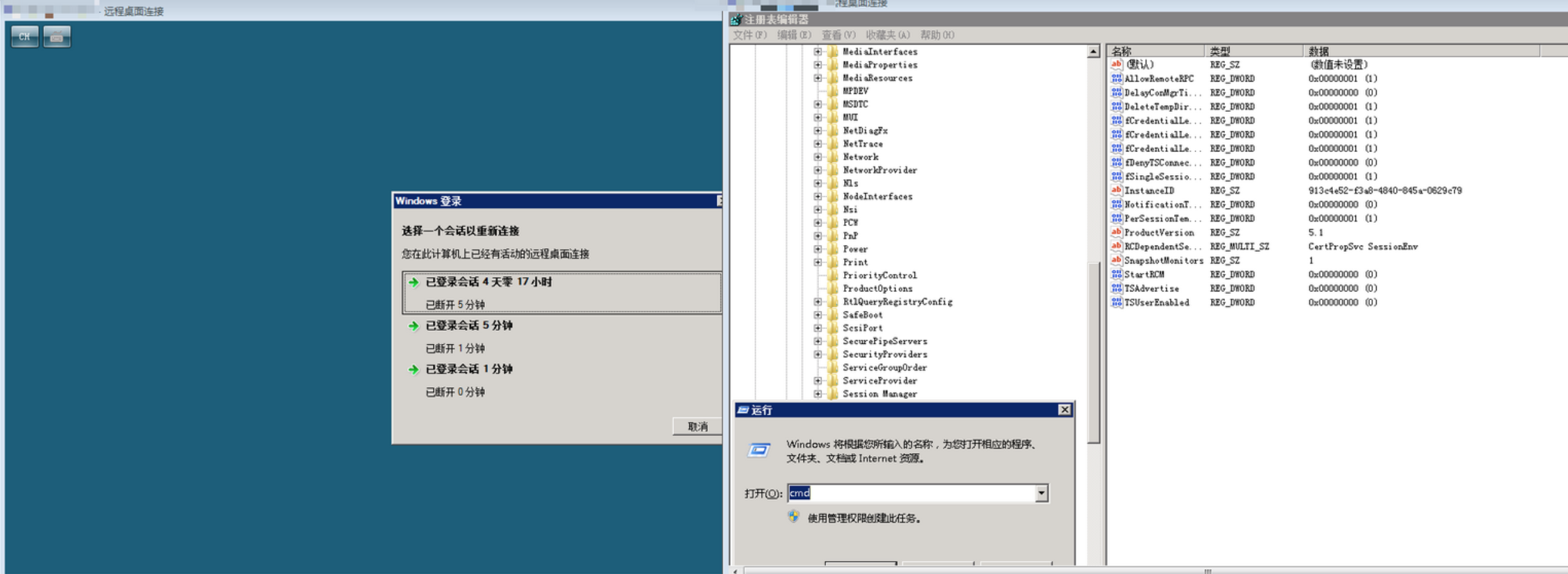
By default, the server allows only one remote desktop session per user. If another connection is made while one is active, the previous session will be terminated.
The following interface will appear:
Solution
Step 1: Adjust the session via registry
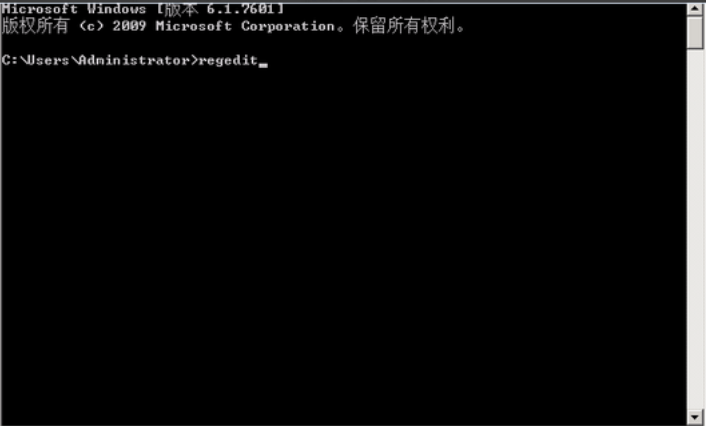
- Press the WIN Key + R to open the Run dialog, type cmd, and press Enter to open a command prompt. Then, type regedit to launch the Registry Editor.
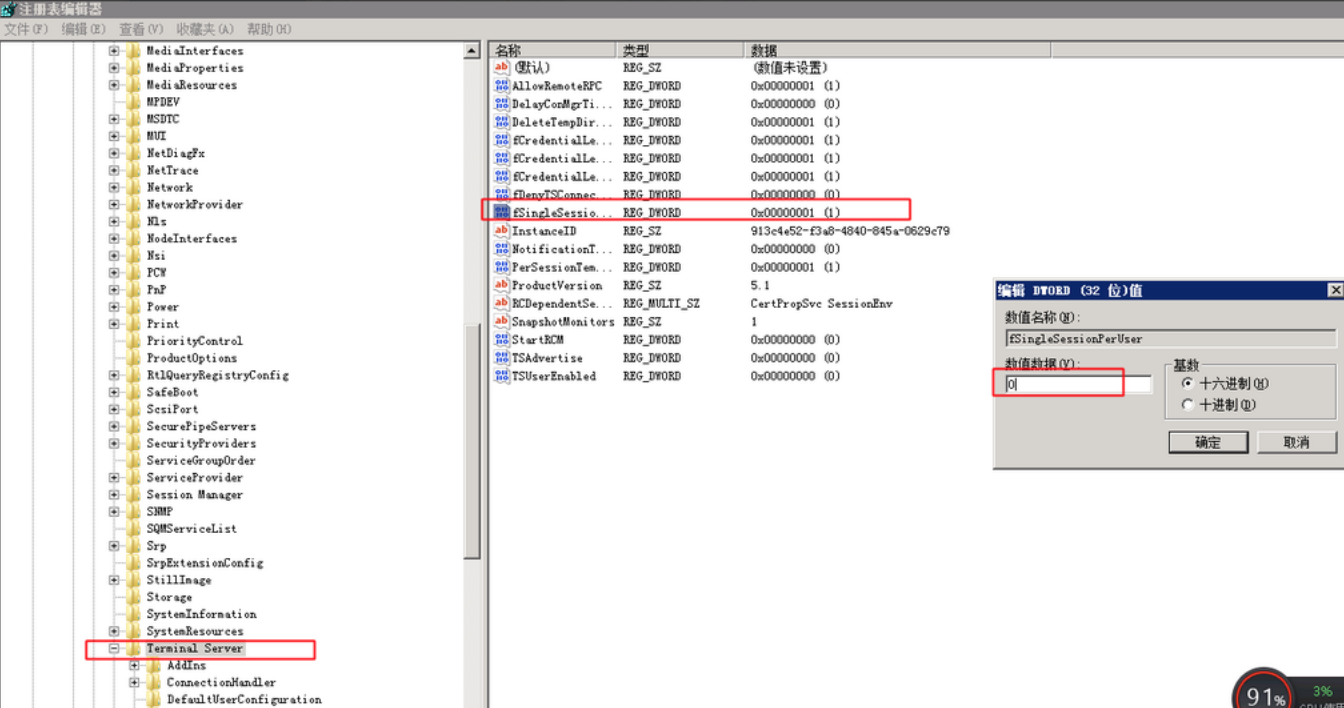
- Navigate to: HKEY_LOCAL_MACHINE\SYSTEM\CurrentControlSet\Control\Terminal Server, locate the fSingleSessionPerUser key on the right-hand side, right-click it, and modify its value. Change the default key value from 0 to 1. A server restart is not necessary.
- Test to confirm that two remote connections can now be enabled simultaneously.
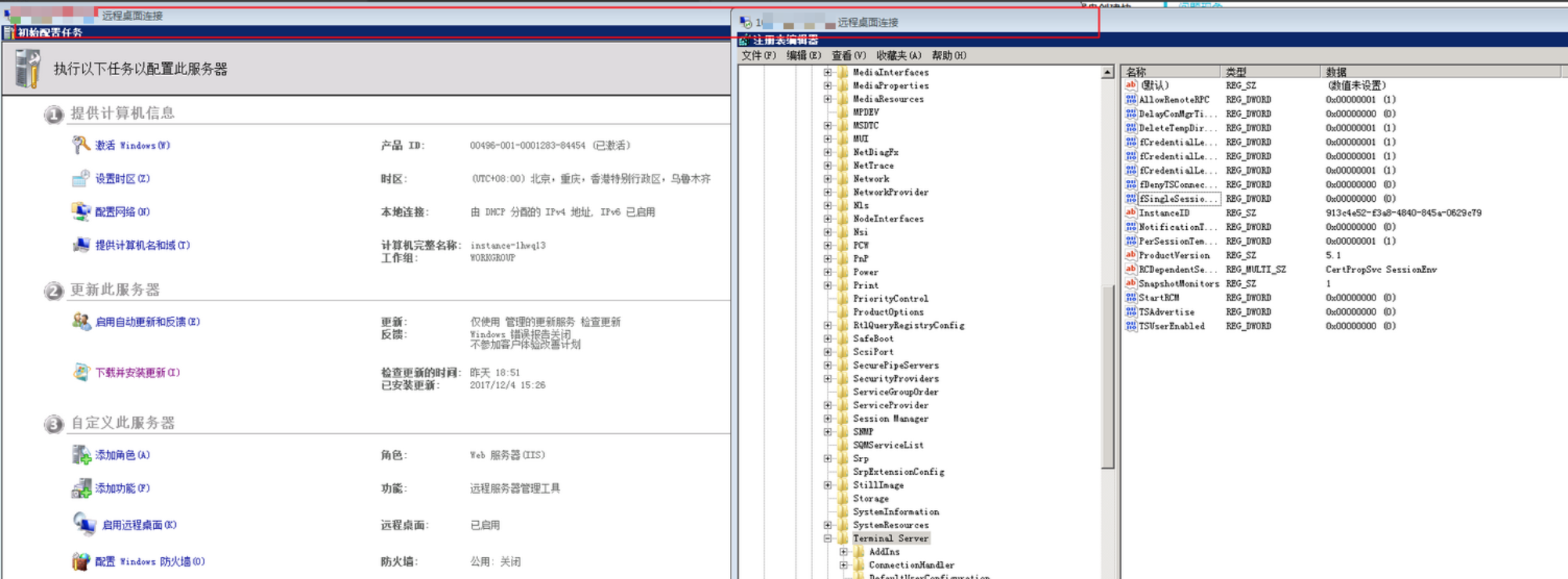
(Note: For the above method, enabling two remote connections will cause interruptions)
Step 2: Deploy remote desktop session service
To enable more than two connections, deploy Windows Remote Desktop Session Host Configuration as follows:
- Open the Server Manager from the bottom-left corner and select Add a Role.
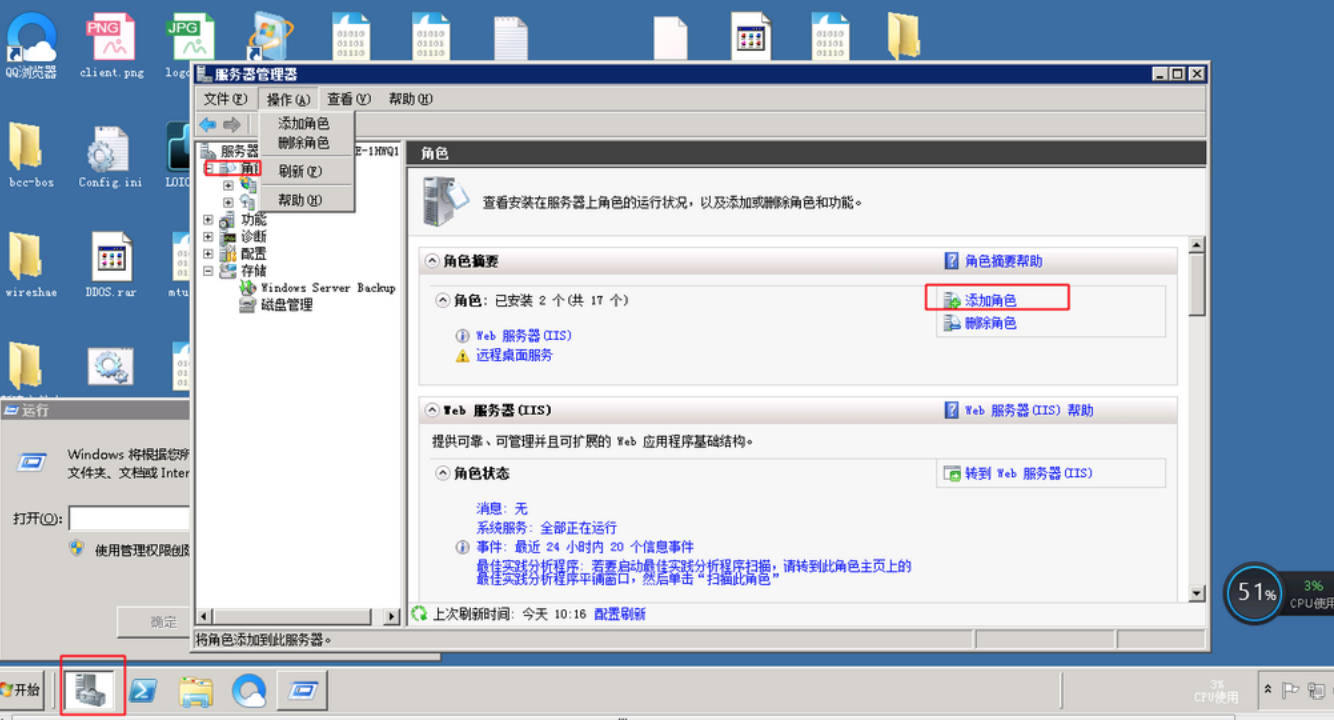
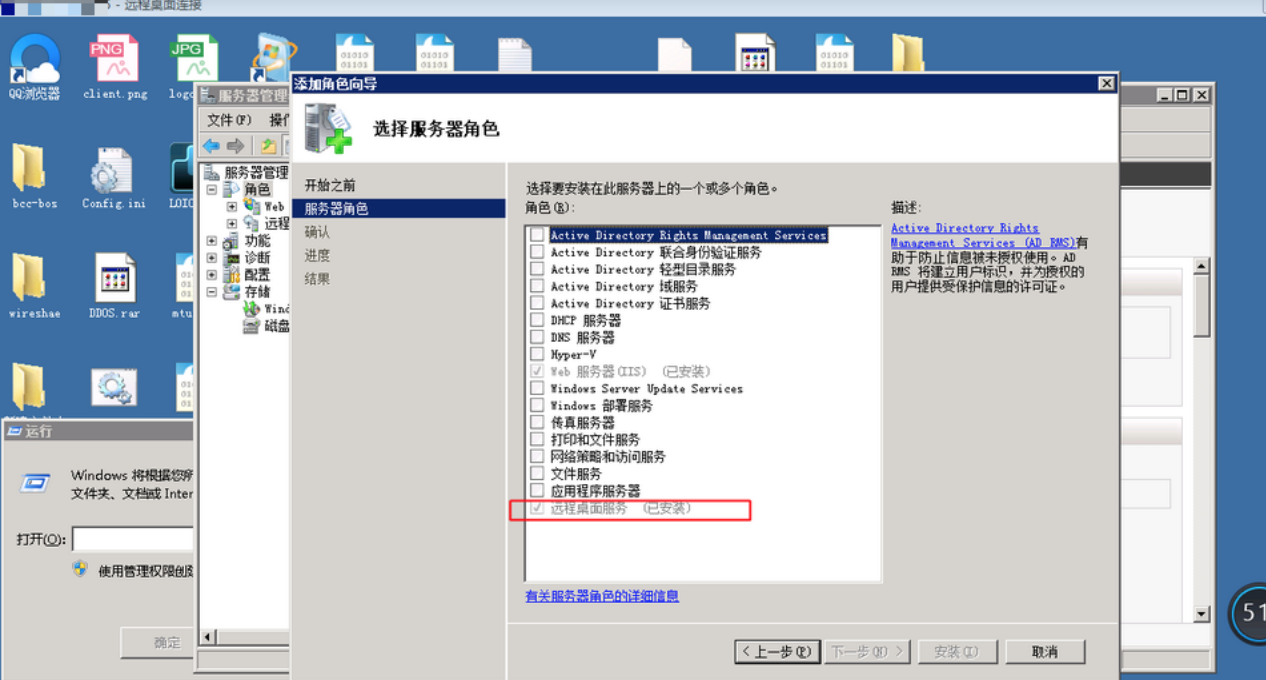
- Check Remote Desktop Services and proceed to the next step for installation.
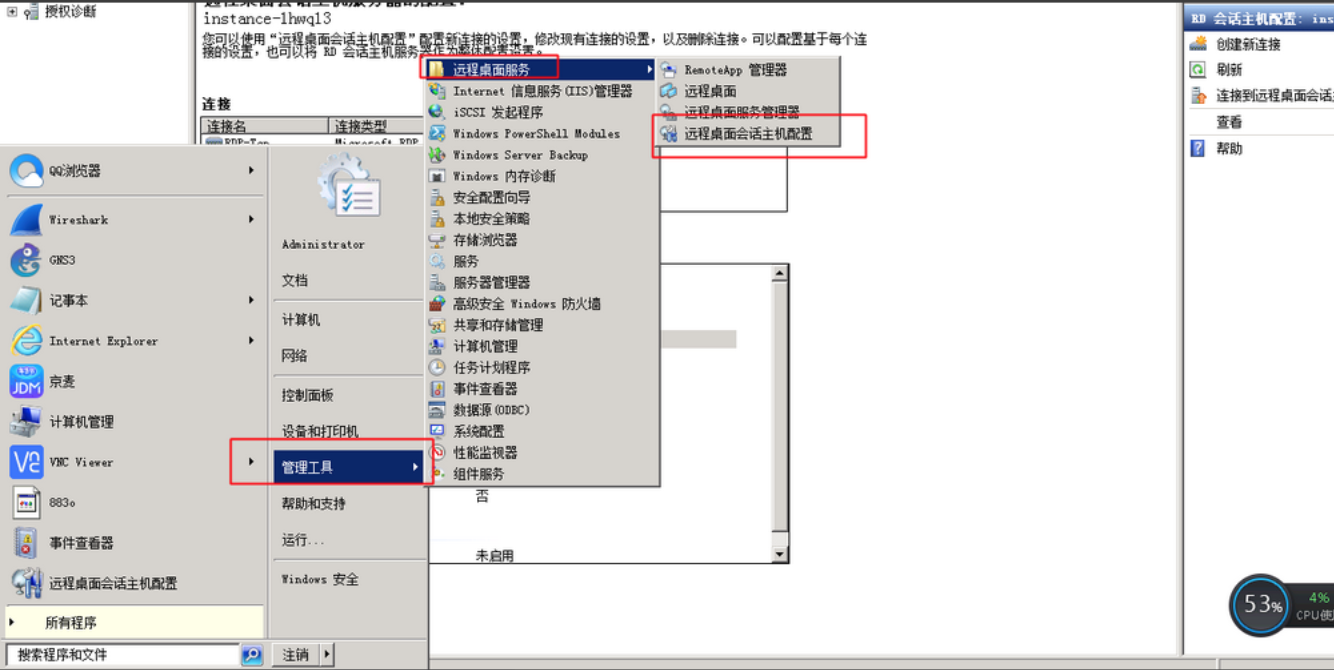
- Navigate to Remote Desktop Session Host Configuration in sequence.
- Remove the restriction that limits users to a single session (disable this restriction if repeated administrator logins are required).
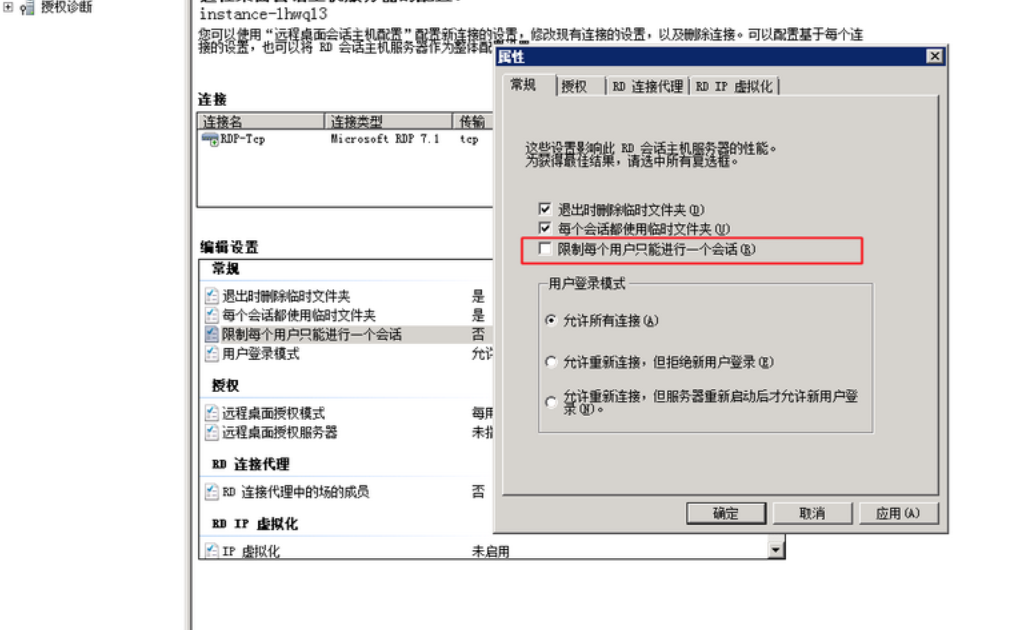
- Verify the configurations.
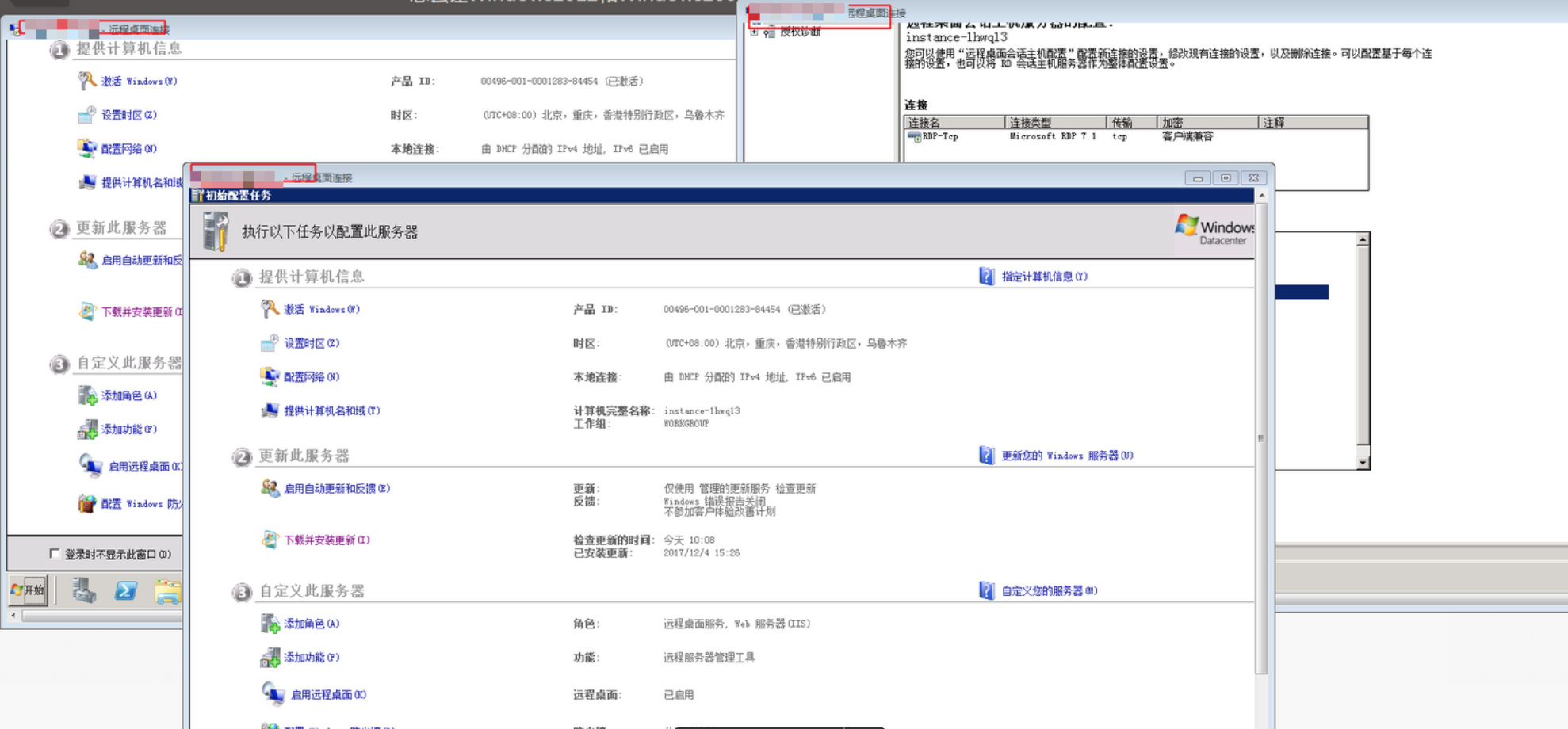
Note: This method of deployment provides only 120 days of free usage. To extend usage beyond this period, you will need to purchase a Microsoft license.