

Set IAM Role
An IAM role is a virtual identity that can be assigned permissions to manage cloud resources, similar to a user identity. You can associate an IAM role with a Baidu Cloud Compute (BCC) instance to call APIs of other cloud products within the instance using STS temporary credentials, which are periodically refreshed. This eliminates the need to configure AKSK, enhancing the security of cloud account credentials while allowing for fine-grained control and permission management via IAM.
This document explains how to manage instance IAM roles, including binding, modifying, and deleting instance roles.
Usage restrictions
Each BCC instance can be granted only one IAM role.
Temporary identity credentials refresh every 5 minutes. If a role is unbound, these credentials may become invalid within a maximum of 5 minutes.
Operation steps
Create an IAM role
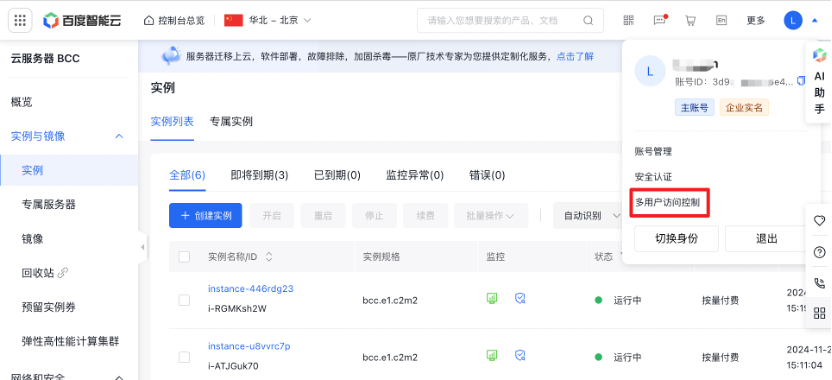
- Log in to the console, move the cursor over the avatar in the top-right corner, and select Multi-user Access Control.
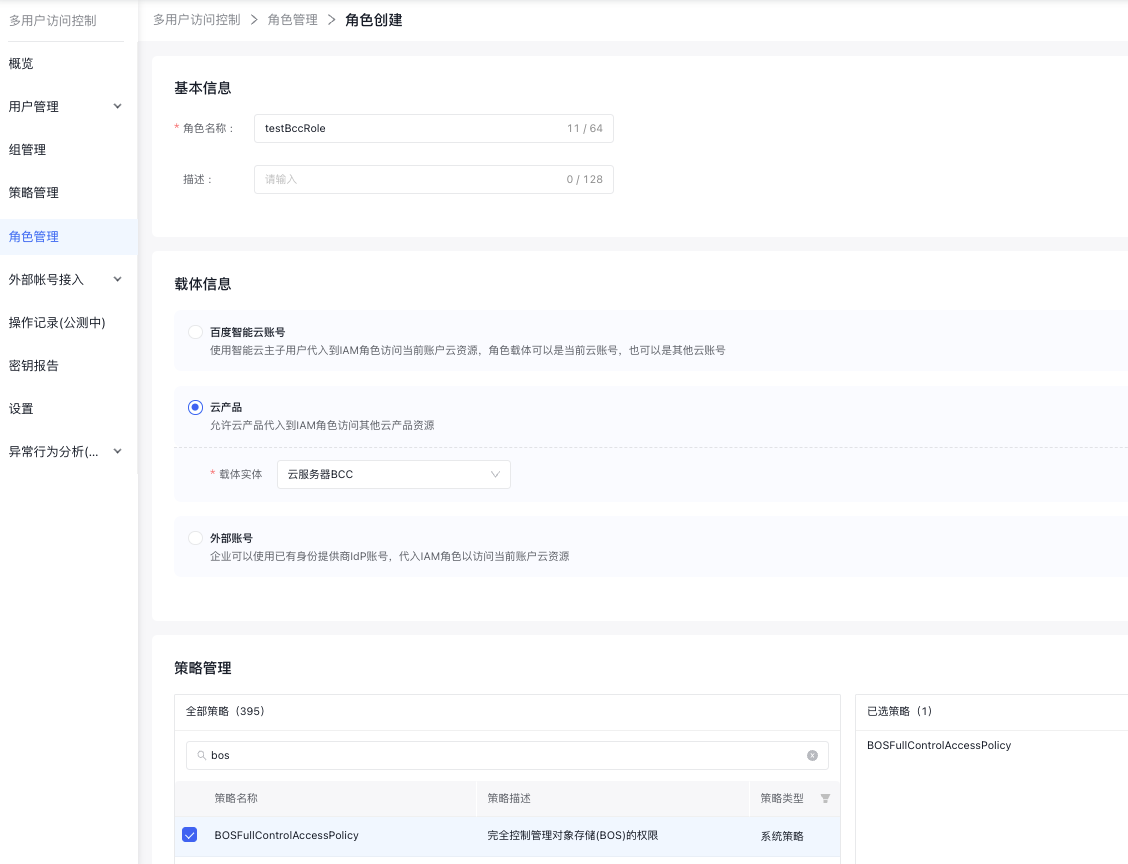
- Navigate to the "Multi-user Access Control" console, choose Role Management, and click Create Role. Enter the role name, select the cloud product as the carrier, specify Baidu Cloud Compute (BCC) as the carrier entity, and assign permissions to the role in policy management. Click OK to complete the role creation.
Bind an IAM role to an instance
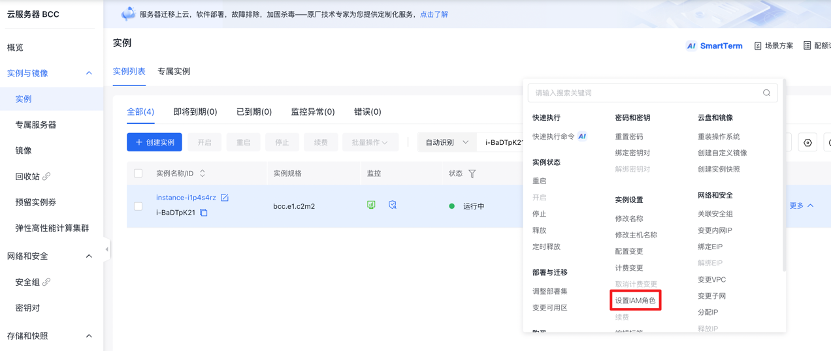
- Access the Baidu Cloud Compute (BCC) console, find the instance you want to bind or update a role for in the instance list, and select More - Instance Settings - Set IAM Role from the right-hand action menu, as shown in the following figure.
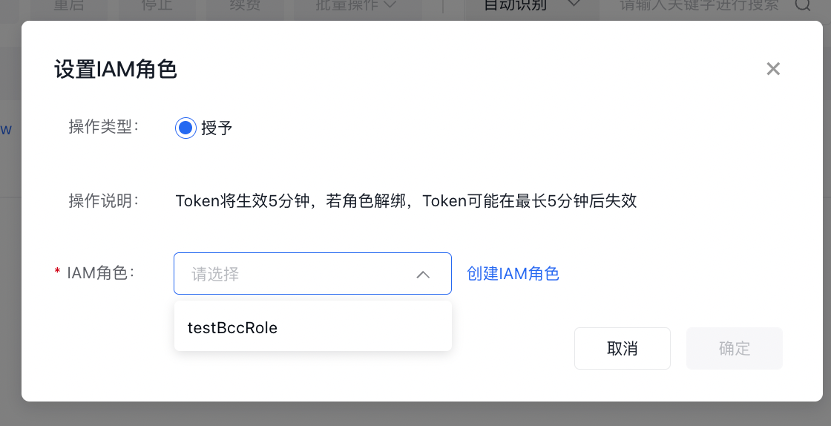
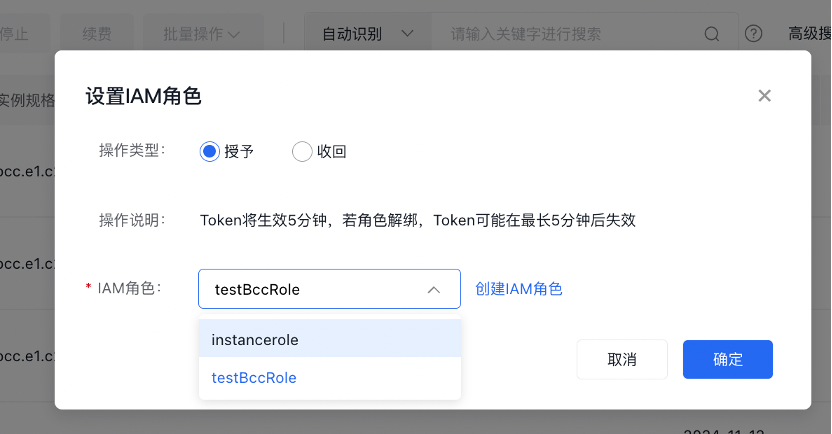
- In the pop-up Set IAM Role dialog box, click to select an IAM role and click the OK button to successfully bind the IAM role to the instance.
Retrieve temporary identity credentials for an instance IAM role
You can obtain temporary access credentials by fetching metadata within the BCC instance using the following command:
1curl 169.254.169.254/latest/meta-data/sts-credential
Call APIs with an instance IAM role
The example below shows how to utilize an IAM role for a BCC instance by invoking the Baidu AI Cloud Object Storage (BOS) file download API from a Go application running on a Linux-based BCC instance.
1import (
2    "fmt"
3 "github.com/baidubce/bce-sdk-go/auth"                    //Import the authentication module
4 "github.com/baidubce/bce-sdk-go/services/bos" //Import BOS service module
5 "github.com/baidubce/bce-sdk-go/services/sts"            //Import the Baige service module
6)
7func main() {
8
9 // Retrieve temporary identity credentials within the instance
10    accessKeyId = getAccessKeyId()
11    secretAccessKey = getSecretAccessKey()
12    sessionToken = getSessionToken()
13    bosClient, err := bos.NewClient(accessKeyId, secretAccessKey, sessionToken)
14    if err != nil {
15        fmt.Println("create bos client failed:", err)
16        return
17    }
18    stsCredential, err := auth.NewSessionBceCredentials(
19        accessKeyId,
20        secretAccessKey,
21        sessionTokenn)
22    if err != nil {
23        fmt.Println("create sts credential object failed:", err)
24        return
25    }
26    bosClient.Config.Credentials = stsCredential
27 // Directly retrieve an object by providing the Bucket and Object
28    res, err := bosClient.BasicGetObject(bucketName, objectName)
29 // Retrieve ObjectMeta
30    meta := res.ObjectMeta
31 // Retrieve the read stream (io.ReadCloser) of the Object
32    stream := res.Body
33 // Ensure to disable the Object read stream
34    defer stream.Close()
35 // Call the Read method of the stream object to process the Object
36    ...
37}
Other operations
Modify an instance IAM role
- Access the Baidu Cloud Compute (BCC) console, find the instance you want to bind or update a role for in the instance list, and select More - Instance Settings - Set IAM Role from the right-hand action menu, as shown in the following figure.
- In the pop-up Set IAM Role dialog box, click on the IAM role, select the IAM role in the dropdown box, and click the OK button to successfully modify the IAM role.
Revoke an instance IAM role
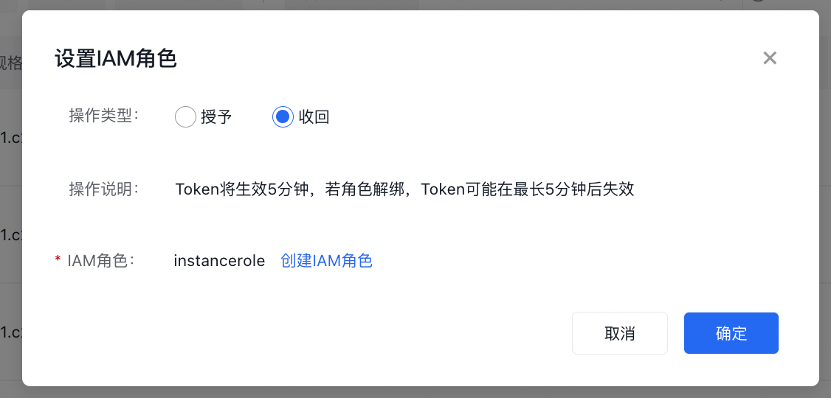
- Access the Baidu Cloud Compute (BCC) console, find the instance you want to bind or update a role for in the instance list, and select More - Instance Settings - Set IAM Role from the right-hand action menu, as shown in the following figure.
- In the Set IAM Role dialog box that appears, select Revoke as the operation type and click OK to successfully remove the IAM role from the instance.
Grant an IAM role via API
You can bind an IAM role to a specified instance via Bind Role.
You can revoke an instance IAM role via Unbind Role.
You can view all role names under your account through Retrieve Instance Role List.