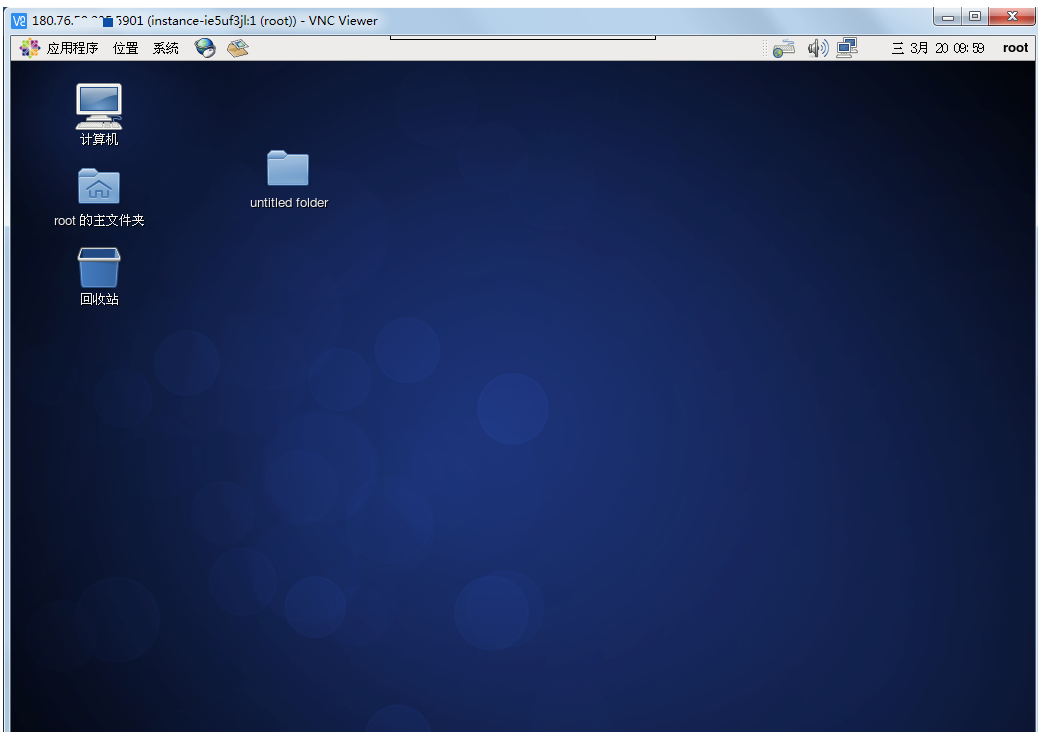
Install KDE Desktop GUI on CentOS 6_5 and Connect via VNC Viewer
This tutorial provides instructions for installing a graphical interface in a Baidu AI Cloud Public Image CentOS 6.5 environment and connecting locally using a VNC client.
Note: A graphical desktop may significantly degrade server performance. Improper installation may cause the OS to fail to boot normally. Before installation, back up Create Manual Snapshot for the BCC instance to enable rollback in case of exceptions.
This document consists of three steps:
Step I: [Install KDE desktop environment](#Install KDE desktop environment).
Step II: [Install vncserver service](#Install the vncserver service).
Step III: [Connect to the instance using the viewer client software](#Connect to the instance using the viewer client software).
Prerequisites
- Ensure that security groups and firewalls permit traffic on Port 5901 (the default port for the first window in vncserver).
- Download VNC Viewer client connection software.
Install KDE desktop environment
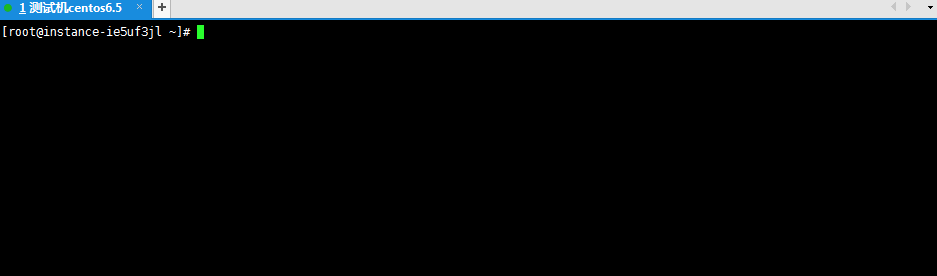
- Begin by remotely connecting to and signing in to the server.
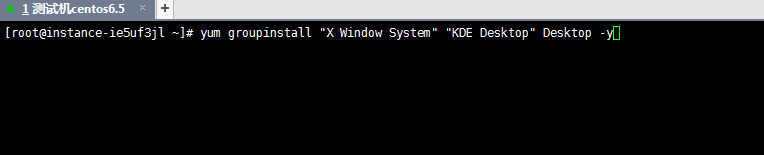
- Execute the command: yum groupinstall "X Window System" "KDE Desktop" Desktop -y Note: This command is to install 3 software packages simultaneously. Note: Because both KDE Desktop and X Window System package names contain spaces in the middle, they must be enclosed in quotes.
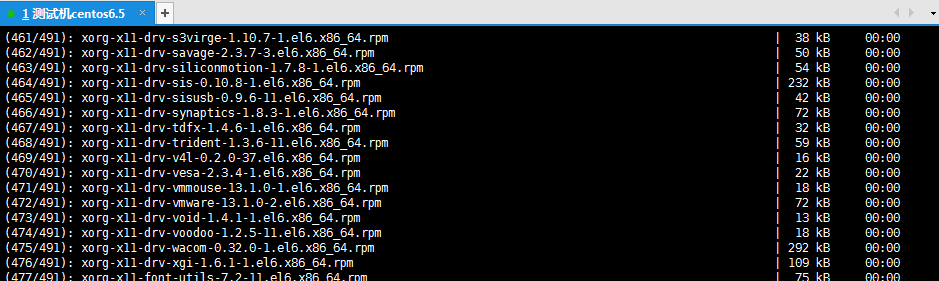
Run the command and wait for the installation to finish.
- Execute command: yum groupinstall "Chinese Support" Note: This command is to install the Chinese plug-in, so that the desktop supports Chinese (optional if Chinese is not needed).
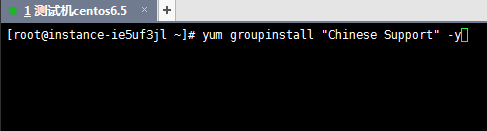
- Modify the language LANG to LANG=”zh_CN.UTF-8” Execute command: sed -i 's/LANG=.*/LANG="zh_CN.UTF-8"/' /etc/sysconfig/i18n (This operation will display all interfaces and command characters in Chinese. If not required, this step may be omitted).
- Reboot the server to apply changes. Command: reboot
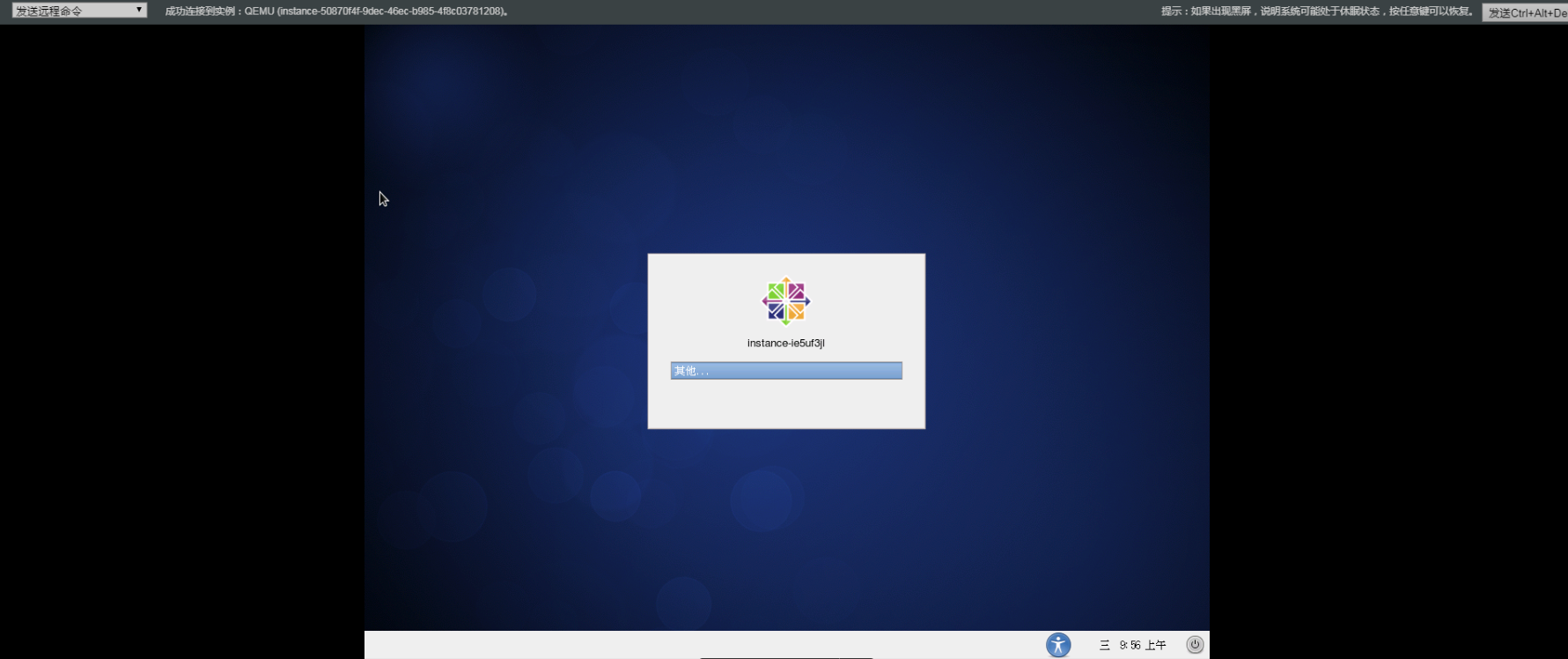
- The graphical interface is now installed. After rebooting, reconnect and execute the command: init 5 to start the graphical interface
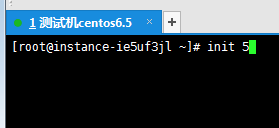
Note: The graphical desktop should be visible and accessible through VNC once installed.
Install the vncserver service
Enable local access to the graphical desktop via remote connection.
- Install vncserver on the system.
Command: yum install -y tigervnc-server

- Configure the vncserver settings.
(1) Configure to start automatically at boot.
Command: chkconfig --level 345 vncserver on

(2) Set up a VNC password (You will be required to enter the password twice during the initial setup).
Command:
1vncserver
2
3You will require a password to access your desktop.
4 Password: (Enter and remember this password)
5 Verify: (Re-enter and remember this password)- Edit the configuration file
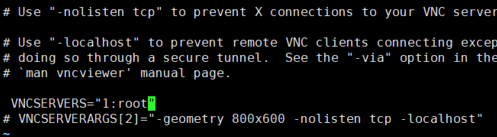
vi /etc/sysconfig/vncservers

Add the line VNCSERVERS="1:root"。 Exit and save.
Restart the VNC service.
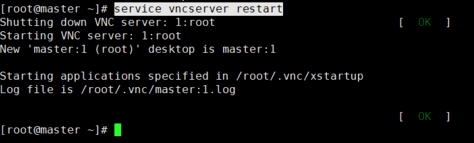
Command: service vncserver restart
Connect to the instance using the viewer client software
- Connect to the instance using the viewer client connection software provided in the prerequisites:
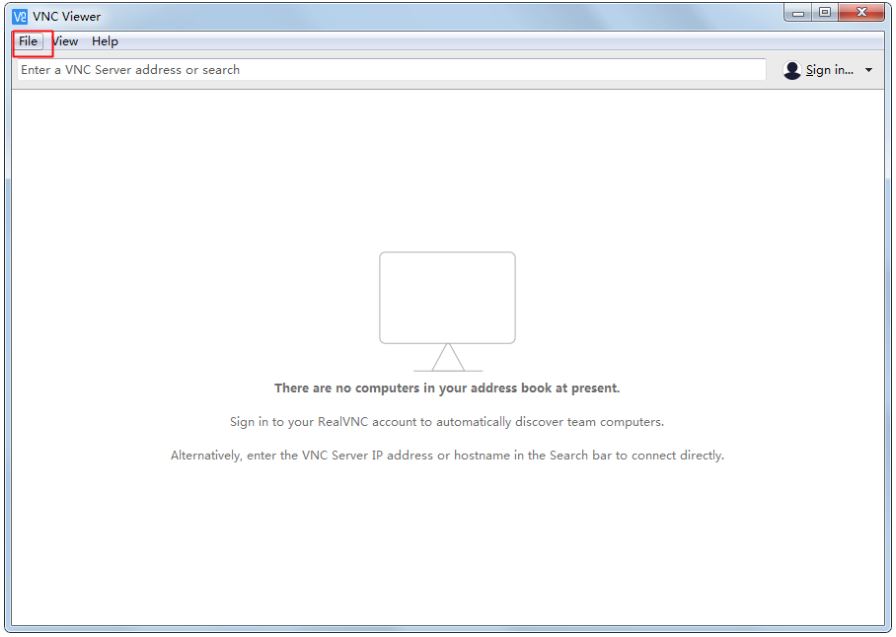
Click on File - New Connection to create a new connection.
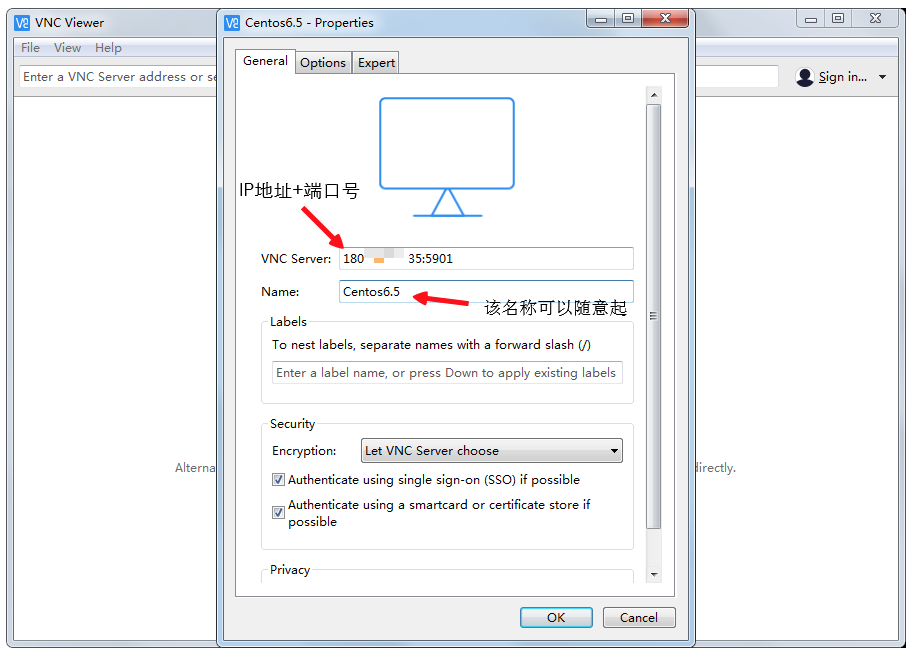
- Fill in the required information.
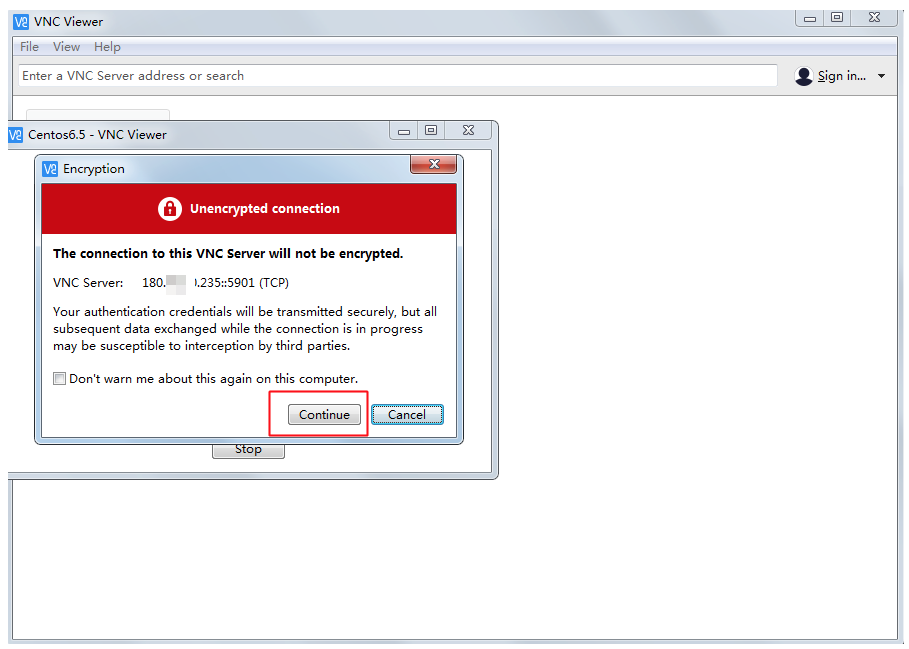
- Double-click the connection you previously created and then click to connect.
- Enter the password you set in step (2) above.
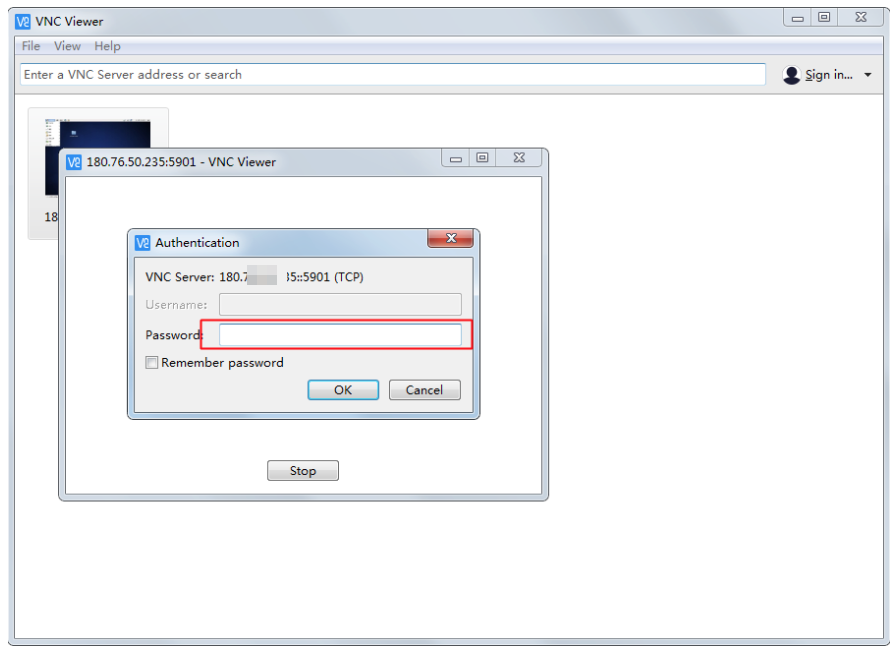
- The connection has been successfully established.