

Create command
Updated at:2025-10-20
Create command
Users can create commands for resetting instance passwords, installing/maintaining/uninstalling applications and software in instances, applying patches, and so on. Users can create Linux Shell and Windows PowerShell scripts based on instance OS, specifying custom parameters and variables in commands.
Operation step
- Sign in to BCC Console.
- Click Cloud Assistant in the left navigation bar, then select My Commands menu on the Cloud Assistant List page and click Create Command.
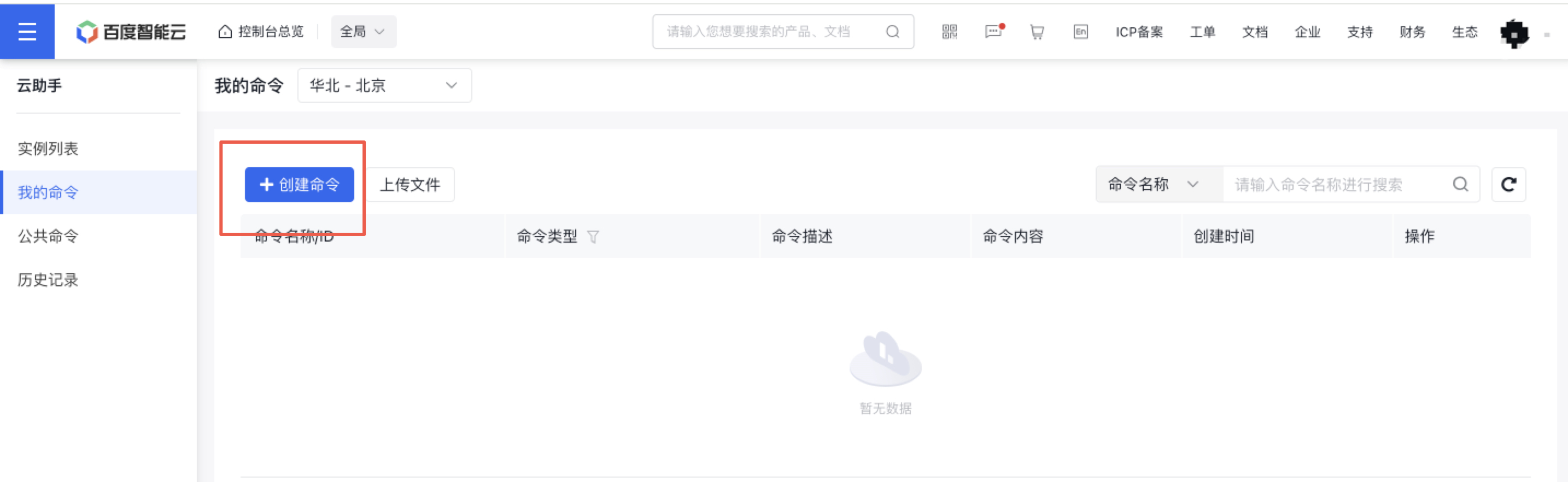
- Provide the following information in the pop-up dialog box.
| ConfigMap | Required/Optional | Configuration |
|---|---|---|
| Command name | Required | Supports uppercase and lowercase letters, numbers, and -_ /. special characters. The name must start with a letter and be 1-65 characters long. |
| Enter commands | Required | Choose your method to create a command: Enter Command Content: Type or paste the command into the input box; Select My Commands: Choose from previously created commands. |
| Command type | Required | Select the command type based on the BCC instance's operating system: Shell for Linux OS or PowerShell for Windows OS. |
| Command content | Required | Enter or paste the command replicated to clipboard. You can choose to enable With Parameter. Once enabled, when new parameters are entered, corresponding new parameters will be synchronously generated, and the interface will add input fields for command parameter values and descriptions accordingly. |
| Command description | Optional | Input a clear and descriptive command description to ensure it can be quickly understood later. |
| Execution user | Required | Specify the username for executing the command on BCC instances. The default username for Linux OS BCC instances is root. Users may customize this for Linux OS as needed, but not for Windows OS. |
| Execution path | Required | Define the execution path for commands. The default path for executing commands in Linux OS BCC instances is /home, while in Windows OS BCC instances, it is C:\Windows\system32. Users can adjust the execution path according to their needs. |
| Timeout duration | Required | Set the timeout duration for executing commands in instances. If the command execution exceeds the specified time limit, the cloud assistant will forcibly terminate the process. The default unit is seconds, with a default value of 60 seconds. The minimum duration is 10 seconds, while the maximum is 86,400 seconds (equivalent to 24 hours). |
| Acquisition method | Required | Enable manual selection of instances, allowing users to batch select multiple instances, with a maximum of 100 instances per operation. |
| List of instances | Required | It is recommended that you select a currently operational BCC Instance with cloud assistant client installed. If the instance's BSM-Agent status is offline, the command is highly likely to fail. Please ensure the BSM-Agent remains online. For managing BSM-Agent, refer to Install BSM-Agent |
- Click Execute to complete creation and immediately execute the current command once.
- To defer execution, select Save commands for manual execution later.
Note: Direct execution will not save the currently configured command. If you need to continue using this command subsequently, it is recommended to execute it via Execute and Save.