Tutorial on Setting Up IIS and FTP on Windows
Tutorial on setting up IIS and FTP on Windows 2012
The specific steps for setting up an FTP site by a Windows instance with Windows Server 2012 R2 OS are as follows:
- Step 1: Add the roles for IIS and FTP services.
- Step 2: Create an FTP username and password.
- Step 3: Configure permissions for the shared files.
- Step 4: Set up and configure the FTP site.
- Step 5: Configure security groups and firewall settings.
- Step 6: Test the FTP client.
Add the IIS and FTP service roles
Before setting up an FTP site, ensure you have installed IIS and FTP services.
- Remotely connect and sign in to the Windows instance.
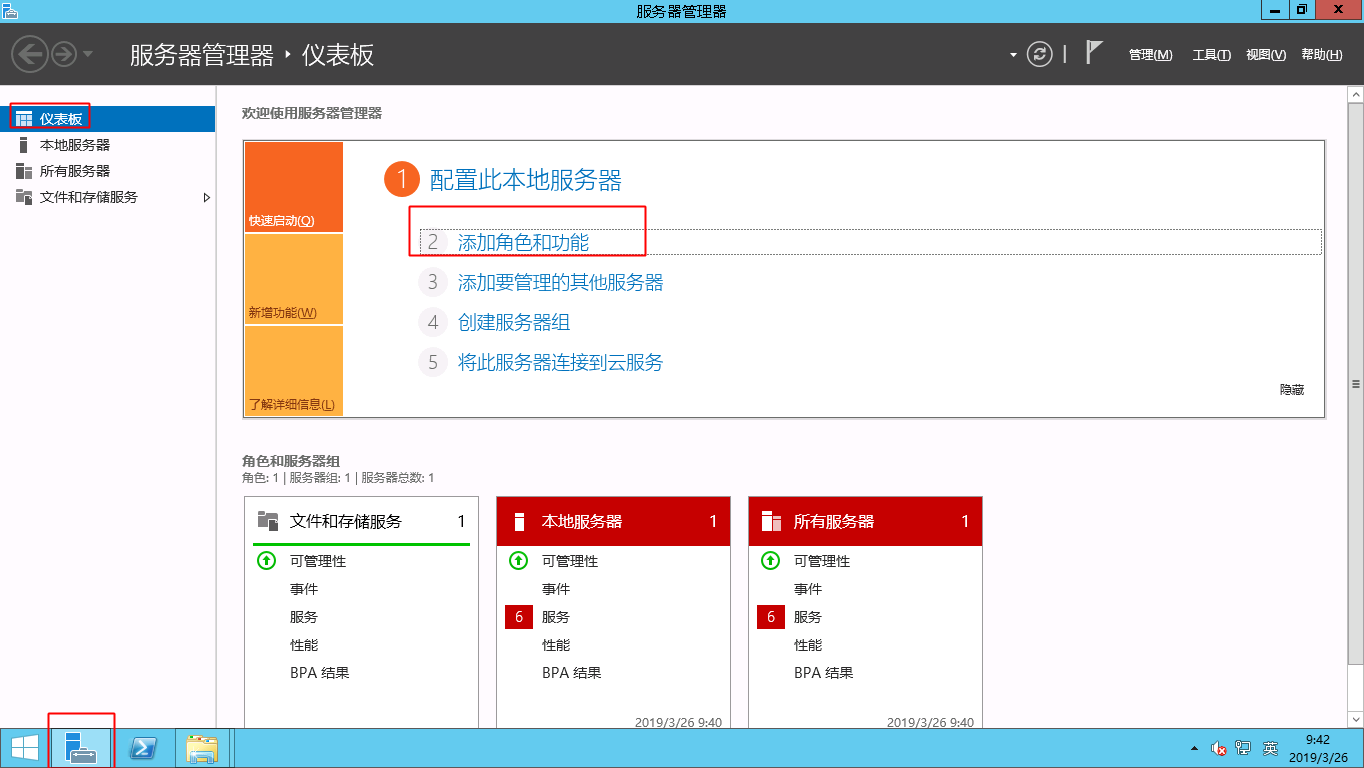
- Select Start - Server Manager - Dashboard.
- Click Add Role and Function.
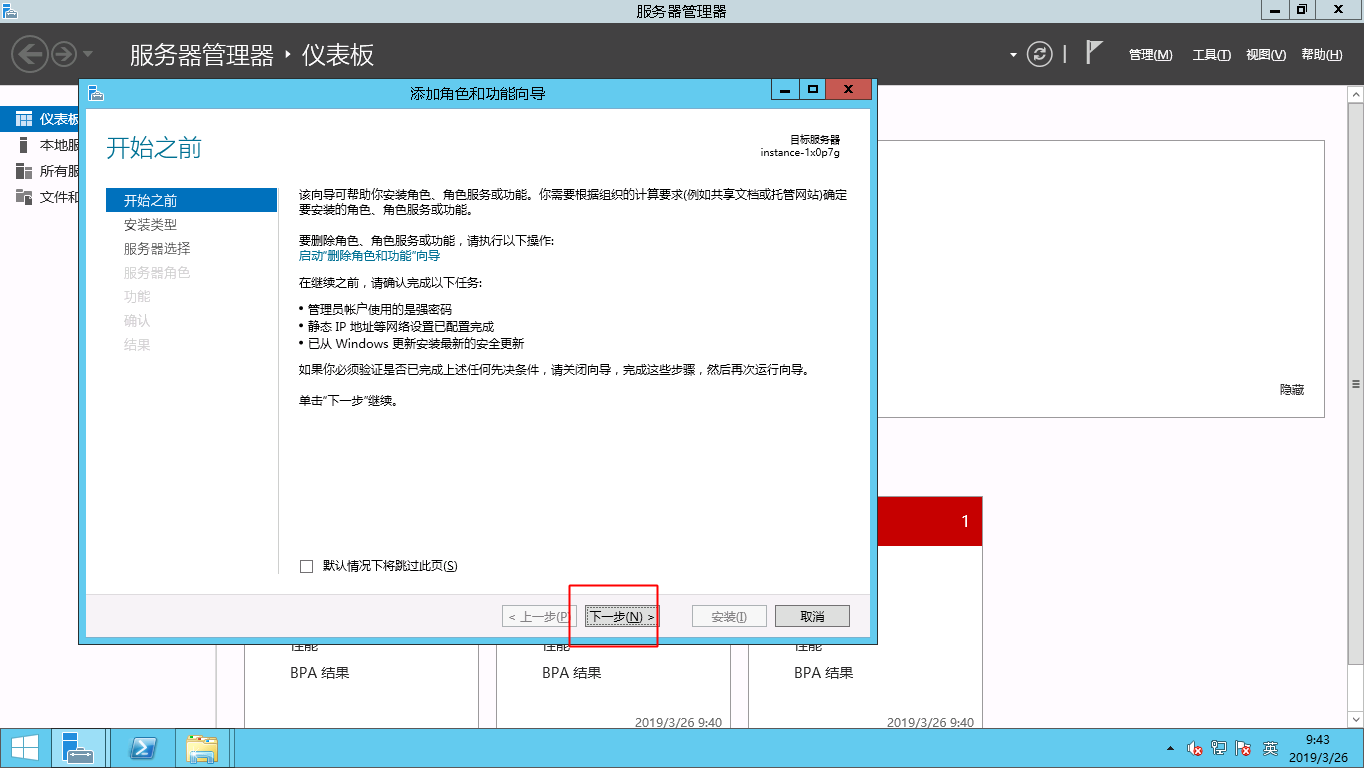
- In the pop-up dialog box, select Next.
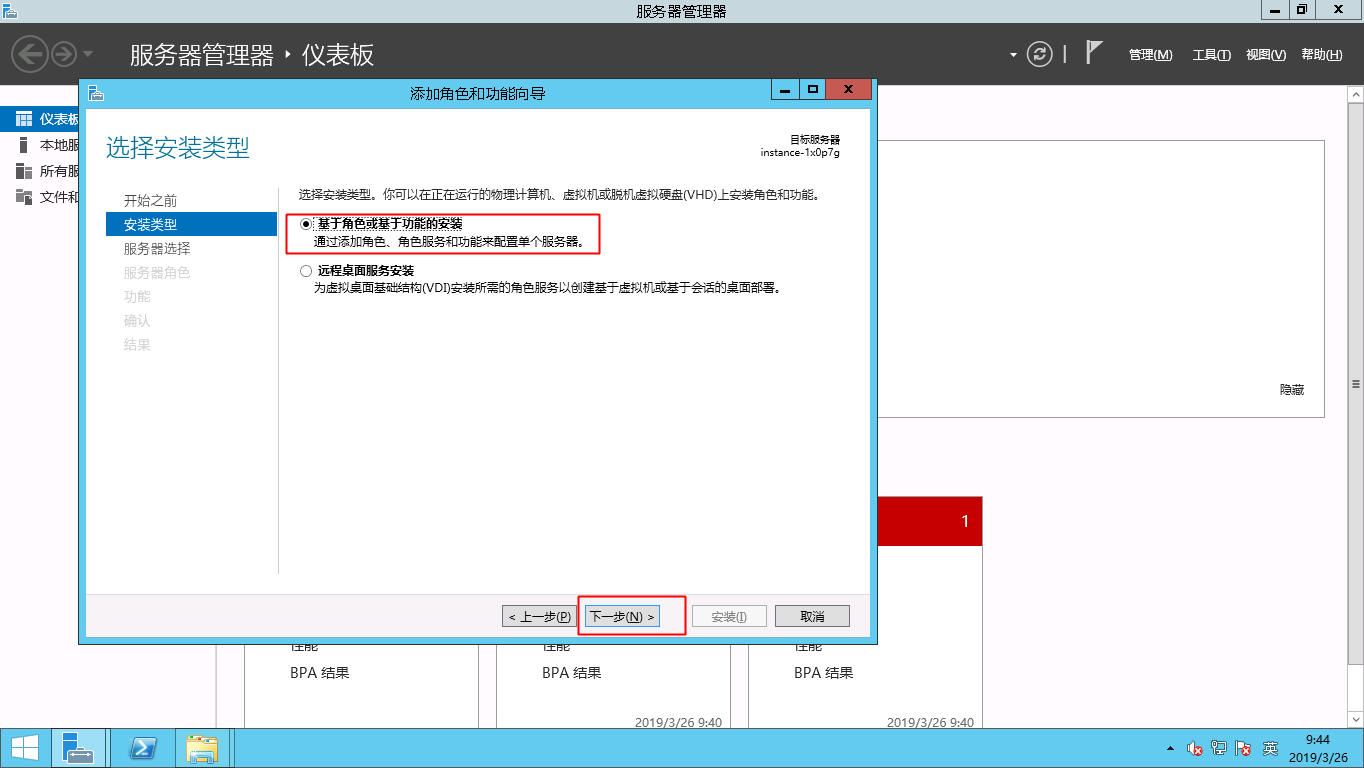
- Select Role-based or Function-based Installation and click Next.
- No operation is required on the server selection interface; directly click Next.
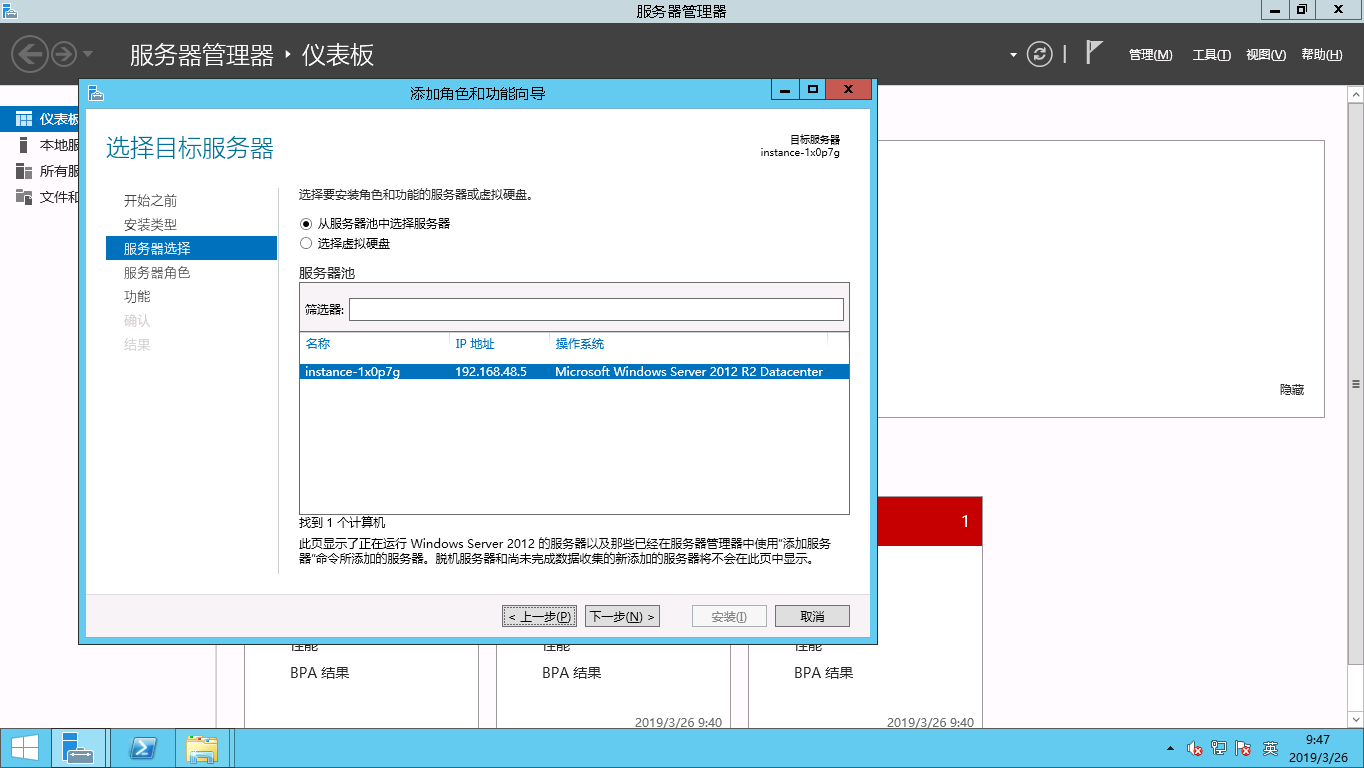
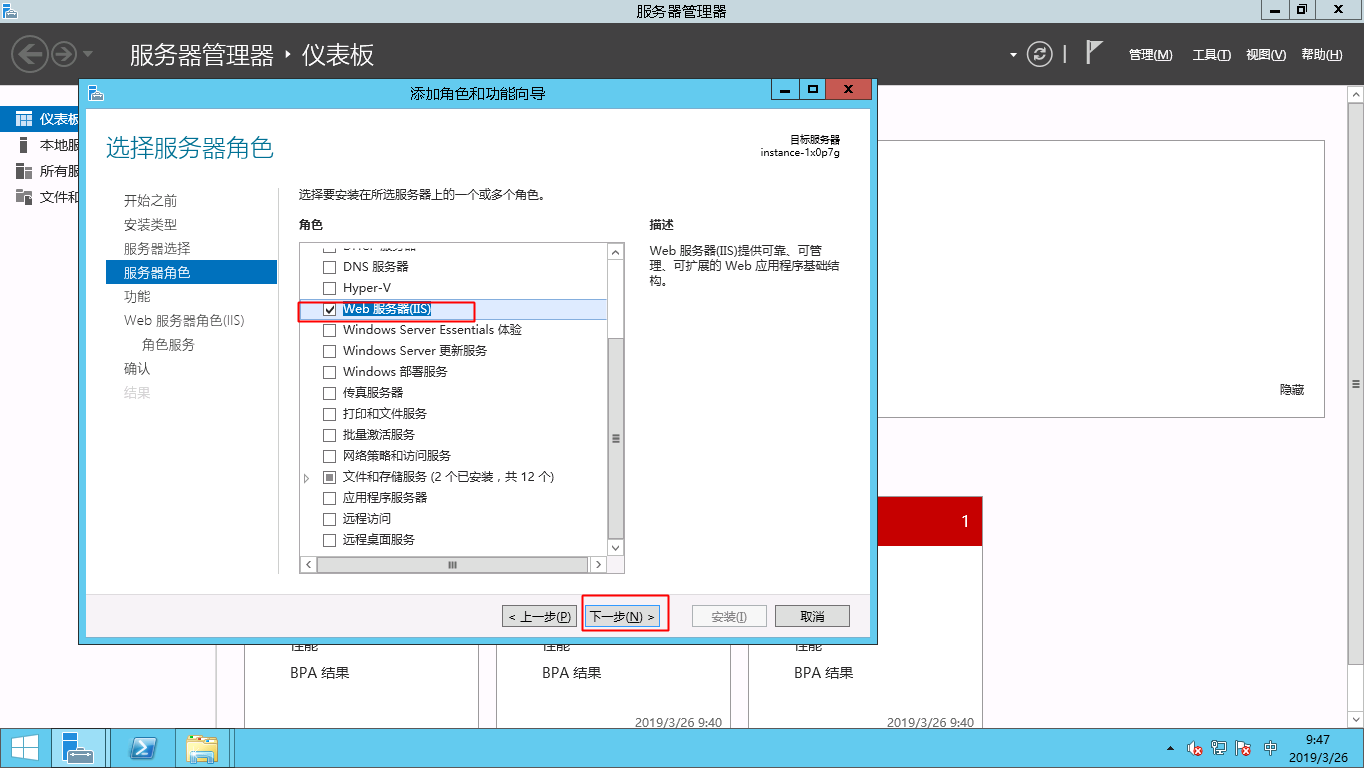
- Enter Add Role and Function Wizard and select Web Server (IIS).
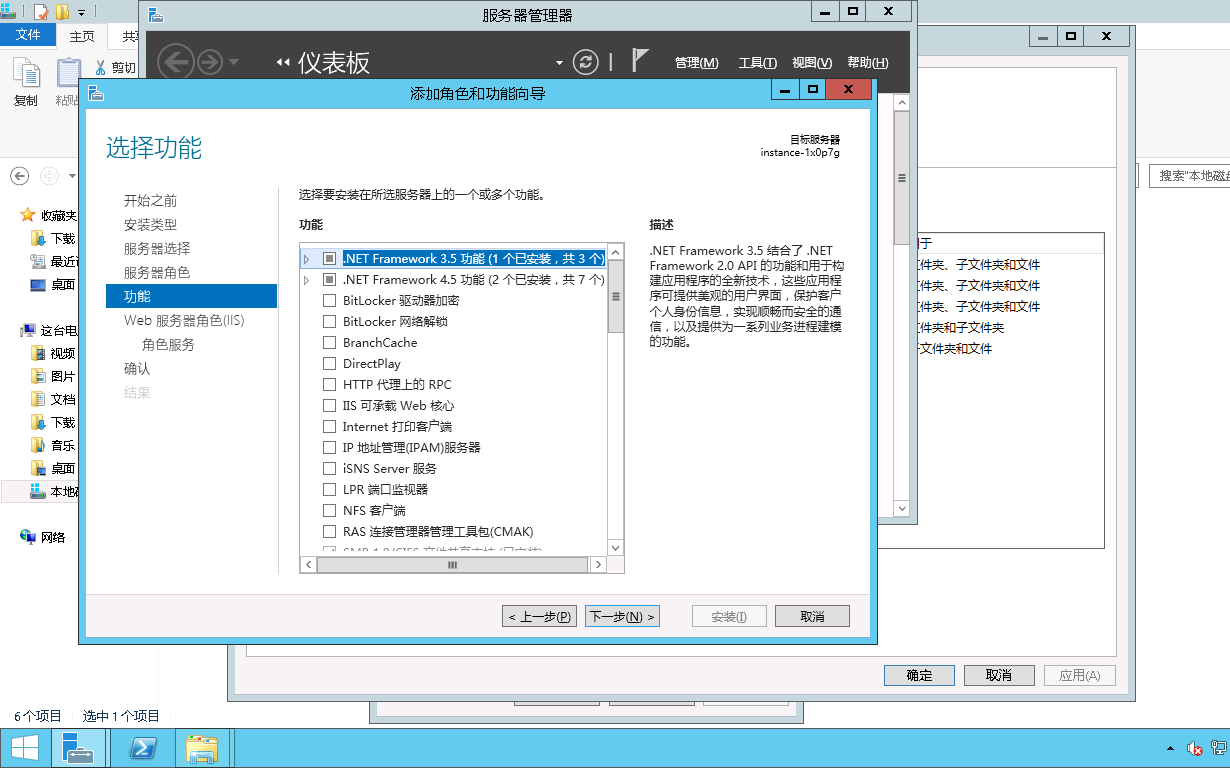
- Click Next on the function interface.
- Install role services and select the corresponding security options as shown in the figure.
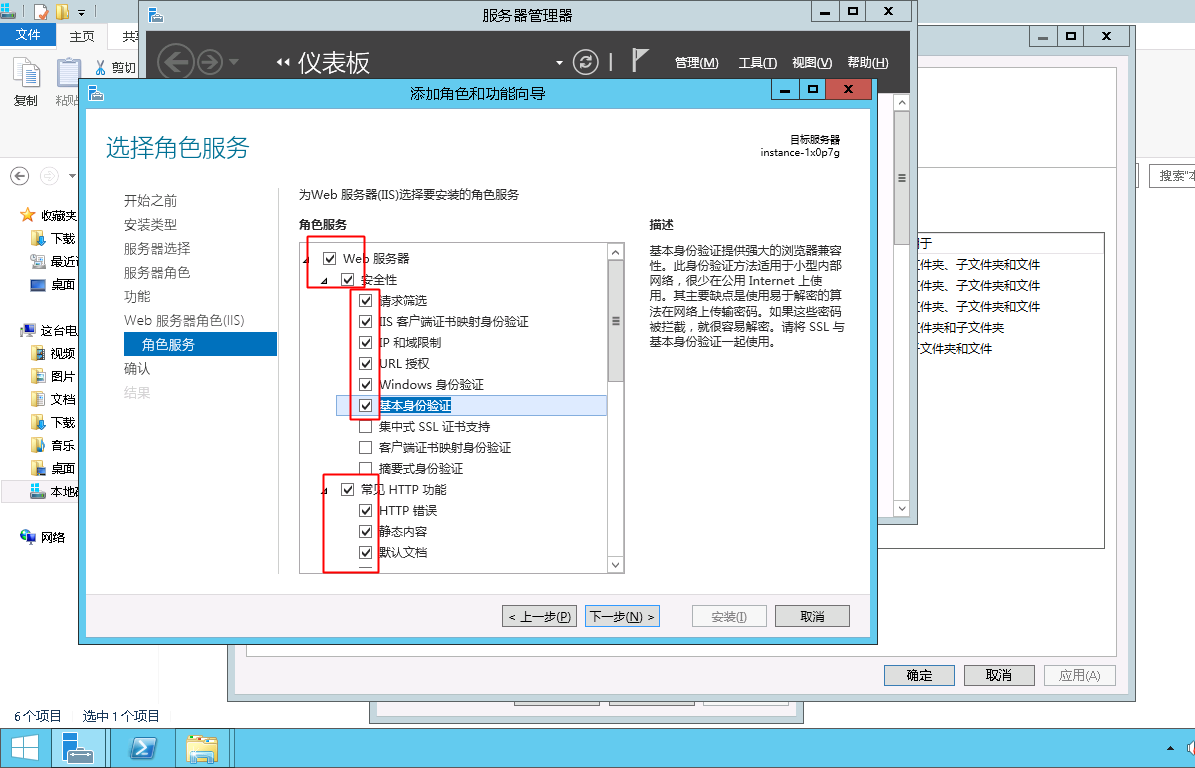
- Select FTP Server and Management Tool required for hosting.
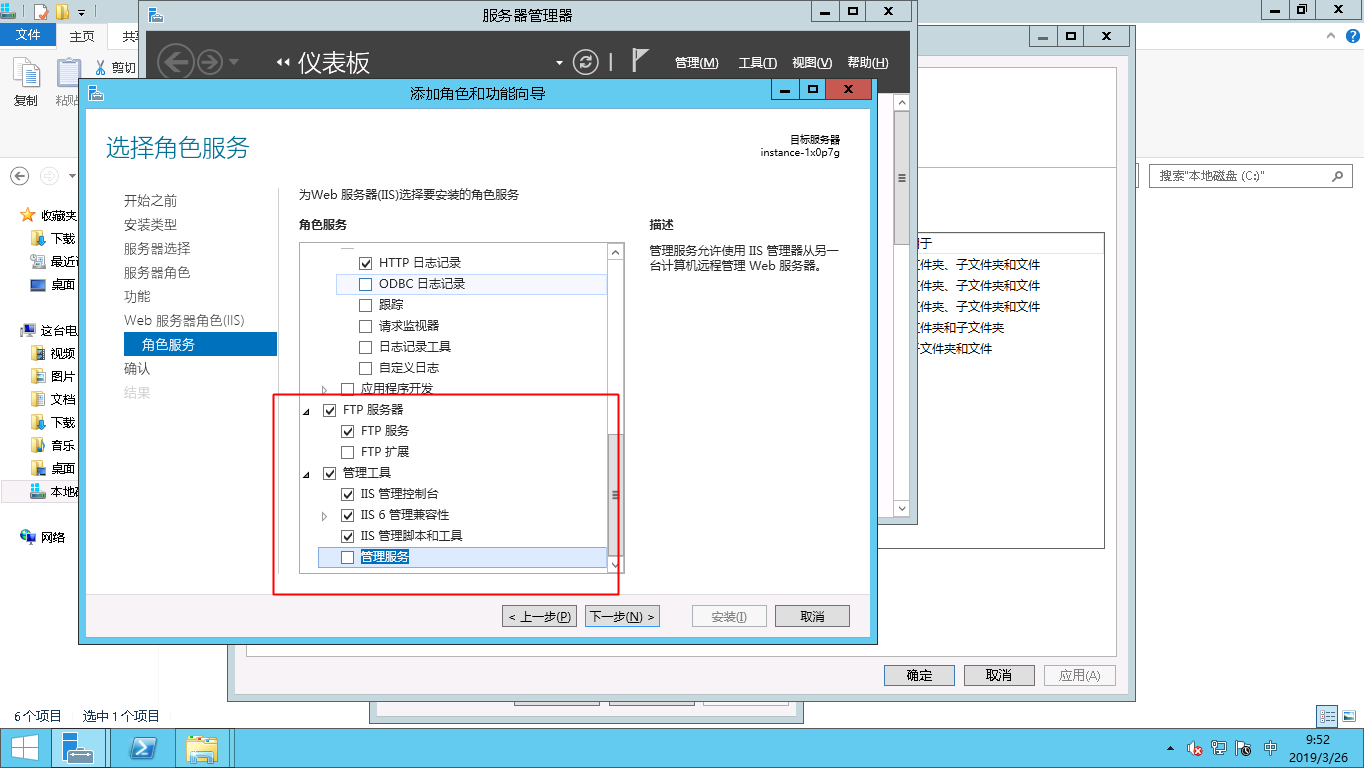
- Click "Install." The installation process may take some time, so please be patient.
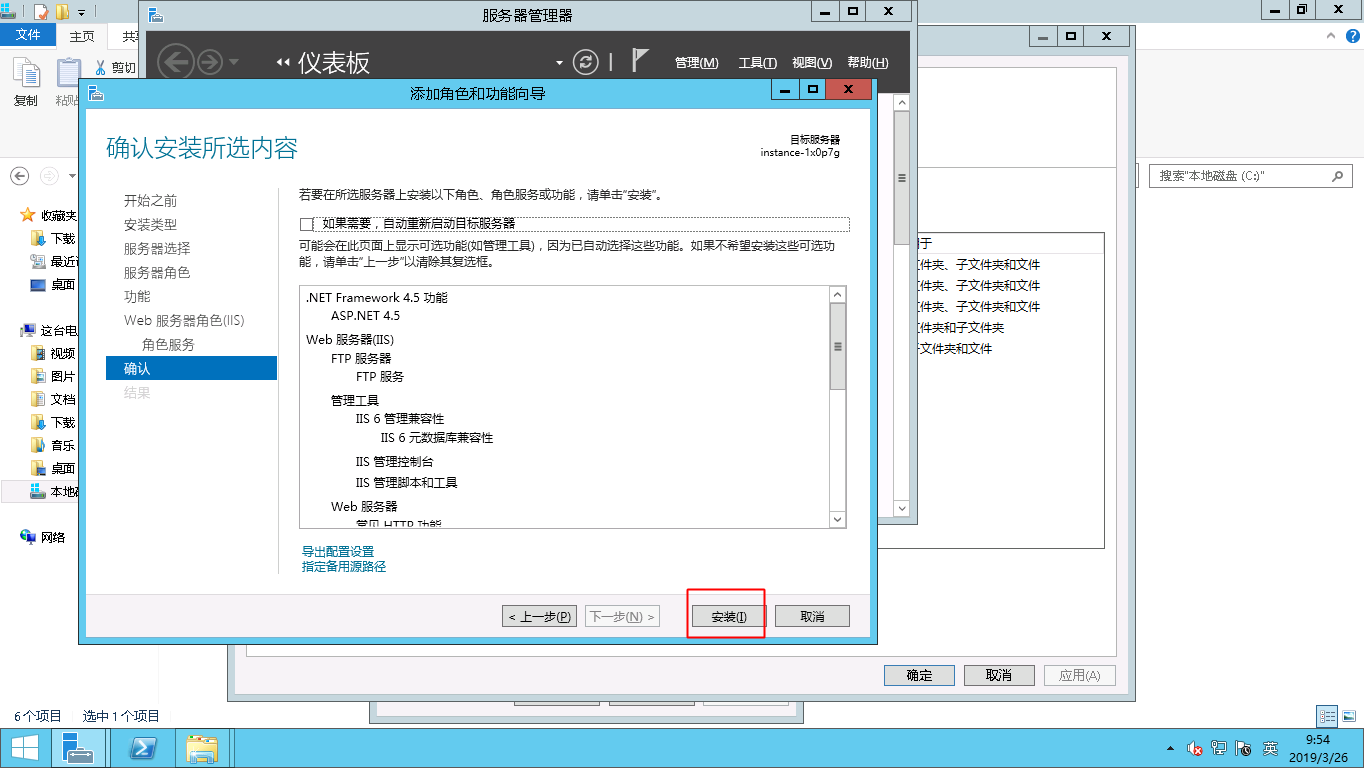
Once the above steps are completed, IIS and FTP services will be ready to use.
Create an FTP username and password
Create a Windows username and password specifically for FTP access. (Note: Anonymous login is enabled by default, making this step optional. Perform this step if you want to enforce username and password credentials for FTP access.)
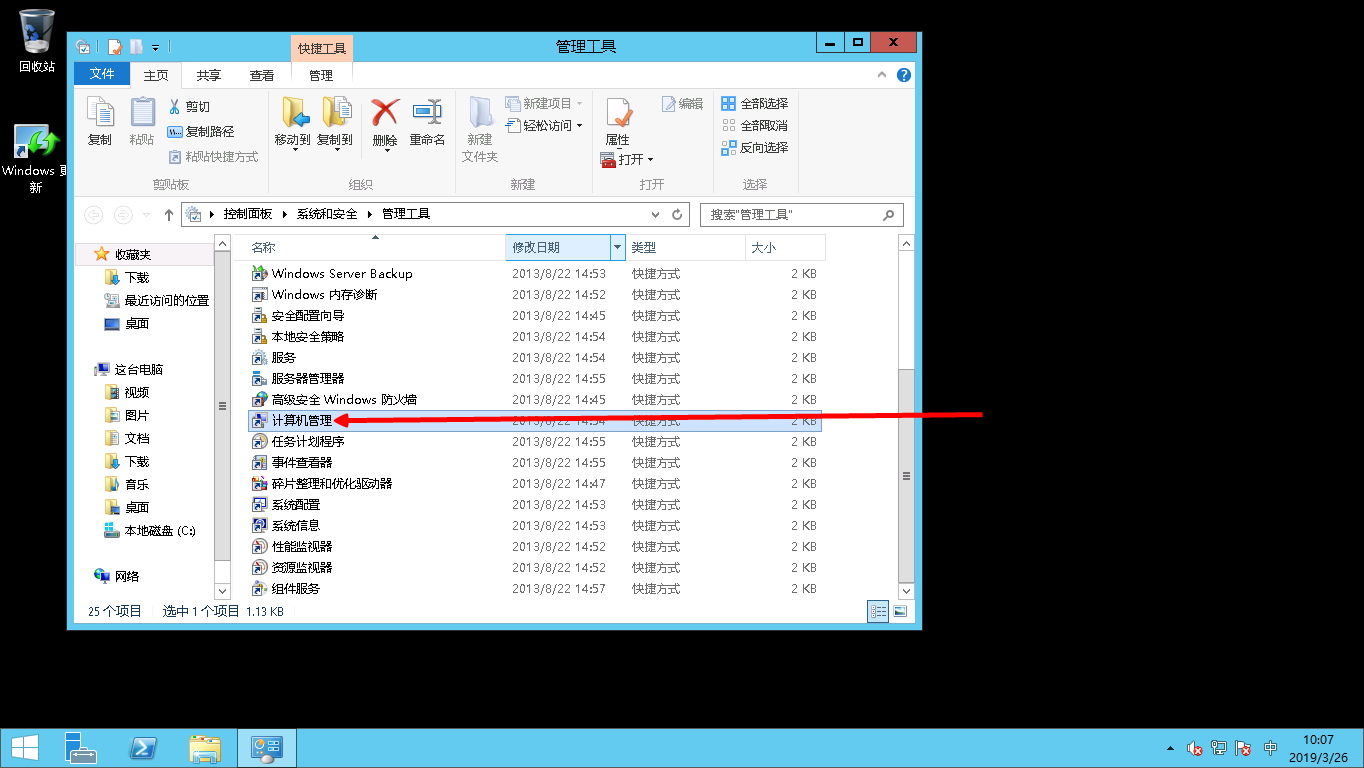
- Select Start - Management Tool - Computer Management.
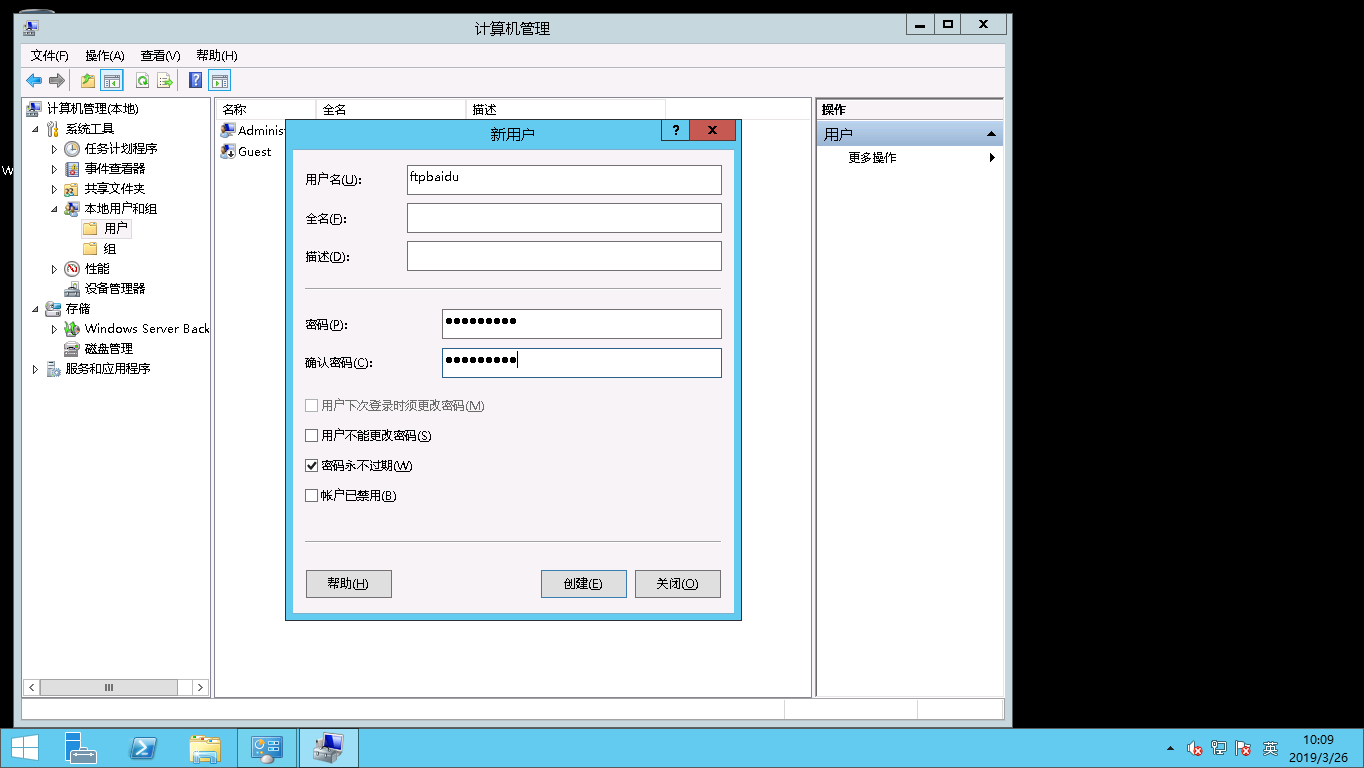
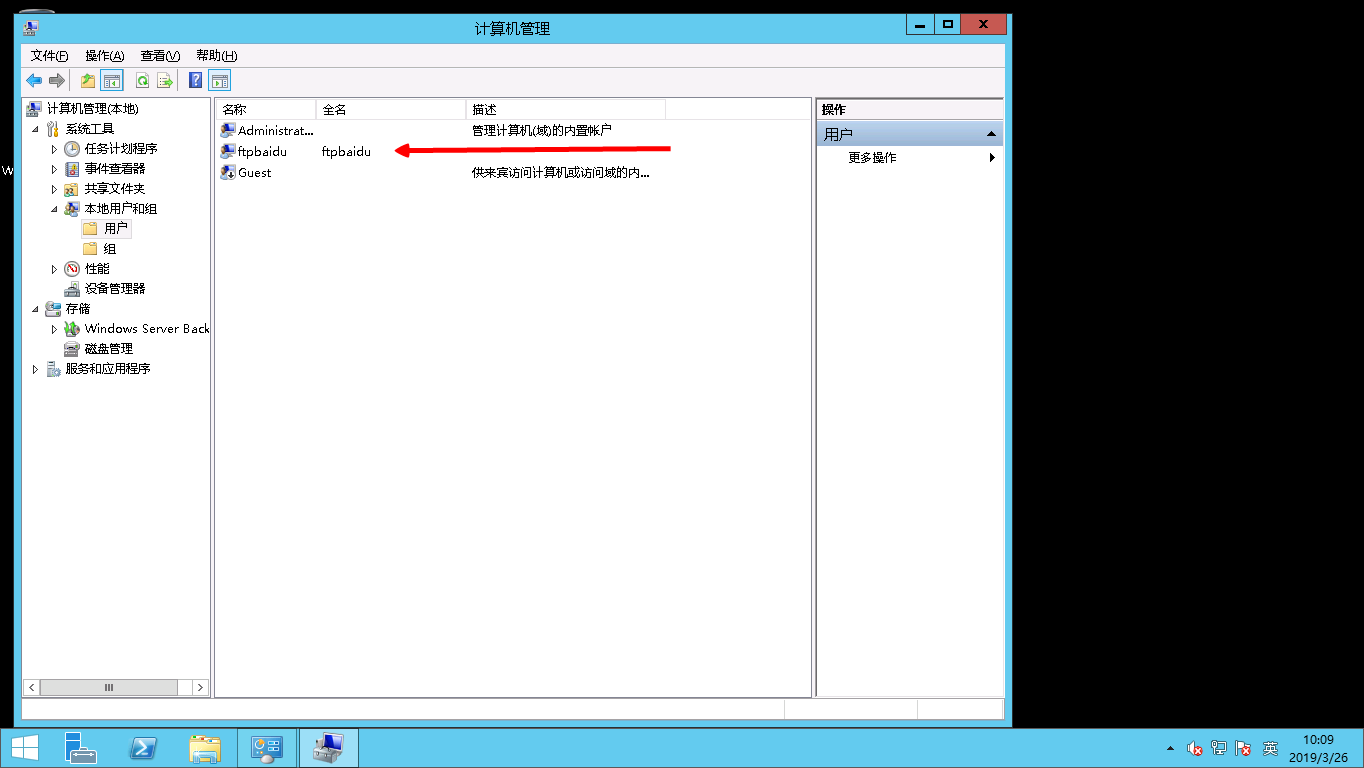
- Click Local Users and Groups - Users in the left menu bar, right-click in the blank space on the right and then select Add User. In this example, the username ftpbaidu is used.
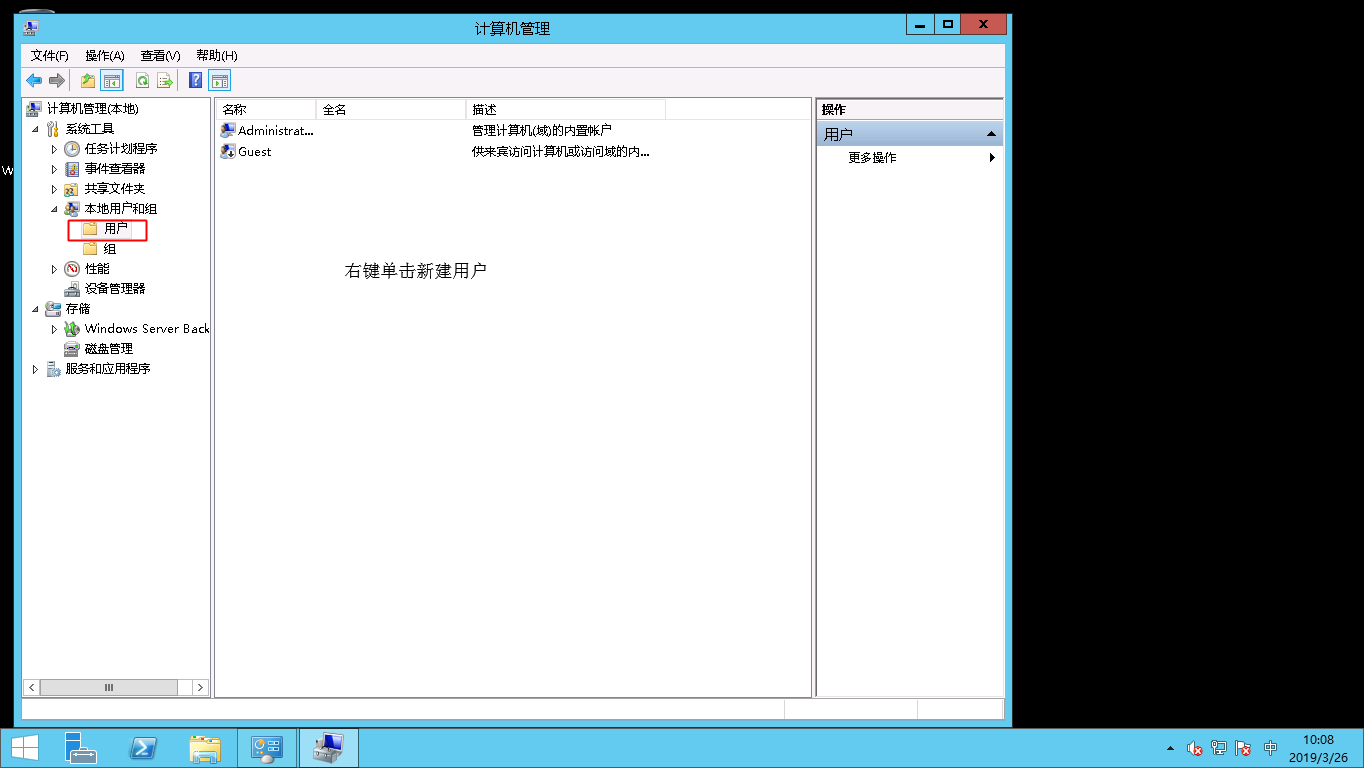
Note: The password must include uppercase letters, lowercase letters and numbers. Otherwise, it will show that it cannot pass the password policy.
Set permissions for shared files
Set the access and modification permissions for the folder that will be shared with FTP users.
- Create a folder for FTP use on the server disk, right-click the folder and selectAttributes.
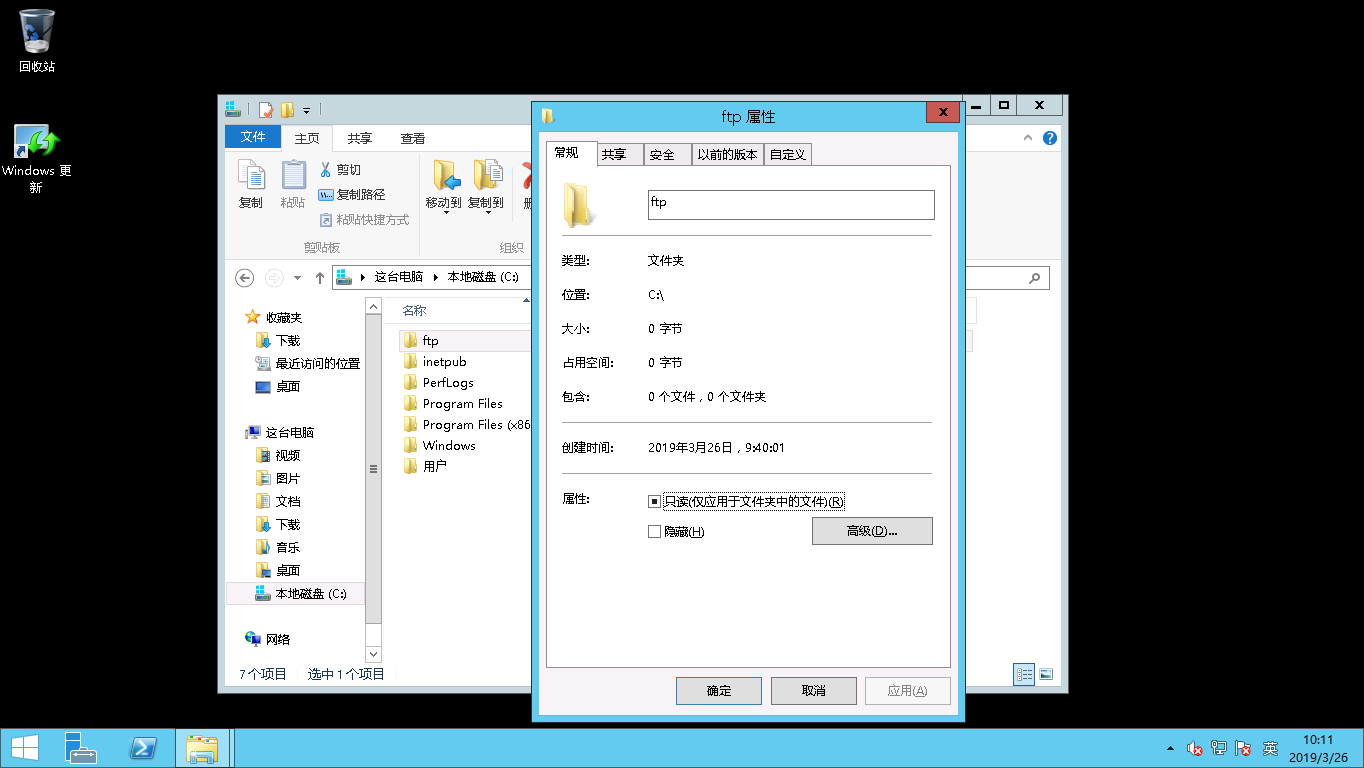
- Click Security and select Advanced - Change Permission - Add.
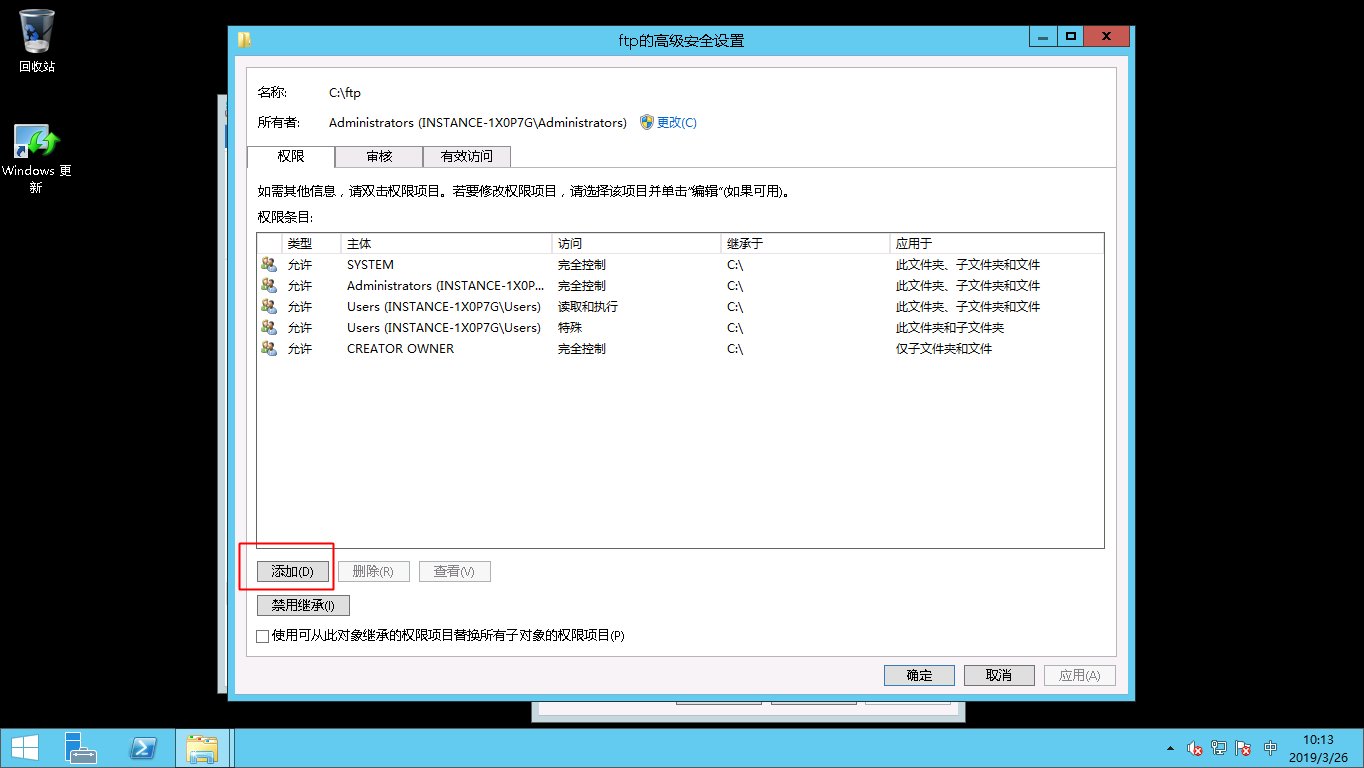
- Click to select the principal, then enter Everyone in the box and click OK.
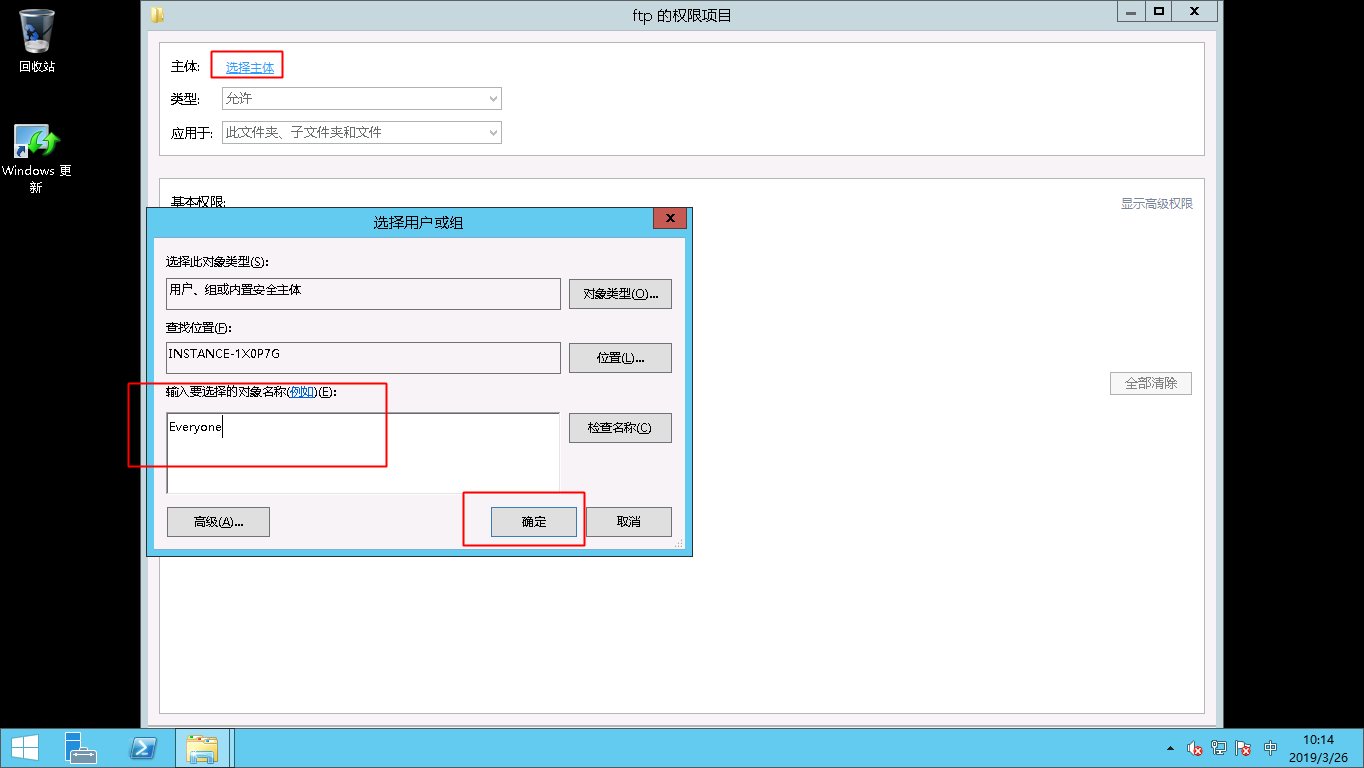
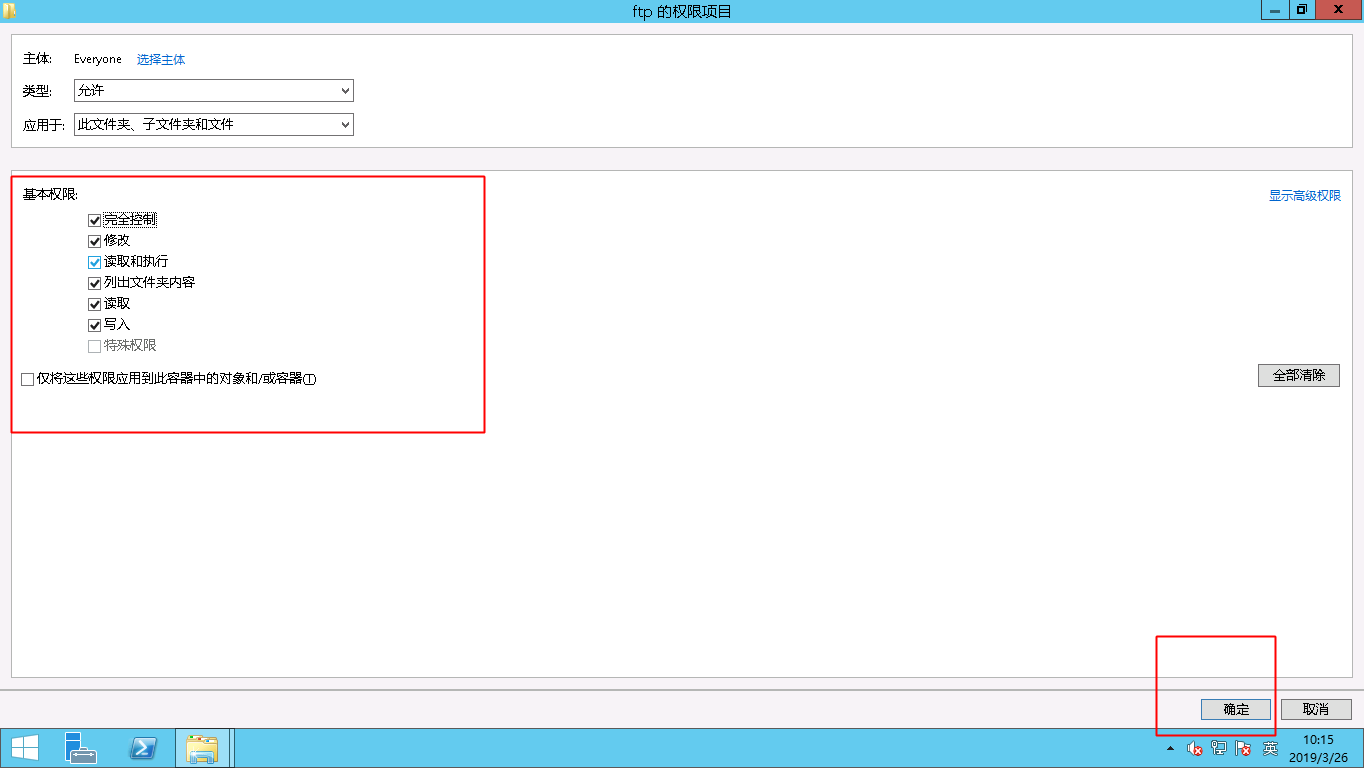
- Select appropriate permissions as needed. For example, click Full Control, then click OK and select OK for all options after clicking.
Add and configure the FTP site
After installing FTP and configuring folder permissions, proceed to create the FTP site.
- Select Start - Server Manager - Tool - Internet information Service (IIS) Manager.
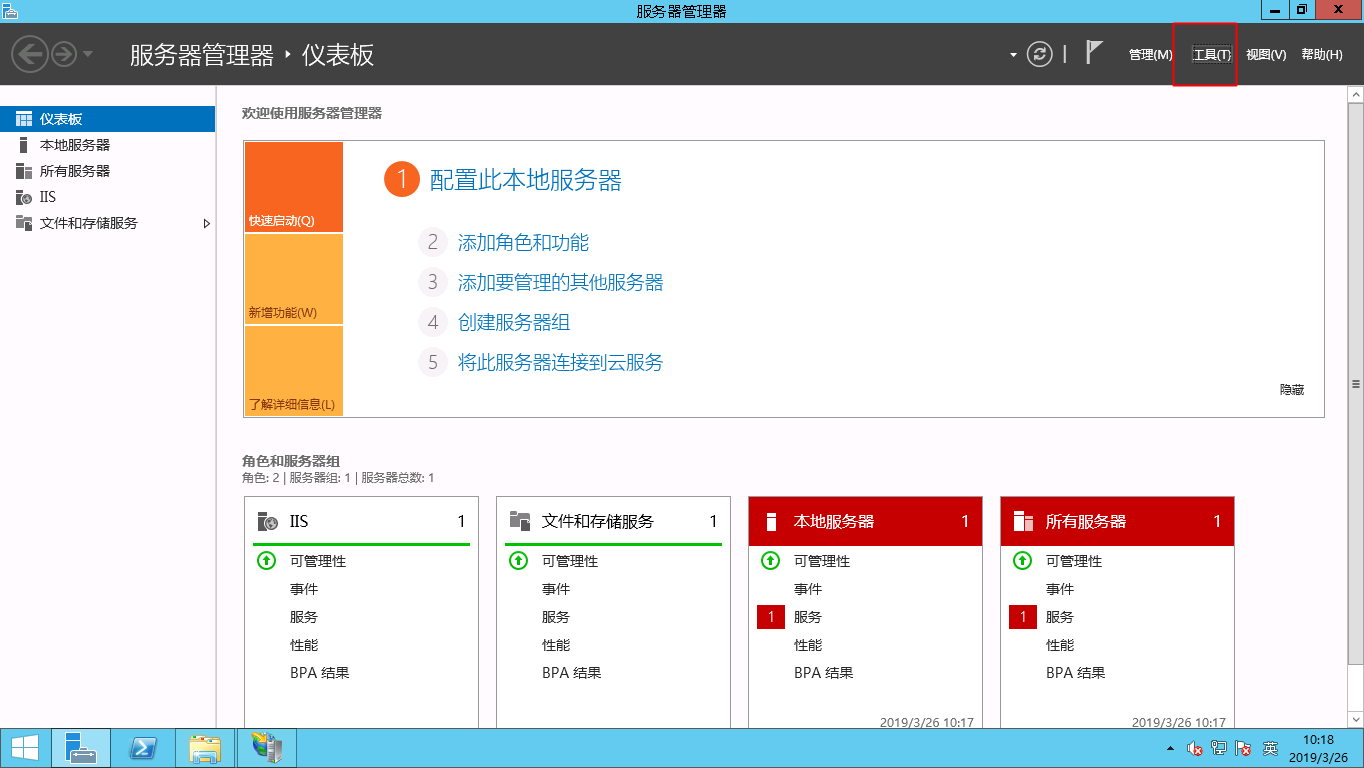
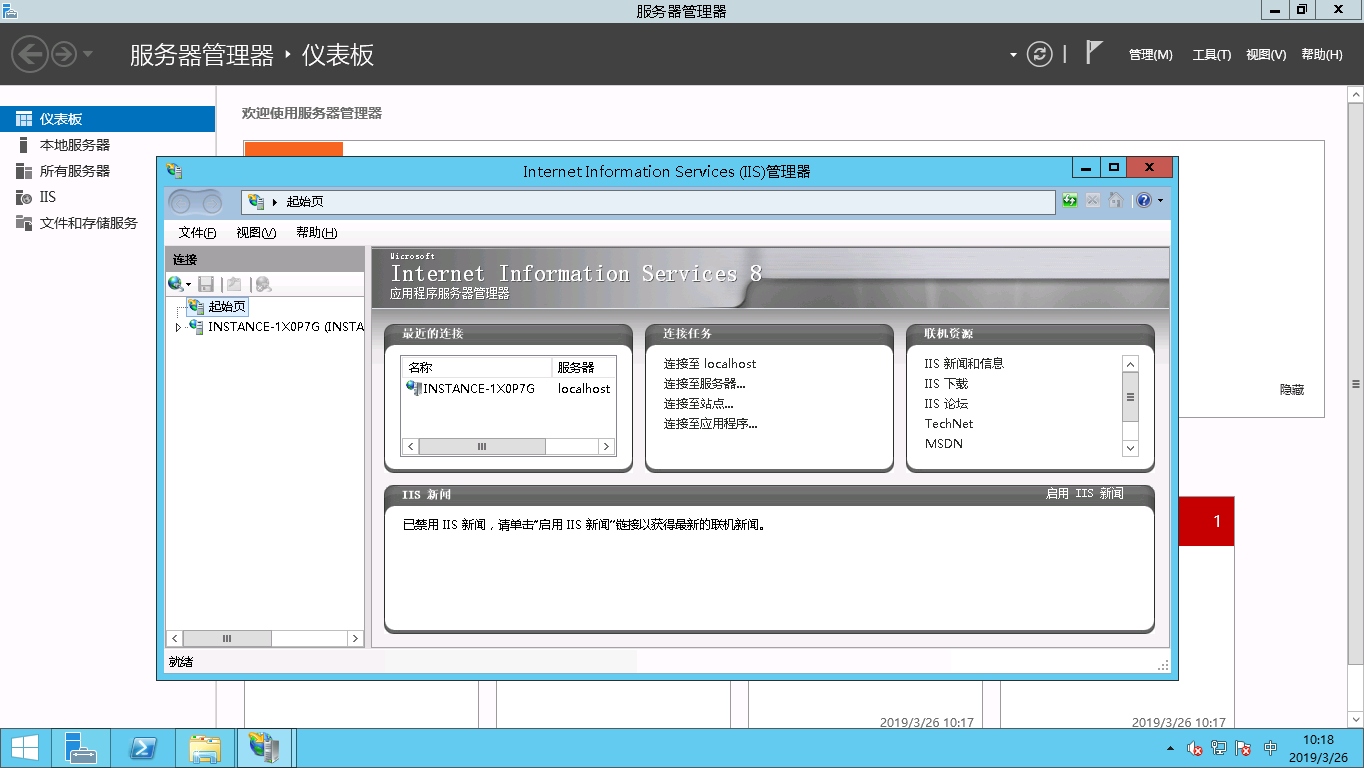
- Right-click Website and select Add FTP Site.
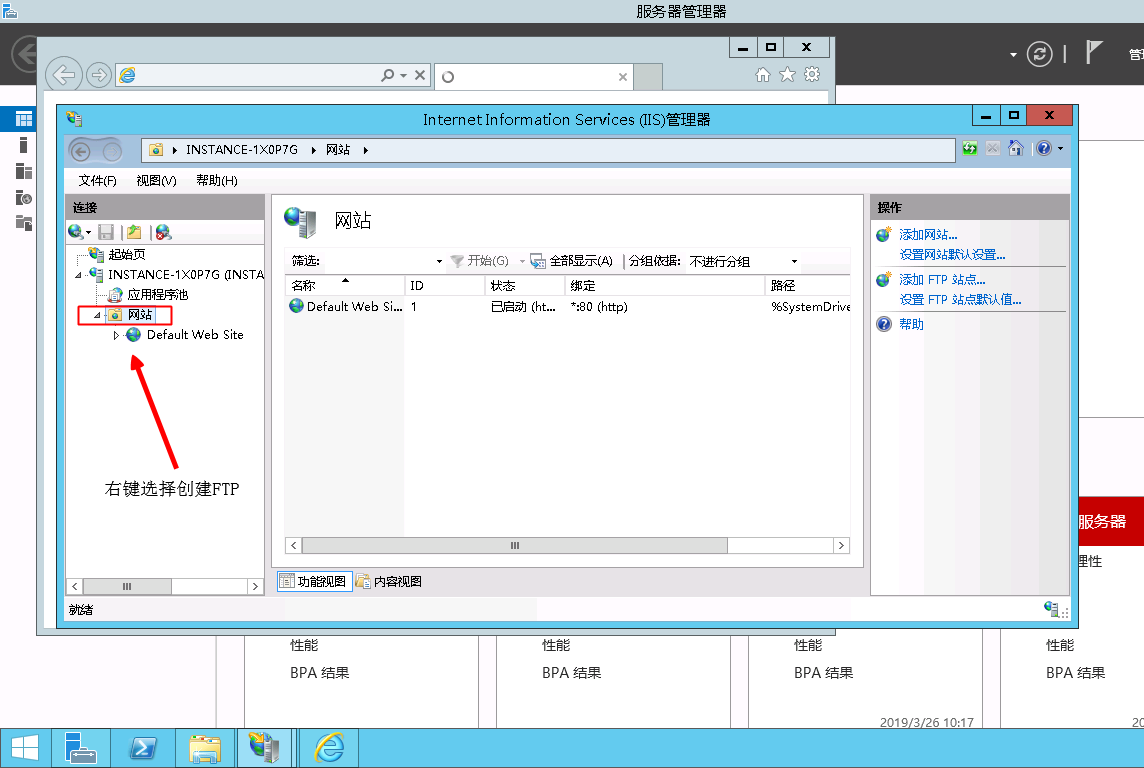
- In the pop-up window, enter the FTP site name and the physical path of the shared folder (the path of the previously created FTP folder), and then click Next.
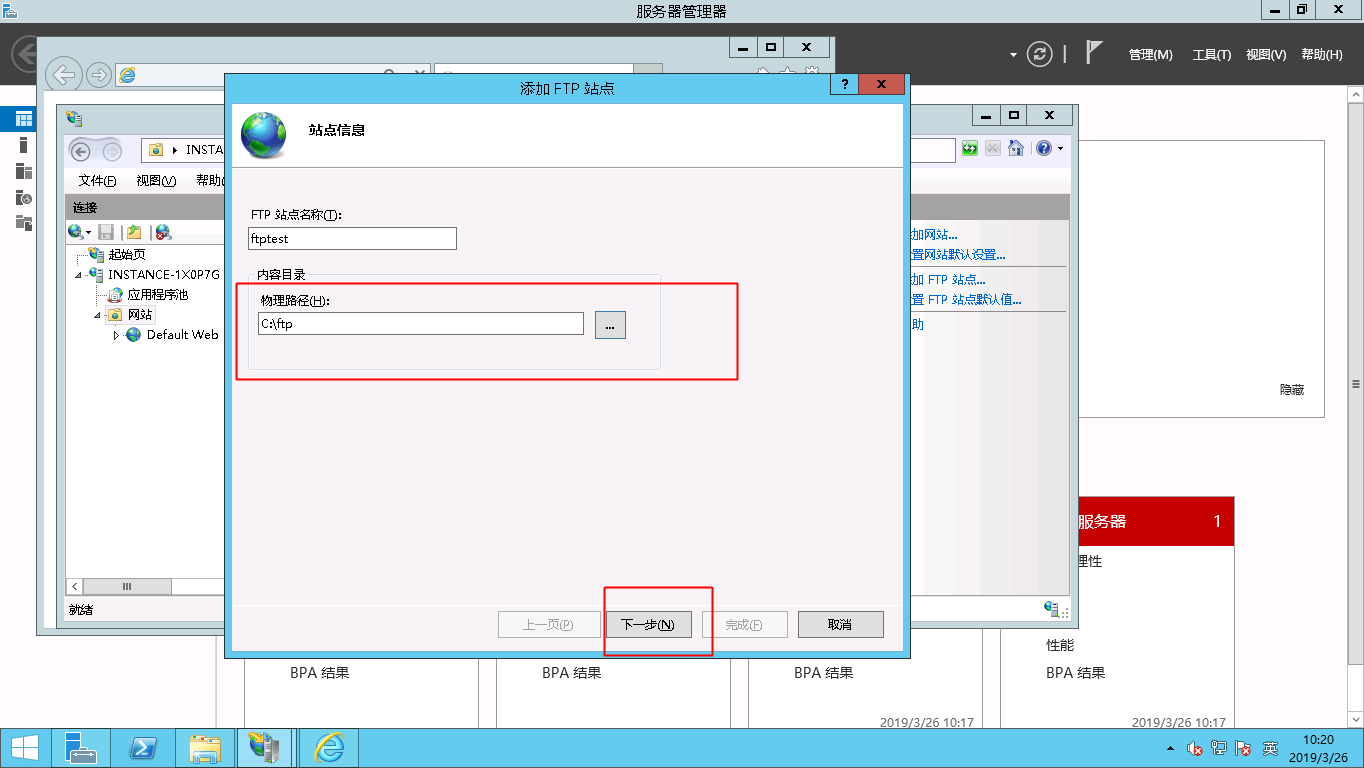
- For the IP address, select All Unassigned by default. The port number can be set by yourself; the default FTP port number is 21.
- Select SSL Settings. You can select the corresponding setting options as needed.
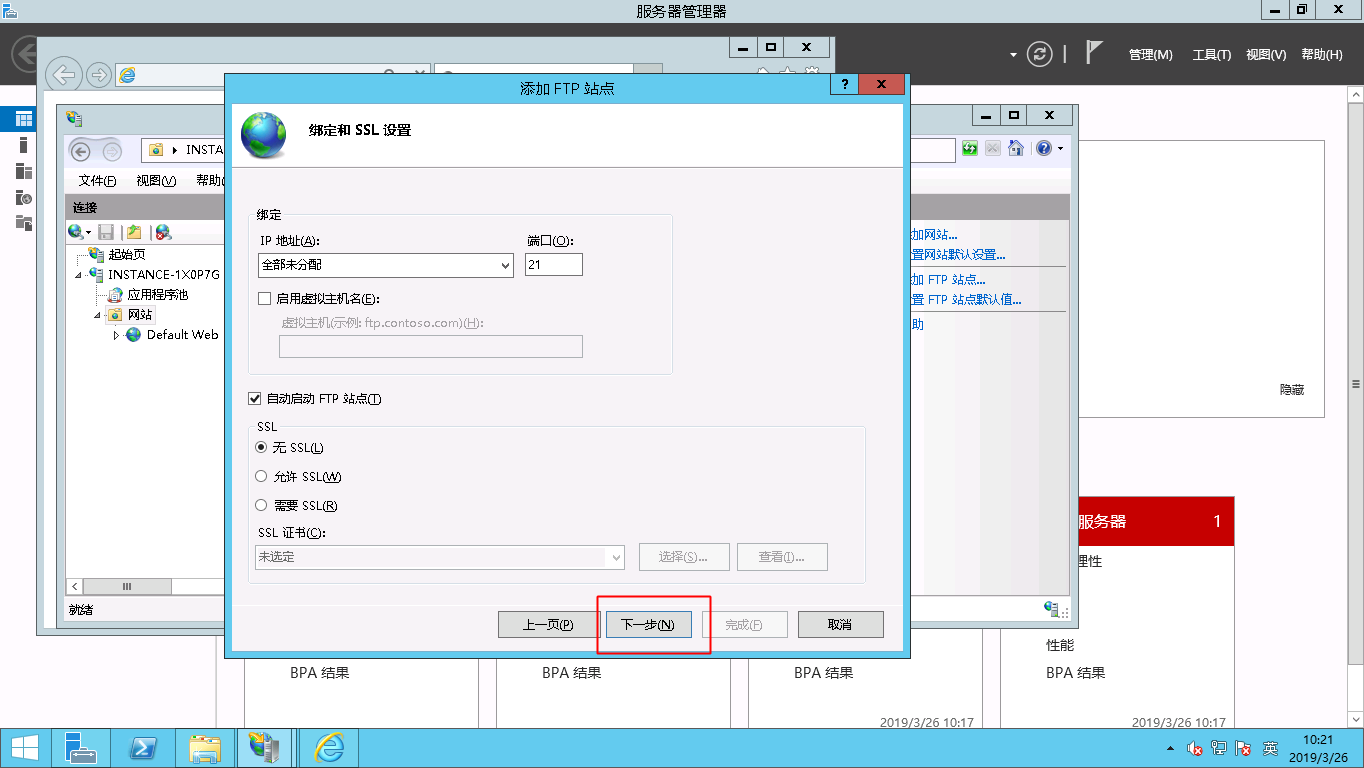
- Allow: Enable the FTP server to support both non-SSL and SSL client connections.
- Require: Enforce SSL encryption for all communications between the FTP server and clients.
- None: Choose "None" if SSL encryption is not necessary.
- Choose one or more authentication methods to implement.
- Anonymous: Permit access for users who enter "anonymous" or "ftp" as their username.
- Basic: Require users to provide a valid username and password for access. Note that basic authentication transmits credentials without encryption, so it should only be used if the connection between clients and the FTP server is secure (e.g., when using Secure Socket Layer (SSL)).
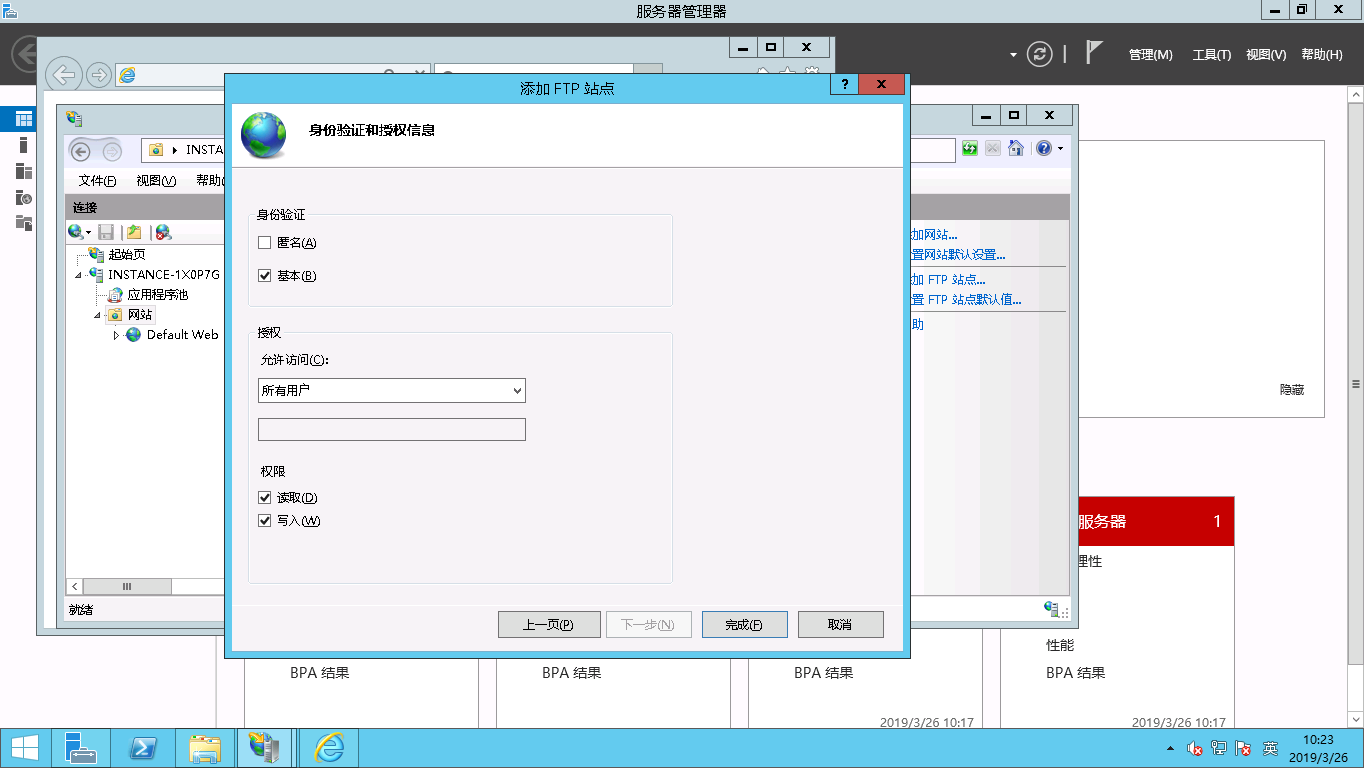
After completing the above steps, the FTP site setup will be visible.
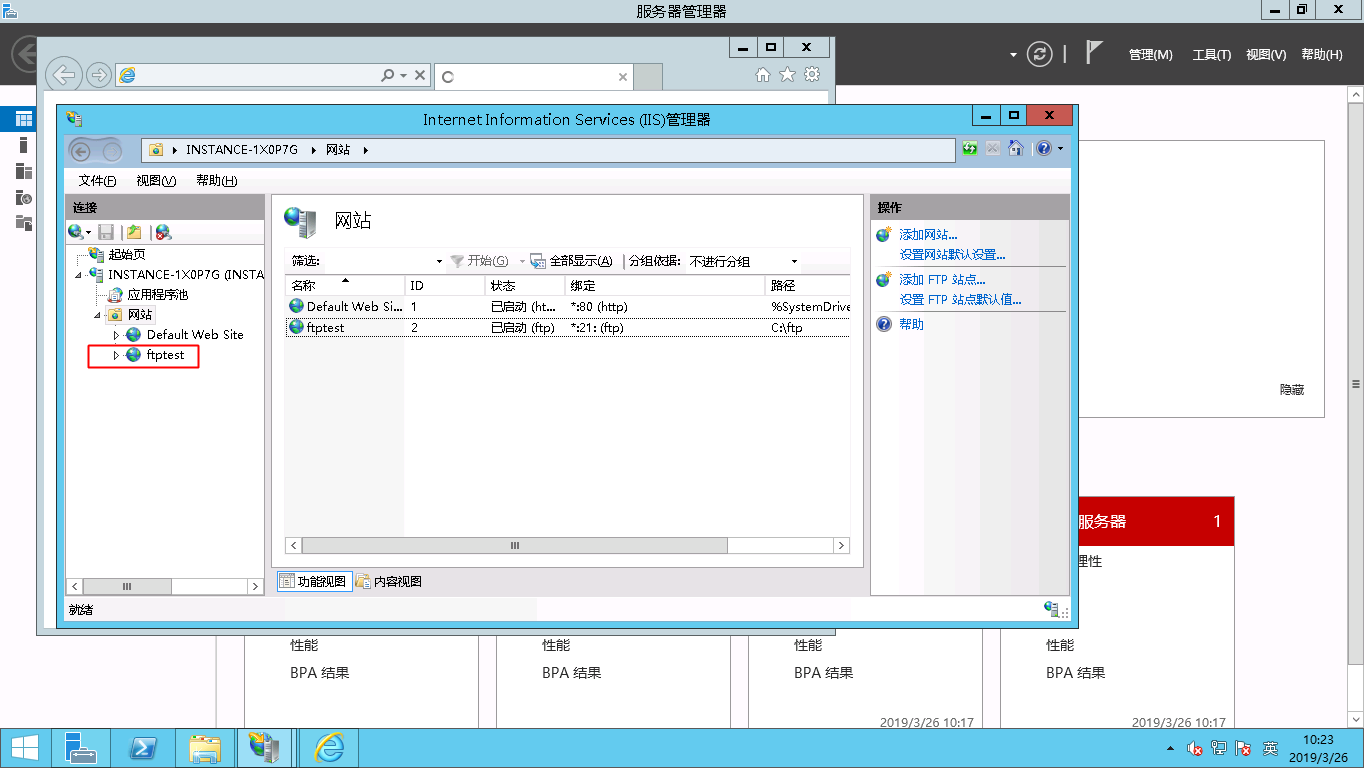
Set security groups and firewalls
After setting up the FTP site, you need to add a rule to allow FTP port traffic in the ingress direction of the instance security group. For specific steps, refer to Add Security Group Rule
Ensure the server firewall is configured to permit TCP port 21 for FTP services. (You may search online tutorials, such as on Baidu, for guidance on opening firewall ports, or consider temporarily disabling the firewall.)
For other firewall settings, refer to the Microsoft's Official Document.
Client testing
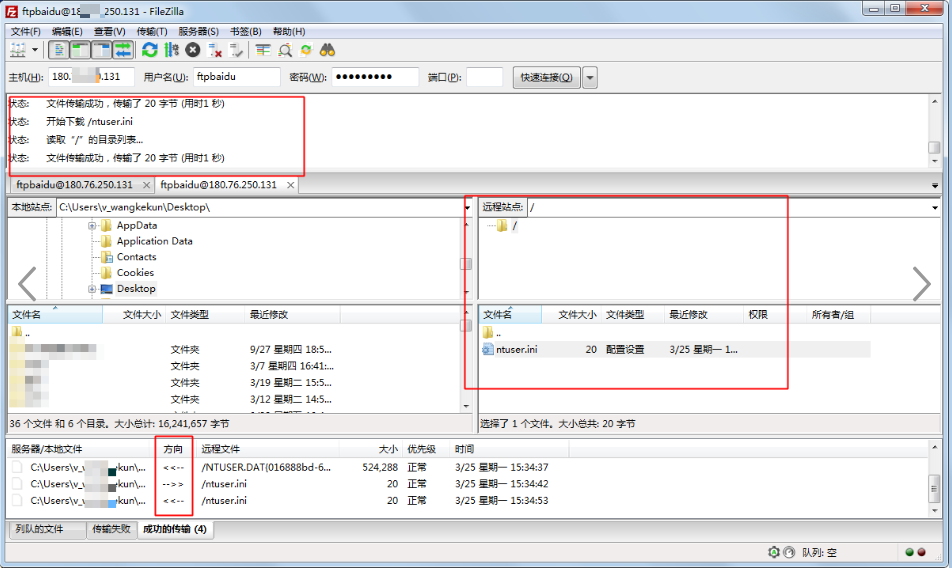
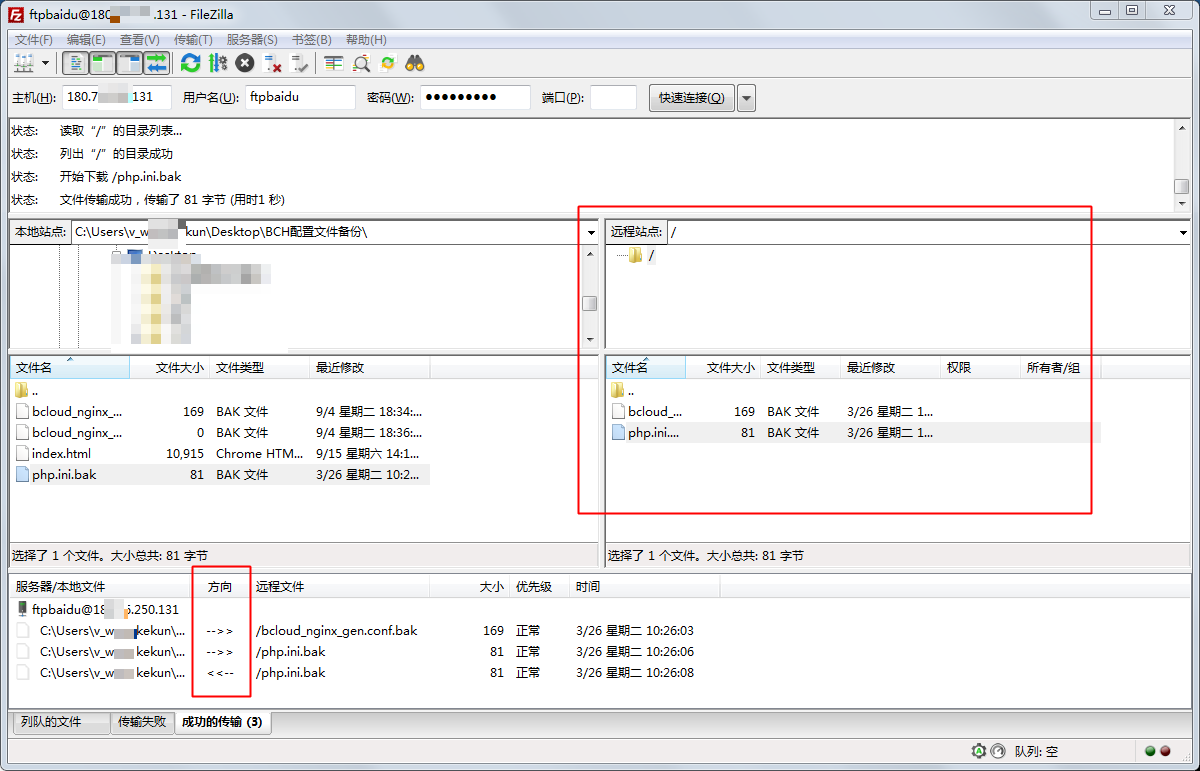
The FTP tool filezilla is used for testing, and it can connect normally and upload and download files.
Tutorial on setting up IIS and FTP on Windows 2008
This document explains how to set up an FTP site on a Windows instance, using Windows Server 2008 R2 as an example. The specific steps are outlined as follows:
- Step 1: Add the IIS and FTP service roles
- Step 2: Create an FTP username and password
- Step 3: Set permissions for shared files
- Step 4: Add and configure the FTP site
- Step 5: Set security groups and firewalls
- Step 6: Client testing
Add the IIS and FTP service roles
Before setting up an FTP site, ensure you have installed IIS and FTP services.
- Remotely connect and sign in to the Windows instance.
- Select Start - All Programs - Management Tool - Server Manager.
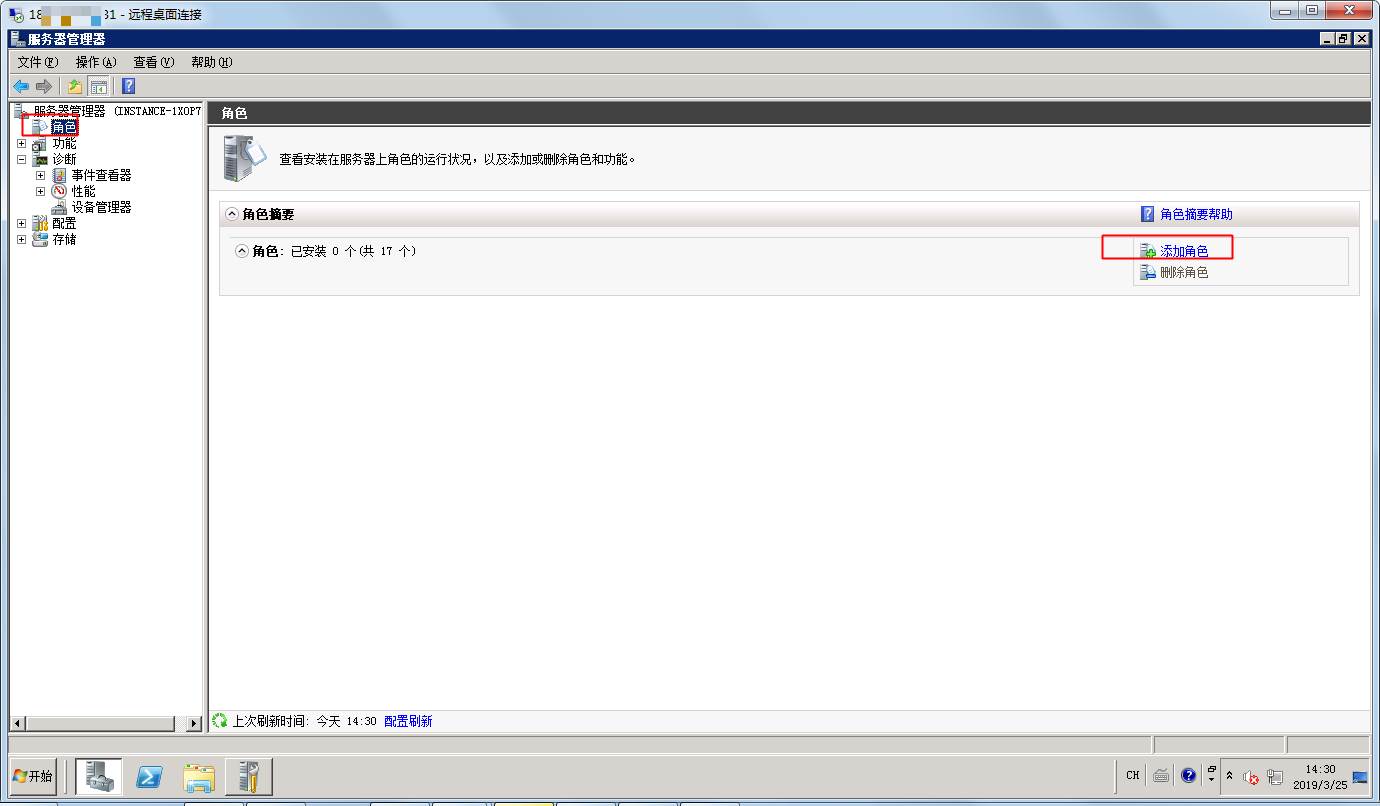
- Click Roles and then click Add Role.
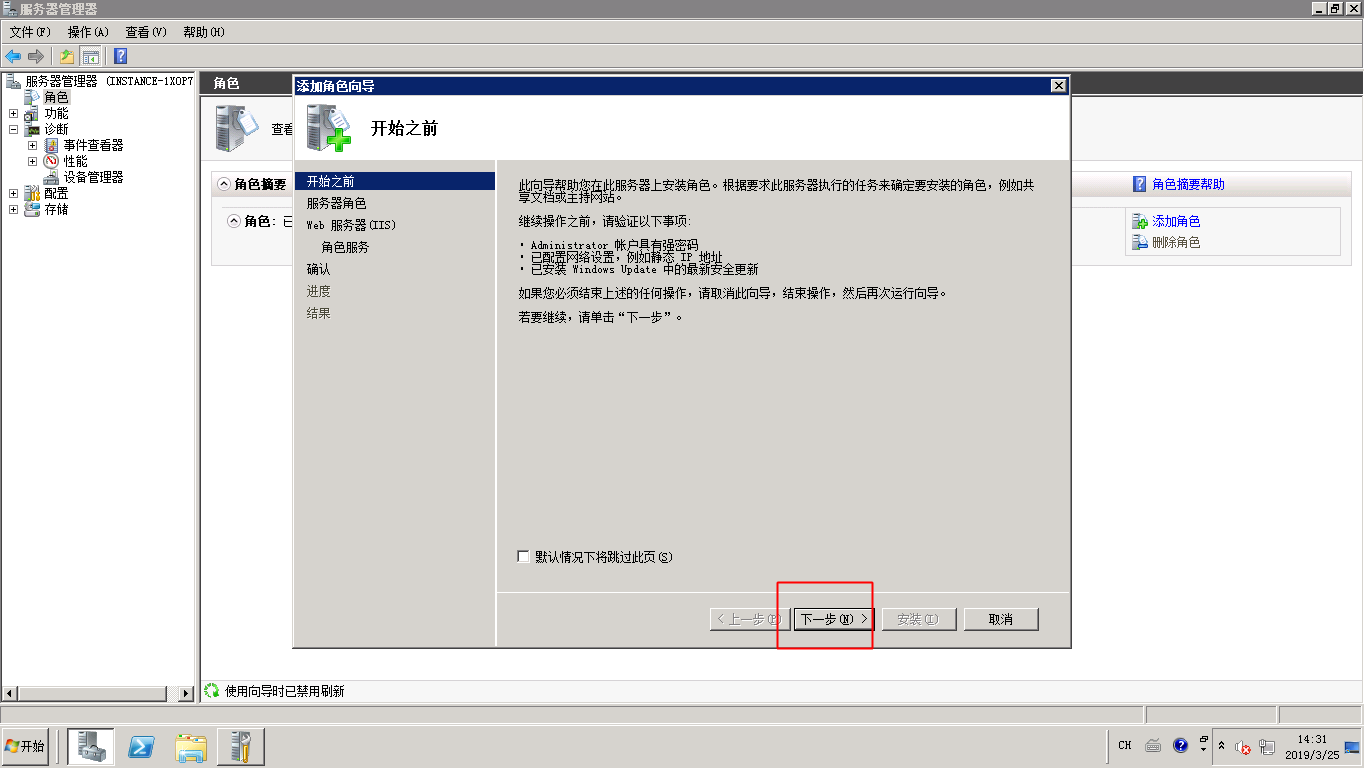
- In the pop-up dialog box, select Next.
- Select Web Server (IIS) and then click Next.
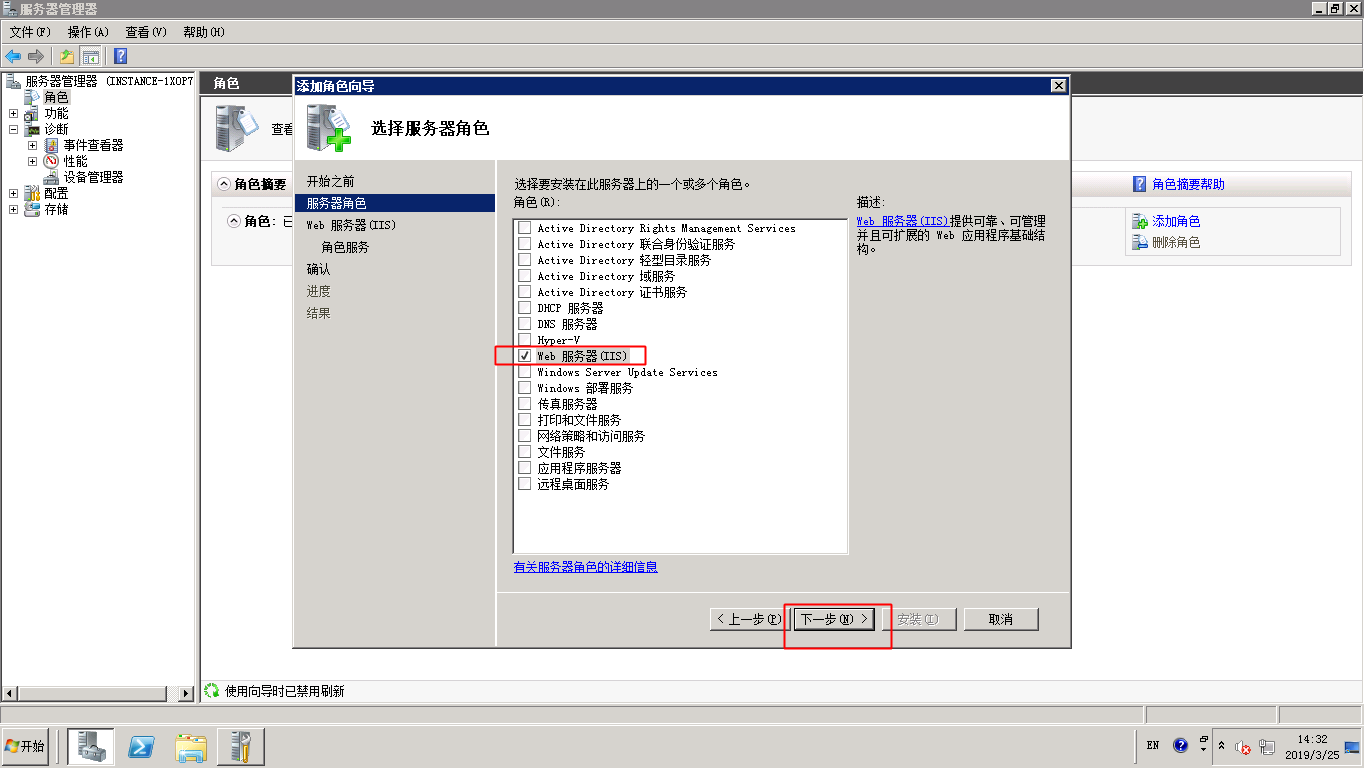
- Select IIS Management Console and FTP Server, select Next and click Install.
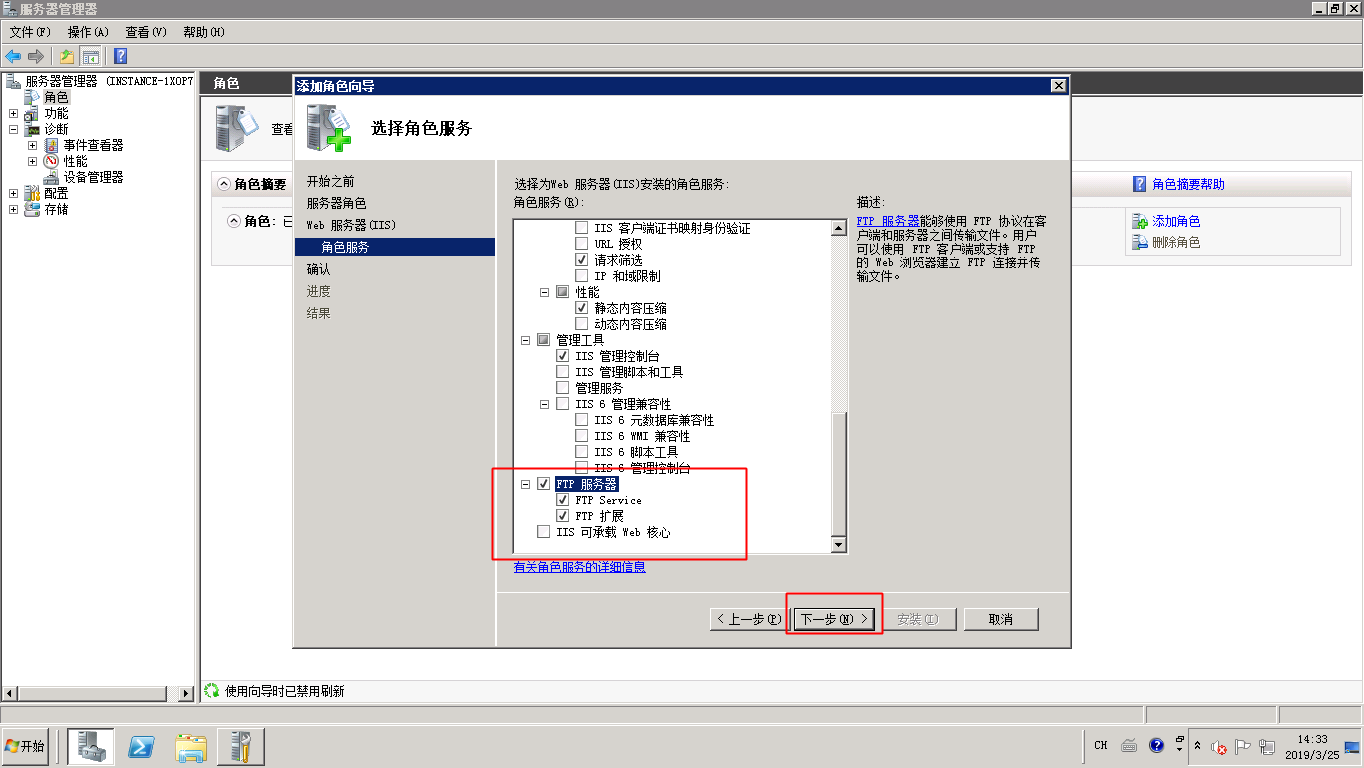
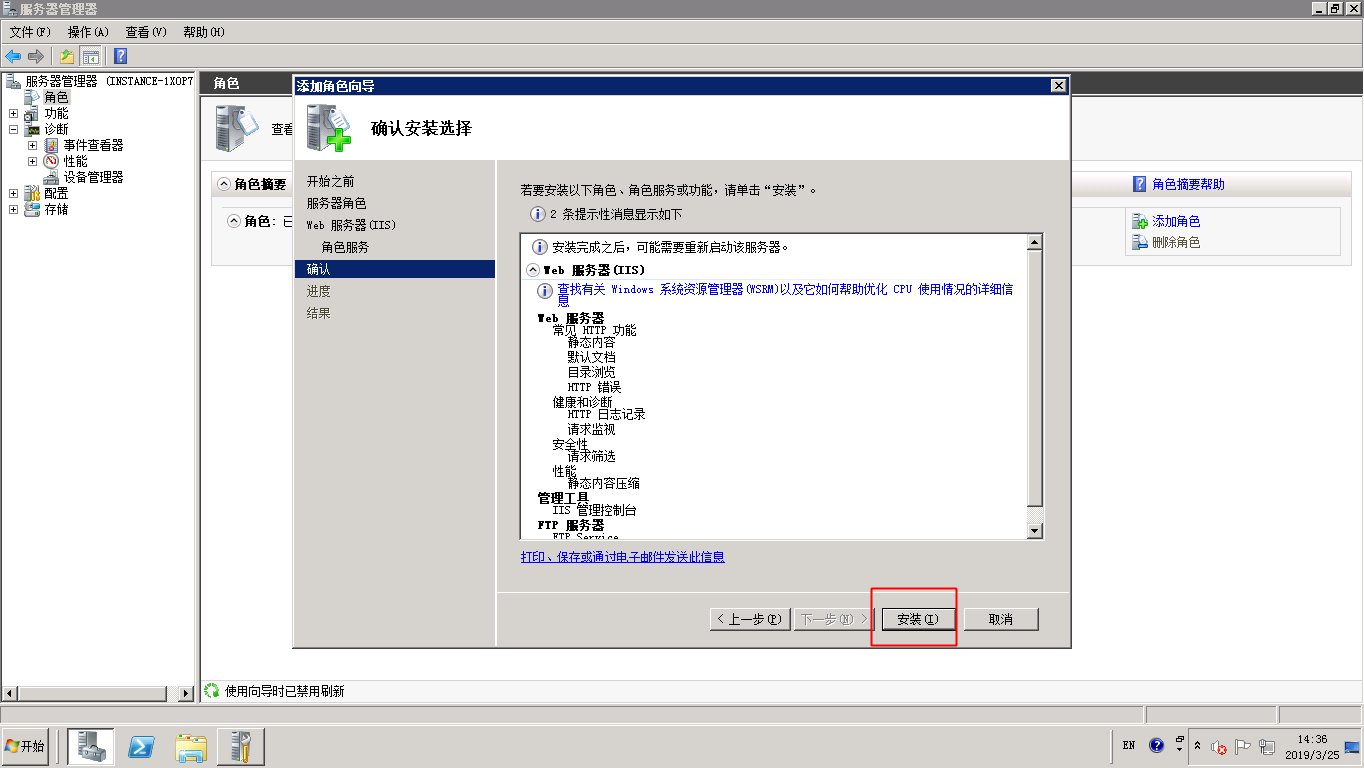
Once the above steps are completed, IIS and FTP services will be ready to use.
Create an FTP username and password
Create a Windows username and password specifically for FTP access. (Note: Anonymous login is enabled by default, making this step optional. Perform this step if you want to enforce username and password credentials for FTP access.)
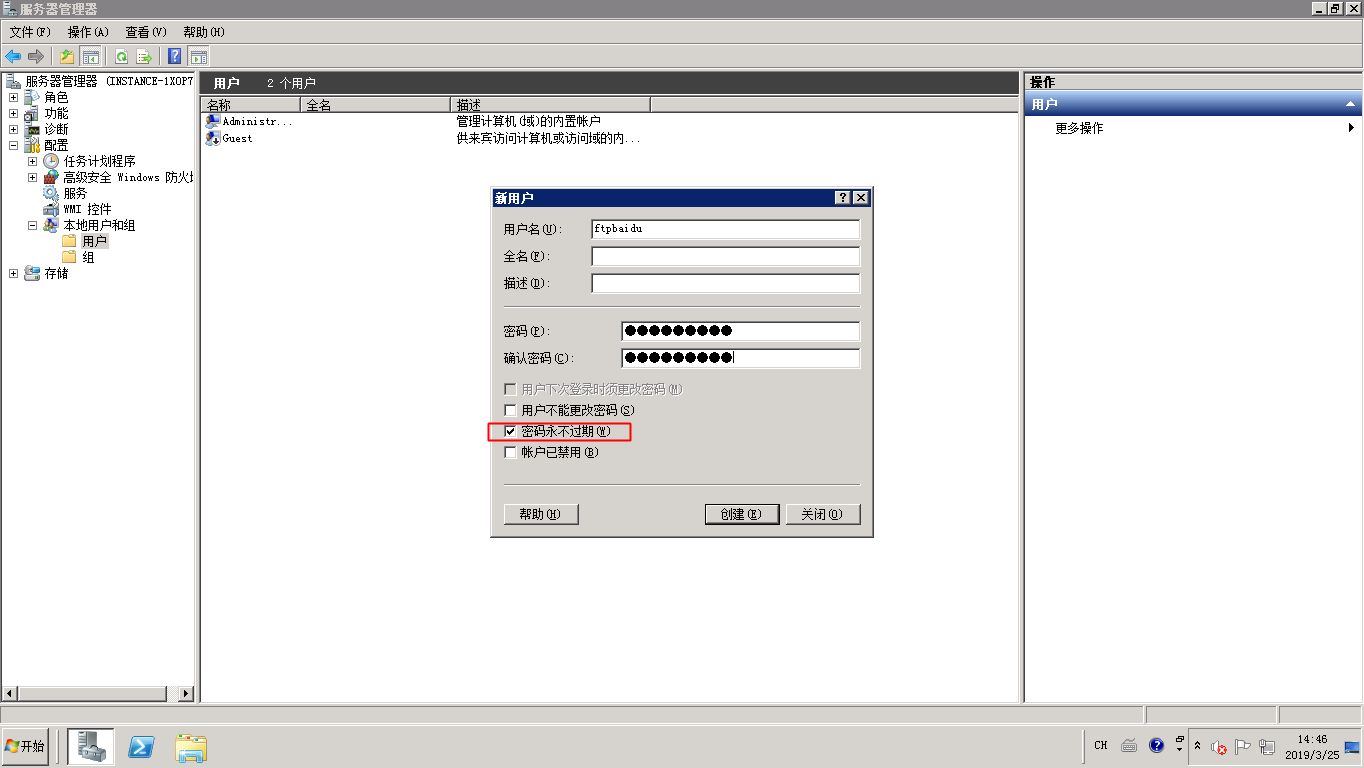
- Select Start - Management Tool - Server Manager.
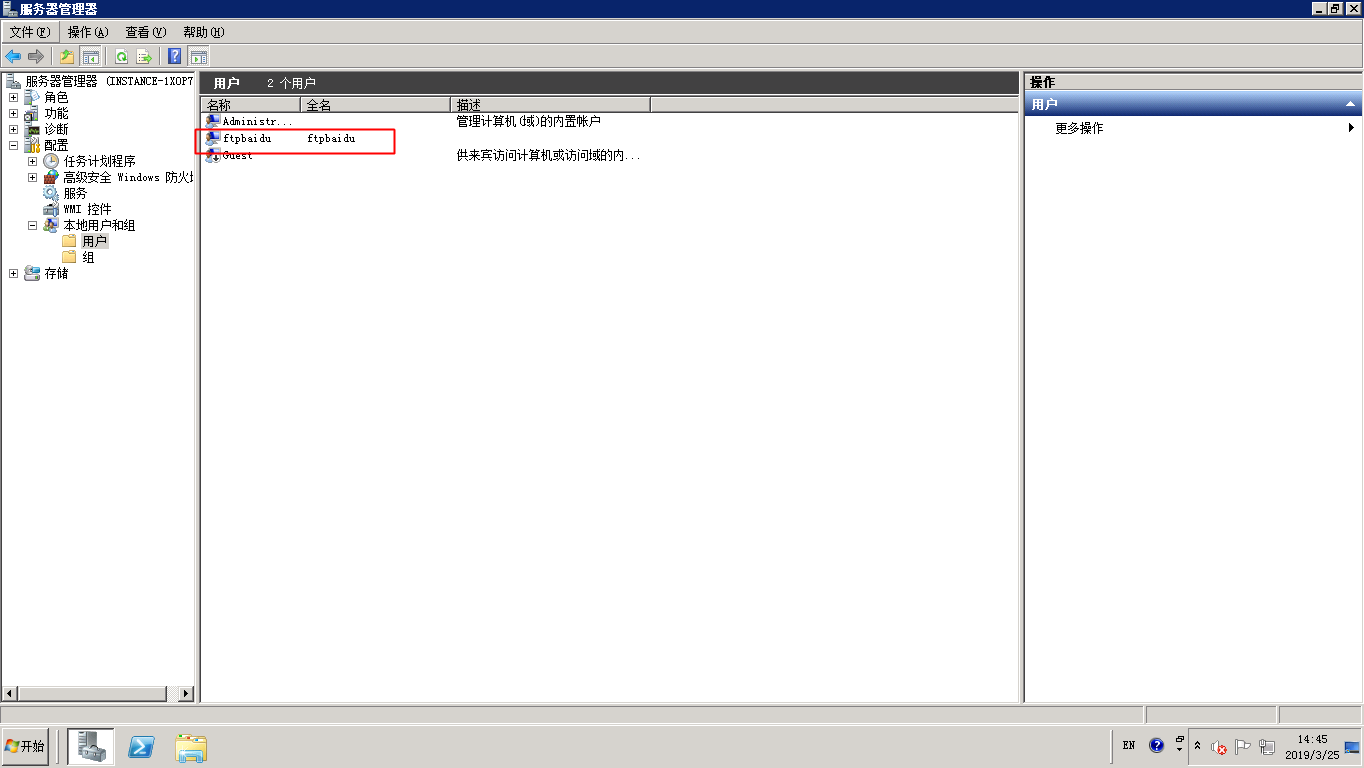
- Click Configure - Local Users and Groups - Users, right-click in the blank space on the right and then select Add User. In this example, the username ftpbaidu is used.
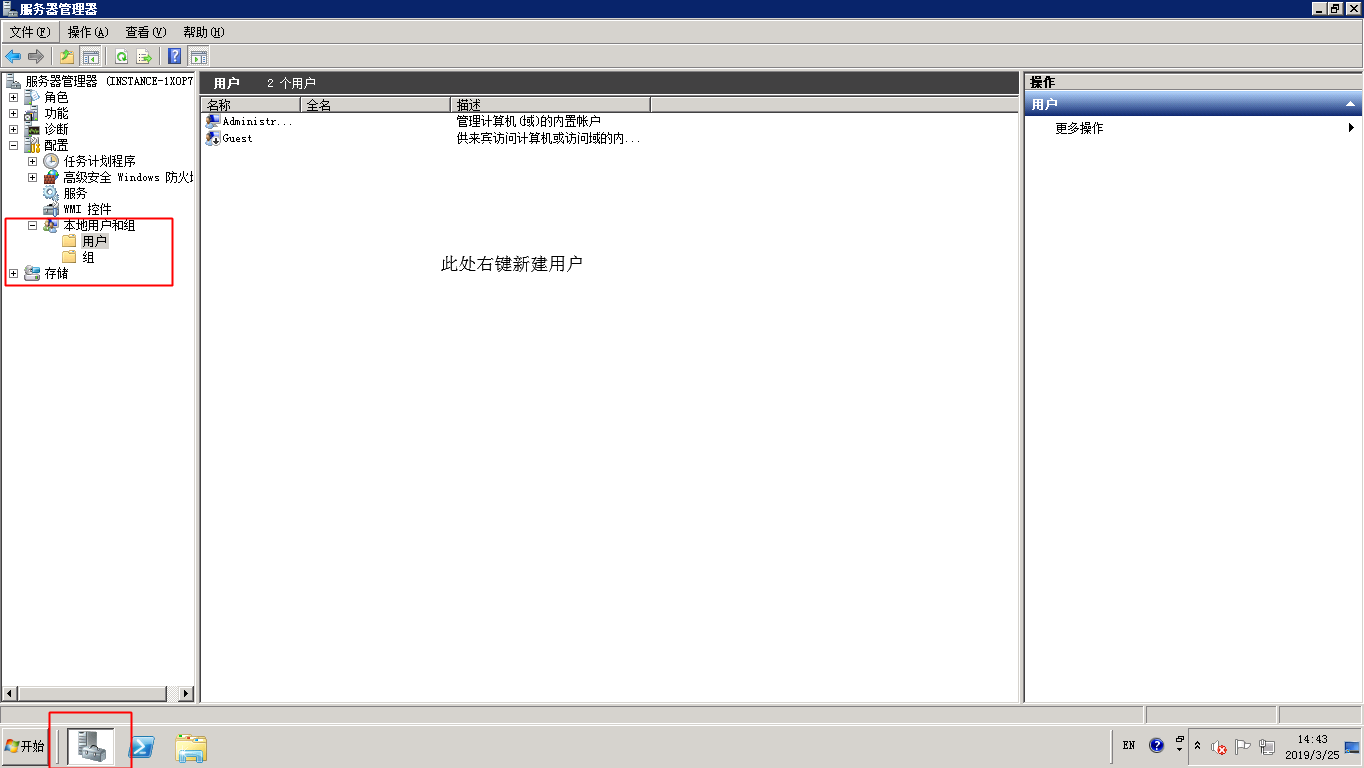
Note: The password must include uppercase letters, lowercase letters and numbers. Otherwise, it will show that it cannot pass the password policy.
Set permissions for shared files
Set the access and modification permissions for the folder that will be shared with FTP users.
- Create a folder for FTP use on the server disk, right-click the folder and select Attributes.

- Click Security, select Advanced - Change Permission
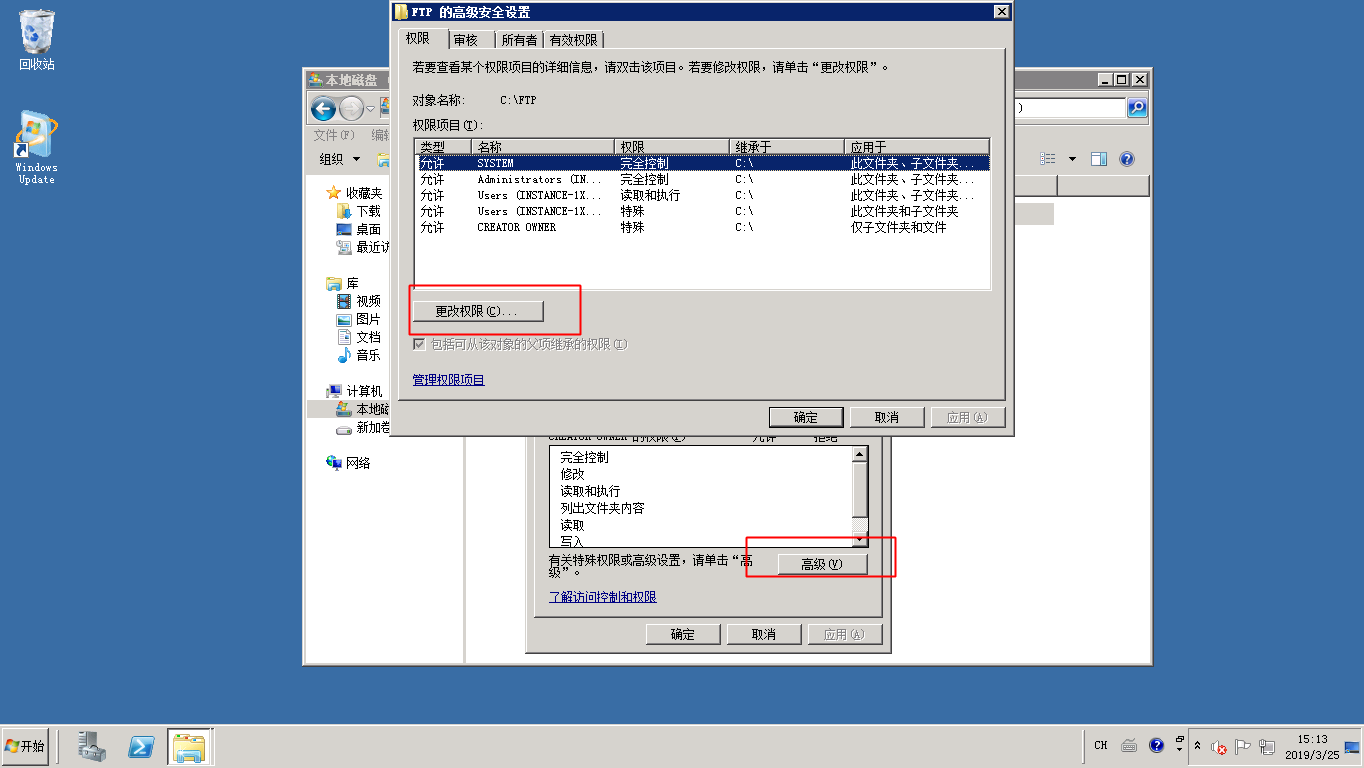
- Select Add, enter Everyone and click OK.
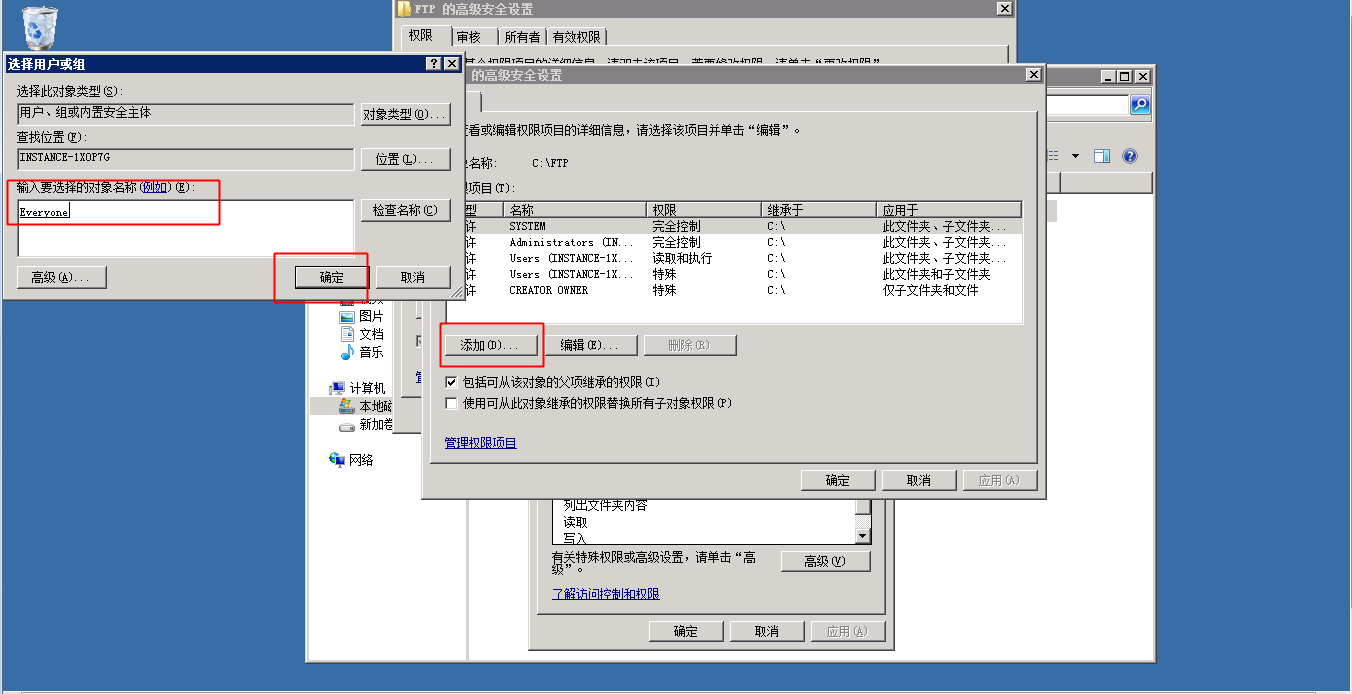
- Configure permissions as needed. For example, click Full Control, then click OK and select OK for all options after clicking.
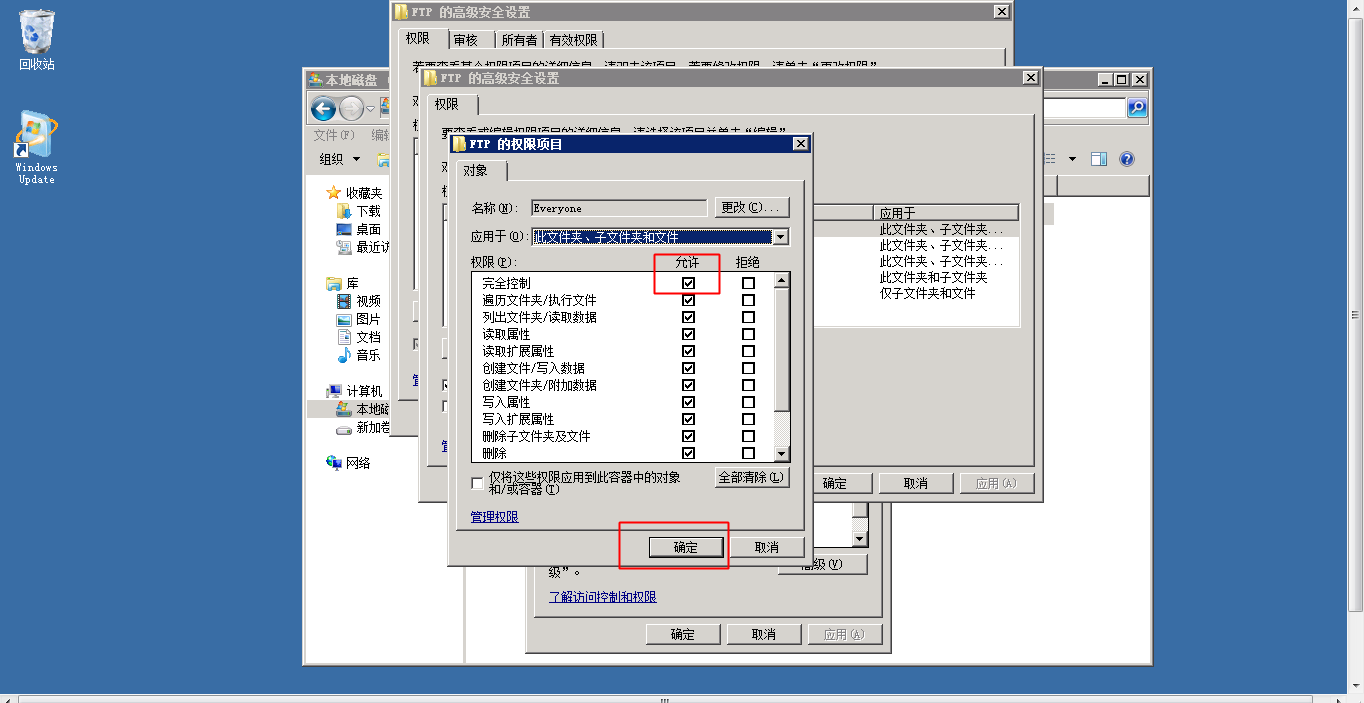
Add and configure the FTP site
After installing FTP and configuring folder permissions, proceed to create the FTP site.
- Select Start - All Programs - Management Tool - Internet Information Service (IIS) Manager.
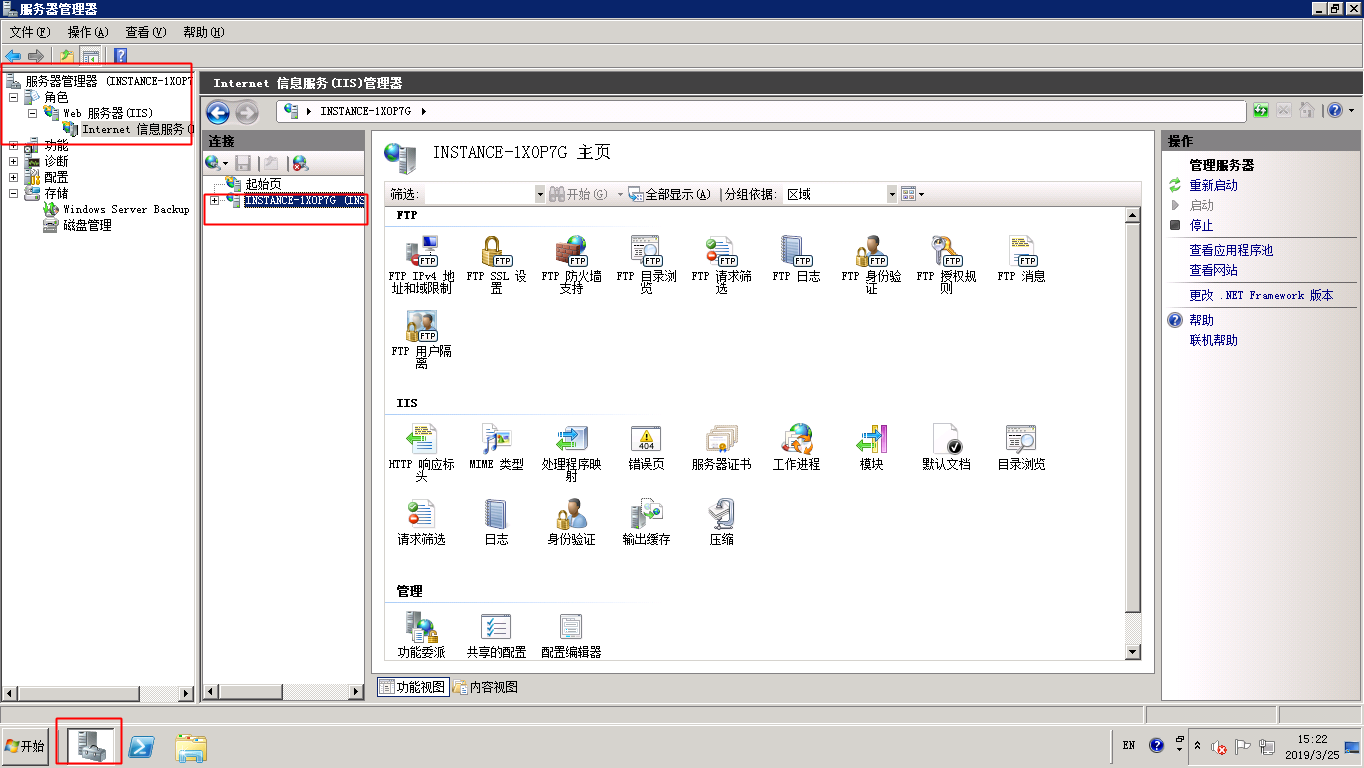
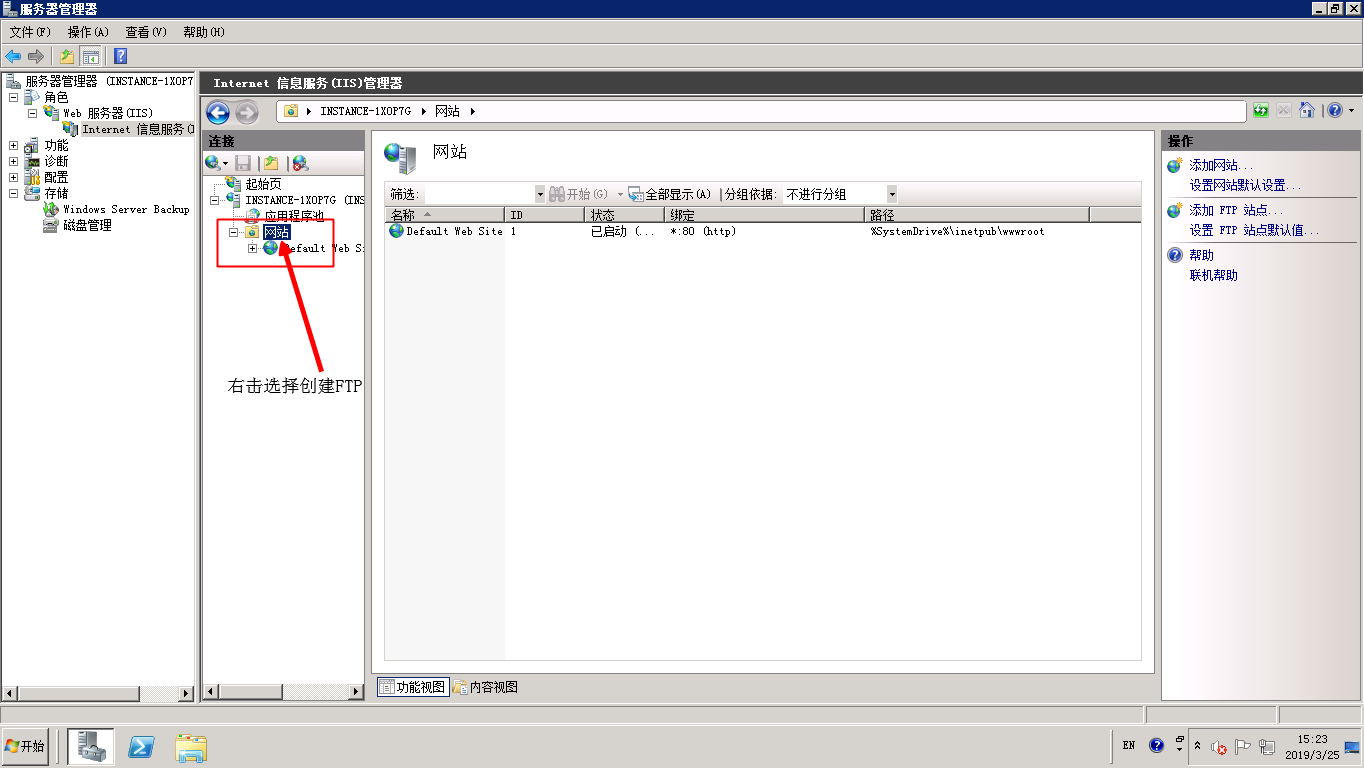
- Right-click Websiteand select Add FTP Site.
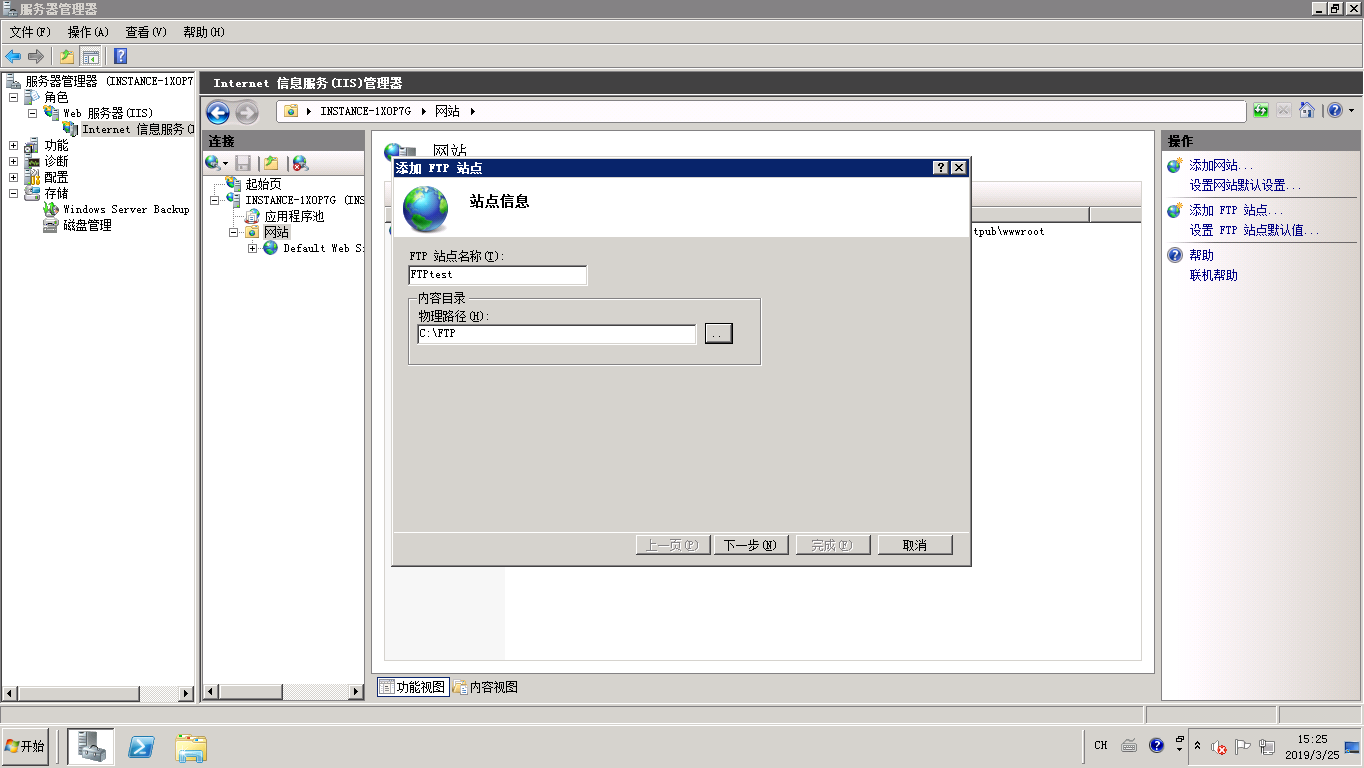
- In the pop-up window, enter the FTP site name and the physical path of the shared folder (the path of the previously created FTP folder), and then click Next.
- For the IP address, select All Unassigned by default. The port number can be set by yourself; the default FTP port number is 21.
- Select SSL Settings and make instance selections as needed, such as Not Required.
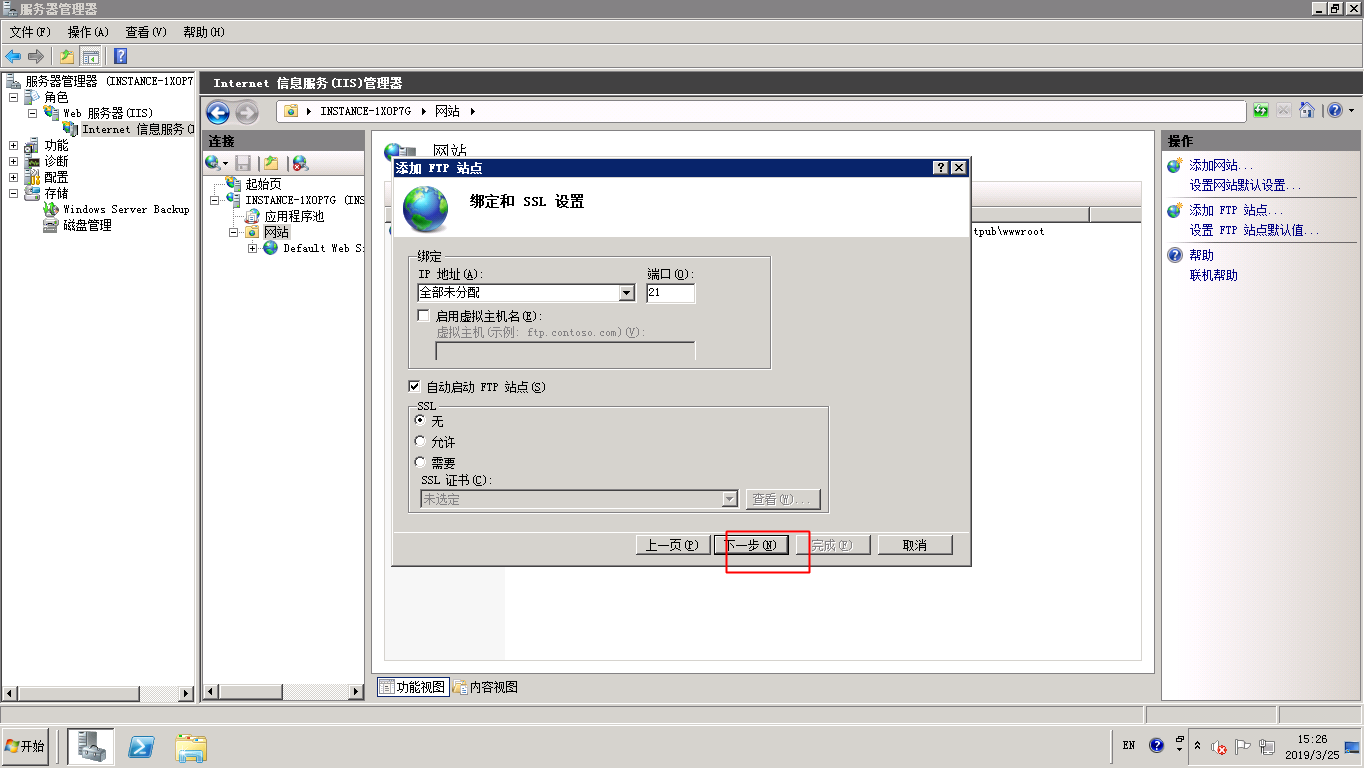
- Allow: Enable the FTP server to support both non-SSL and SSL client connections.
- Require: Enforce SSL encryption for all communications between the FTP server and clients.
- None: Choose "None" if SSL encryption is not needed.
- Choose one or more authentication methods to enable.
- Anonymous: Permit access for users who enter "anonymous" or "ftp" as their username.
- Basic: Require users to provide a valid username and password for access. Note that basic authentication transmits credentials without encryption, so it should only be used if the connection between clients and the FTP server is secure (e.g., when using Secure Socket Layer (SSL)).
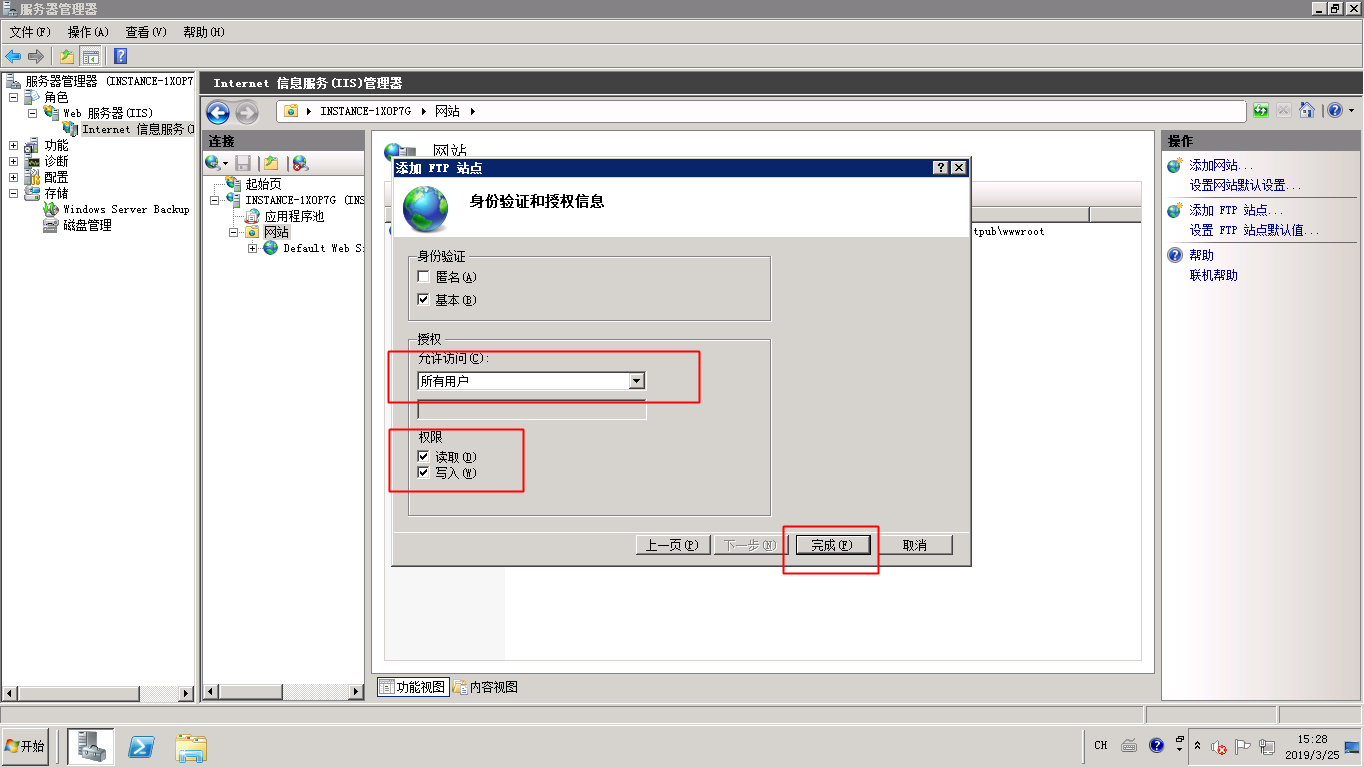
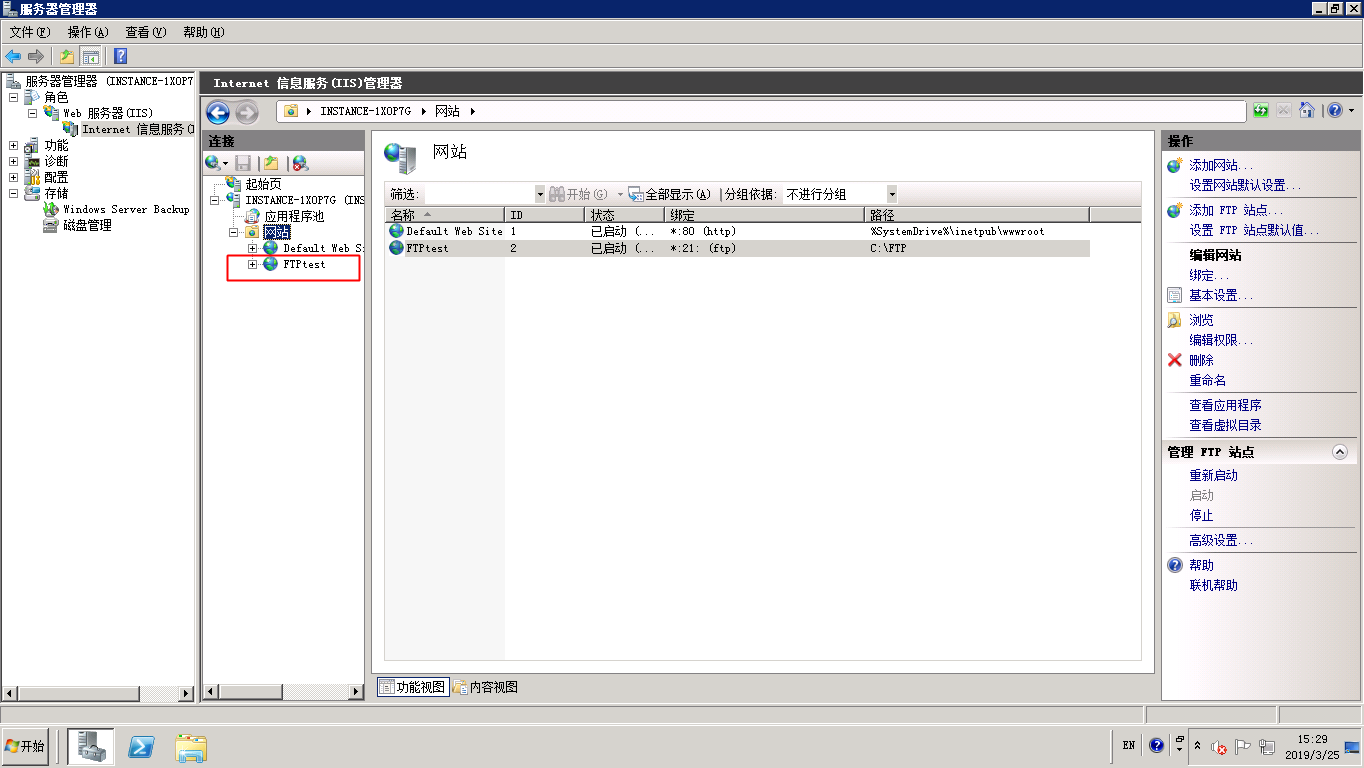
- Once setup is complete, you will see the FTP site configured and ready.
Set security groups and firewalls
After setting up the FTP site, you need to add a rule to allow FTP port traffic in the ingress direction of the instance security group. For specific steps, refer to Add Security Group Rule
The server firewall needs to be set to allow TCP port 21for FTP services. (You can search for tutorials on allowing ports in the firewall on Baidu by yourself or temporarily disable the firewall.)
For other firewall settings, refer to the Microsoft's Official Document.
Client testing
The FTP FTP tool filezilla is used for testing, and it can connect normally and upload and download files.