Windows Instance Disk Space Insufficient Cleanup Tutorial
This document introduces methods to resolve insufficient disk space issues on BCC Windows instances, along with daily disk maintenance practices, using Baidu AI Cloud Compute on Windows Server 2012 R2 as an example.
Operation steps
Free up disk space
Delete large files
- Sign in to Windows instance via remote desktop. For detailed operations, refer to: Sign in to Windows Instance via Remote Desktop
- Double-click "This PC" on the desktop.
- In "This PC", select the disk you want to clean, then press Ctrl + F to launch the search tool.
-
From the top navigation bar, go to "Search" > "Size" to filter large files on the selected disk based on predefined system sizes.
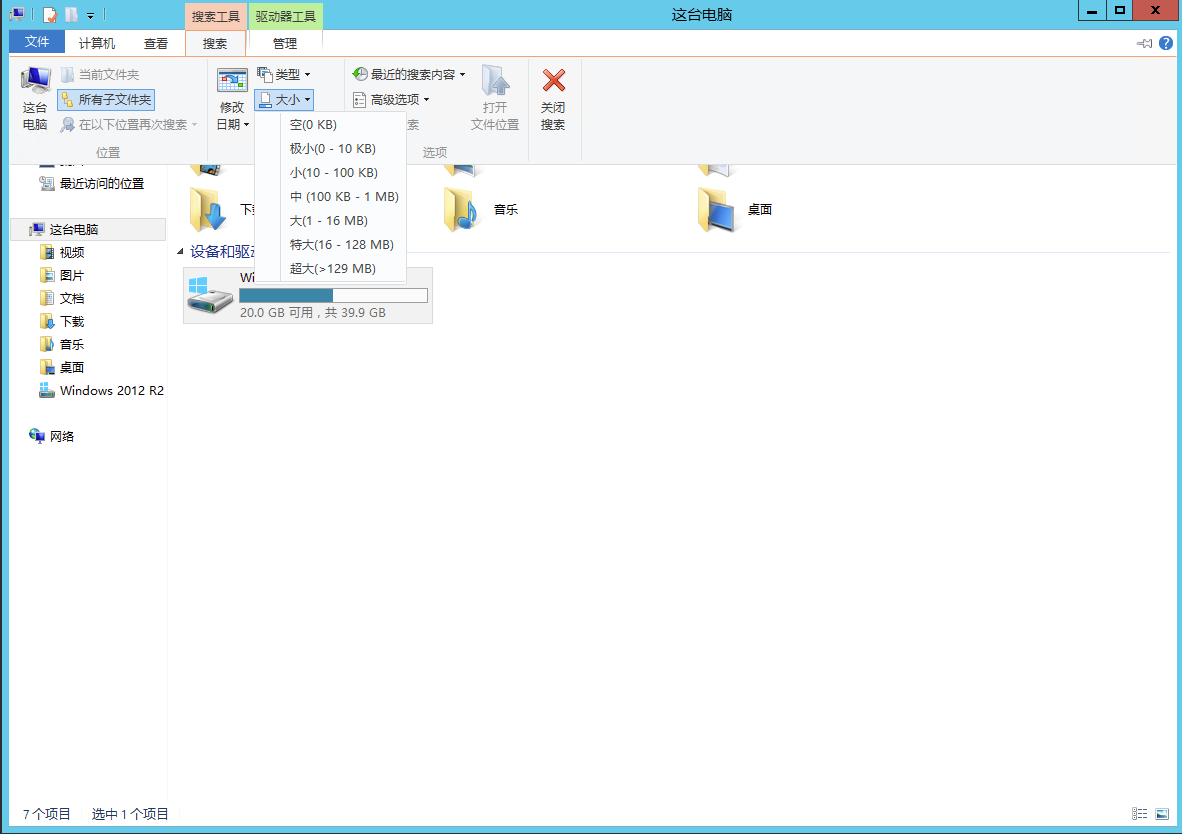
Note: You can also enter customized file size in the search box at the top right corner of "This Computer" for searching. For example: Enter "Size: >500 M" to search for files larger than 500 M on the disk. Enter "Size: > 100 M < 500 M" to search for files larger than 100 M but smaller than 500 M on the disk.
Delete unnecessary files
It is recommended to use the system built-in disk cleanup tool for file deletion which needs to be manually installed on the server. The specific steps are as follows:
- Click the Server Manager icon
 in the bottom taskbar to open the Server Manager.
 - Click Add Role and Features to open the Add Role and Features Wizard.
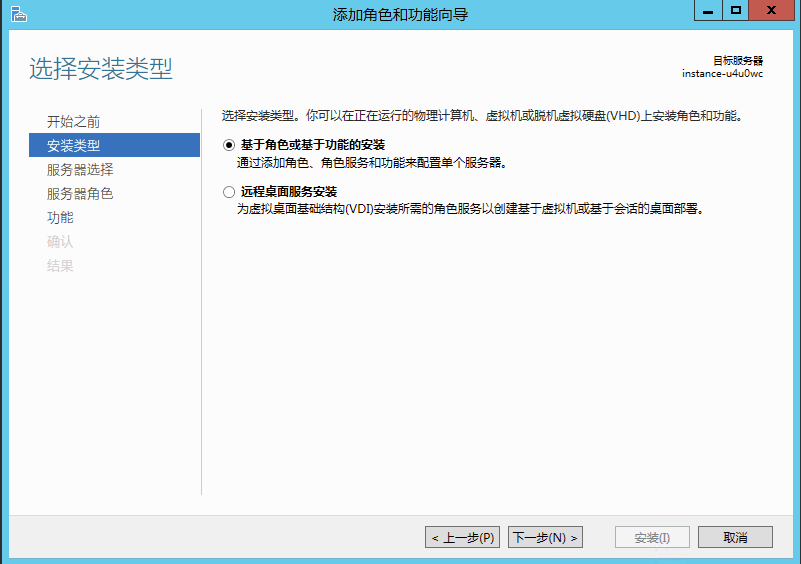
- On the Select Installation Type interface, choose Role-based or Function-based Installation, and click [Next] three times consecutively, as shown below:
-
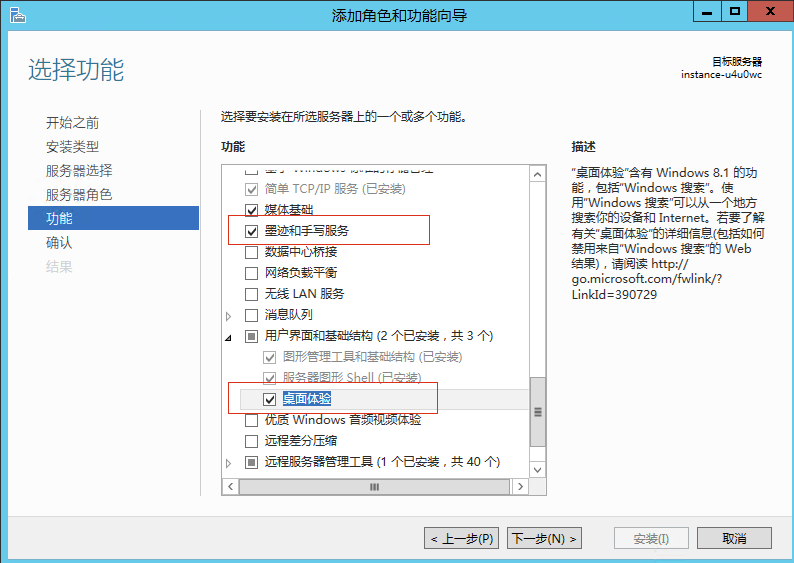
On the Select Function interface, check Ink and Handwriting Services and Desktop Experience, then click [Confirm] in the pop-up prompt, as shown below:
- Click [Next], then select [Install]. Once installation finishes, the system will notify you that a manual server reboot is required. You can restart the server at a convenient time.
-
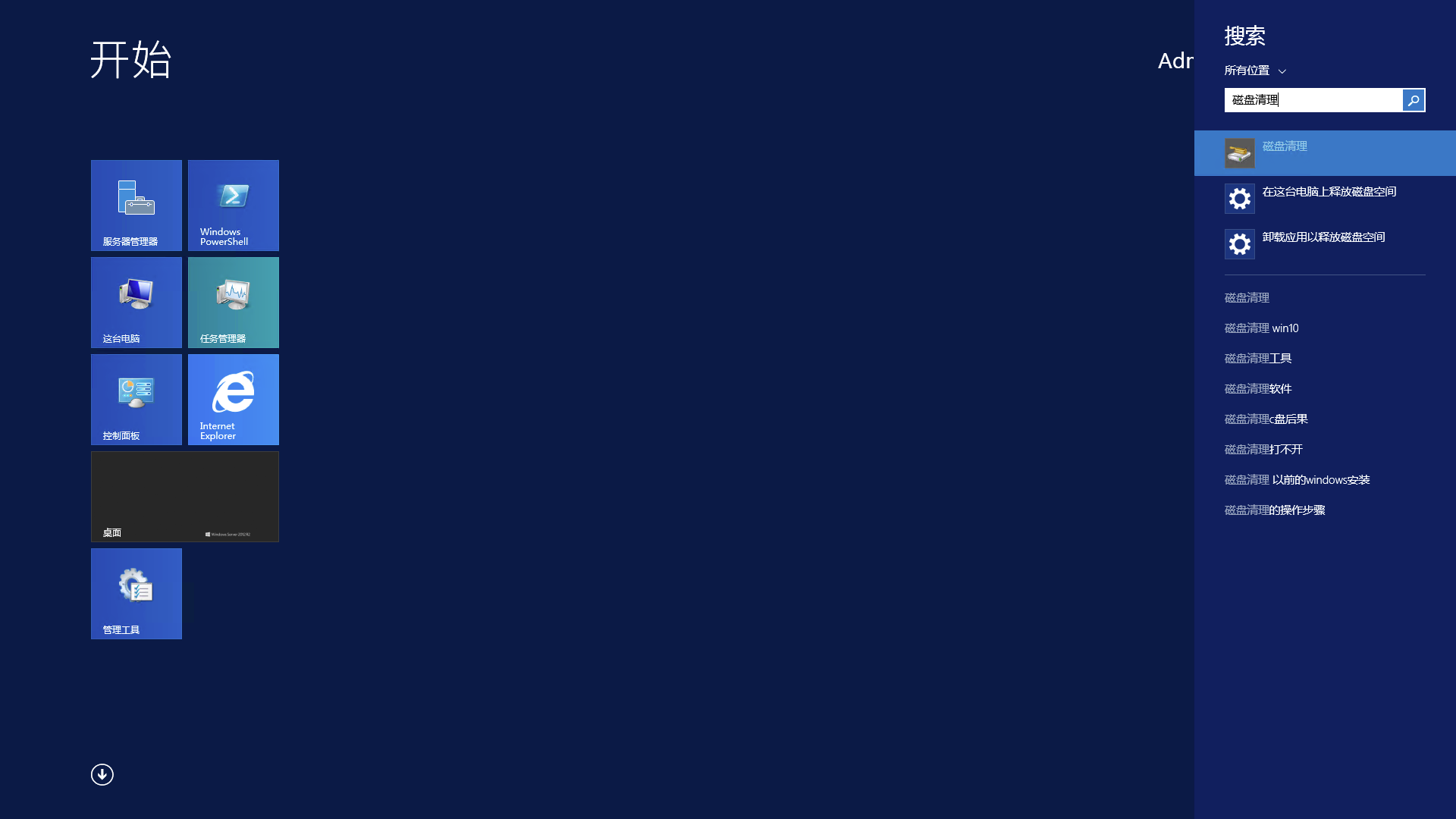
Click Start, search for "Disk Cleanup" in the search bar, and open the Disk Cleanup tool.
-
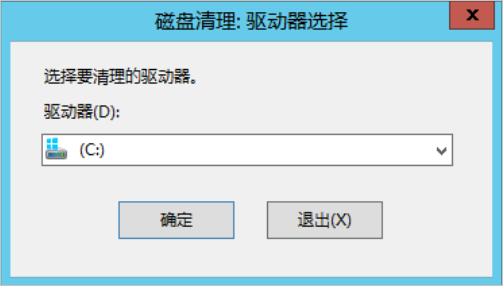
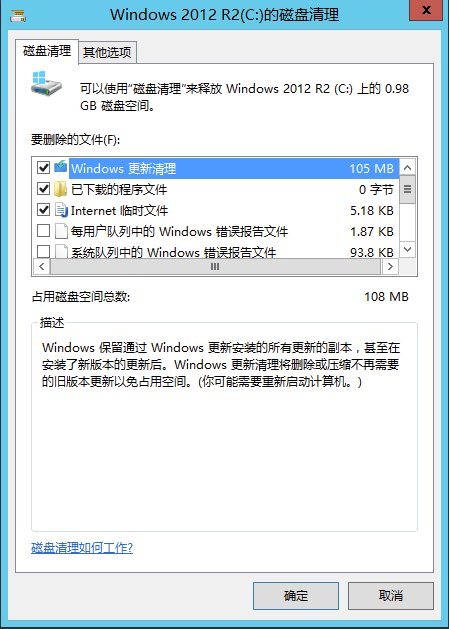
Select the disk to be cleaned, click OK to start cleanup, as shown below:
Note: To meet special requirements, you can also consider using third-party tools like Dism++. To get operation instructions for non-Baidu AI Cloud products, please visit official websites of respective product companies. You can also consider using third-party software like TreeSize Free to view disk files. To get operation instructions for these hard disk file organization softwares, please visit official websites of respective product companies.
Routine disk maintenance
Regular cleanup application
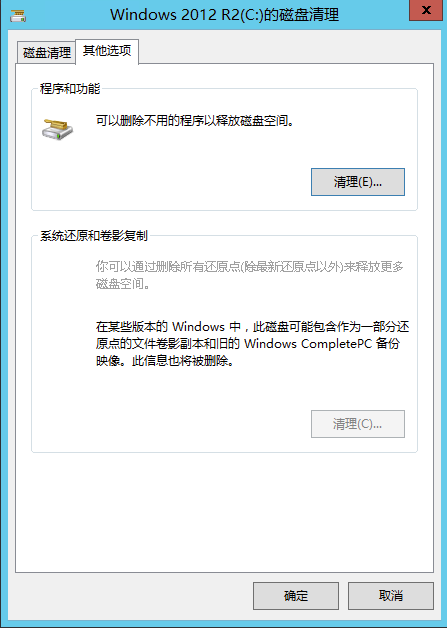
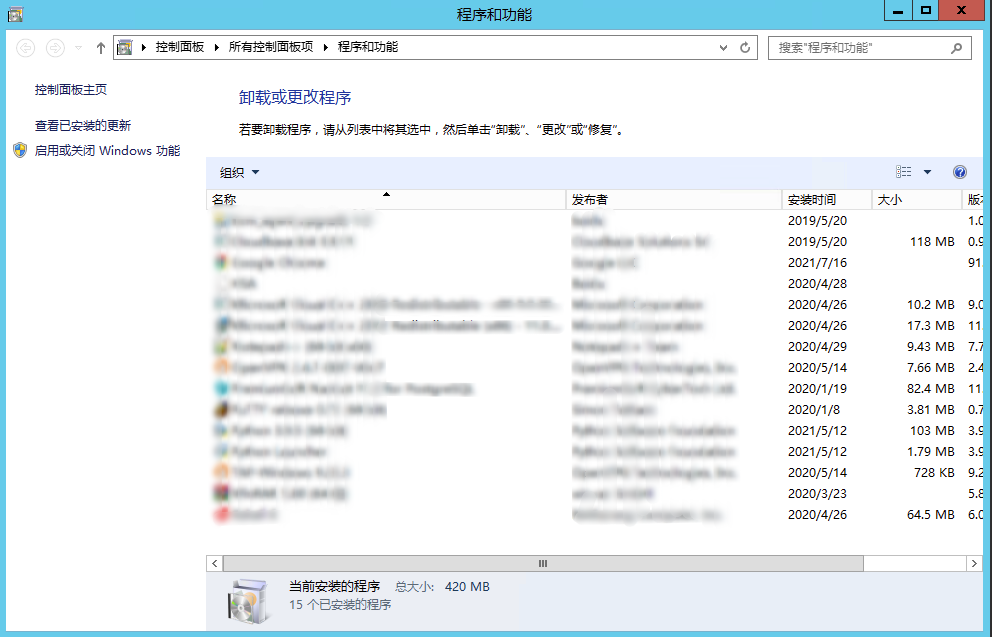
Access the Application Uninstallation page by selecting Clean under Other Options in the Disk Cleanup Tool or by choosing Uninstall Programs in the Control Panel to regularly remove unused applications.
Monitor disk usage via Baidu Cloud Compute
- On the Baidu Cloud Compute (BCC) Instance Details page, click Monitor to access the Server Monitor page.
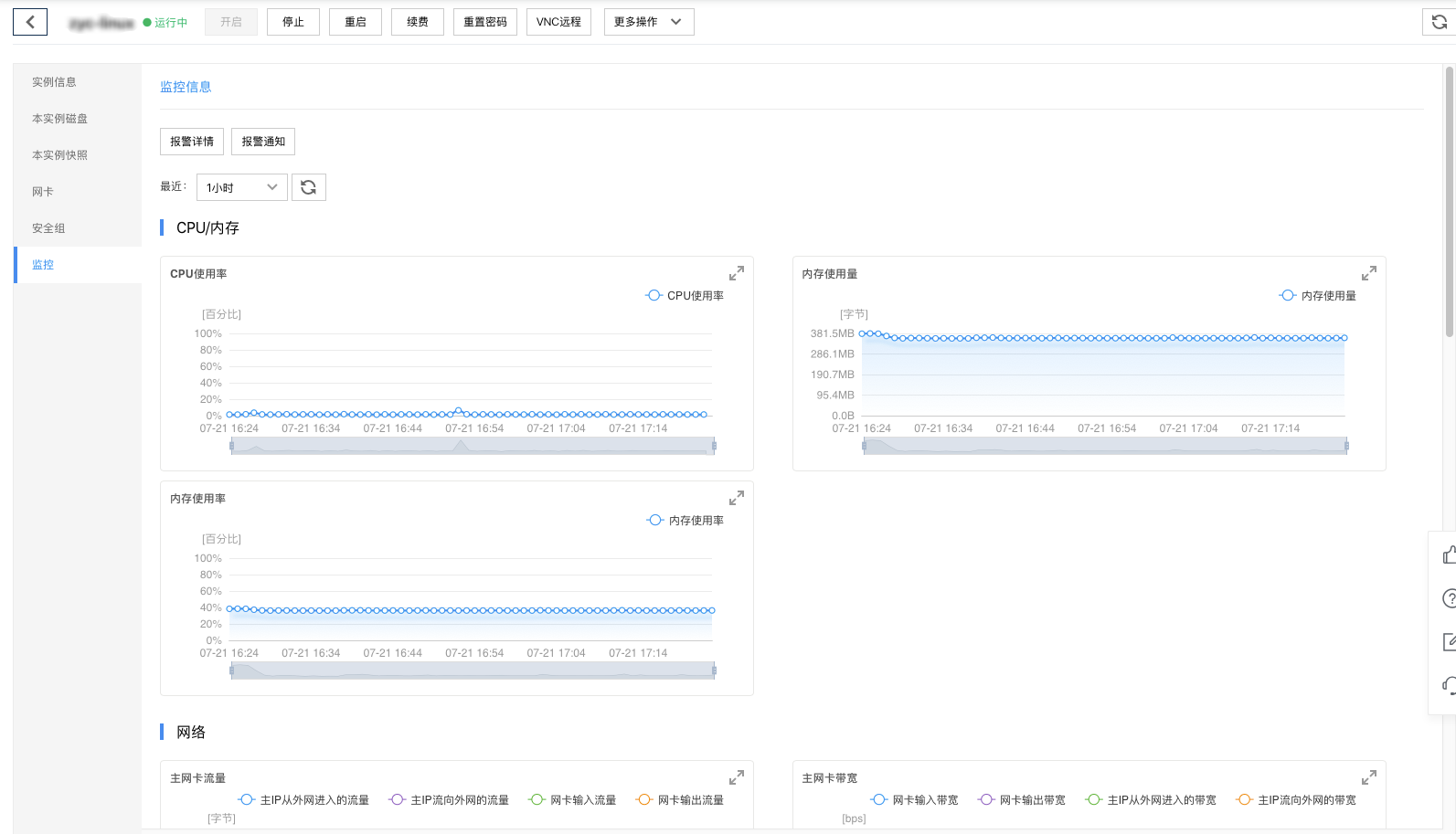
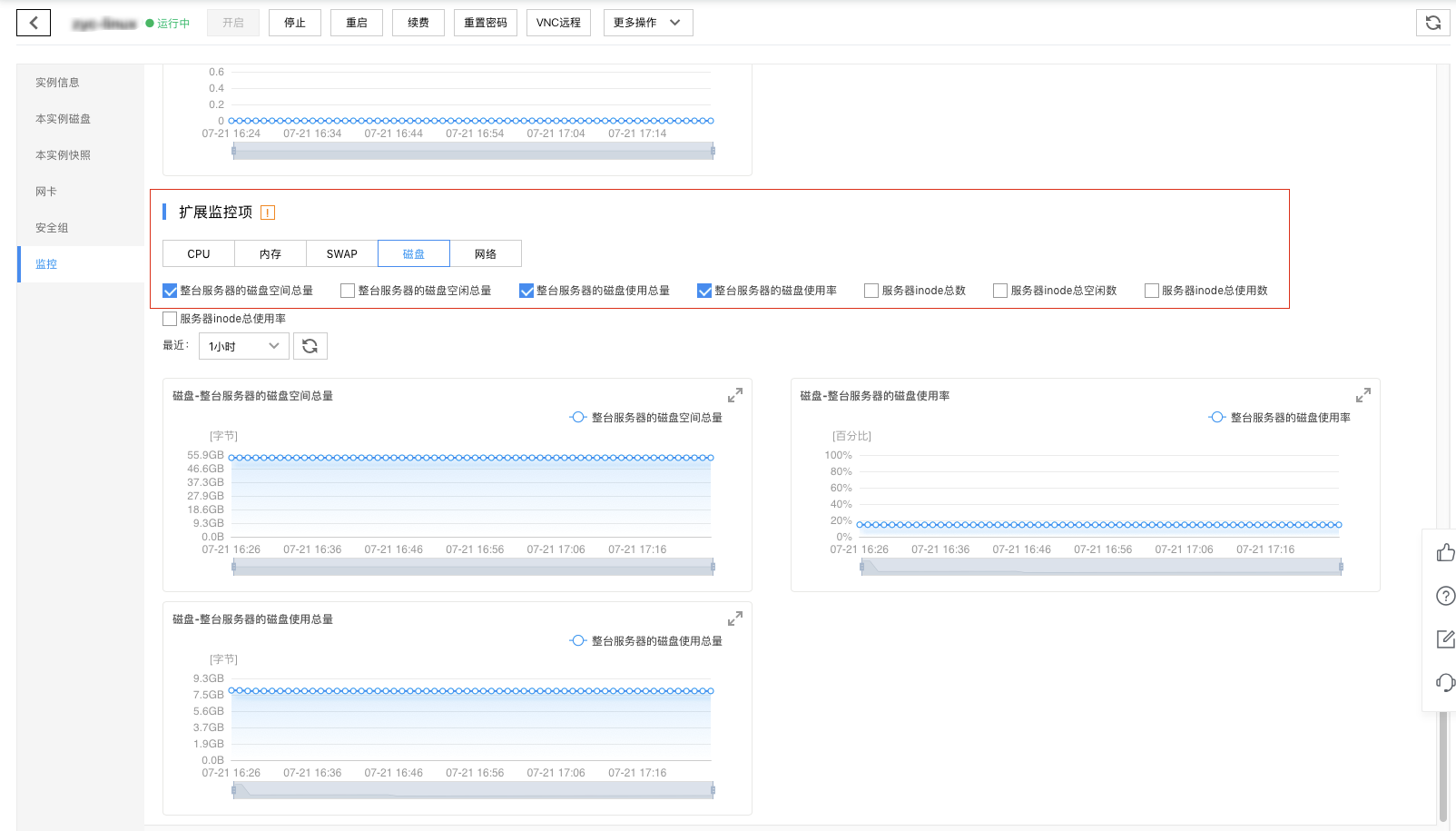
- In the Extended Monitor section, you can review the "Total Disk Capacity of the Entire Server," "Total Disk Usage of the Entire Server," and "Disk Utilization Rate of the Entire Server."