

Launch Template
Updated at:2025-10-20
Overview
A launch template is a feature for saving BCC instance configurations. It enables quick instance creation to boost efficiency. Launch templates retain all configuration details except passwords for instance setup.
Notes Existing instance launch templates cannot be modified but allows the creation of multiple versions, with each version supporting the setting of different configuration information.
Usage restrictions
| Item | Description |
|---|---|
| Template | 30 templates can be created in a single region. |
| Version of single template | A single template supports up to 20 versions. |
Operation steps
Create launch template
- Create template directly
- Sign in to BCC Management Console.
- Click Launch Template in the left navigation bar to enter the Launch Template page.
- Click Create Template, fill in the basic configuration information. Refer to Create Instance via Purchase Page for configuration.
- Enter the following configuration information and click Create Launch Template on the Confirm Configuration page.
| ConfigMap | Required/Optional | Configuration |
|---|---|---|
| Template name | Required | User-defined launch template name. Support uppercase and lowercase letters, numbers, Chinese characters, and -_ / special characters, starting with Chinese or a letter and a length of 1-65. |
| Template description | Optional | Description of user-defined launch template. Support any characters, with a length of 2-256 characters. |
| Template tags | Optional | Each launch template supports binding one or more tags. Refer to Tag Management for configuration. |
- Once created successfully, the launch template can be viewed in the console.
- Create template using existing instance
- Sign in to BCC Management Console and enter the Instance List page.
- Select the corresponding instance, click More in the operation bar, and then click Create as Launch Template.
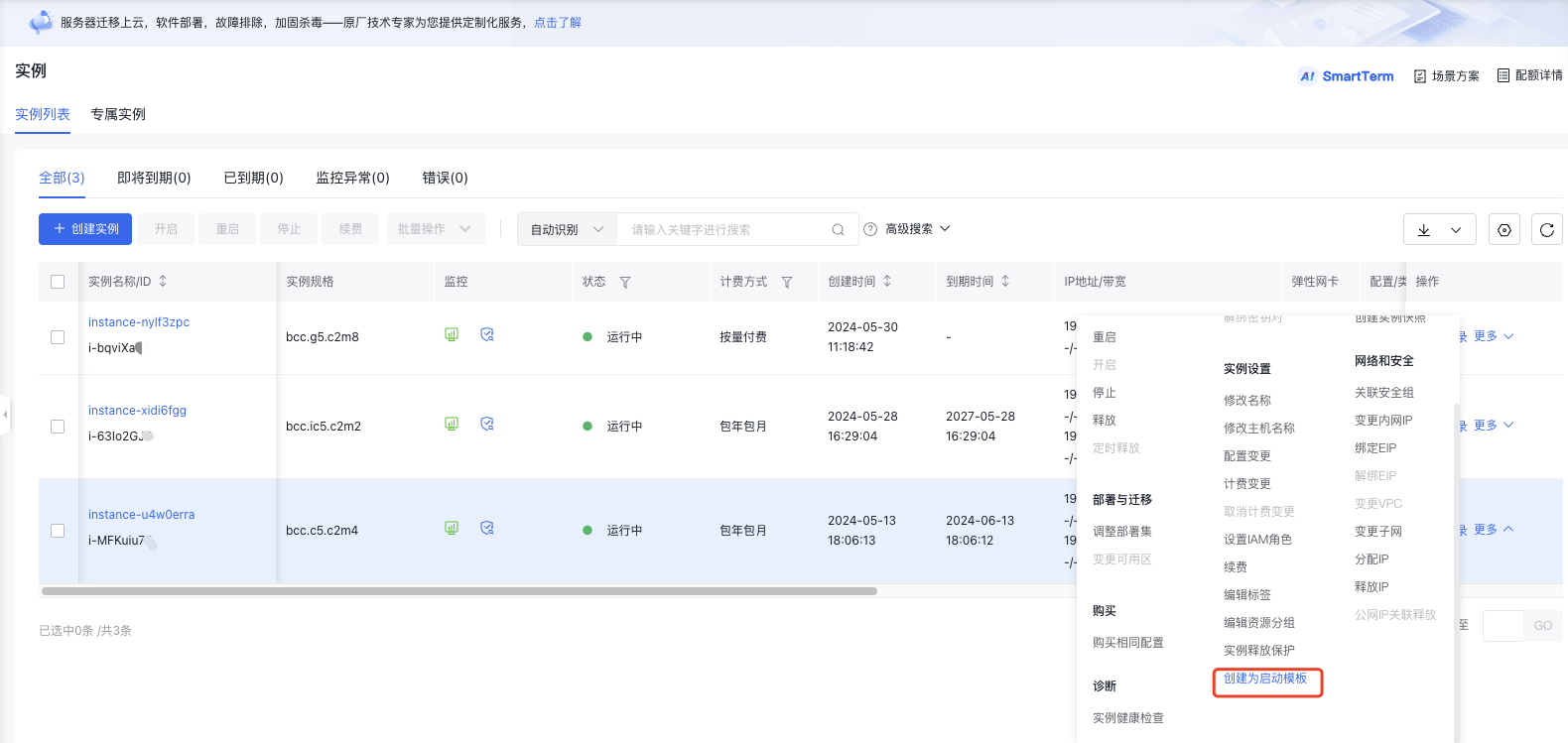
- Edit the template information and click Confirm Template Configuration on the Create Launch Template page.
- Enter the following configuration information and click Create Launch Template on the Confirm Configuration page.
| ConfigMap | Required/Optional | Configuration |
|---|---|---|
| Template | Required | Users can save templates based on their preferences. Creating a new template involves generating a brand-new one and setting the current configuration as the new template's default version. Using an existing template means selecting one and saving the current configuration as its latest version. |
| Template name | Required | User-defined launch template name, or an existing template name. Support uppercase and lowercase letters, numbers, Chinese characters, and -_ / special characters, starting with Chinese or a letter and a length of 1-65. |
| Template description | Optional | Description of user-defined launch template. Support any characters, with a length of 2-256 characters. |
- Once created successfully, the launch template can be viewed in the console.
Create new version of launch template
- Sign in to BCC Management Console.
- Click Launch Template in the left navigation bar to enter the Launch Template page.
- Click Create New Version for the corresponding template in the operation bar and enter the Create Launch Template page.
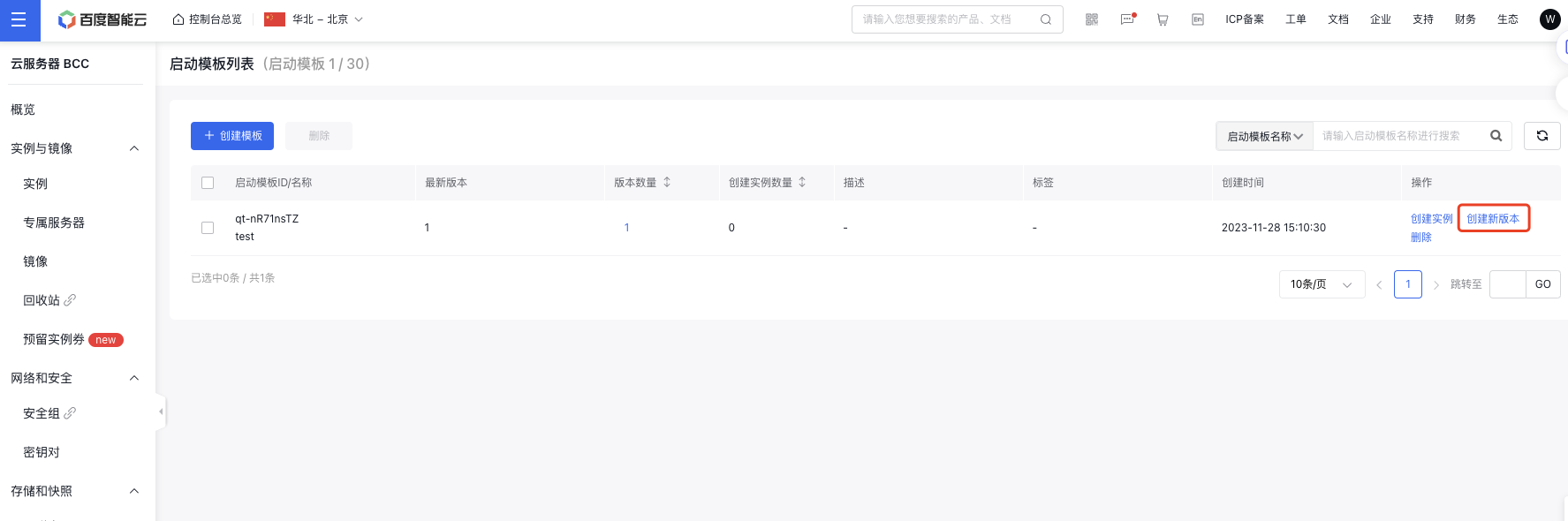
- Edit the template information and click Confirm Template Configuration on the Create Launch Template page.
- Enter the following configuration information and click Create Launch Template on the Confirm Configuration page.
| ConfigMap | Required/Optional | Configuration |
|---|---|---|
| Template name | Required | The name of the active launch template selected by the user cannot be changed. |
| Template description | Optional | Description of user-defined launch template. Support any characters, with a length of 2-256 characters. |
| Template tags | Optional | Each launch template supports binding one or more tags. Refer to Tag Management for configuration. |
- Once created successfully, the launch template can be viewed in the console.
View launch template version information
- Sign in to BCC Management Console.
- Click Launch Template in the left navigation bar to enter the Launch Template page.
- Click the Version Count of the corresponding template, and then click Version No. in the right pop-up window to view the template configuration details.
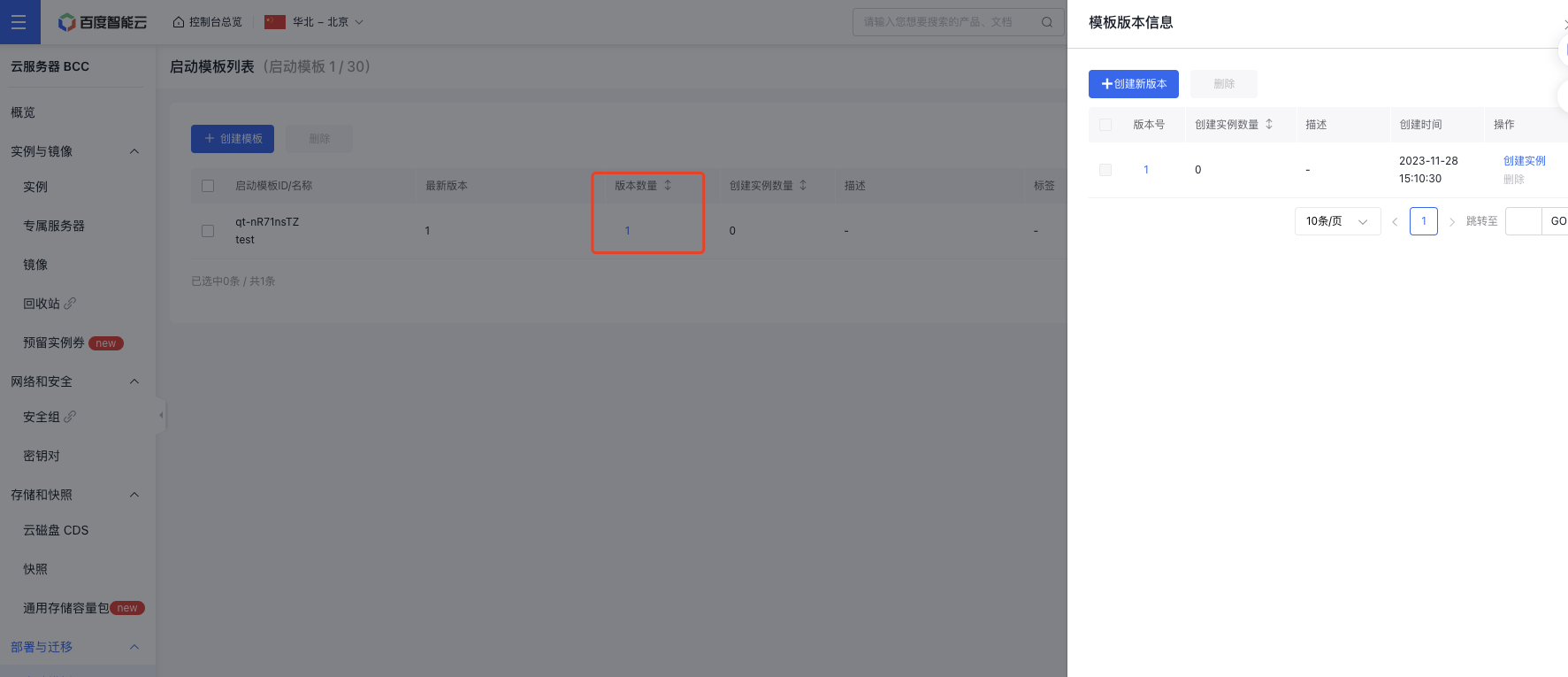
Create Instances with Launch Templates
- Create instance with the latest version
- Sign in to BCC Management Console.
- Click Launch Template in the left navigation bar to enter the Launch Template page.
- Click Create Instance for the corresponding template in the operation bar and enter the Create Instance page.
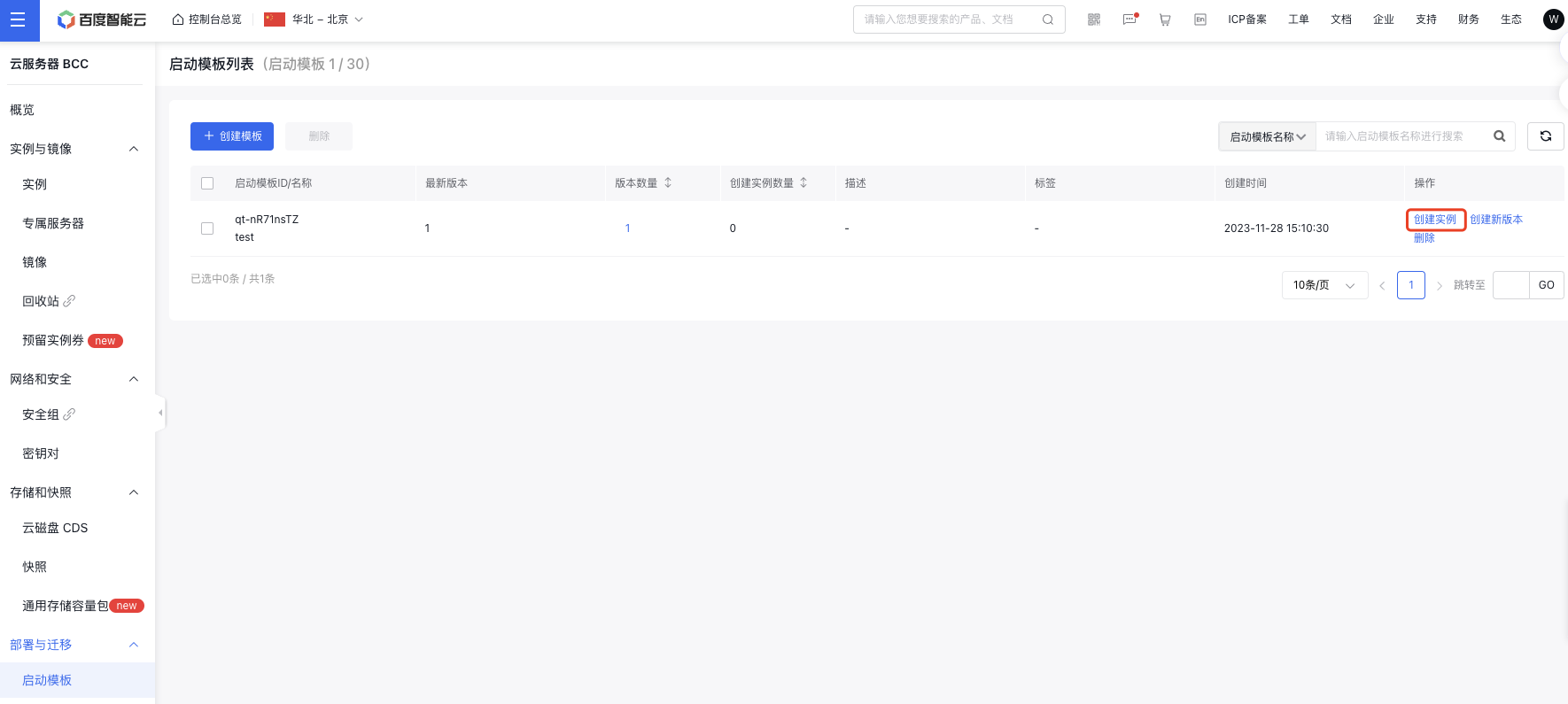
- Click Submit Order to create the template successfully.
Note: By default, instances are created using the latest version of the selected launch template.
- Create instance with the historical version
- Sign in to BCC Management Console.
- Click Launch Template in the left navigation bar to enter the Launch Template page.
- Click Version Count of the corresponding launch template.
- Click the Create Instance button of the corresponding version in the operation bar in the Template Version Information list to enter the Create Instance page.
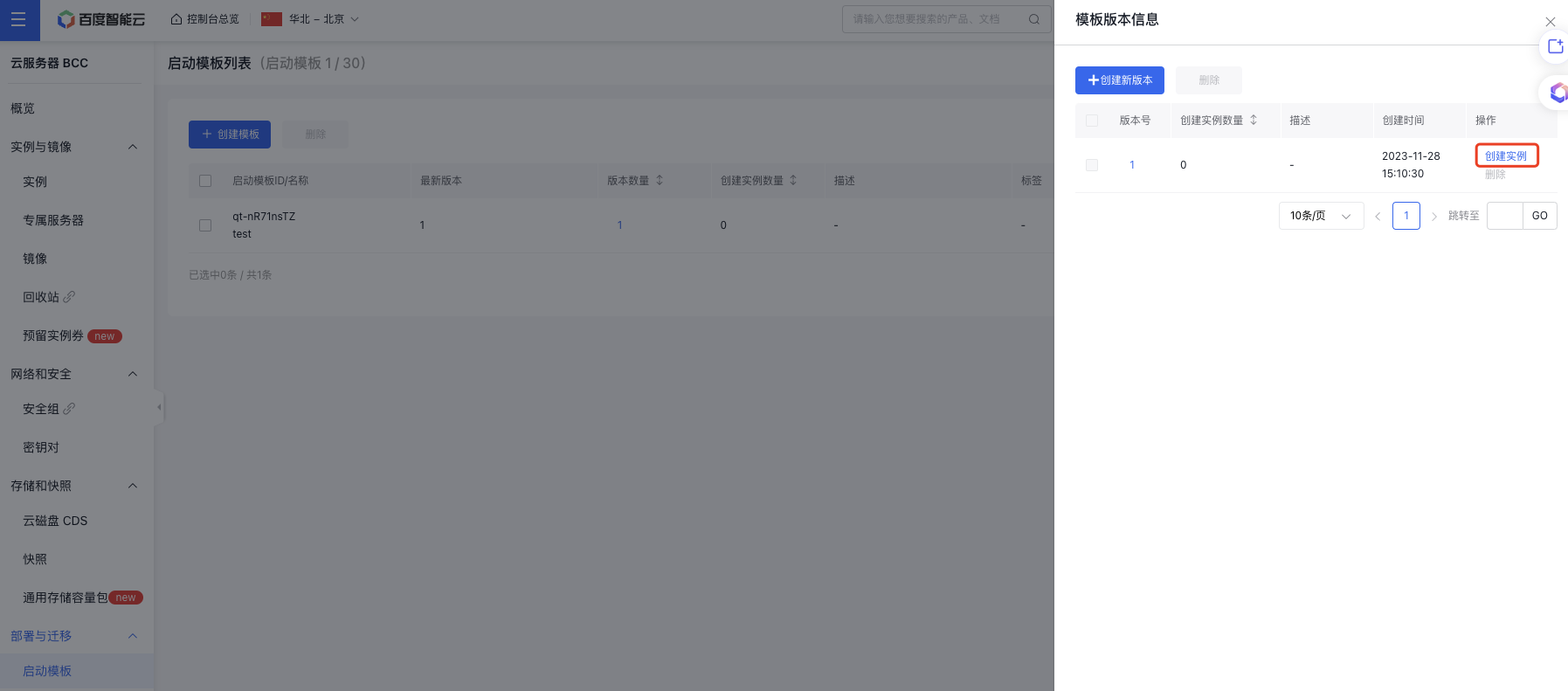
- Click Submit Order to create the template successfully.
Delete launch template
- Sign in to BCC Management Console.
- Click Launch Template in the left navigation bar to enter the Launch Template page.
- Select one or more templates to be deleted in Launch Template List, and then click the Delete button above the list to complete the batch deletion. You can also use the Delete button in the operation bar to delete a single template.
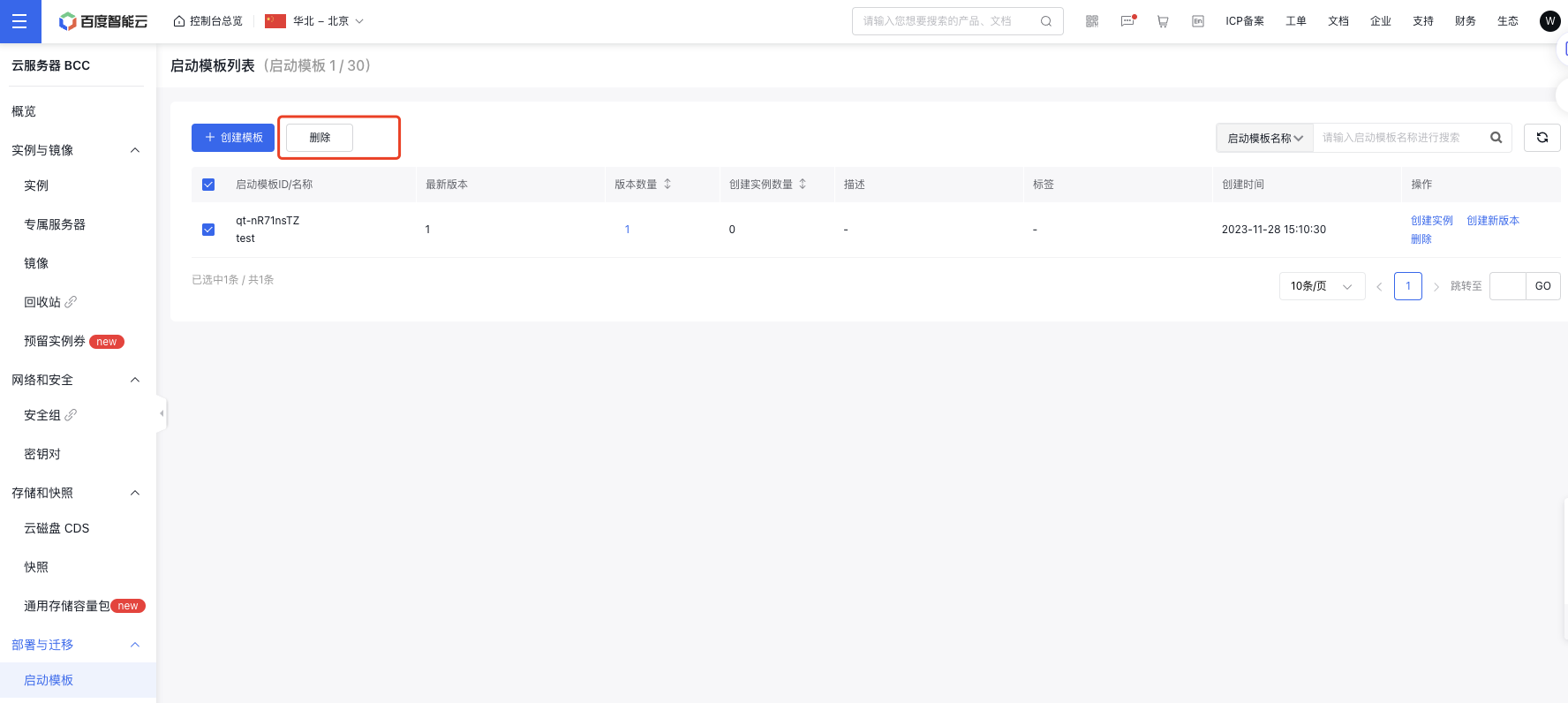
- Click OK in the pop-up confirmation box Delete Launch Template to delete the template successfully.
Description:
- When you delete a launch template, all its versions are permanently removed. Please proceed carefully.
- Deleting a launch template does not impact instances that have already been successfully created.
Delete launch template version
- Sign in to BCC Management Console.
- Click Launch Template in the left navigation bar to enter the Launch Template page.
- Click Version Count of the corresponding launch template.
- Select one or more versions to be deleted in the Template Version Information list, and then click the Delete button above the list to complete the batch deletion. You can also use the Delete button in the operation bar to delete a single template.
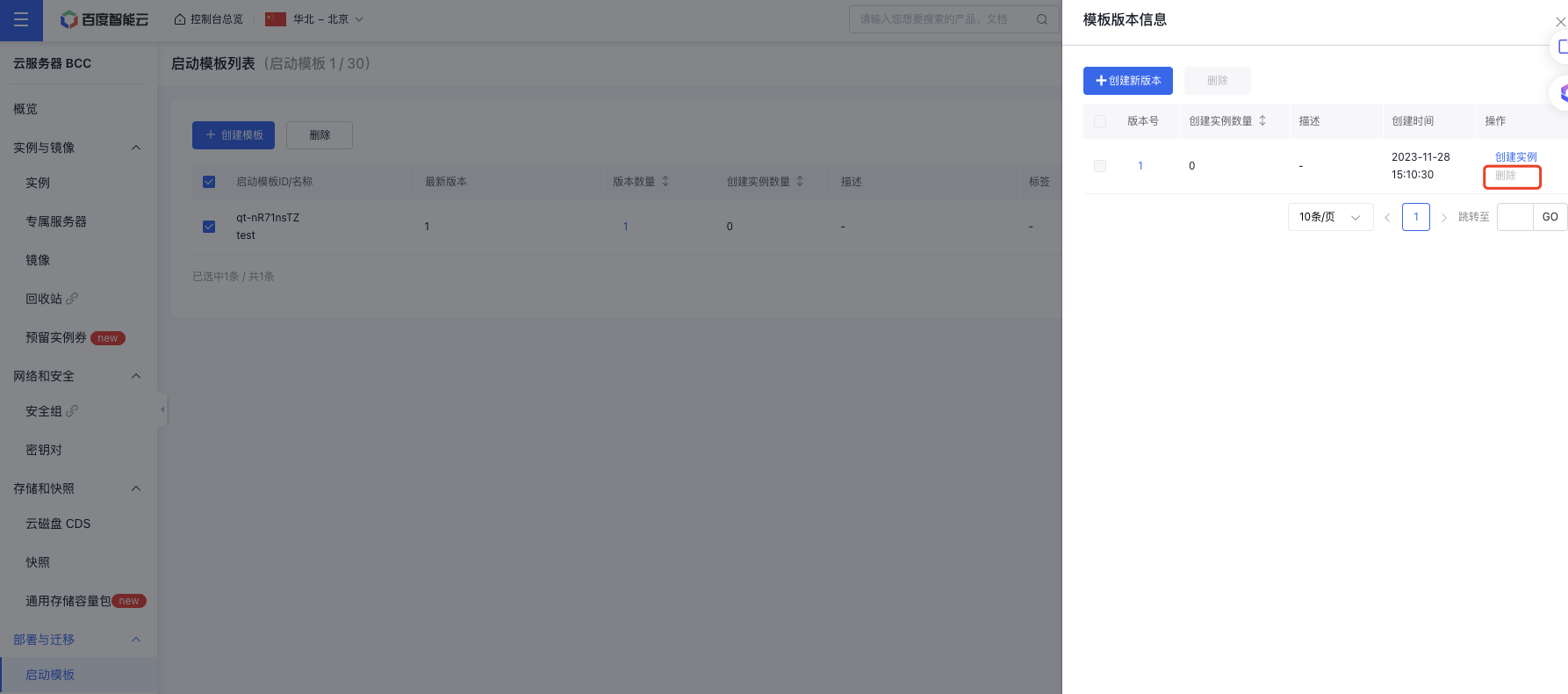
- Click OK in the pop-up confirmation box Delete Version to delete the version successfully.
Note: Initial versions of templates cannot be deleted. If all versions of a template are no longer needed, the entire template can be removed.