

System Black Screen Handling Method
Troubleshooting a persistently black background screen on Windows desktop
Problem phenomenon
After starting a Baidu Windows computer, the screen remains black with no desktop icons, though the mouse cursor responds normally.

Simultaneously pressing the Alt + Ctrl + Del keys in the upper right corner will bring up the panel.

Problem analysis
This behavior suggests that Windows is unable to display the required files and interface. Explorer.exe, a Windows file manager, handles the graphical interface and file system. If this program encounters an issue, it can disrupt the GUI and may require restarting to resolve.
Explorer.exe is located in the C:\Windows directory. If this file is missing, it indicates that the Windows system files are corrupted and must be repaired.
Solution
- Press the Alt + Ctrl + Del keys in the upper right corner to bring up the panel, then select "Task Manager."
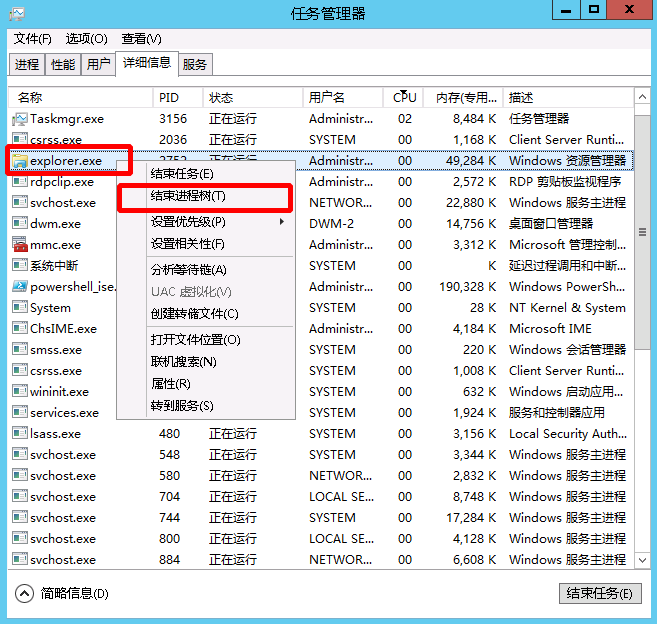
- If the Explorer.exe program is visible in Task Manager, simply restart the process. If not, launch Explorer.exe directly.
- To restart Explorer.exe, first terminate it if it is currently running.
- Start explorer.exe


- At this stage, the Windows desktop should open. If restarting Explorer.exe in Step 4 fails, the issue may be due to system corruption, requiring repair.
-
Repair process
a. Same as Step IV: Run a new task, and enter cmd.exe to run the command-line tool
b. In the command line, enter dir explorer.exe /s to check for explorer.exe present in C:\Windows directory and count archived copies in WinSxS
c. Run sfc /scannow directory to repair system files
d. If after repair, the explorer.exe file is still missing from C:\Windows directory, please contact Baidu AI Cloud customer service