

Virtual machine operation and maintenance class
How to disable the IE Enhanced Security Configuration in Windows Server 2008?
Refer to Tutorial on Disabling IE Enhanced Mechanism in windowsServer2008
How to check the default DNS in Linux?
First, check /etc/resolv.conf. If your BCC instance has public network access, you can execute the nslookup baidu.com command to view it. Pay attention to the content starting with Server: in the output.
How to install .net framework 3.5 on Windows 2012?
To install the .NET Framework 3.5, temporarily change the Windows Update source and avoid using the Baidu AI Cloud repository.
Note: Be sure to record the original values so you can restore them after the installation.
- Open the command prompt (cmd) and type "gpedit.msc" to access the Group Policy Editor.
- Adjust the Windows Update source. Navigate to Computer Configuration - Administrative Templates - Windows Components - Windows Update, double-click Specify Intranet Microsoft Update Service Location, and back up the values in Set Intranet Update Service for Detecting Updates and Set Intranet Statistics Server.
- Choose Not Configured and then click OK.
- Run the command "gpupdate" in the command prompt (cmd) to refresh the group policy.
- Open Server Manager to reinstall the .NET Framework 3.5 component. During the process, files will need to be downloaded from the internet, which may take some time. Please be patient.
- After installation, follow steps 2 and 3 above to revert the Windows Update source to the Baidu AI Cloud repository.
What is the purpose of the cloudbase-init account? Can it be deleted? What is the impact after deletion?
This account is linked to the cloud platform and deleting it will impact cloud platform management functions. It is strongly advised not to modify or delete this account, which does not exist in Linux systems.
How to synchronize and set the system clock of a virtual machine?
Public cloud virtual machines use the Network Time Protocol (NTP) to keep time consistent across all virtual machines in the network. Certain industries that are sensitive to system time require synchronized system times to prevent issues caused by time differences.
The following example explains how to configure the NTP service on a public cloud Windows Server 2012 R2 system.
Time service
The Windows operating system enables the Windows Time service by default. To check whether the service is running:
- Right-click the Start button, select Run, type Services.msc, and the services panel will appear.
-
In the "Services" window, locate the "Windows Time" service, right-click it, and select Properties.
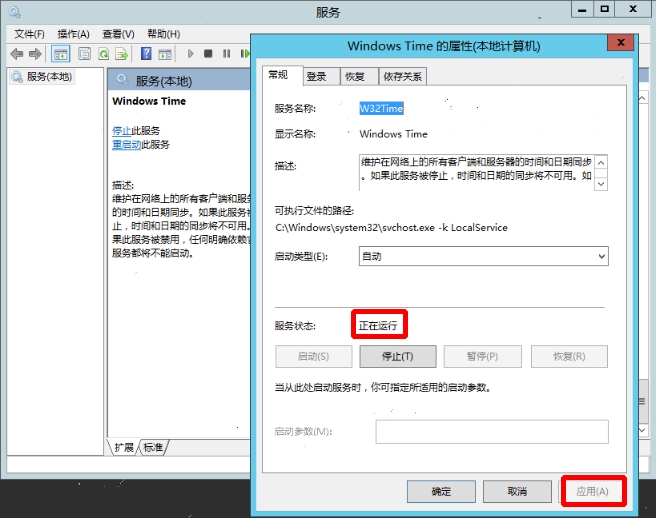
- In the Properties window, ensure the status is set to "Running." If not, click Start and then Apply.
Set NTP time server address
By default, Windows OS uses the Microsoft NTP time server, time.windows.com. However, in Baidu's public cloud virtual machines, the default NTP server is ntpsr.baidubce.com.
The method for setting up the NTP server is as follows:
- Right-click the Start button, select Run and enter gpedit.msc;
- In the policy manager, select Management Template - System - Windows Time Service - Time Provider;
- Double-click Configure Windows NTP Client, select Enabled, select NTP as the type and enter ntpsr.baidubce.com for NtpServer;
- Double-click Enable Windows NTP Client and select Enabled;
- Double-click Configure Windows NTP Server and select Disabled;
Set NTP Time Server Address via Interface
-
Open the system time and select Change Date and Time Settings;

-
In the Date and Time window, select the Internet Time tab page and select Change Settings;
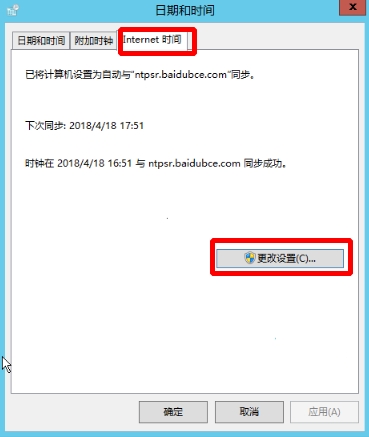
-
Enter the NTP server address of Baidu AI Cloud:
ntpsr.baidubce.com;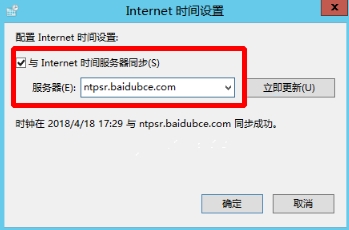
Linux NTP service configuration
For clock synchronization in Linux, you can use either ntp or chrony.
-
If using ntp for clock synchronization, the configuration file is located at /etc/ntp.conf:
- Modify the server configuration. The default configuration is server ntpsr.baidubce.com;
- Modify /etc/ntp/step-tickers. The default configuration is ntpsr.baidubce.com;
-
If using chrony for clock synchronization, the configuration is located at /etc/chrony.conf:
- Modify the server configuration. The default configuration is server ntpsr.baidubce.com iburst
What are the usage rules for the iptables service on Baidu Cloud Compute (BCC) running CentOS 6?
CentOS 6 uses iptables to configure the firewall by default. This document briefly introduces common iptables firewall commands:
Set iptables to start at boot
Currently, the CentOs6.x series of images come pre-installed with the iptables service, which is disabled by default. If you need it to start automatically at boot, execute the following command:
1chkconfig iptables onCommon iptables commands
-
View the filter table
Plain Text1 iptables -L -n --line-number
Note: If the -t option is not specified, the filter table is used by default. Include the -t option to perform operations on other tables.
- View the nat table iptables -t nat -vnL POSTROUTING --line-number
- Modify rules iptables -R INPUT 3 -j DROP // Change rule 3 to DROP
-
Delete iptables rules
Plain Text1iptables -D INPUT 3 // Delete the third rule in the INPUT chain 2 iptables -t nat -D POSTROUTING 1 // Delete the first rule in the postrouting chain of the nat table 3 iptables -F INPUT // Clear all rules in the INPUT chain of the filter table 4 iptables -F // Clear all rules 5 iptables -t nat -F POSTROUTING // Clear all rules in the POSTROUTING chain of the nat table - Set default rules
iptables -P INPUT DROP // Set the default rule for the INPUT chain of the filter table to DROP
service iptables save
What are the usage rules for the firewalld service in a Baidu Cloud Compute (BCC) CentOS7 system?
CentOS 7 has the firewalld service enabled by default. Using either the firewall-cmd command or the firewall-config graphical interface, you can dynamically configure both temporary and permanent rules for the kernel netfilter. Rule changes are applied in real-time without requiring a restart of the firewalld service.
Start firewalld service
1systemctl start firewalldSet firewalld to start at boot
1systemctl enable firewalld Check service status
1systemctl status firewalldCommon commands
-
Check running status
Plain Text1 firewall-cmd --state -
View activated zones
Plain Text1 firewall-cmd --get-active-zones -
View all information for a specified zone
Plain Text1 firewall-cmd --zone=public --list-all -
View permanently allowed services
Plain Text1 firewall-cmd --get-service —permanent -
Reject all packets
Plain Text1 # firewall-cmd --panic-ond -
Cancel rejection status
Plain Text1 # firewall-cmd --panic-off -
Check if rejection is enabled
Plain Text1 $ firewall-cmd --query-panic -
Update firewall rules without the service restarted
Plain Text1 # firewall-cmd --reload -
Update firewall rules with the service restarted
Plain Text1 # firewall-cmd --complete-reload -
Add an API to a specified zone. By default, all APIs are in the public zone
Plain Text1 # firewall-cmd --zone=public --add-interface=eth0If the --permanent parameter is not included, the rule will only be temporary and will disappear after executing firewall-cmd --reload.
-
Set the default zone. If not set, the default is public. This command takes effect immediately without requiring a restart
Plain Text1 # firewall-cmd --set-default-zone=myzone -
View all open ports for a given zone:
Plain Text1 # firewall-cmd --zone=myzone --list-ports -
Add a port to a region
Plain Text1 # firewall-cmd --zone=myzone --add-port=8080/tcpIf the --permanent parameter is not included, the rule will only be temporary and will disappear after executing firewall-cmd --reload.
-
Open a service
Plain Text1 # firewall-cmd --zone=work --add-service=ssh -
Remove the service
Plain Text1 # firewall-cmd --zone=work --remove-service=ssh
You can also visit the official firewalld documentation to query relevant commands:http://www.firewalld.org/documentation/
Overview of the Ufw service on ubuntu/debian systems of Baidu Cloud Compute (BCC)
Ubuntu/Debian systems use the Ufw service by default. This document briefly introduces common Ufw firewall commands:
Enable Ufw to Start at Boot
1ufw enableCheck service status
1ufw statusUfw common commands
1sudo ufw allow ssh // Allow SSH service, meaning that all external IPs can be used to access the local machine's 22/tcp (SSH) port
2 sudo ufw delete allow ssh // Delete the above SSH access rule
3 sudo ufw allow 22 // Allow external access to port 22 (tcp/udp)
4 sudo ufw allow from 192.168.1.12 // Allow to access all local ports with this IP
5 sudo ufw deny ssh // Prohibit external access to the SSH service
6 sudo ufw allow 2290:2300/tcp // Open ports 2290 to 2300 for the TCP protocol
7 sudo ufw reset // Delete/reset all rules
8 sudo ufw status numbered // List all rules along with their corresponding numbers
9 sudo ufw delete 1 // Delete the rule numbered 1
You can also visit the Ufw community help document:https://help.ubuntu.com/community/UFW
How to configure IIS and FTP on BCC Windows Server?
The steps for installing and using IIS and FTP on Windows Server 2008 R2 and Windows Server 2012 are as follows:
Windows server 2008
-
Log in remotely to the BCC server, go to Start - Management Tools - Server Manager.
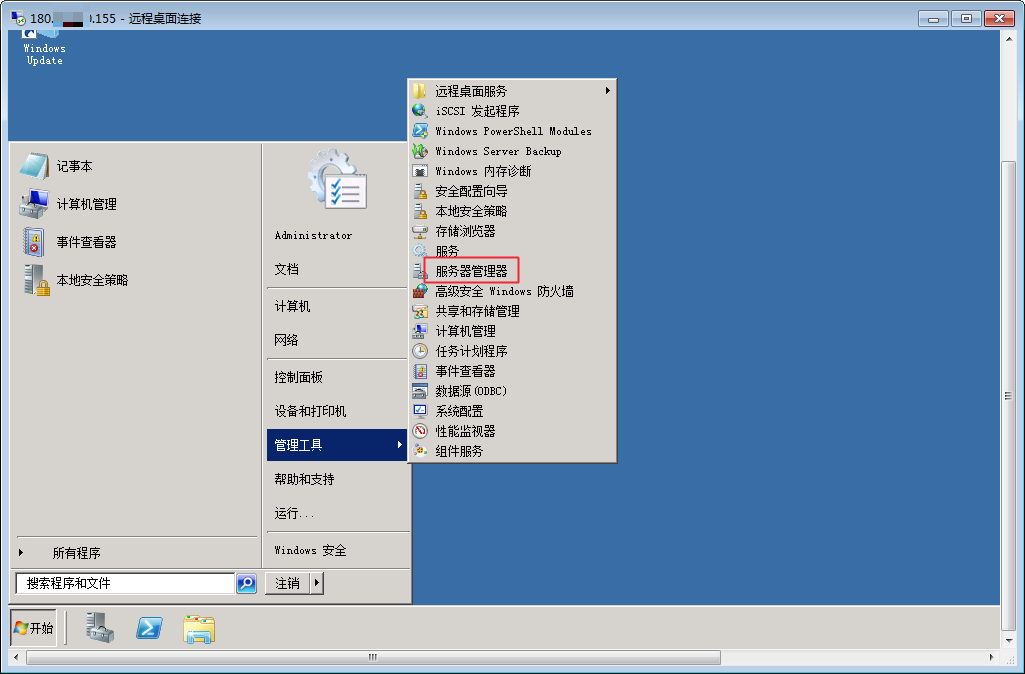
-
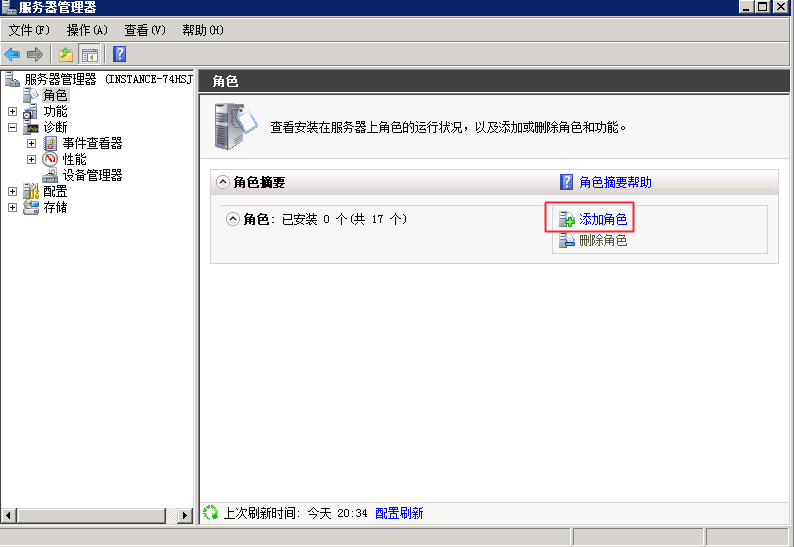
Open Server Manager, locate and click Add Roles. The Add Roles dialog box will appear. Click Next to proceed.
-
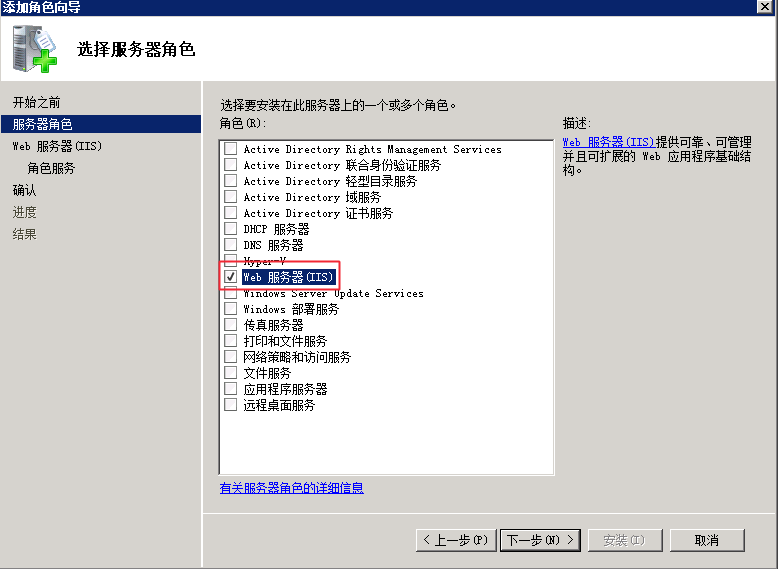
In the Add Roles Wizard, click Next to configure server roles, then select Web Server.
-
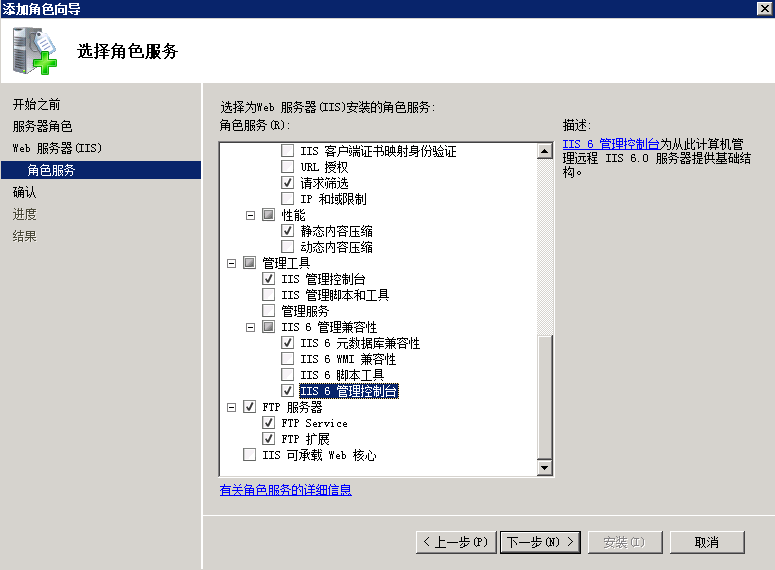
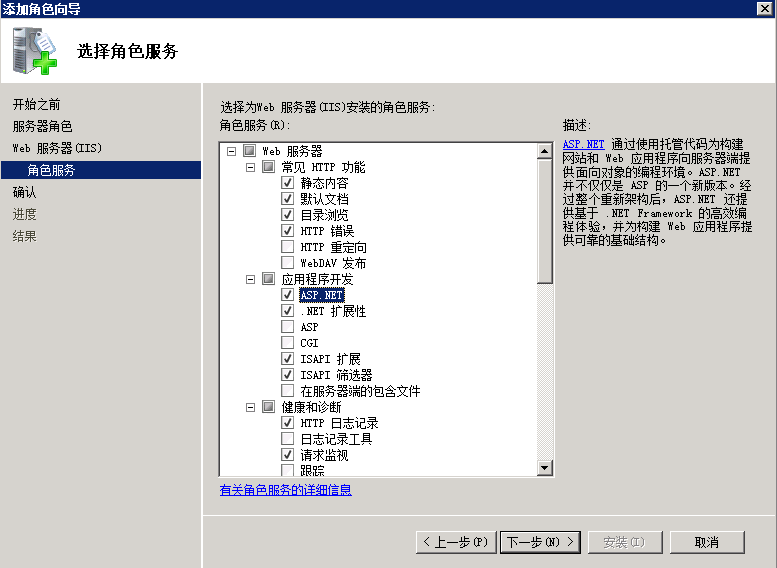
Click Next, select FTP Server, FTP Management Console, and Application Environment. Application development typically requires ASP and .NET.
-
Verify the role and feature configuration, then click Install.
-
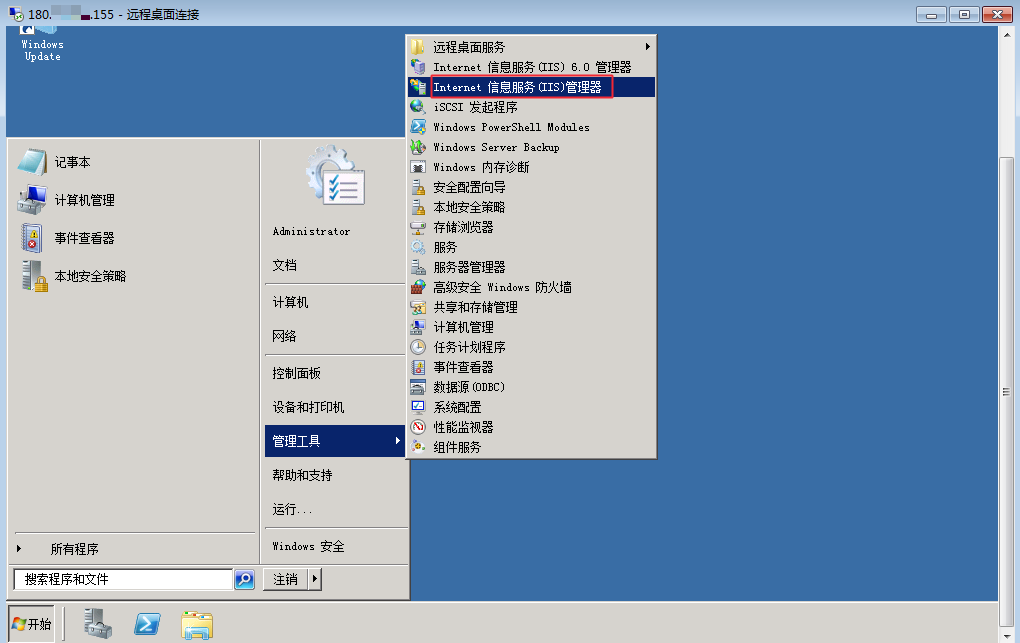
Once installation is complete, navigate to Start - Management Tools - IIS Manager.
-
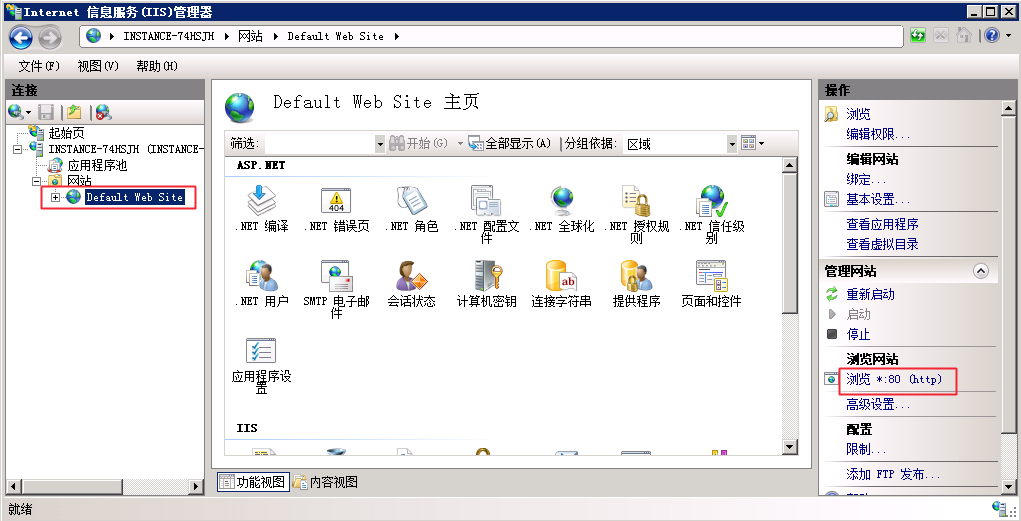
In IIS Manager, the default IIS site will be visible. Click Browse Website to open the default IIS page in your browser, completing the IIS installation.
Windows server 2012
-
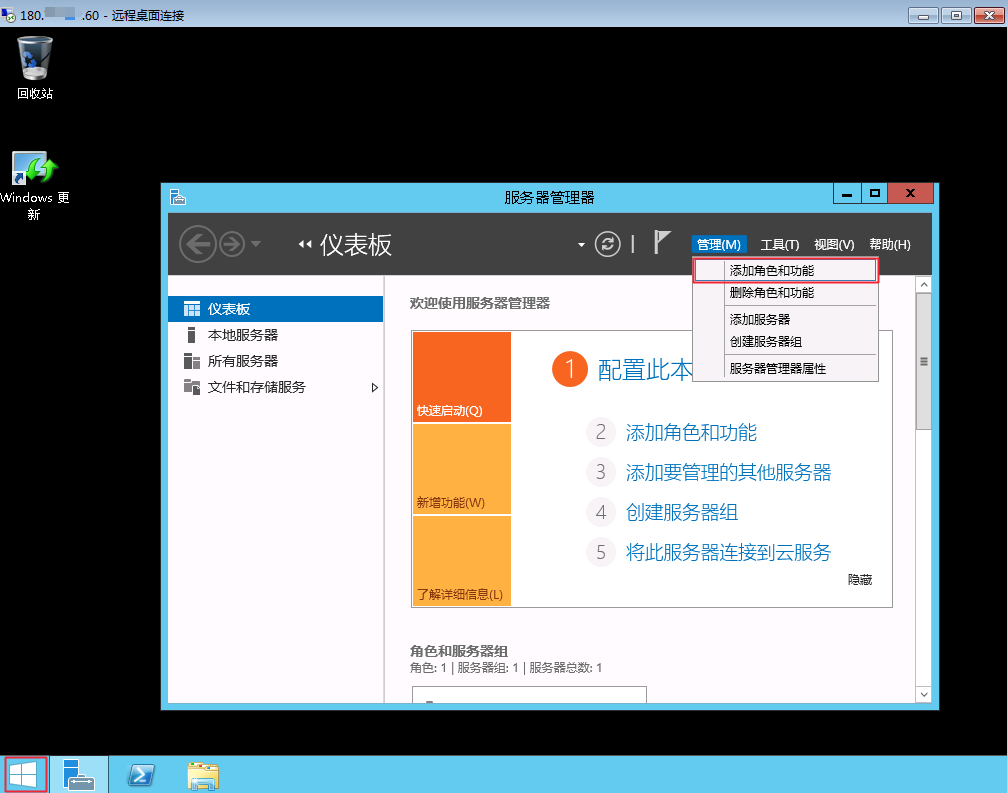
Log in remotely to the BCC server, go to Start - Server Manager, and click Manage - Add Roles and Features.
-
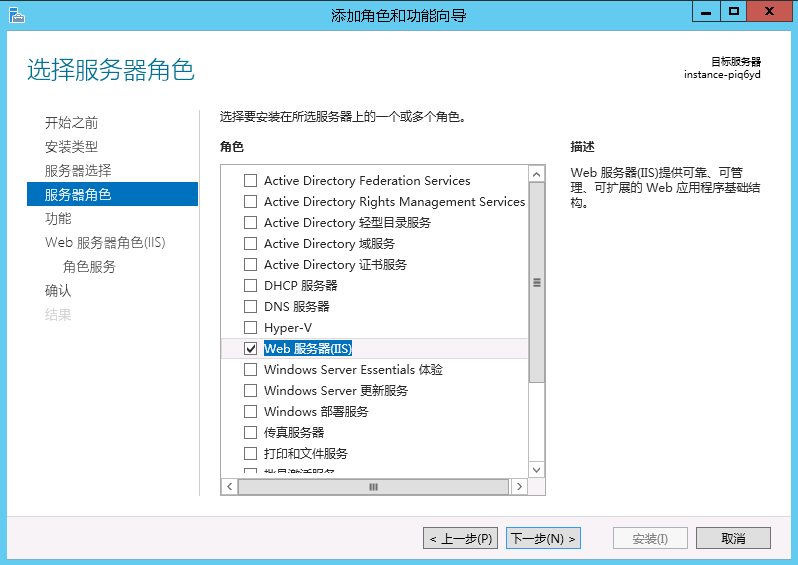
Open the Add Roles and Features Wizard, then select Server Role - Web Server (IIS).
-
Choose the necessary features for installation and click Next.

-
Install role services and configure the necessary security options. Ensure the FTP Server and FTP Management Tools are selected. Click Next to continue.

-
Click Install and wait for the process to finish.
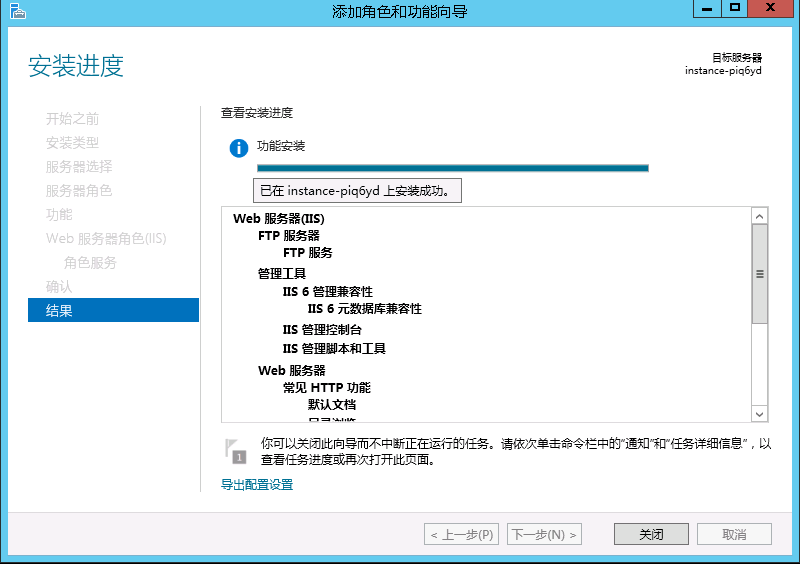
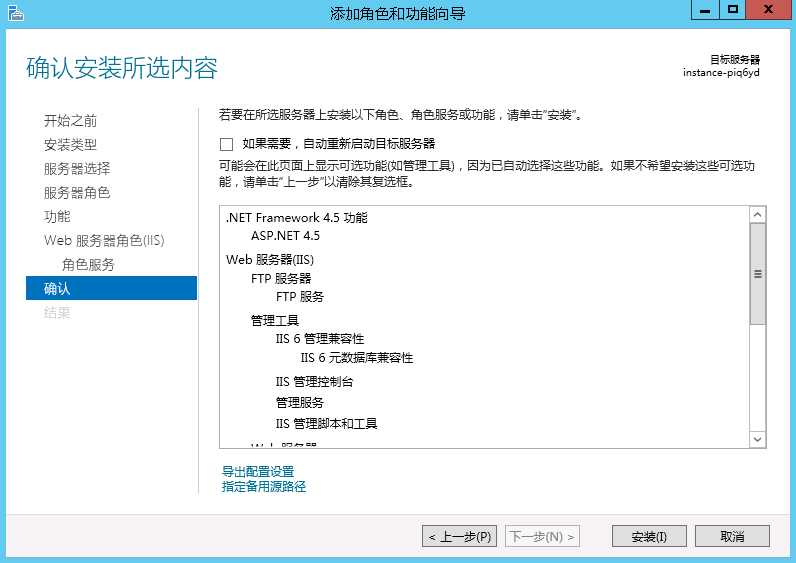
-
After installation is complete, navigate to Tools - IIS Manager.
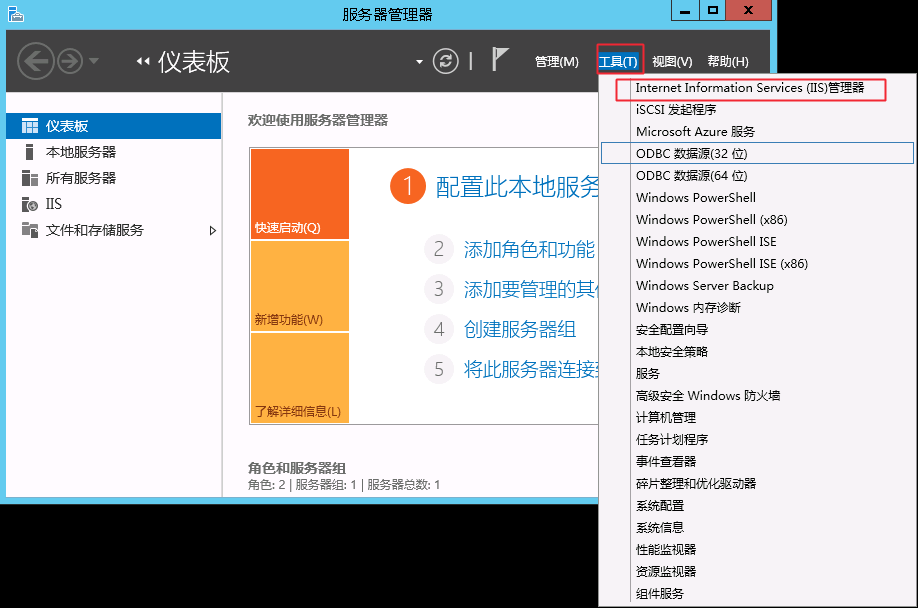
-
Open IIS Manager to view the application pool and website, confirming successful IIS installation on Windows Server 2012.
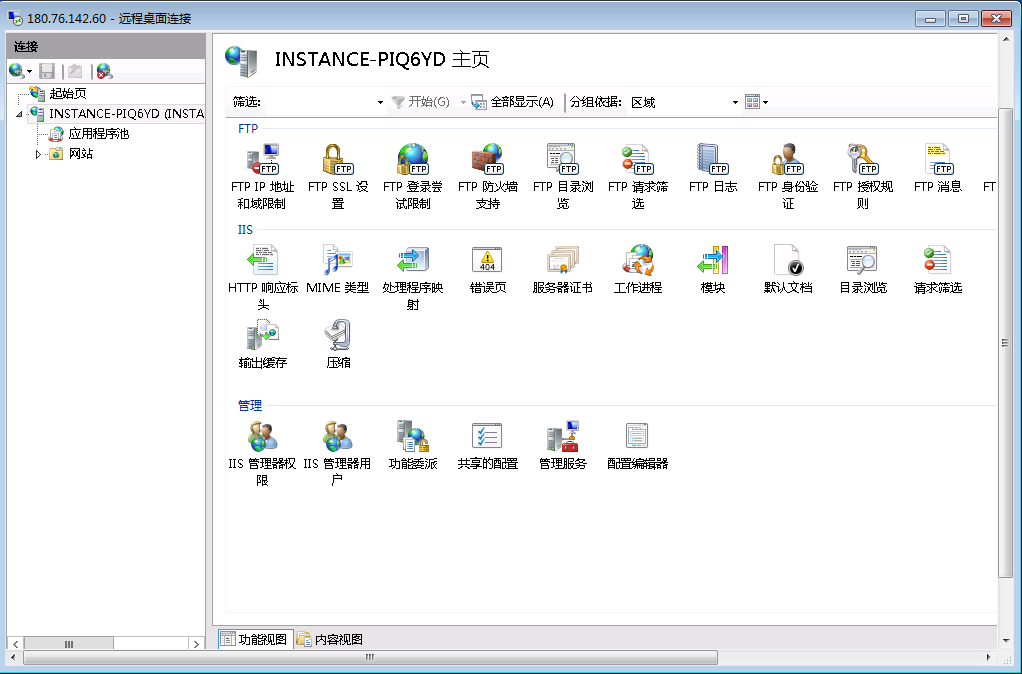
- Enter the public IP address in the format ftp://180.xx.xxx.xx in your browser to test the FTP server setup. If login access is successful, it indicates the setup was completed correctly.
How to do if FTP uploads frequently interrupt?
First, determine whether you're using active mode (PORT) or passive mode (PASV).
- If using active mode, confirm that you have opened high-end ports on the server and specified these ports in the FTP Server;
- If using passive mode, you need to have relevant ports open locally for data interaction. However, if your network structure is restricted (e.g., firewall or route restrictions), it may cause frequent connection interruptions and prevent normal use;
- If the above issues are ruled out, confirm whether your local network environment is stable and whether your server bandwidth is fully utilized;
- If the above issues are ruled out, confirm that the Data Transfer Timeout setting on the FTP server side (i.e., on the BCC server) is sufficiently large. For example, when using vsftp on Linux, you need to modify the
/etc/vsftpd/vsftpd.conffile'sdata_connection_timeoutparameter. Operations in the Windows system are more complex. Please refer to this link: http://www.iis.net/configreference/system.applicationhost/sites/sitedefaults/ftpserver/connections.
If the timeout is already set to a sufficient value, test the local network conditions by following the steps described in "What should I do if there is packet loss when pinging a website?" If no local network issues are detected, submit a ticket to technical support and include all network test outputs and results with your request.