

Monitor and Alarm
BCC instance monitor information
| Monitoring items | Description and units |
|---|---|
| CPU usage | Display the percentage of the instance's CPU usage relative to its total capacity, in % |
| Memory usage | Display allocated memory usage of the instance, in GB |
| Actual user memory usage | Display the actual memory usage of the instance, in GB . The actual memory usage of users is less than the allocated memory usage because the OS occupies partial memory during instance operation |
| Available memory usage | Display available memory of the instance, in GB |
| Memory usage | Display the percentage of memory usage relative to total capacity of instances, in % |
| Network traffic | Display the inbound/outbound traffic of the instance's primary network interface card and primary IP address, in MB |
| Network bandwidth | Display the inbound/outbound bandwidth of the instance's primary network interface card and primary IP address, in bps |
| Network packet rate | Display the inbound/outbound rate of the instance's primary network interface card and primary IP address, in pps |
| Disk space usage | Display disk usage of the instance, in GB |
| Disk space usage rate | Display the percentage of disk usage relative to total capacity of instances, in % |
| Disk read/write volume | Display the read/write bytes per second for the instance's disks (system disk/data disk), in MB |
| Disk read/write times | Display the read/write request count per second for the instance's disks (system disk/data disk), in times |
| Disk error I/O | Display the number of disk error I/O for the instance, in times |
More monitor information
After installing BCM-agent on a BCC instance, you can view additional monitor metrics. BCC's public/GPU images come with BCM-agent pre-installed. If you use other images or have deleted BCM-Agent, you can reinstall the instance or manually install it by referring to BCM-Agent Installation Guide.
For more metrics, refer to Cloud Product Metrics List.
Display monitoring
-
Select "Product Services > Baidu Cloud Compute (BCC)" to navigate to the "Instance List" interface.
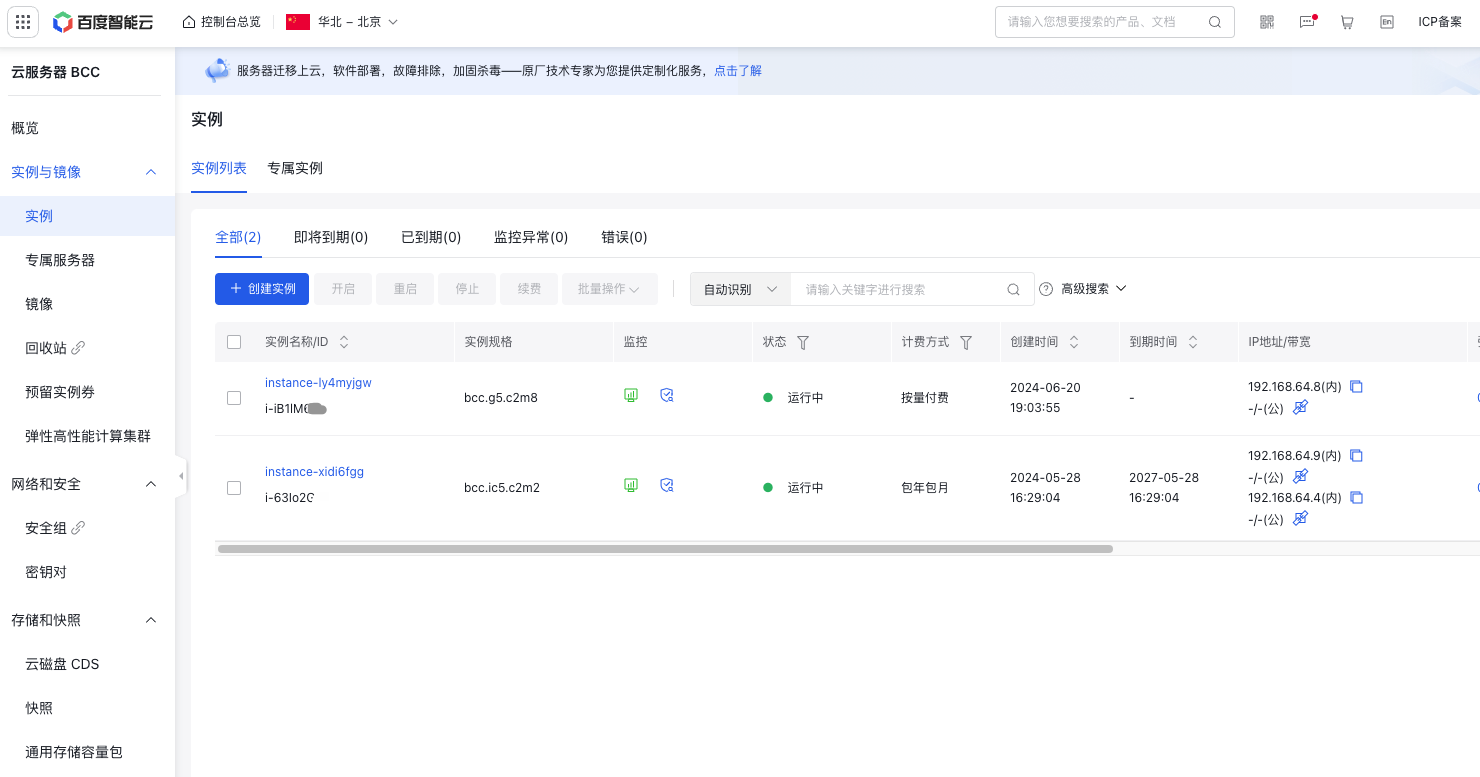
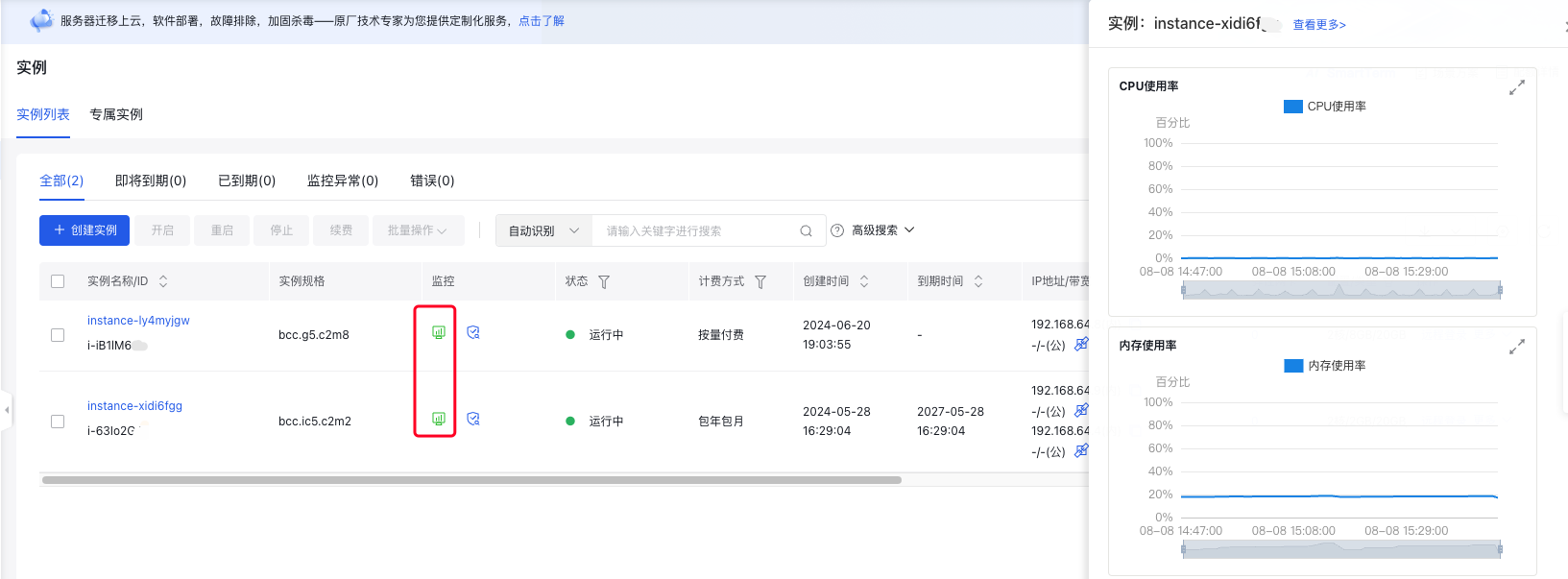
- In the "Instance Name" column, select an instance link and view the associated monitoring data under the "Monitor" tab.
Configure alarms
Application scenario
You can configure alarms for monitored data in Baidu Cloud Compute (BCC). When the monitored value reaches the preset alarm threshold, a notification will be sent via SMS or email to the designated recipient.
Operation step
-
Select "Product Services > Baidu Cloud Compute (BCC)" to navigate to the "Instance List" interface.
- Click the ID link in the Instance Name column to navigate to the Instance Details page.
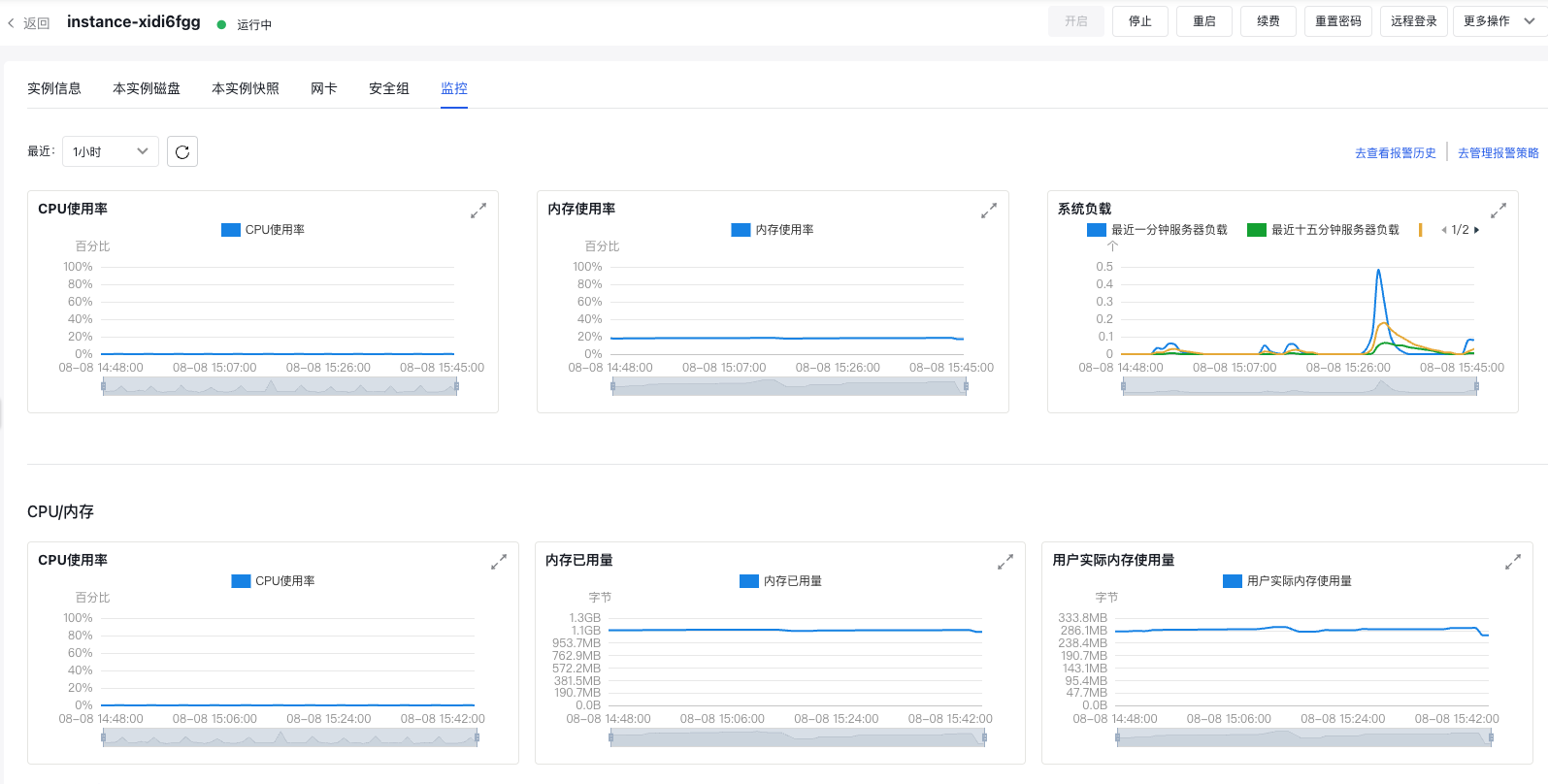
- On the Monitor page, select Alarm Details to open the Alarm Management subpage.
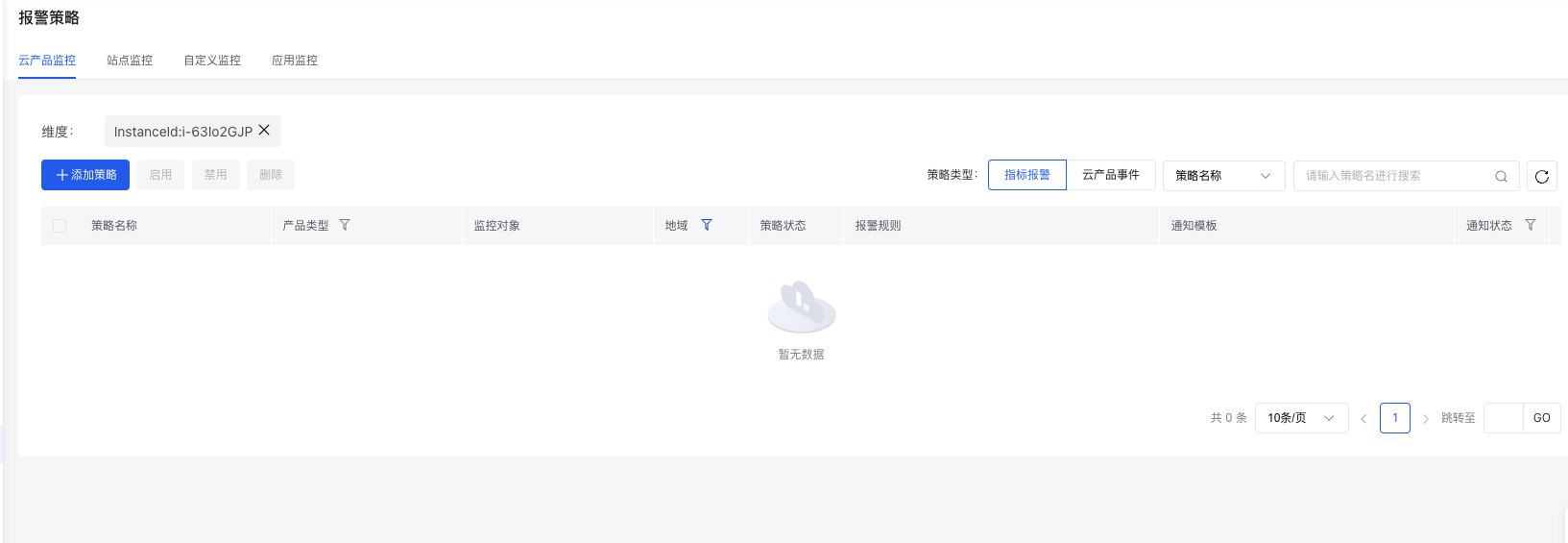
- Define the alarm thresholds and notification methods for the respective monitoring items.
- Click Configure Alarms to save your settings, and the newly set alarm strategy will be displayed in the list on the subpage.
Management alarm strategy
For specific operations, refer to Manage Alarms.