Checking Network Configuration
Updated at:2025-10-20
Before importing the image, ensure that your system is set to obtain a dynamic network address.
Check the network acquisition method of the Linux system
CentOS system: View the network configuration
Plain Text
1[root@localhost ~]# cat /etc/sysconfig/network-scripts/ifcfg-eth0
2DEVICE=eth0
3TYPE=Ethernet
4ONBOOT=yes
5NM_CONTROLLED=yes
6 BOOTPROTO=dhcp             # In case of BOOTPROTO=static, it needs to be modified to dhcp
Ubuntu/Debian: View the network configuration method
Plain Text
1root@instance-x09zr2jc:~# cat /etc/network/interfaces
2auto lo
3iface lo inet loopback
4auto eth0
5 iface eth0 inet dhcp              # If it is static, it needs to be modified to dhcp
Windows system: View the network configuration
Taking Windows Server 2008 R2 as an example:
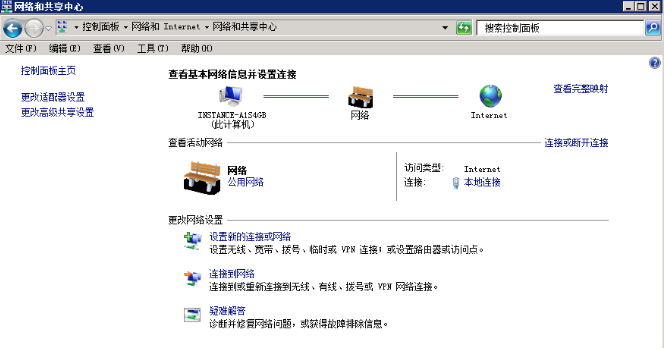
In the Windows system, select Start - Control Panel - Network and Internet - Network and Sharing Center, as shown in the image:
Click Local Connection to check the network connection attributes and verify whether DHCP is enabled. If DHCP is enabled, no additional settings are needed.
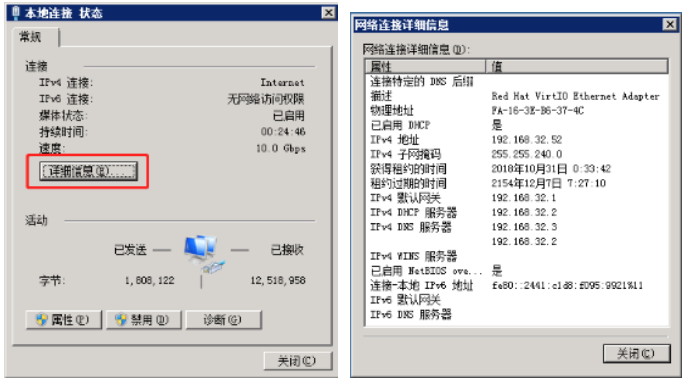
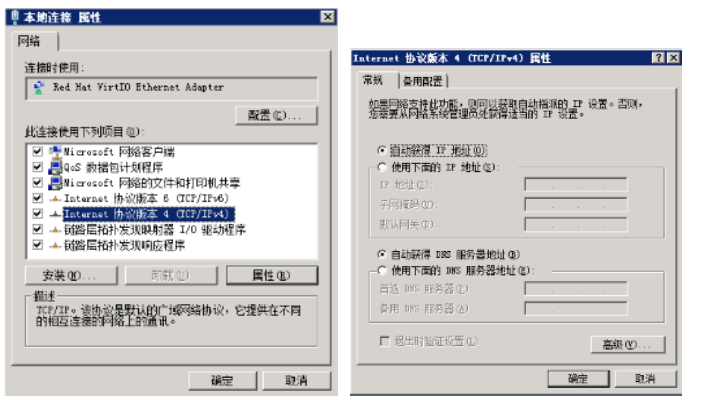
If DHCP is not enabled, set the network connection attributes. Click Attributes in the image above and set Internet Protocol (version 4), as shown in the image below: