

Upload files
Updated at:2025-10-20
Upload files
Users can upload local files to the corresponding BCC or BBC instances via the cloud assistant.
Operation step
- Sign in to BCC Console.
- Click Cloud Assistant in the left menu bar, then click Upload File on the My Commands List page of cloud assistant.
- Provide the following information in the pop-up dialog box.
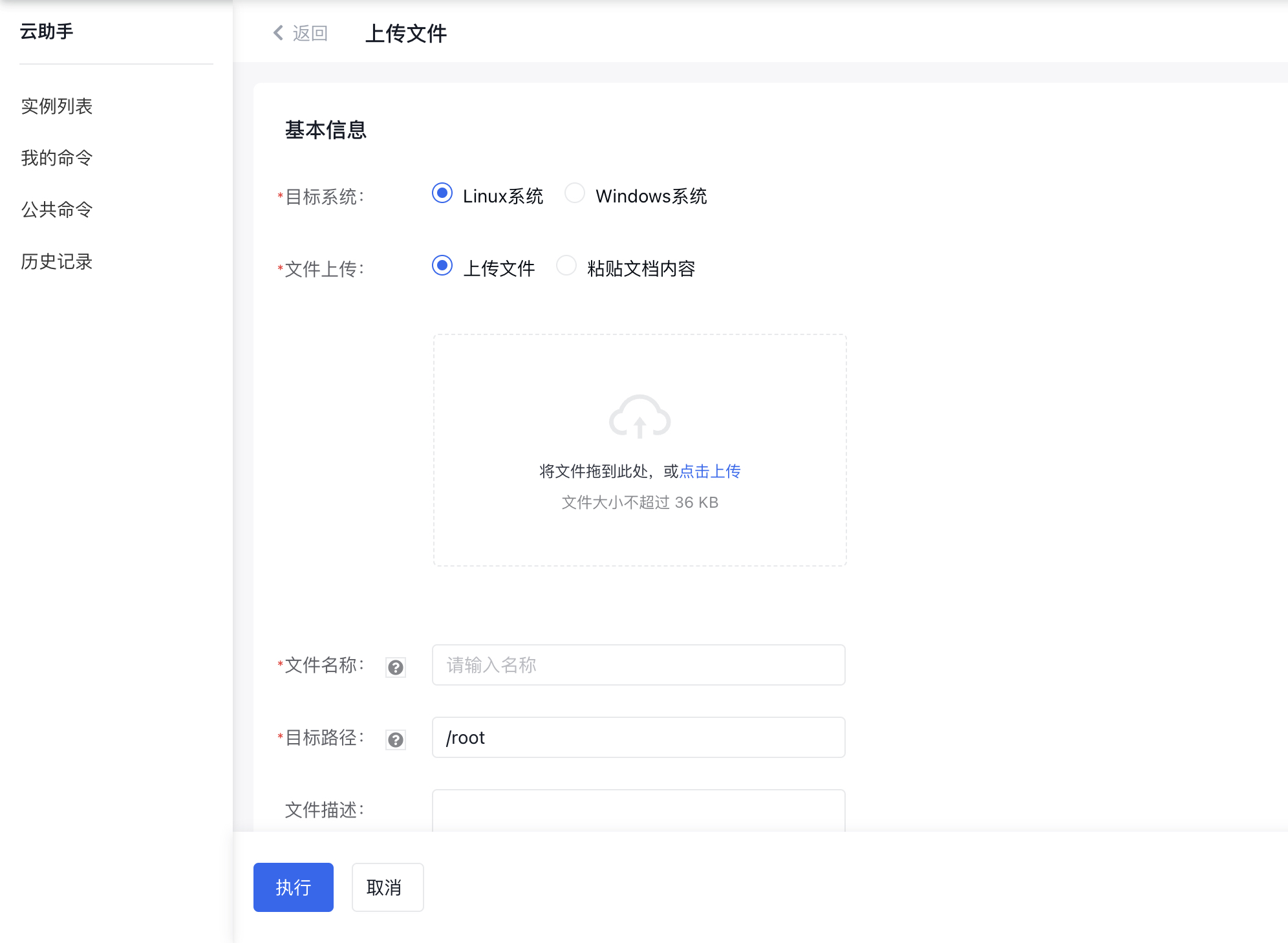
| ConfigMap | Required/Optional | Configuration |
|---|---|---|
| Target system | Required | This feature is compatible with both Linux and Windows operating systems. |
| File upload | Required | Choose your file upload method: Drag and drop files into the upload area, or click the Upload button to select files; Paste file content: Manually type or paste the content into the file input box. |
| File name | Required | After a file is uploaded, its name will automatically be parsed as the filename. If the overwrite option is not selected, the file name cannot be identical to an existing one. |
| Target path | Required | By default, absolute paths are used: /root for Linux OS and C:\Users\Administrator\Documents for Windows OS. |
| File description | Optional | Input a clear and descriptive command description to ensure it can be quickly understood later. |
| User | Optional | Specify the username for executing commands on BCC instances. By default, the user is root for Linux OS BCC instances. However, you can customize the execution user for Linux as needed. The username for Windows machines cannot be changed. |
| User group | Optional | Set the linked target system. This parameter is only applicable to Linux OS, where root is the default setting. |
| File permission | Optional | This configuration applies exclusively to Linux OS. The default value, 0644, grants read/write permissions to the file owner, while group users and others have read-only permissions. |
| Overwrite or not | Optional | Specify whether to overwrite files with the same name in the target path. |
| Timeout duration | Optional | Set the timeout duration for executing commands in instances. If the command execution exceeds the specified time limit, the cloud assistant will forcibly terminate the process. The default unit is seconds, with a default value of 60 seconds. The minimum duration is 10 seconds, while the maximum is 86,400 seconds (equivalent to 24 hours). |
| Acquisition method | Optional | Support manual selection of instances for performing batch operations on multiple targets. |
| List of instances | Optional | It is advisable to select active BCC instances with the cloud assistant client already installed. An offline BSM-Agent status could lead to file upload failures. |
Description:
- The maximum file upload size is limited to 36KB
- Click Execute to complete creation and upload the file immediately.