

Connect to Baidu Cloud Compute Using SmartTerm
Overview
SmartTerm is a remote connection terminal provided by Baidu Cloud Compute (BCC) under Baidu AI Cloud. It allows users to remotely log in to servers via a browser, enabling flexible application management anytime, anywhere. Compared to traditional local remote terminals, it is more lightweight and convenient, enhancing development and operational efficiency with the included AI assistant.
Note
- Currently, only Linux-based Baidu Cloud Compute is supported, and Windows systems are not yet compatible.
- The instance status should be in the Running status.
Connection mode
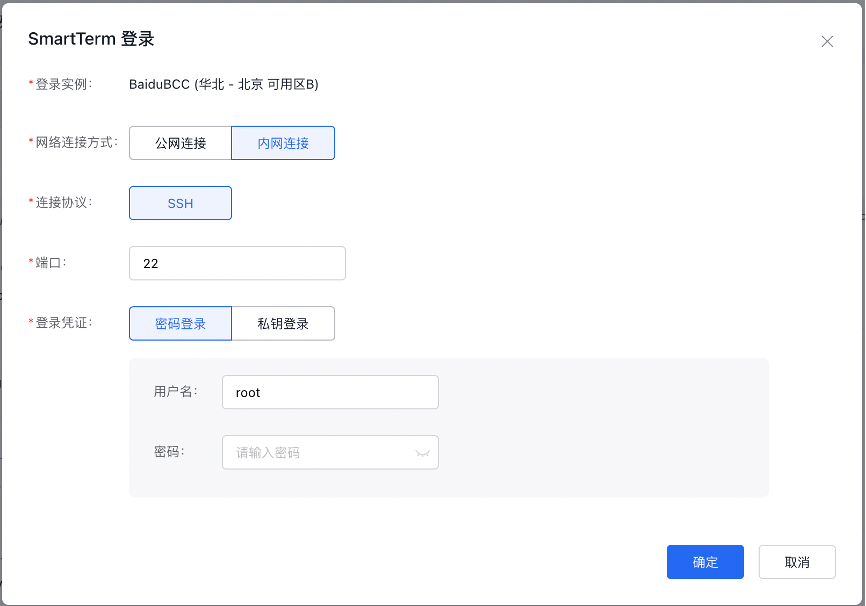
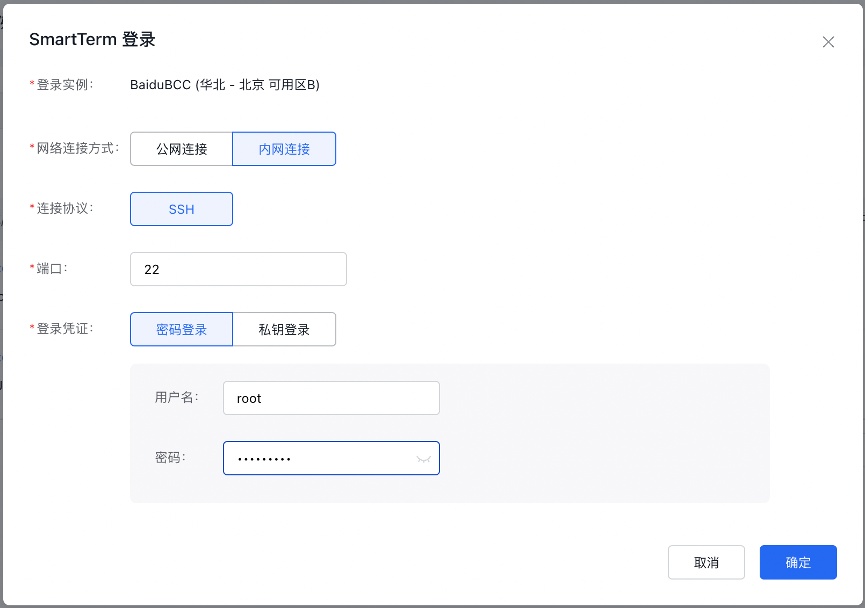
Network connection mode: It supports public network and Intranet connections. Even if the Baidu Cloud Compute is not bound to a public IP, you can sign in via Intranet connection.
Note: When you select public network connection, Baidu Cloud Compute will connect using your public IP, leading to some network traffic usage.
Login Mode: It supports login via password and key.
Multi-instance management
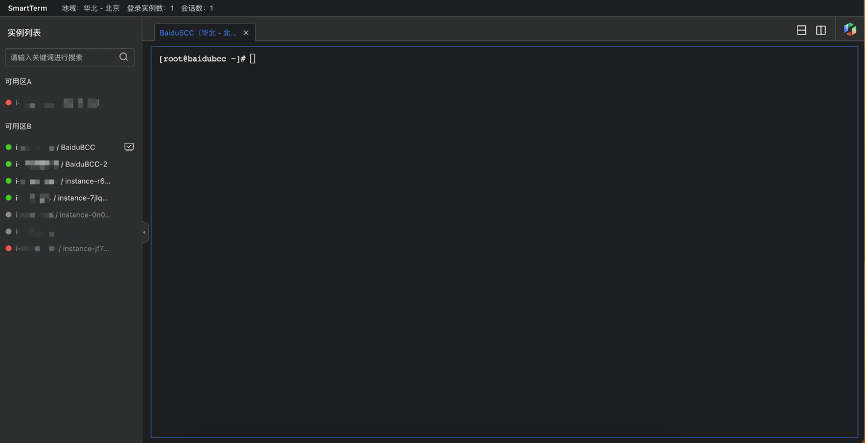
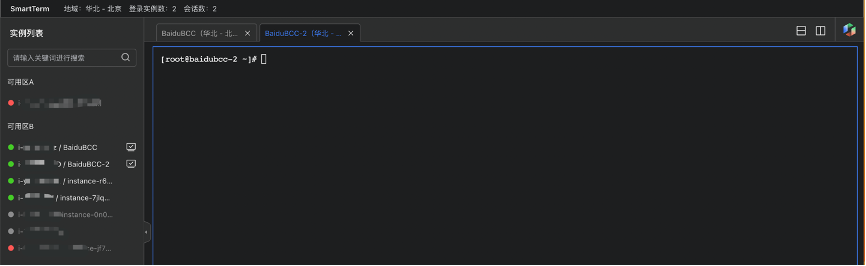
SmartTerm supports simultaneous connection to multiple Baidu Cloud Compute instances. Click instances listed in the left sidebar to sign in and connect to multiple instances in the same region.
Split screen
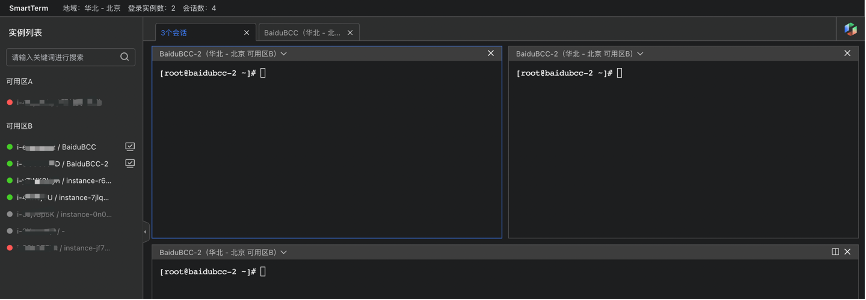
SmartTerm allows multiple sessions within a single instance. Use the split-screen icon in the top-right corner to enable horizontal or vertical splits.
Note: Maximum 4 splits are supported simultaneously
The figure below shows the effect of 3 split screens. Switching to other instances is also supported in split screen.
Copy and paste
You can use Ctrl+C and Ctrl+V shortcuts or right-click to copy and paste between your local device and the instance system or vice versa.
AI assistant
AI Assistant is a terminal AI Q&A assistant based on LLM, which helps users obtain assistance via AI for more efficient use of terminal tools and enhance terminal operation efficiency. It can provide corresponding command suggestions or solutions based on your input, offering fast, convenient and user-friendly operations. For AI assistant feedback, one-click copy or import is supported to simplify operations and expedite task completion.
AI Q&A interface
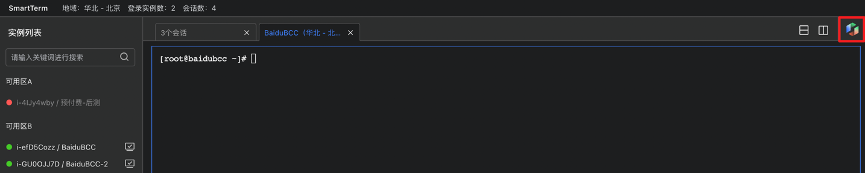
- Click the AI Assistant icon at the top right of the page to open the AI Q&A interface shown below;
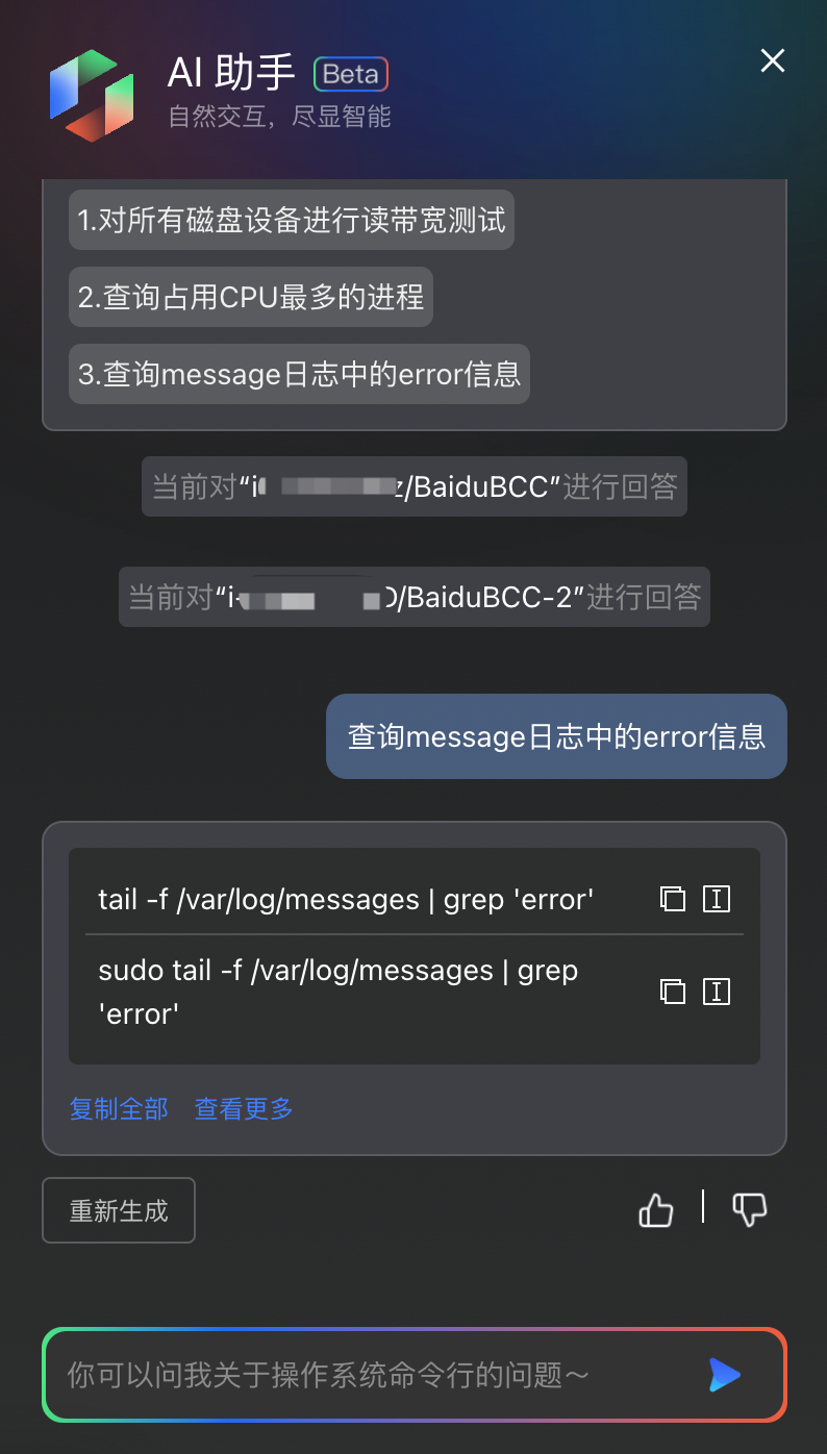
- Enter your question, press Enter or click the send icon on the right side of the input box to submit the question. AI will offer answers in the chat box.
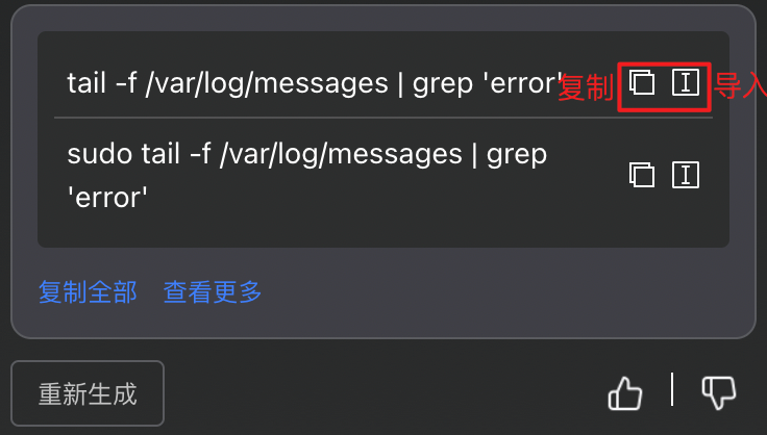
- If the AI-generated answer meets your needs, you can copy or import it with one click. For more insight, click "View More" to access detailed explanations from the AI. If the answer is incorrect, you can select "Regenerate."
-
If you're satisfied with the answer, give it a Like; if not, provide a Dislike. Your feedback plays a crucial role in improving the AI assistant to deliver better and more accurate responses in the future.
Note: AI-generated content is intended for reference only. Please use your own discretion when applying it.
Operation steps
- Sign in to Baidu Cloud Compute (BCC) Console and enter the Instance List page.
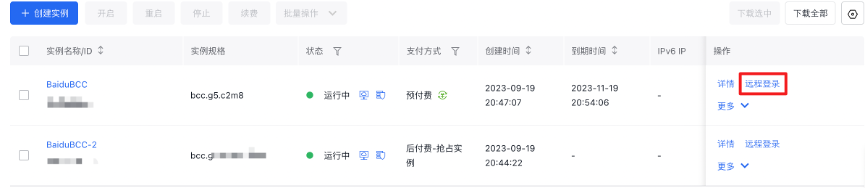
- Select the instance you want to sign in to remotely, and click Remote Login in the right-hand operation bar.
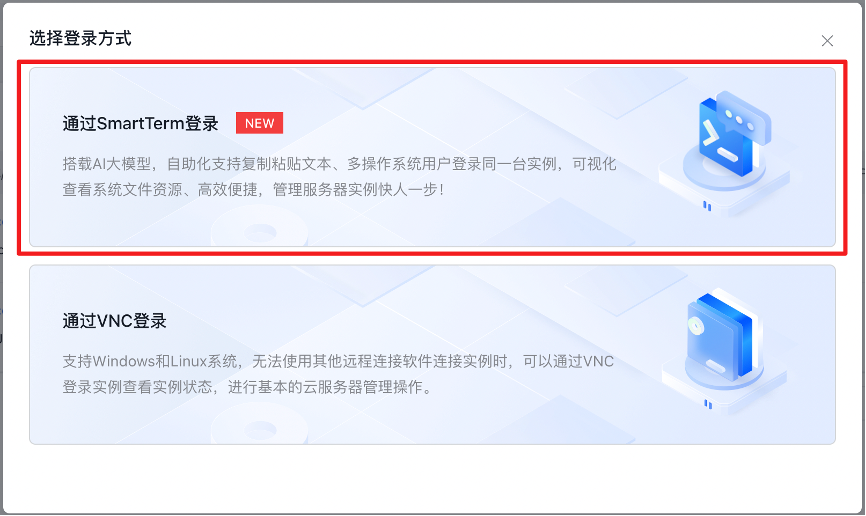
- In the pop-up login mode selection box, click Sign in via SmartTerm.
-
Enter the password and click OK.
Note: The default network connection mode is "Intranet Connection," but you can switch it to "Public Network Connection" if required.
- After successful connection to the instance system, you can perform the required operations and tasks.