

Configure Tag
Add tag
Users managing multiple cloud servers can assign tags to BCC instances based on projects or scenarios to streamline instance classification, identification, and management.
Notes When creating instance tags in batch, you cannot view the single instance tag that has been added.
Operation step
- Sign in to BCC Management Console.
- Select Region at the top of the page, and then click Instance in the left navigation bar to access the Instance List page.
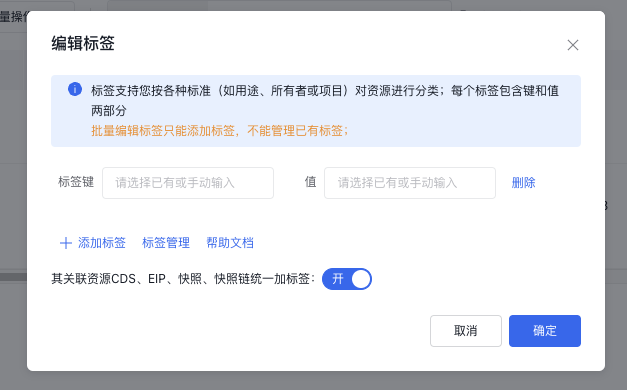
- Check one or more instances, and click Batch Operation > Edit Tags in the operation bar.
- In the pop-up dialog box, enter the custom label key and label value. Note that the "Key" must be unique, and the value can be left blank.
- Click OK to complete the tag creation.
Tag sorting and search
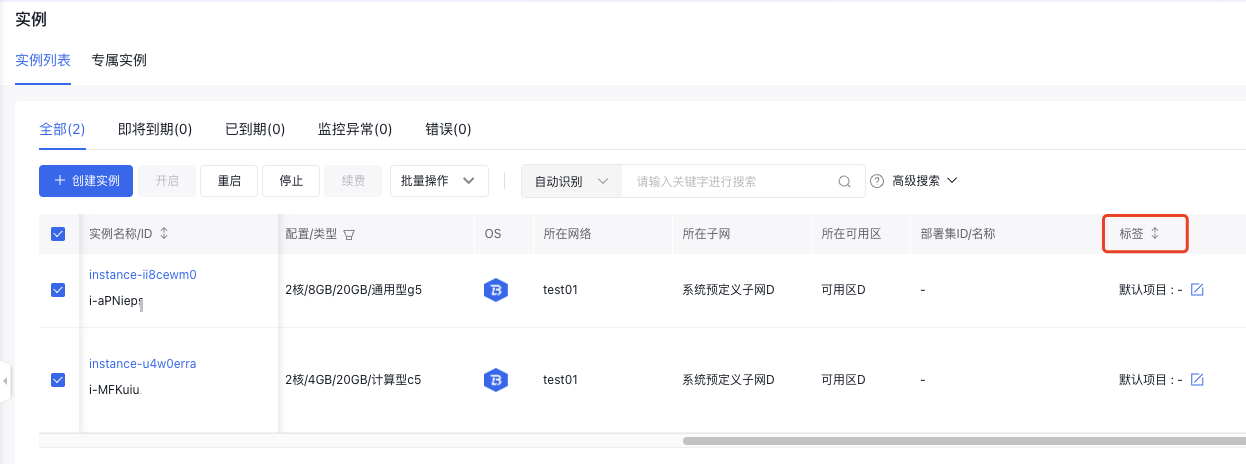
Tag Sorting
Users can sort tags for cloud resources in the console by clicking the column header Tag.
Tag Search
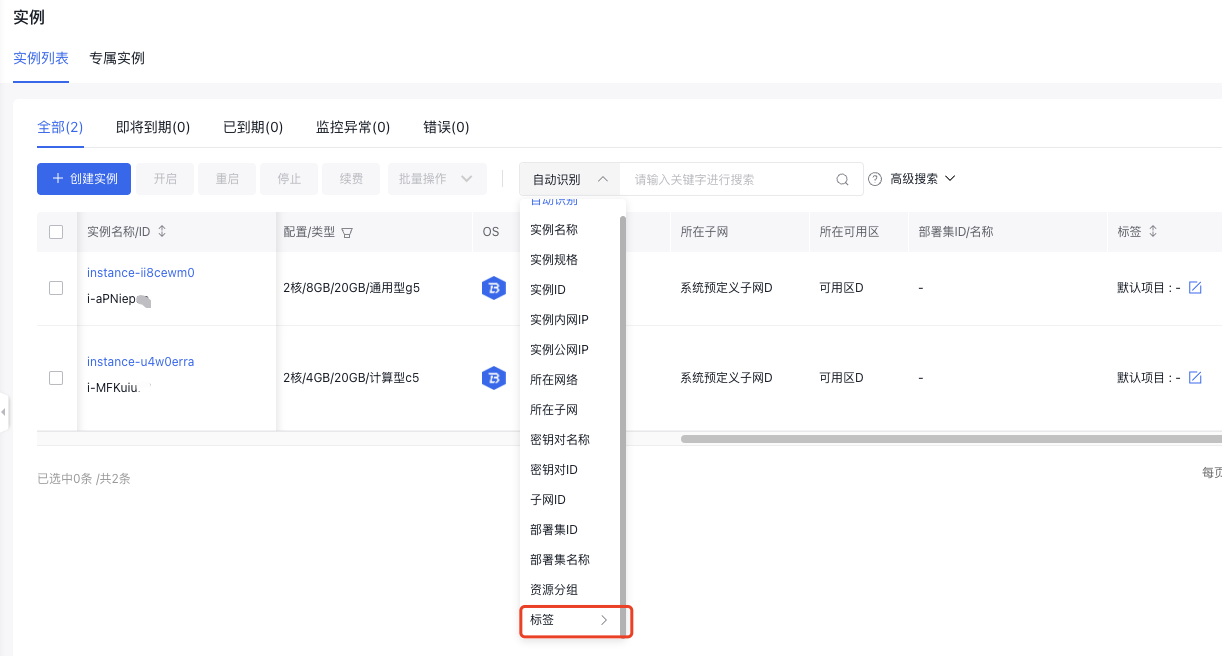
Use tag-based searches with filter criteria to find specific cloud servers. You can filter using both tag keys and values.
Description:
- "All values" refers to all custom values defined for the current key.
- "Null value" indicates that no value has been set for the current key.
Unbind tags
If a tag is no longer needed for an instance, you can remove its binding.
Operation step
- Sign in to BCC Management Console.
- Click Instance in the left navigation bar to access the Instance List page.
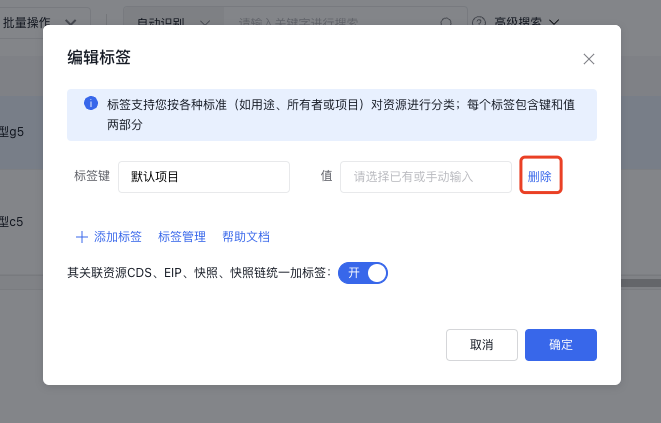
- Check an instance, and click More > Instance Settings > Edit Tags in the operation bar.
- In the pop-up dialog, click Delete next to the tag name to unbind this tag. After the instance tag is unbound, the CDS and EIP tags associated with this instance will also be automatically unbound.
Delete tag
If you no longer need certain tags, you can delete them.
Notes
Tags that are deleted cannot be restored, and the system will automatically unbind them from previously linked resources.
Operation step
- Sign in to BCC Management Console.
- Click Tag Management in the left navigation bar to access the Tag List page.
- Expand the dropdown list of one or more tag keys, select the note value to be deleted, and click Delete Tag Values in Batches.
- Click OK in the dialog box that pops up to delete the tag.