Windows Quick Login
When remotely logging into a Windows instance locally, users are required to enter their account credentials each time, which can be inconvenient. This document provides instructions on configuring login account information to enable quicker remote access to BCC Windows instances.
Step 1: Select the mstsc Connection Tool
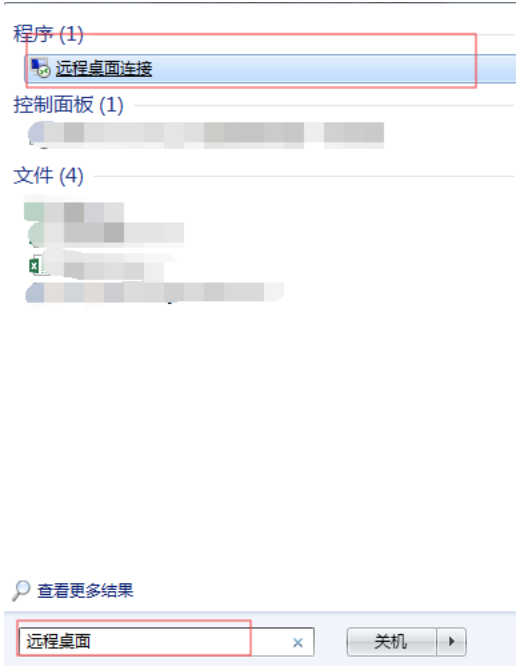
On your local computer, open the Remote Desktop Connection application. If it isn't available, search for "Remote Desktop" in the search bar.
Step 2: Configure and save Username and Password information
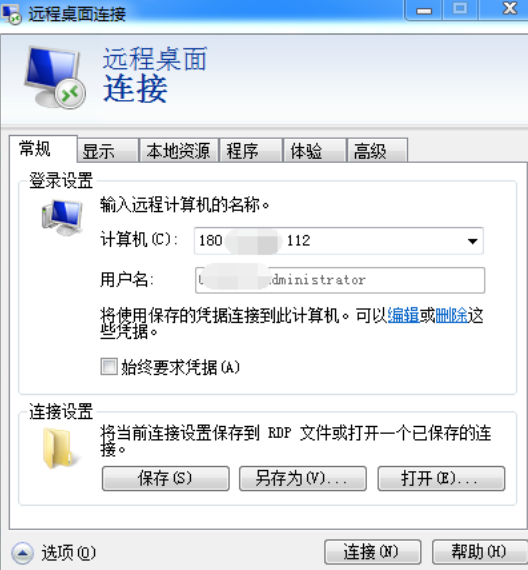
In the Remote Desktop Connection window, click Options at the bottom left, then select the General tab. Enter the Host IP address under Computer and the Login Name under Username.
Note: Deselect the "Always Require Credentials" checkbox. If left checked, you'll be prompted to enter a password.
Click Save, then click Connect. During the first login, you'll need to enter the account password, but subsequent logins will allow you to connect directly without re-entering the password.