

Windows BCC Instance Lagging Issue
Updated at:2025-10-20
If your cloud server instance is running slowly or there is a sudden network disruption, it could be due to excessive CPU, memory, or bandwidth usage on the cloud server.
Problem locating
- Log in to the cloud server using VNC.
- In the command-line window, type perfmon -res to launch the Resource Monitor.
- In Resource Monitor, review the CPU, memory, or network usage.
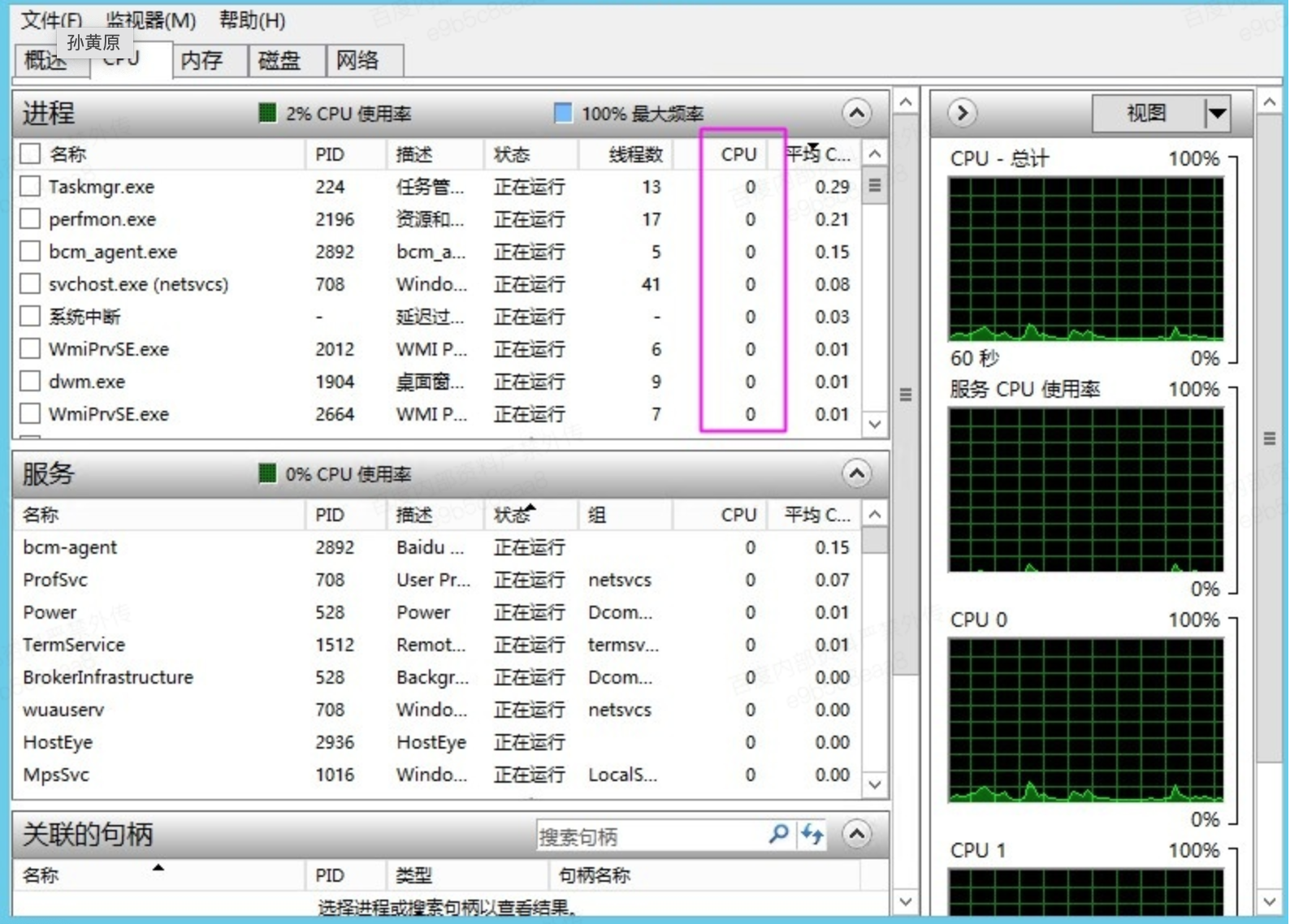
- Identify the names or IDs of processes consuming high resources.
- In the command line window, type "taskmgr" to open the Task Manager.
- In the Details tab of Task Manager, locate the corresponding process by its name or ID, right-click, and select "Open File Location" to navigate to the program's directory.

- Check whether the process is a legitimate program.
Analysis and processing
Handling suggestions for normal processes
- Verify if Windows Update is running in the background performing system updates.
- Re-evaluate whether there is high demand for CPU, memory, network, etc., at the service level. If so, refer to Instance Configuration Changes.
- Refer to Windows Server hardware requirements.
Handling suggestions for abnormal processes
If high utilization of CPU or bandwidth is caused by virus or Trojan intrusion, manually terminate the process, clean the program files, and perform the following operations:
- Run Microsoft Safety Scanner to perform a virus scan in safe mode.
- Regularly update Windows security patches.
- Use msconfig to disable all non-Microsoft built-in services and drivers, and then check if the issue recurs. Refer to How to Perform a Clean Boot in Windows.