Windows Set Only Allow Local & Fixed IP Access Remote Port
Updated at:2025-10-20
This tutorial explains how to restrict remote port access to one or more specific local or fixed client IPs.
This tutorial introduces four steps to access remote port via local & fixed IPs on Windows:
Step 1: [Remotely sign in to the server](BCC/Operation guide/Instance/Sign in to instance/Login Method Overview.md)

Step 2: Obtain your local IP address
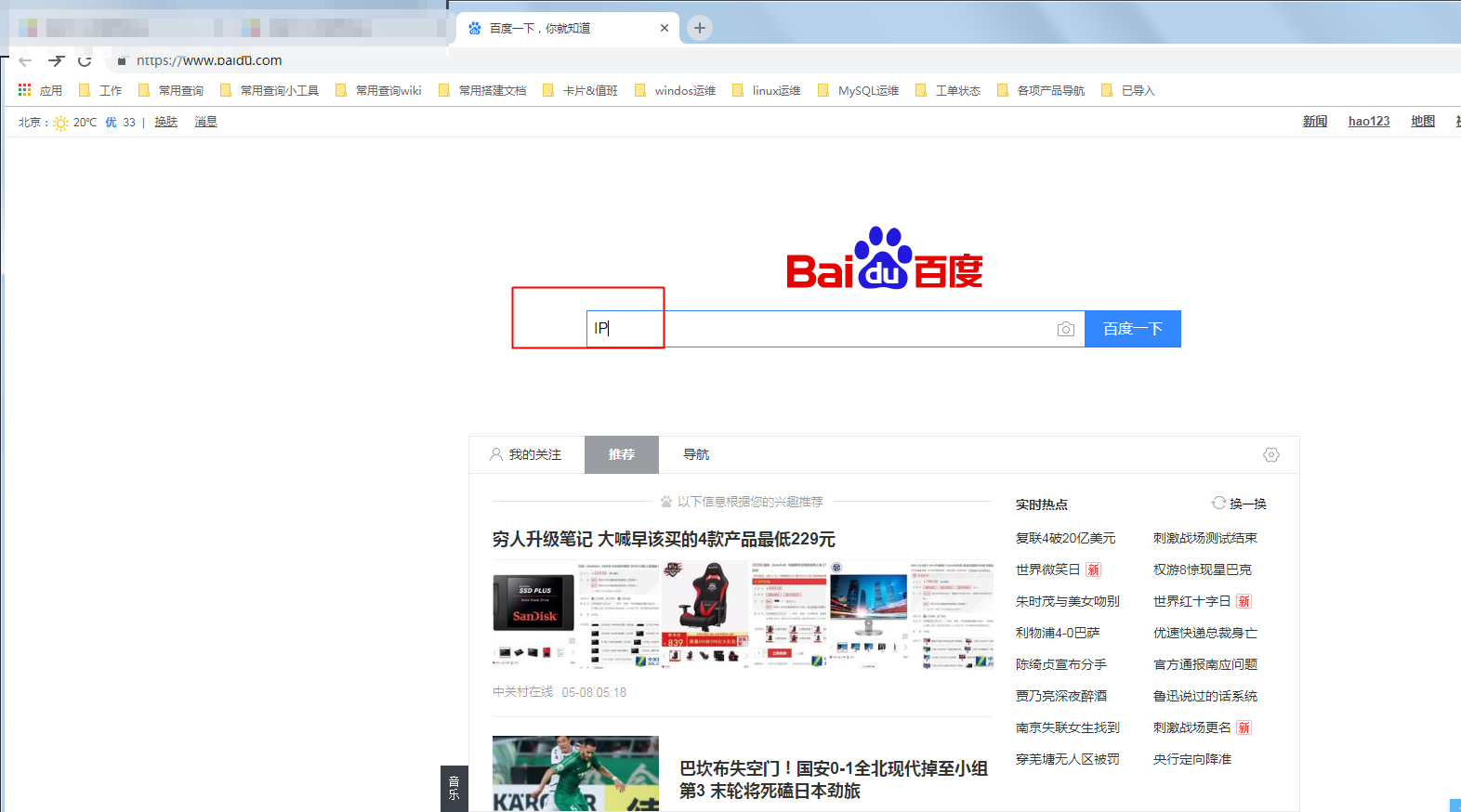
- Open a browser on your local computer, visit the Baidu homepage, and search for "IP.\
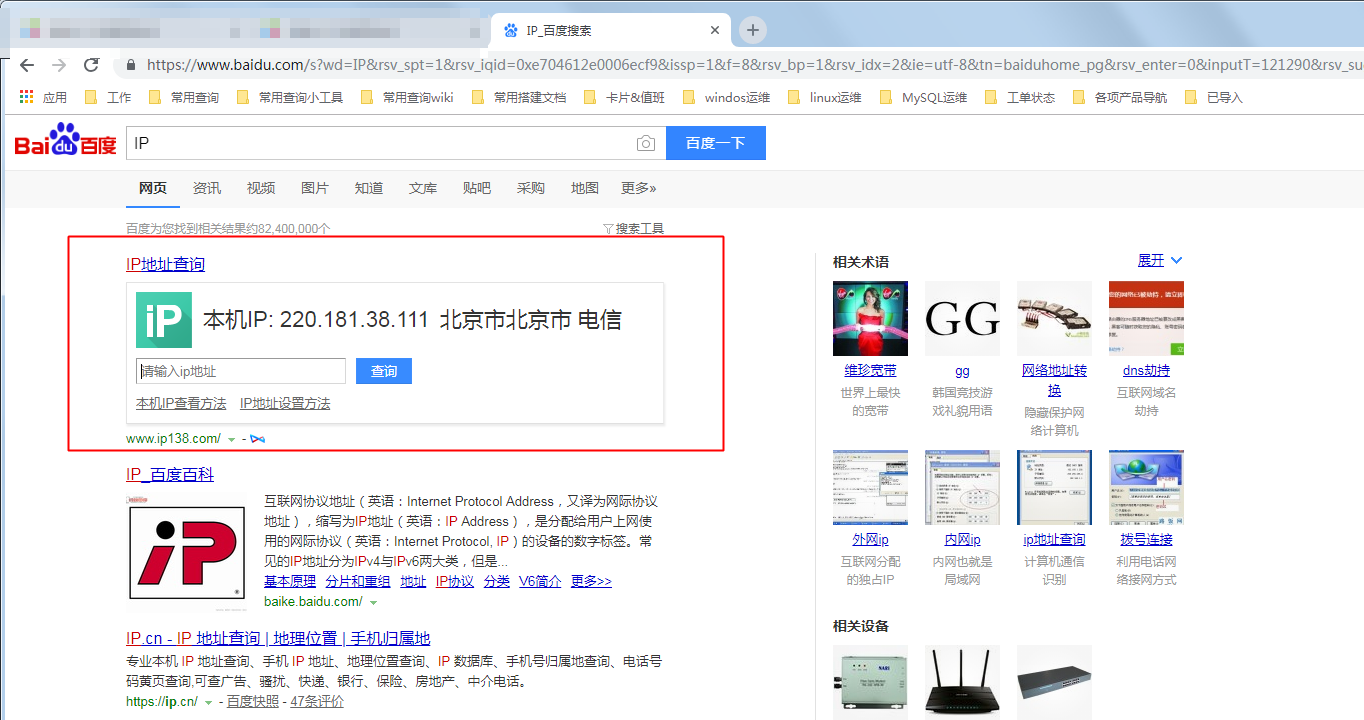
- Your corresponding local IP will be displayed as the first result. (The IP shown in the image is for reference only. Each user will have a different IP address—please use your actual result.)
Step 3: Configure the firewall to enable access to the server's remote port only via fixed IPs
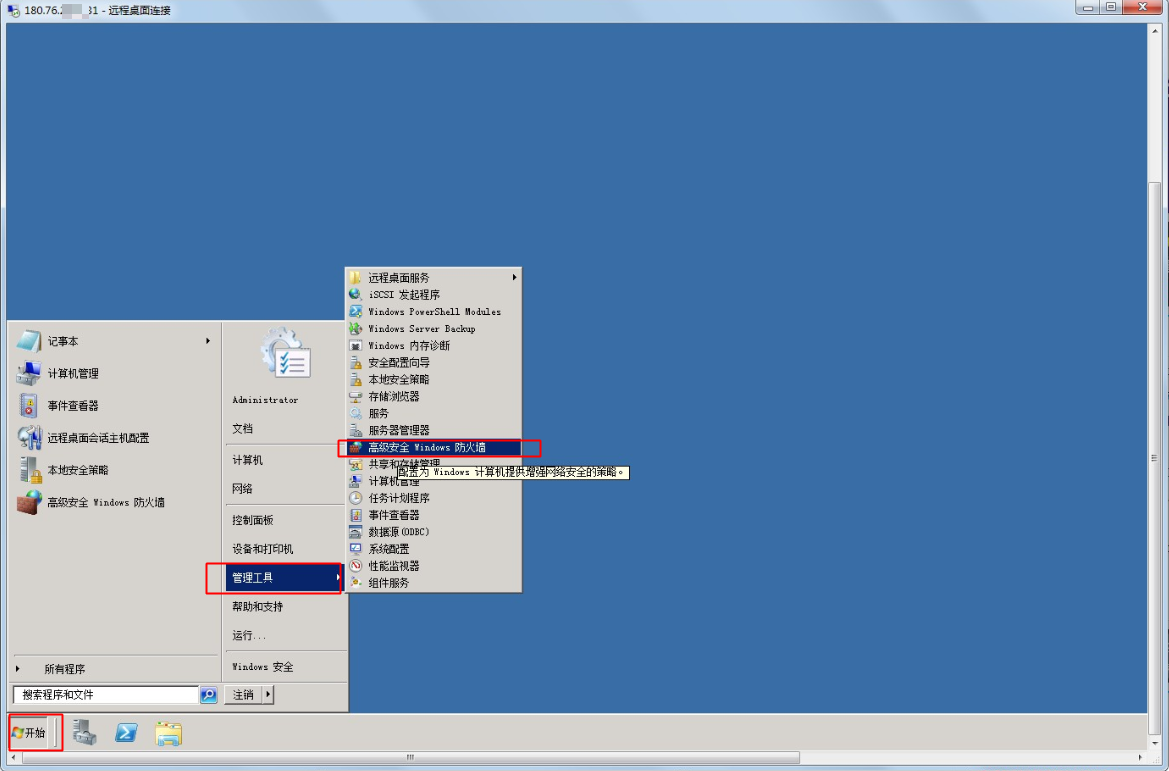
- On the server, navigate to Start - Management Tool - Advanced Security Windows Firewall.
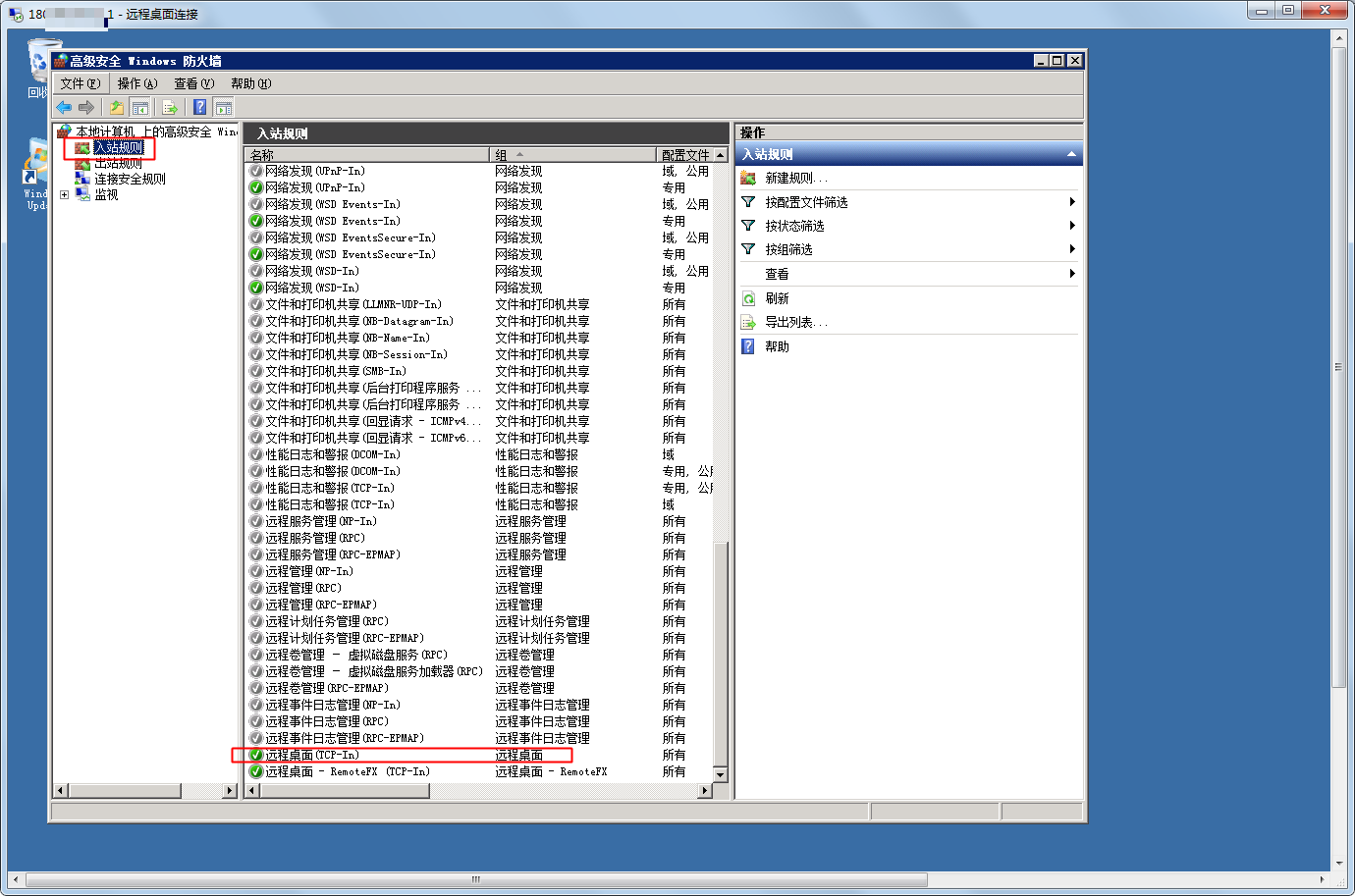
- Click Ingress rule - find Remote Desktop (TCP-In) and double-click to open the rule settings
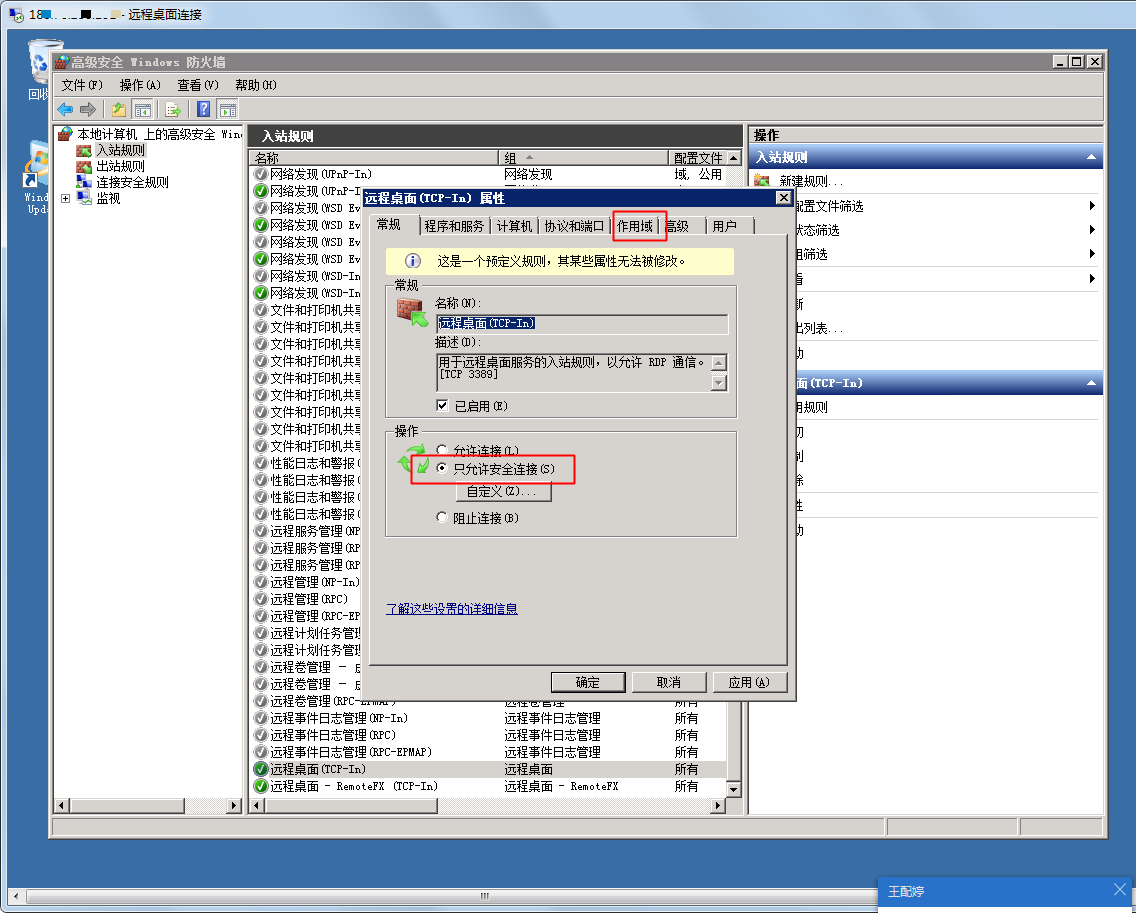
- Set to allow secure connections only - then click action scope
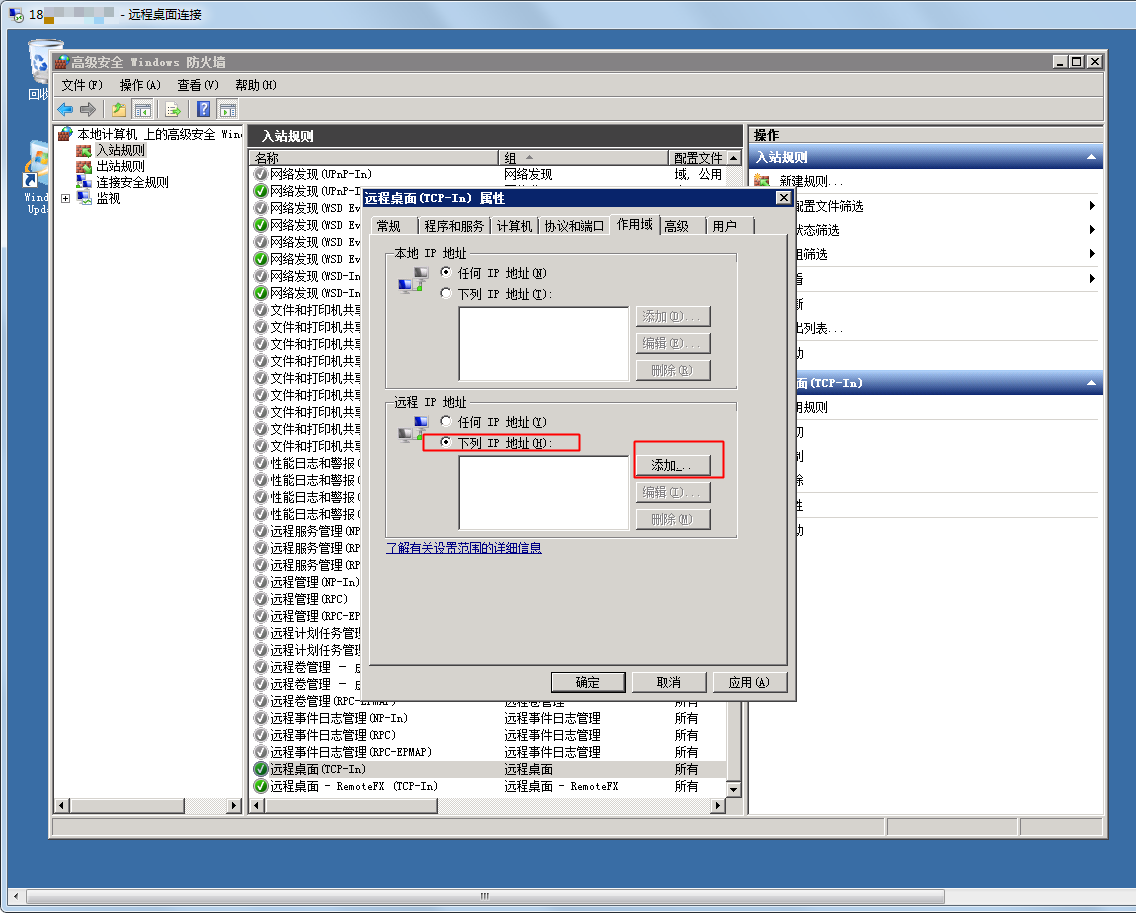
- Select Remote IP Address > Following IP Addresses > Add
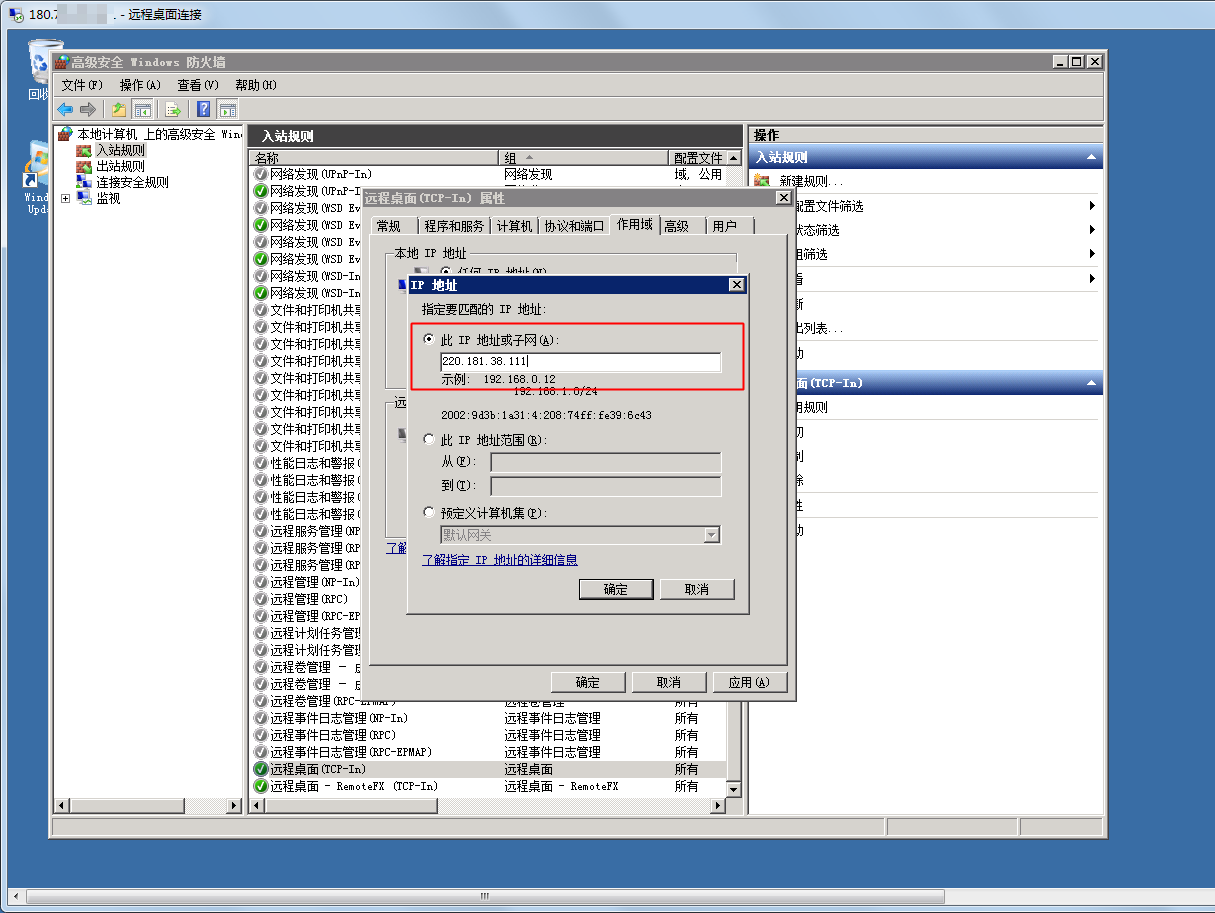
- Add the local IP found in step two and click OK. (If access needs to be granted to other IPs, repeat this step to include them.)
Step 4: Enable the Windows firewall to ensure the rules are applied.
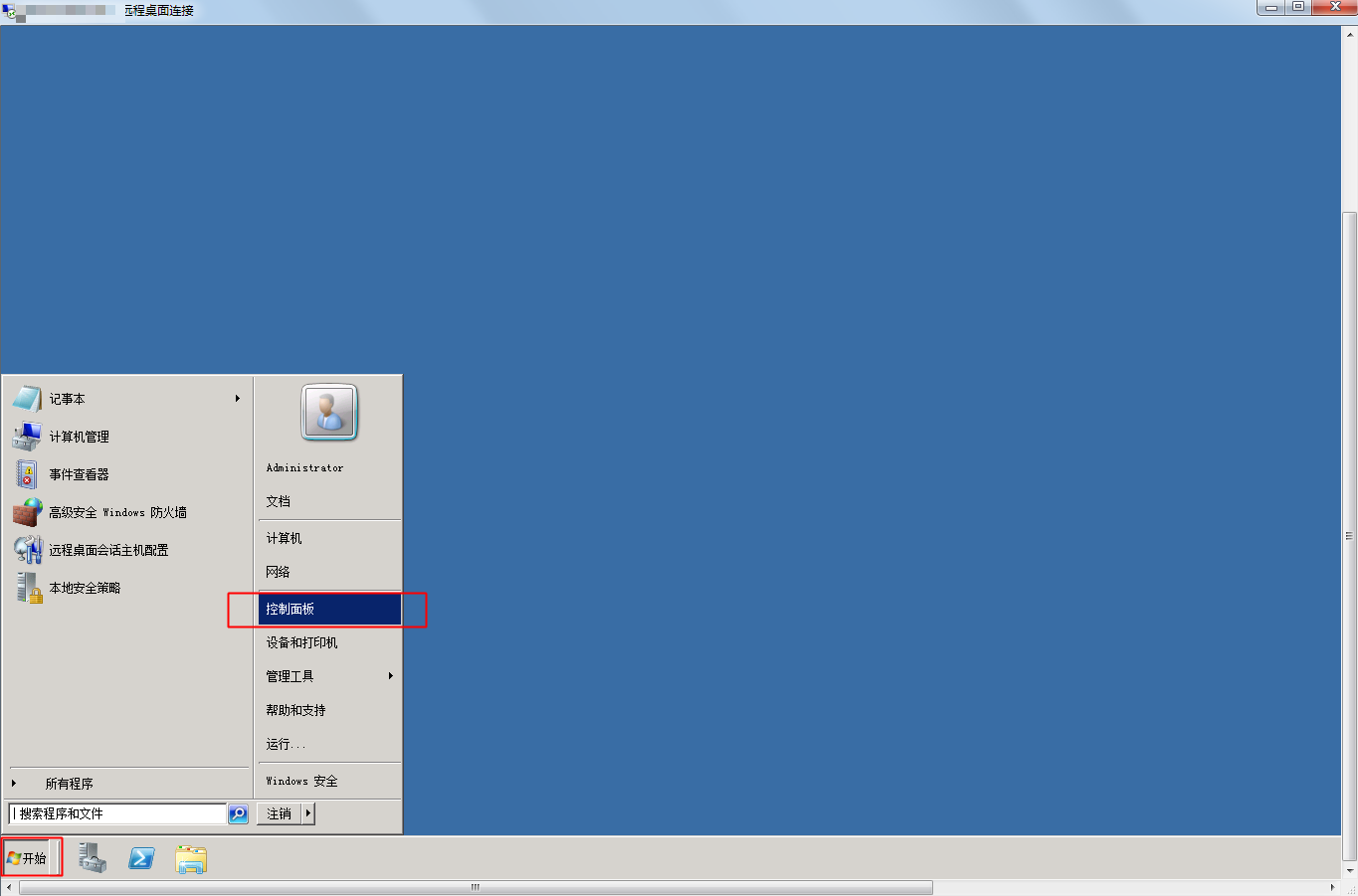
- Navigate to Start - Control Panel.
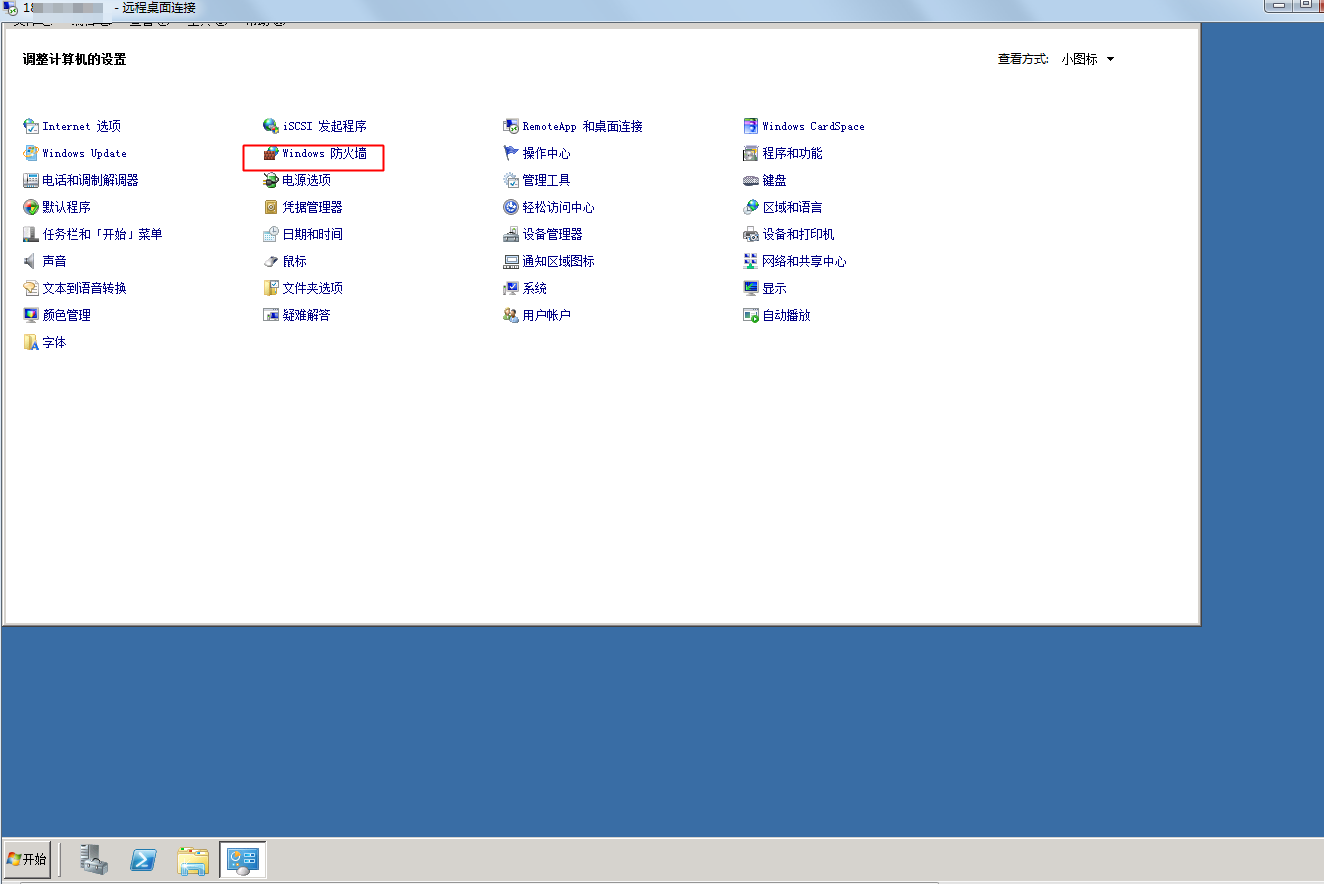
- Select Windows Firewall.
- Choose to Enable or Disable the Firewall.
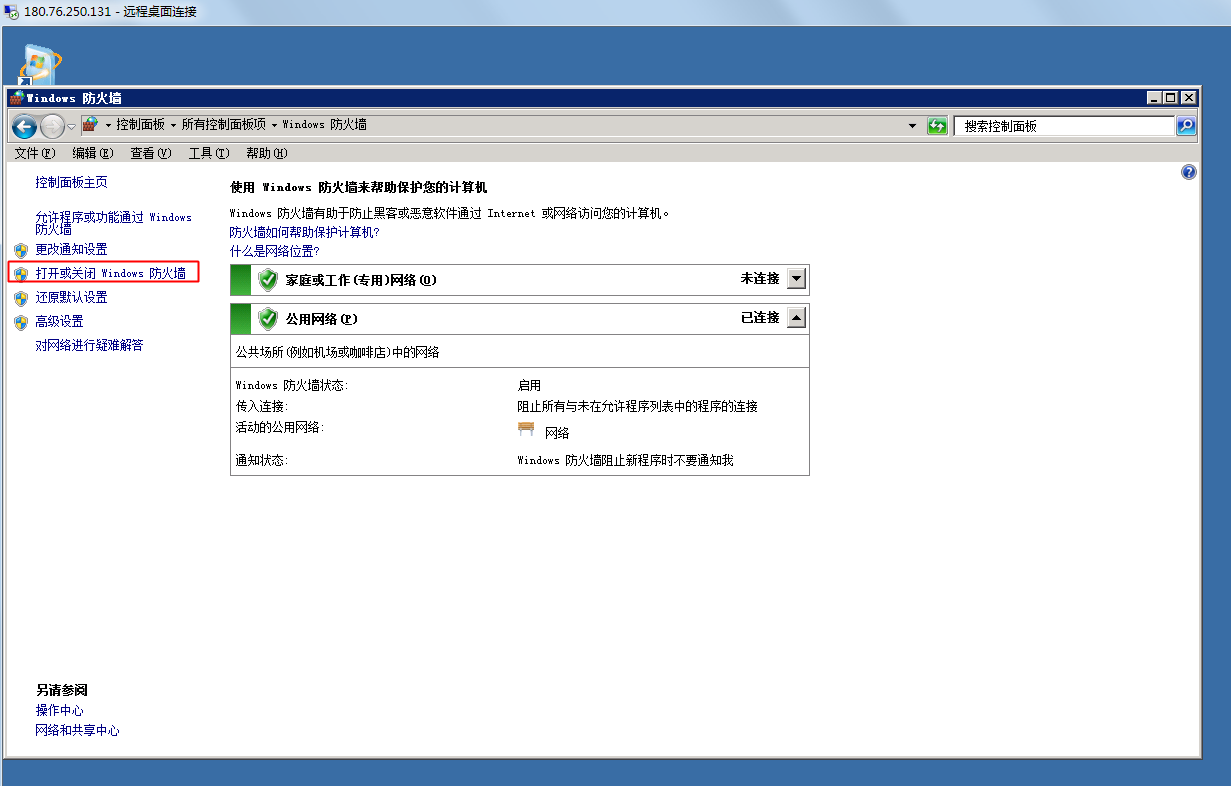
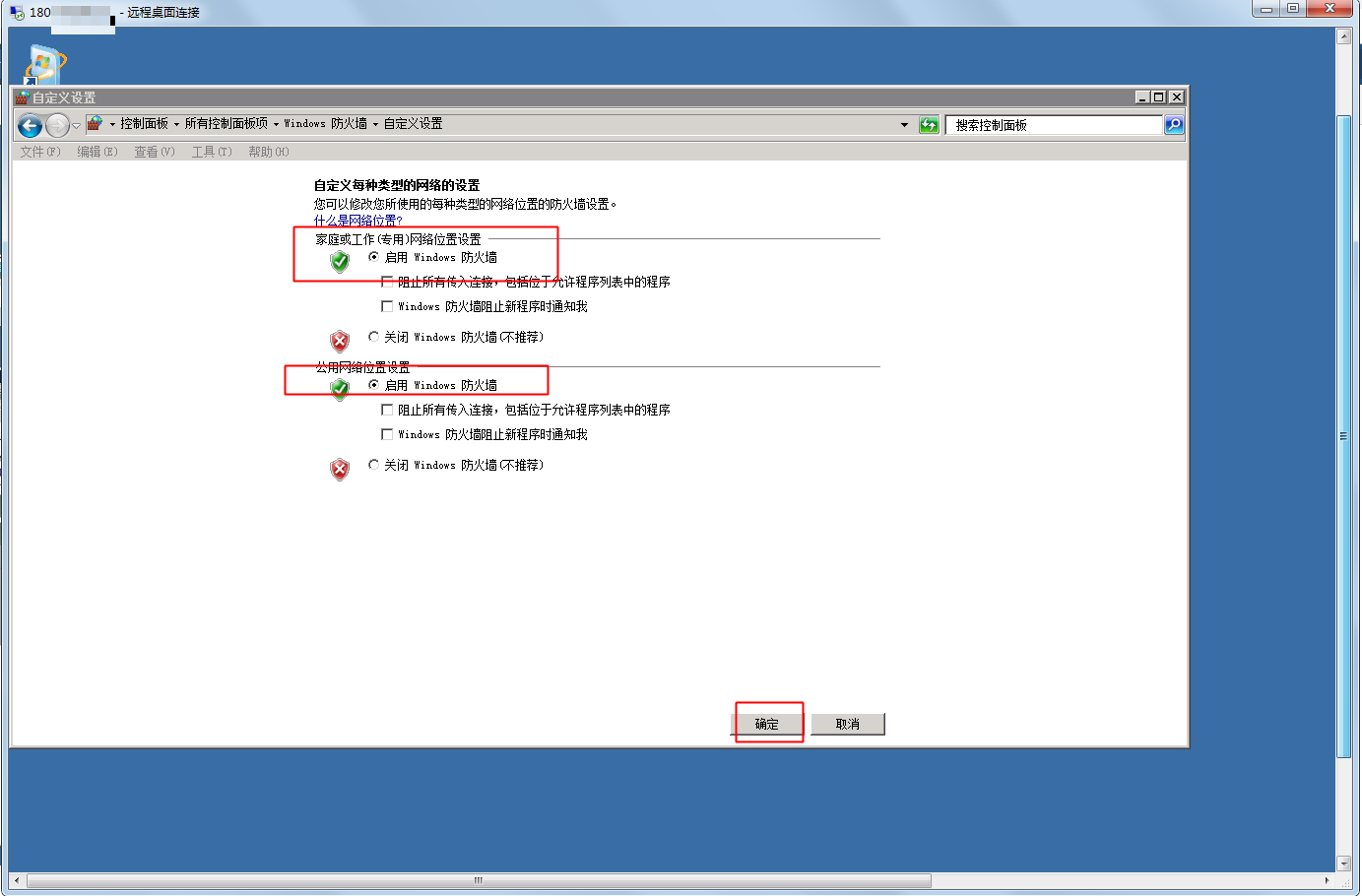
- Click Start Windows Firewall and confirm by selecting OK.