One-Click Setup for Linux Palworld Server
Overview
Palworld's official server is highly popular and often faces lag issues. Why not set up your own dedicated server for a smoother gaming experience with your friends?
Solution overview
It is compatible with systems above Ubuntu 18 and CentOS 7, enabling a one-click download and installation of the Palworld game.
Environment preparation
- Client: A computer with Steam installed
- Server: A BCC with a bound public IP, with a minimum disk space of 20 G, leaving about 12 G of space after installation
- Server configuration recommendation: The official recommendation for Palworld is a minimum configuration of 4 cores and 8GB of memory. You can use the bcc.e1.c4m8 package machine
Note: The EIP bandwidth can be adjusted flexibly based on your actual needs. For multiplayer games, we suggest using higher-specification instances to avoid OOM issues that could disrupt the game service and affect the experience.
Ubuntu server configuration example
- Sign in to the console, purchase a cloud server as needed and select the Ubuntu public image.
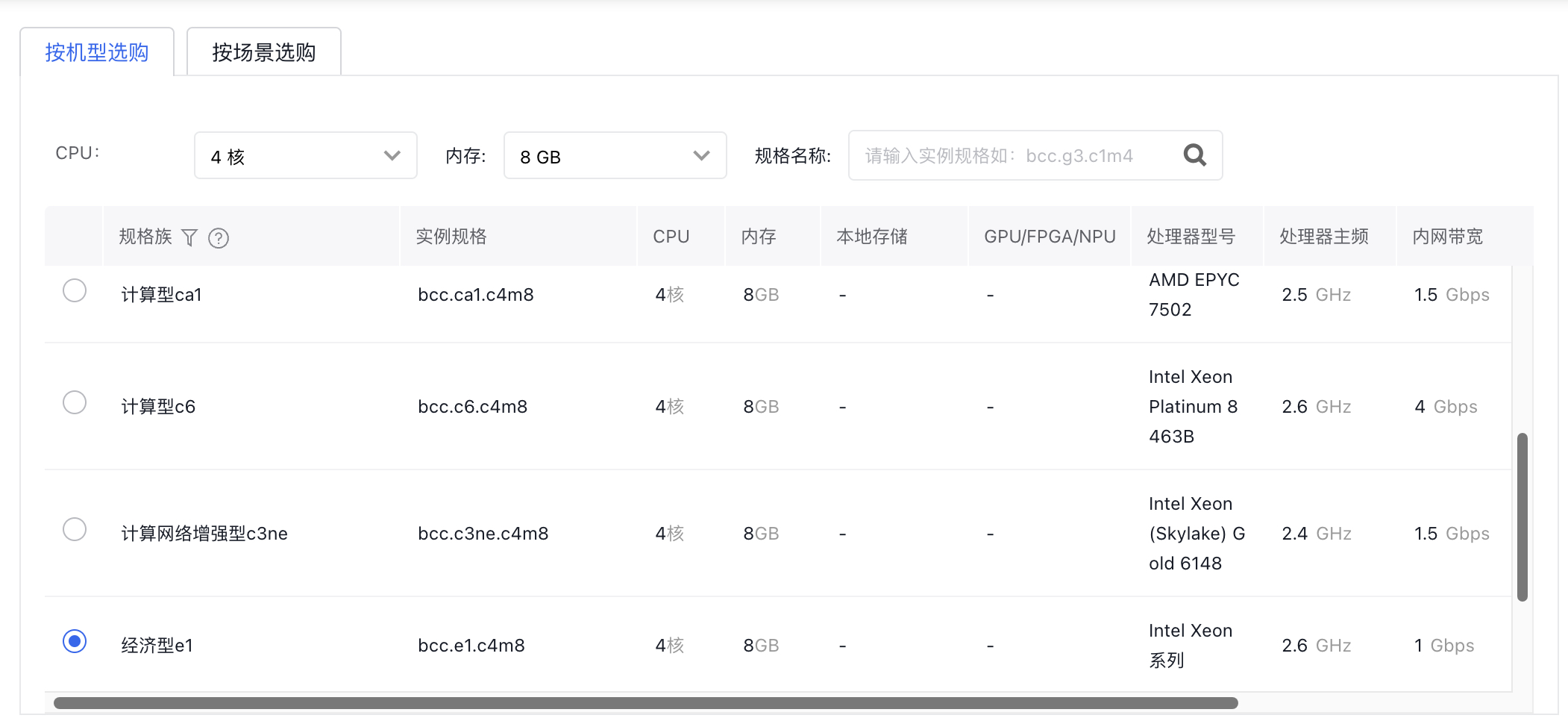
- On the purchase page, users should also select "Purchase EIP" and determine the charge type and desired bandwidth peak based on their requirements.

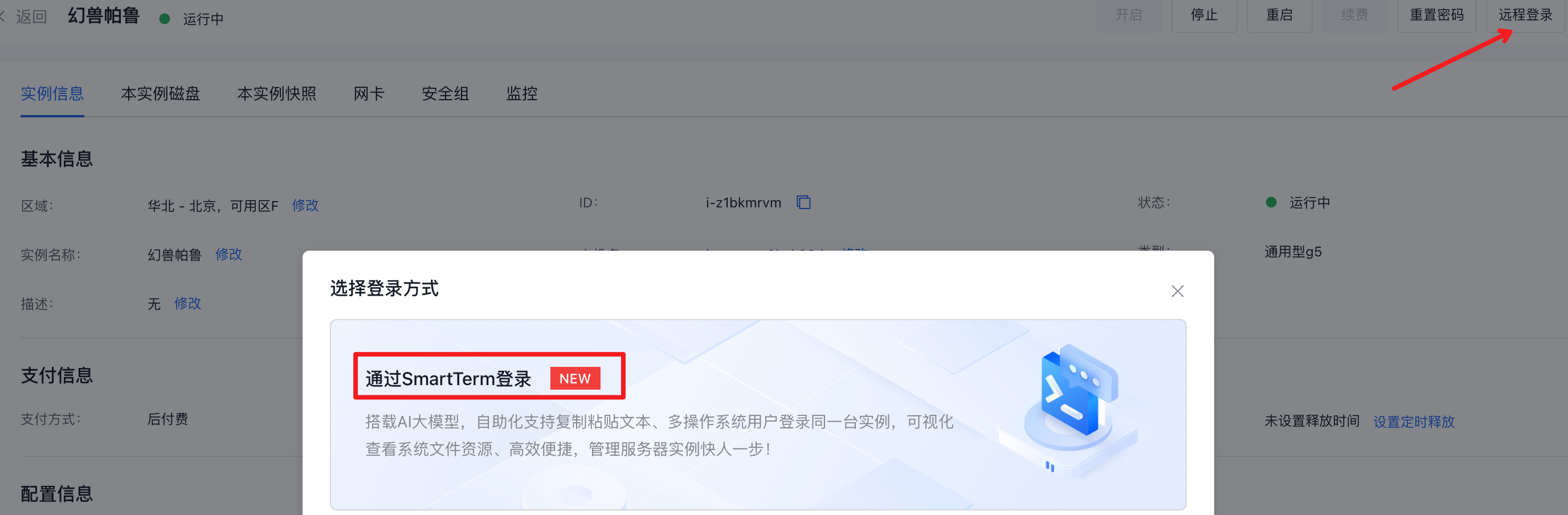
- Sign in to the server via SmartTerm and record the server's EIP address here.
- Execute the installation script and wait for the installation to complete
wget -O - https://bcets.bj.bcebos.com/pal-server-install-ubuntu.sh | sh
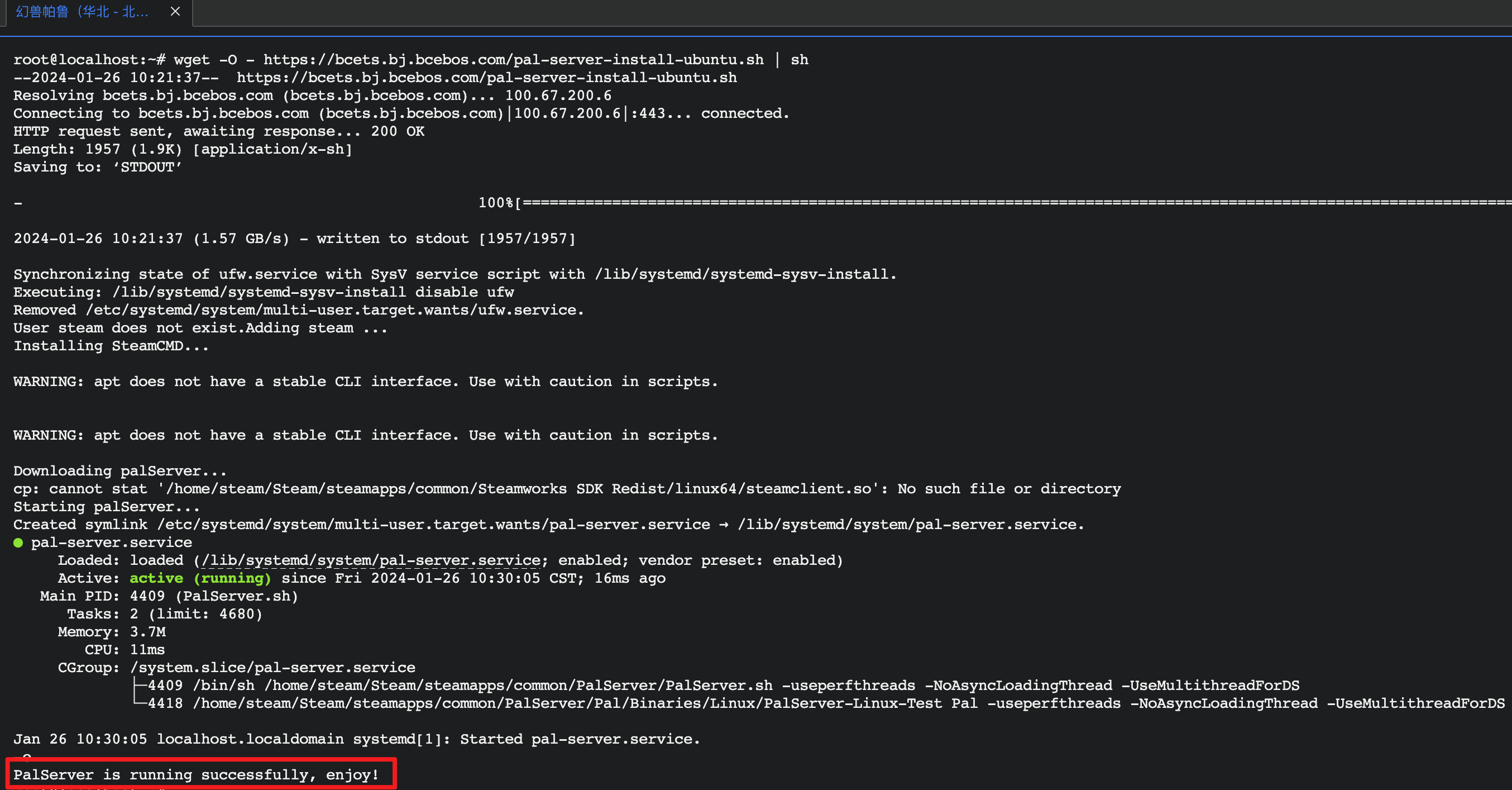
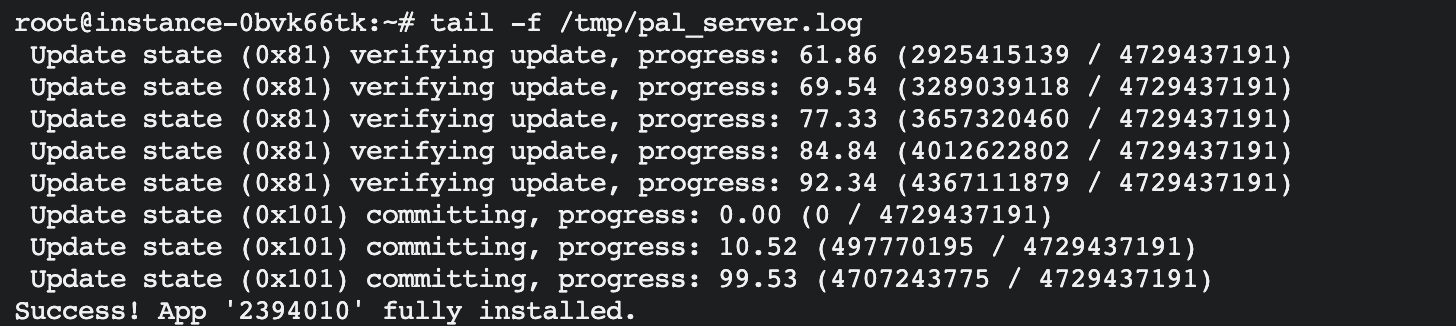
The detailed installation process can be viewed with the command tail -f /tmp/pal_server.log
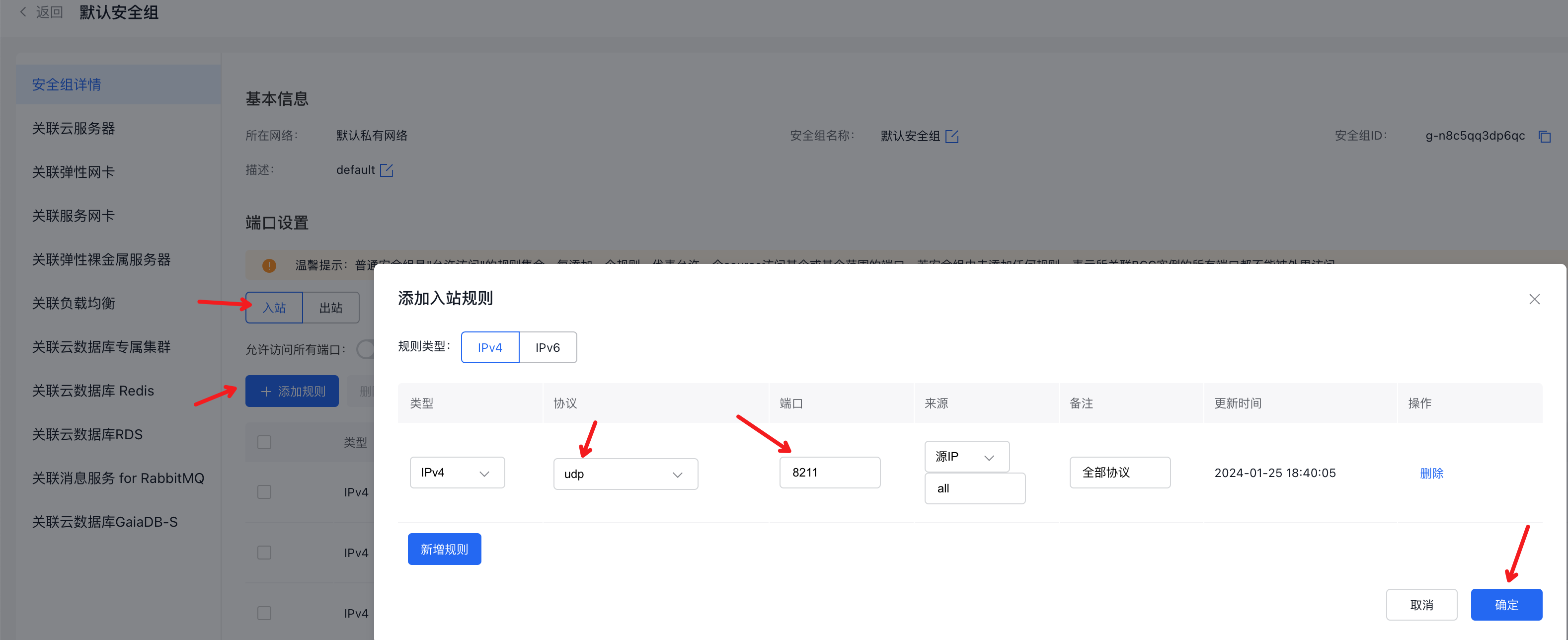
- Configure the security group's inbound rules to allow traffic on UDP port 8211
CentOS server configuration example
- Sign in to the console, purchase a cloud server as needed and select the Centos public image.
- On the purchase page, users should also select "Purchase EIP" and determine the charge type and desired bandwidth peak based on their requirements.
- Sign in to the server via SmartTerm and record the server's EIP address here.
- Execute the installation script and wait for the installation to complete
wget -O - https://bcets.bj.bcebos.com/pal-server-install-centos.sh | sh
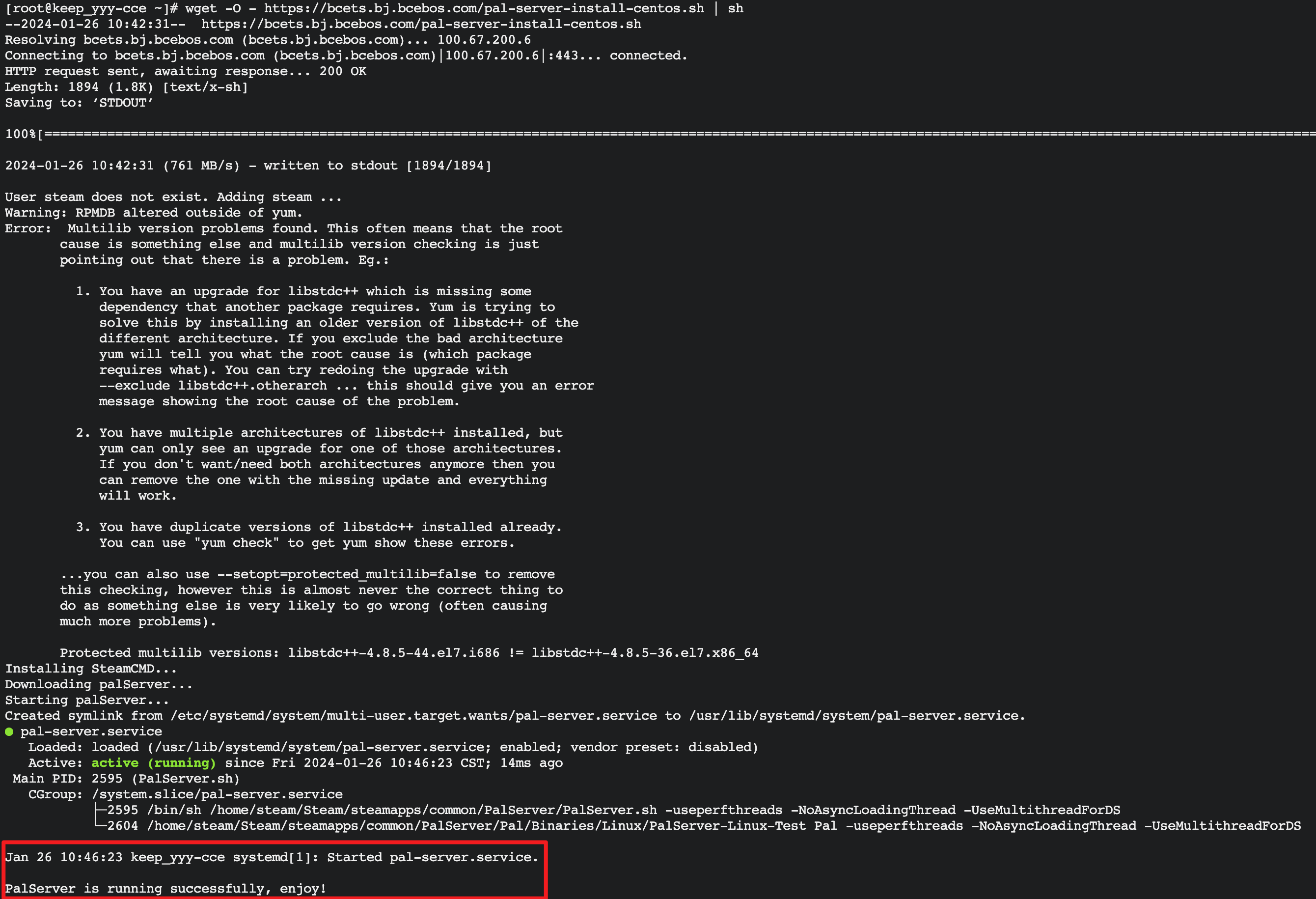
The detailed installation process can be viewed with the command tail -f /tmp/pal_server.log

- Configure the security group's inbound rules to allow traffic on UDP port 8211
Server version update
If you see the error message when entering the game: "You are attempting to join a match running an incompatible game version. Please try upgrading your game version," follow the steps below to update your Palworld server.
- Sign in to the server via SmartTerm or remote desktop as the root account.
- Choose the appropriate command for your OS to execute and update the Palworld server program. This will download game server files, so please wait patiently until it completes.
- Ubuntu
1sudo systemctl stop pal-server
2sudo -u steam $(which steamcmd) +login anonymous +app_update 2394010 validate +quit
3sudo systemctl restart pal-server
4sudo systemctl status pal-server- CentOS
1sudo systemctl stop pal-server
2sudo -u steam /home/steam/steamcmd.sh +login anonymous +app_update 2394010 validate +quit
3sudo systemctl restart pal-server
4sudo systemctl status pal-server
Steam client configuration example
- Enter the game and select Join Multiplayer Game (Dedicated Server)

- Enter the EIP and port bound to the above cloud server and click Connect
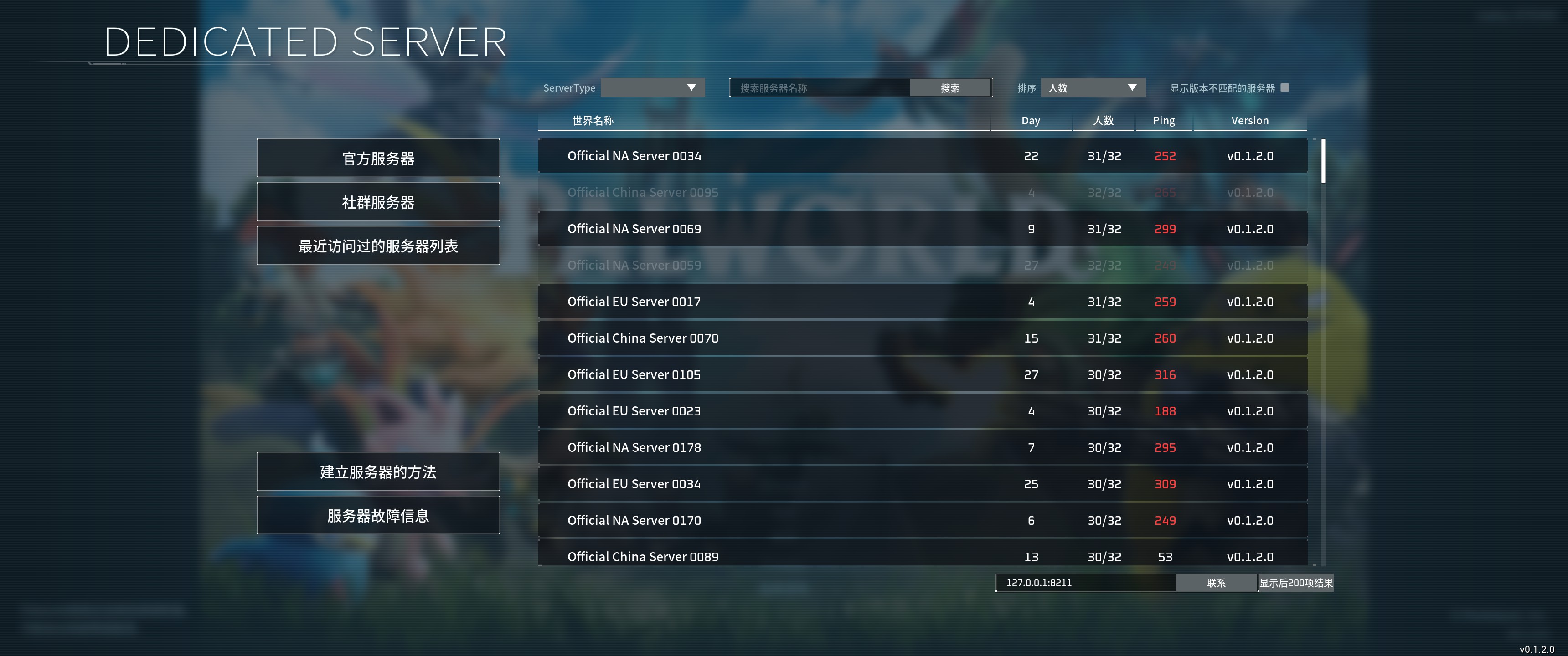
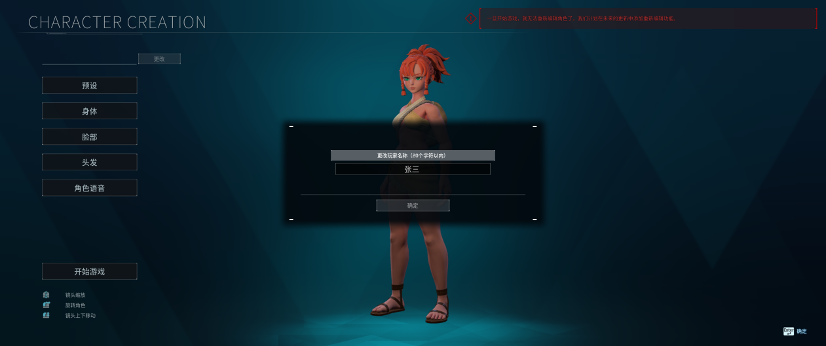
- If you reach the character creation interface, it indicates a successful connection to the server