

How to Handle System Boot Exception Caused by fstab Configuration
Problem description
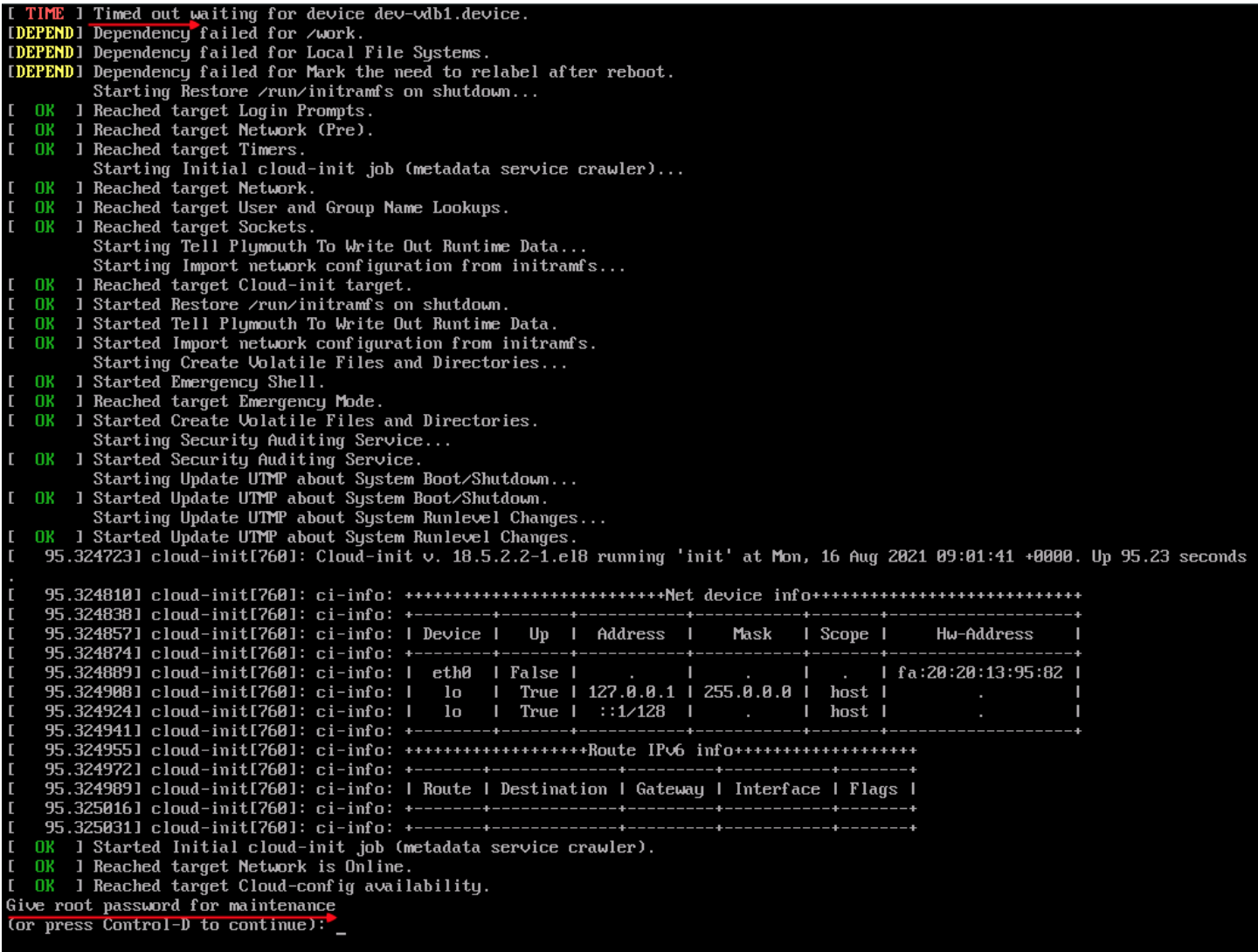
If you cannot log in to a BCC Linux instance remotely via SSH, use the Baidu AI Cloud console to connect to the instance via VNC, where you may observe that the OS is in maintenance mode.
- CentOS 7/8 error message (VNC)
- Ubuntu 18.04 error message (VNC)
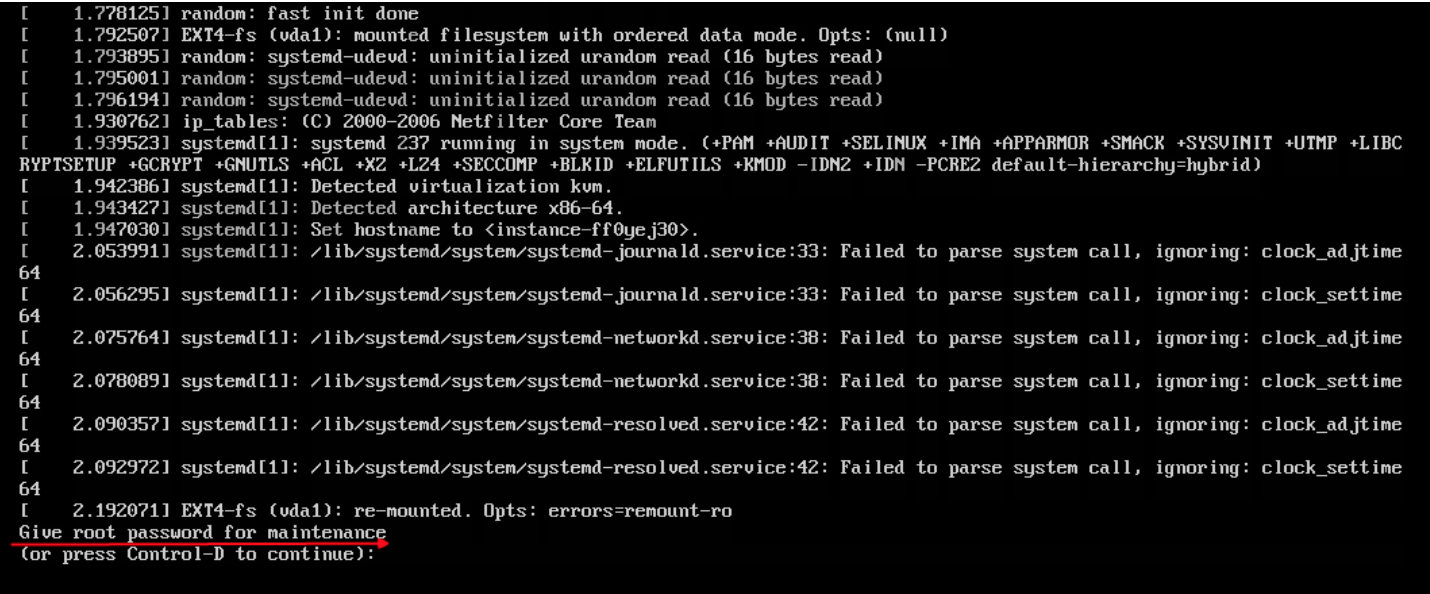
- Ubuntu 18.04 error message (console.log)
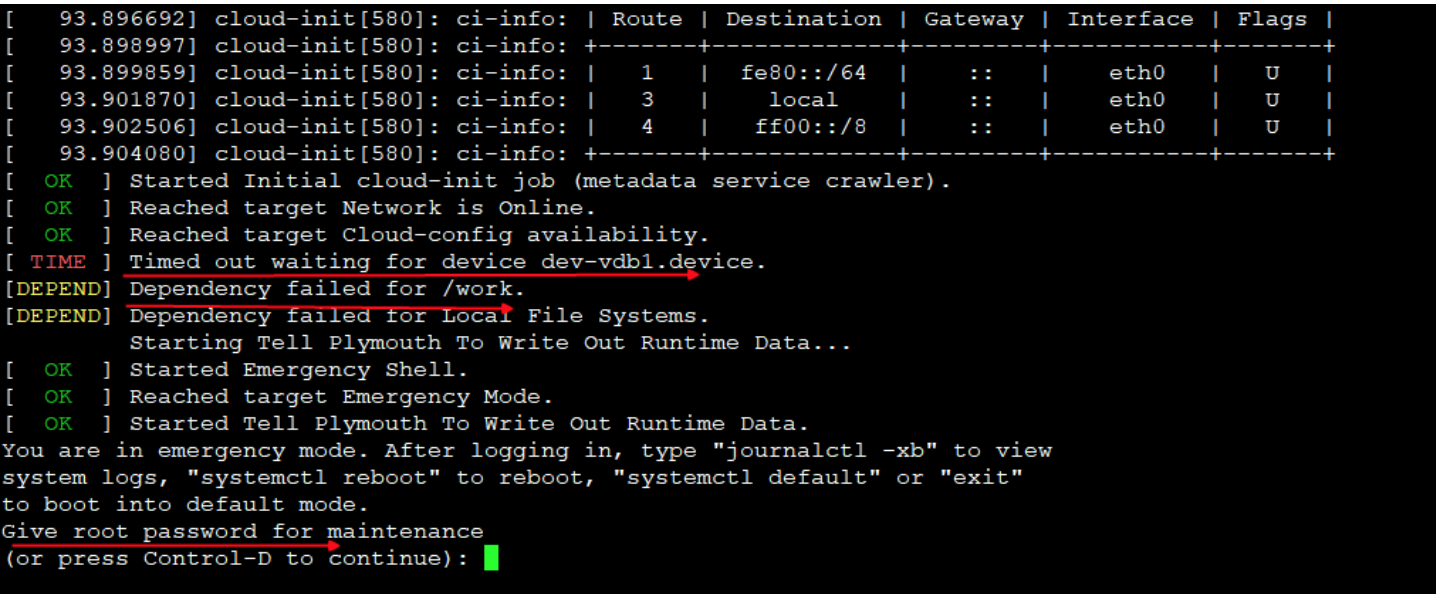
- Debian 10.8 error message (VNC)
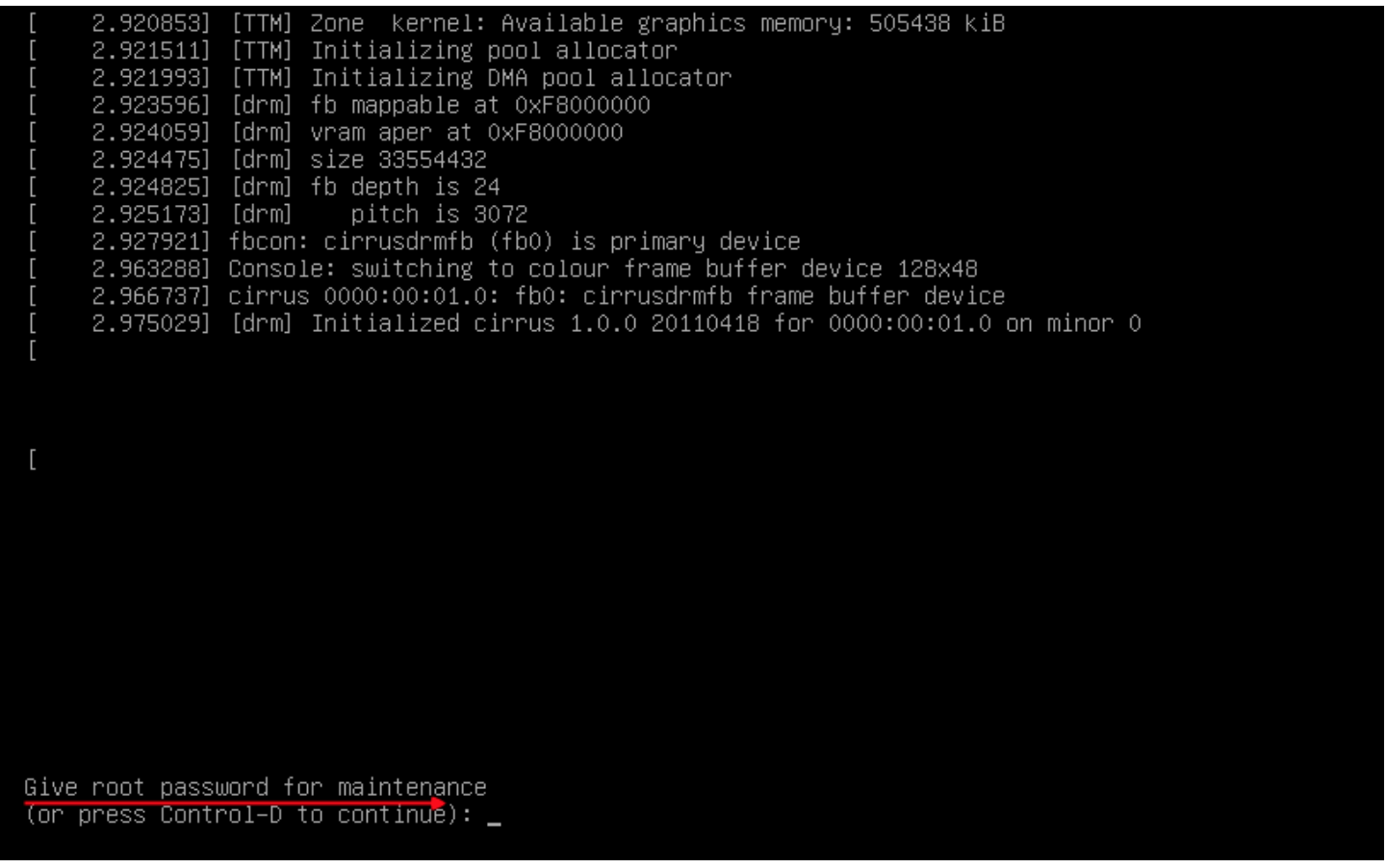
Cause of problem
This is typically due to an incorrect file system in /etc/fstab or a misconfigured disk.
Solution
Connect to the BCC instance using VNC. When prompted with "Give root password for maintenance," enter the BCC instance's root password to access maintenance mode.
Enter the following commands in the terminal to reattach the root disk partition in read-write mode:
mount / -o remount,rw Execute the blkid command to view BCC disk partitions and file system. The data disk is /dev/vdb1, and the file system type is ext4, as shown in the figure.

Check the /etc/fstab content to ensure the written disk information matches the figure displayed above.
If the information matches, verify whether the attach parameters include "nofail." If not, it's recommended to add this parameter (it ensures that during Linux instance startup, absent devices are ignored, preventing system startup issues).
If they do not match, modify /etc/fstab with the correct attach information.
1UUID=c2735c6e-7008-49ac-a700-b14b9d3e93d6 /work          ext4      defaults,nofail    0    0
2 Or
3/dev/vdb1                                 /work          ext4      defaults,nofail    0    0