Windows Server Disable IE Enhanced Security Configuration Tutorial
This document explains how to "Disable IE Enhanced Security Configuration on Windows Server" of Baidu AI Cloud (including an operation guidance video). You can refer to the key steps in the video to use AI cloud products or solve problems independently. Click here to watch the video ."Disable IE Enhanced Security Configuration on Windows Server 2008" "Disable IE Enhanced Security Configuration on Windows Server 2012".
Description:
If the interface elements or operation methods shown in the video guidance are updated, please rely on the AI Cloud console interface for the most accurate information. The video aims to demonstrate the functional operation process, and minor interface changes will not affect the overall functionality or presentation.
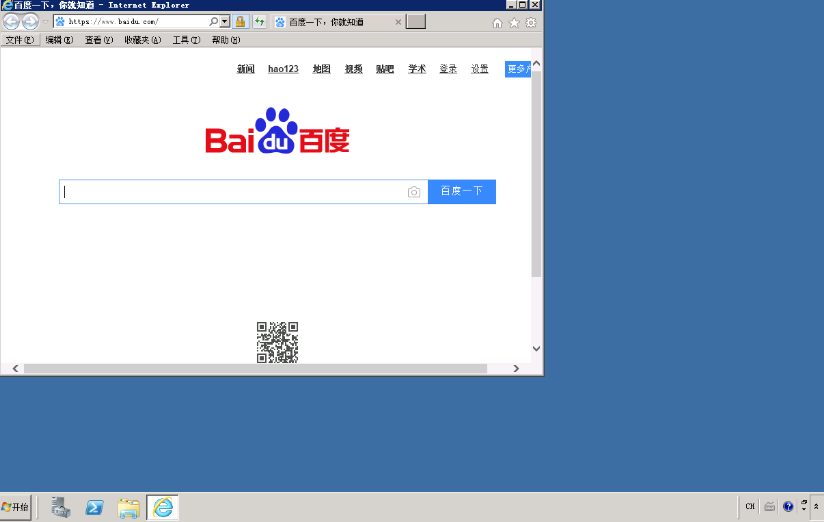
After installing Windows Server, when opening a website in a browser, the system displays: "Internet Explorer Enhanced Security Configuration is blocking the content from the following website." Adding every website to the trusted list works but is inconvenient. How can this be solved?
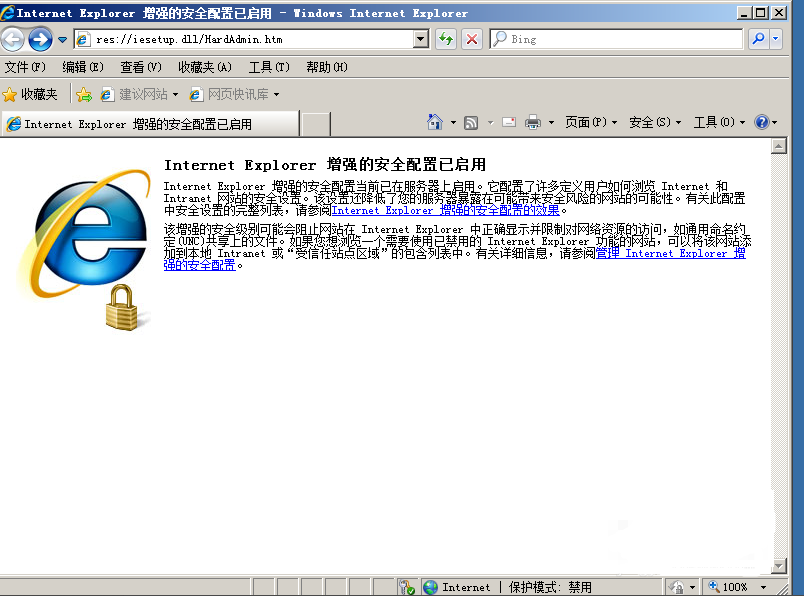
First, open Internet Explorer to view the notification message caused by the enhanced security settings in IE.
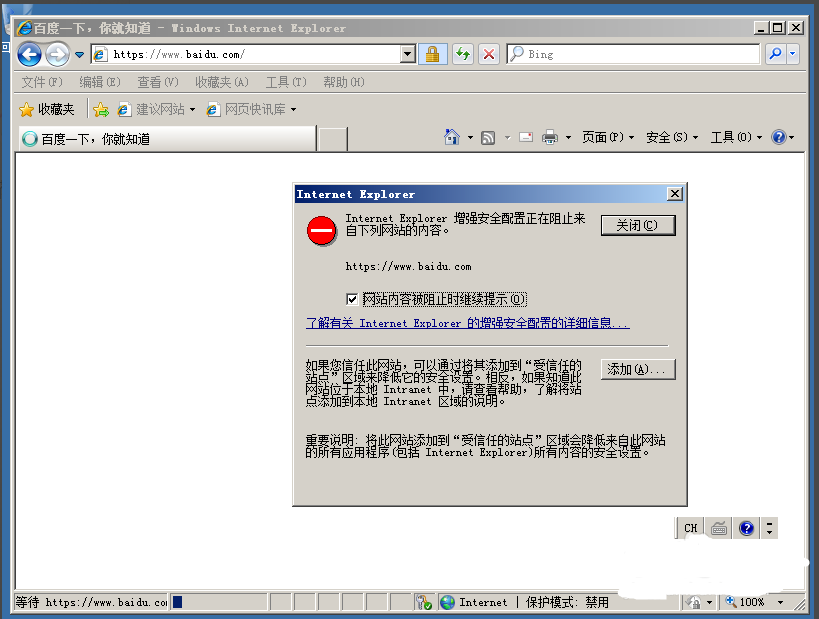
Solution
Windows Server 2008
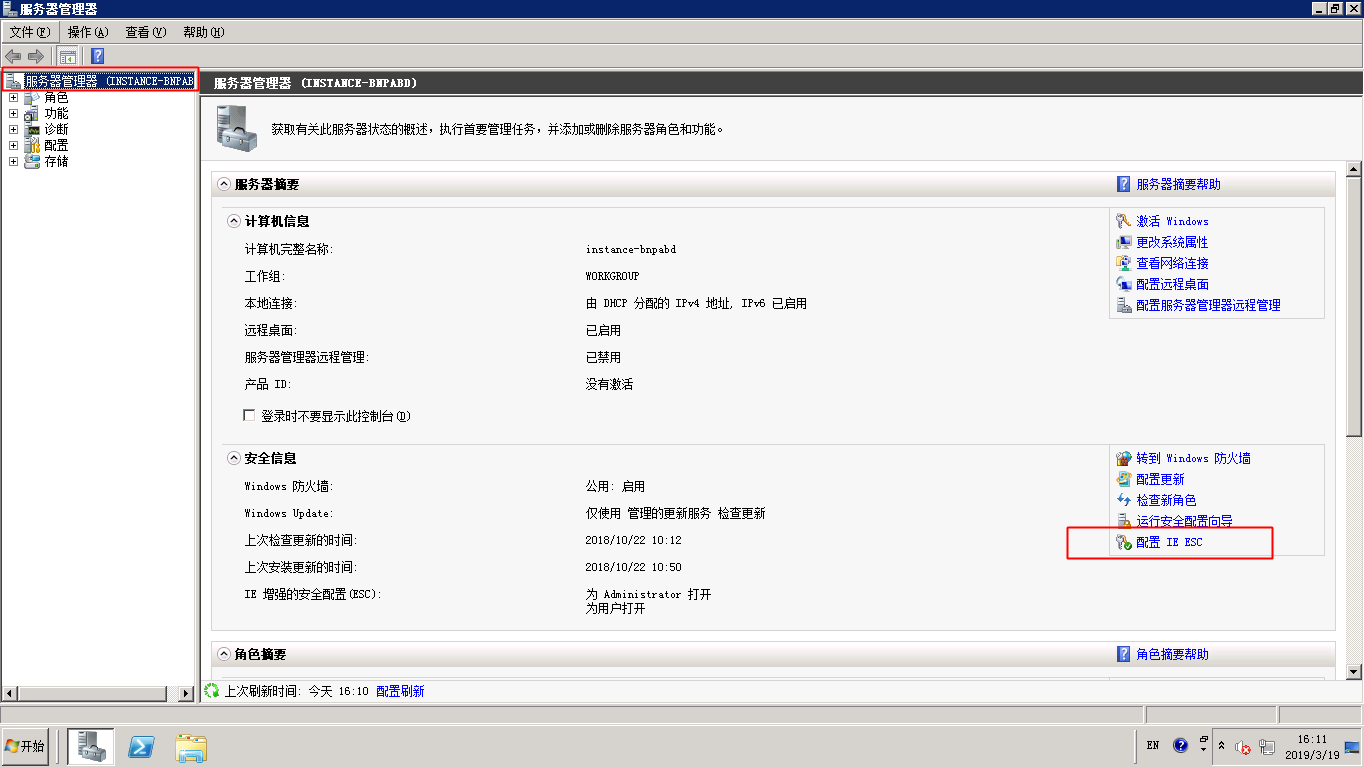
- Press the WIN key to open the Management Tool and locate the Server Manager.
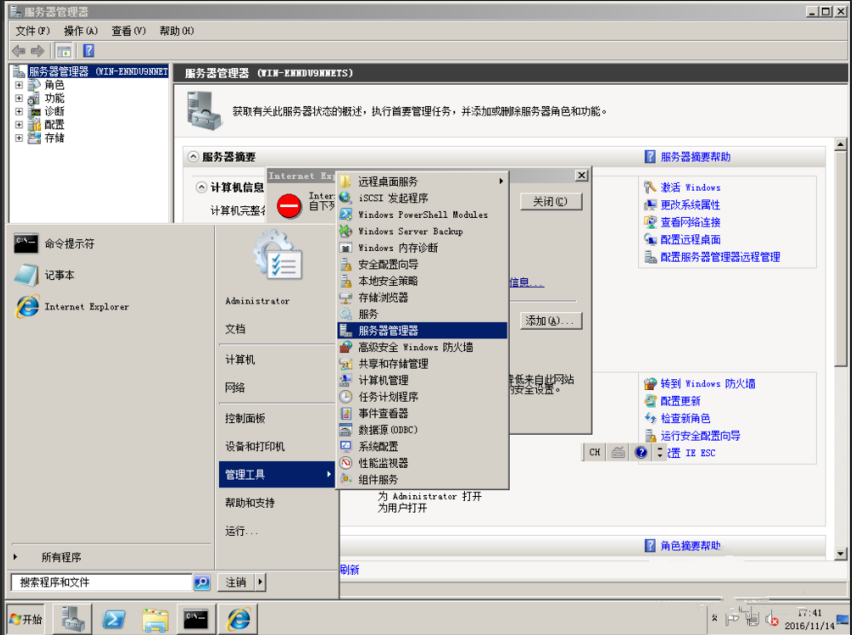
- In Server Manager, find and select "Configure IEESC."
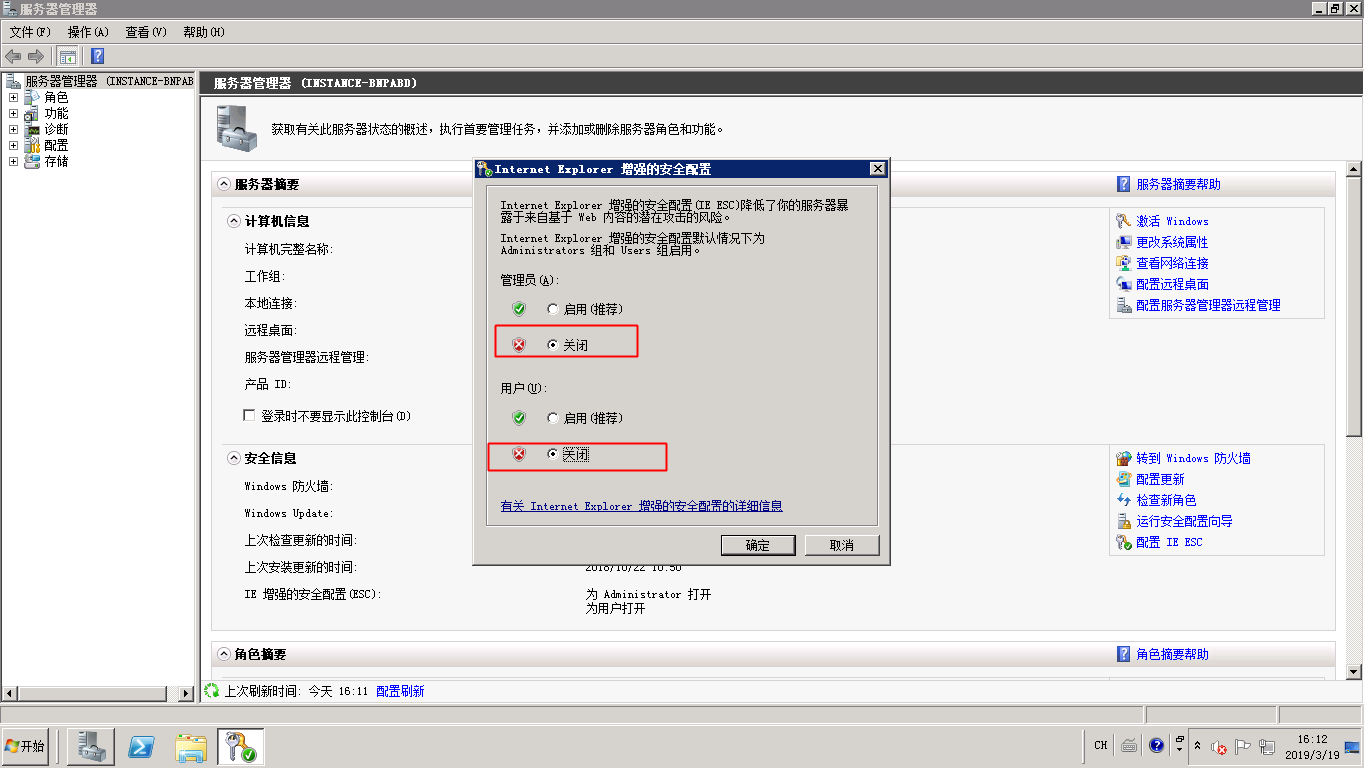
- Click "Disable."
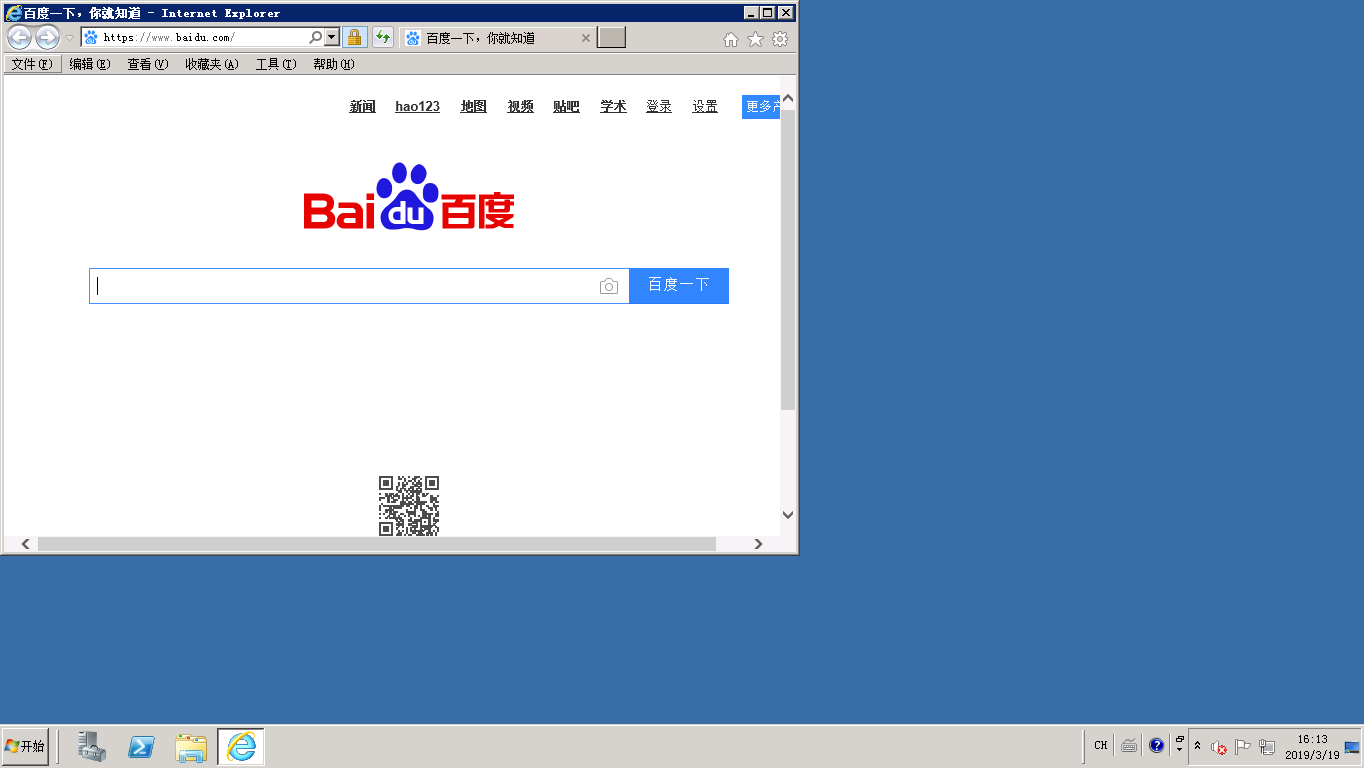
- You can now browse websites normally using Internet Explorer.
Windows Server 2012
- Click the WIN icon at the bottom left corner and open Server Manager.
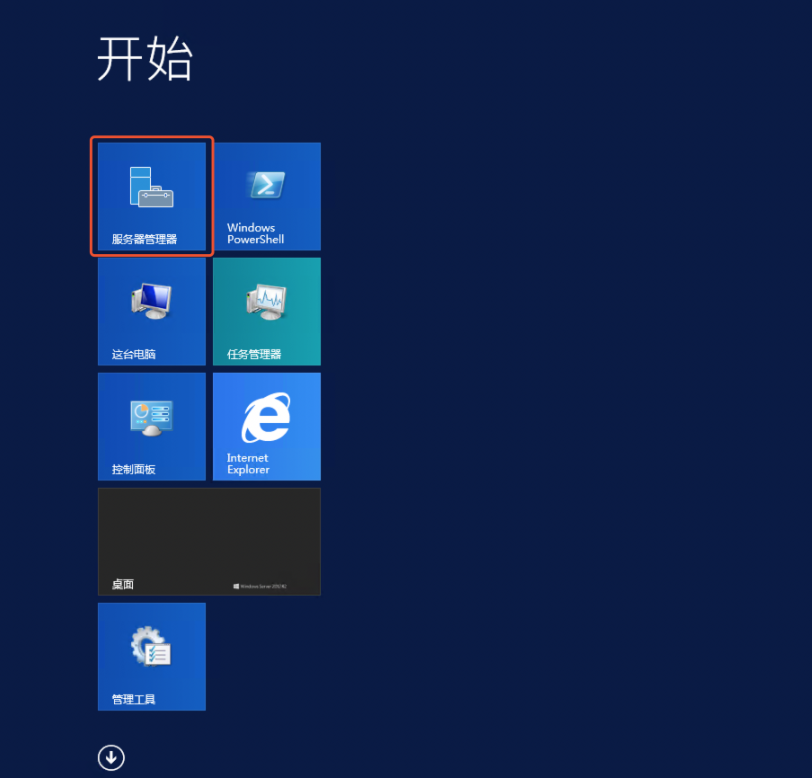
- Select "Local Server" in Server Manager, then locate "IE Enhanced Security Configuration."
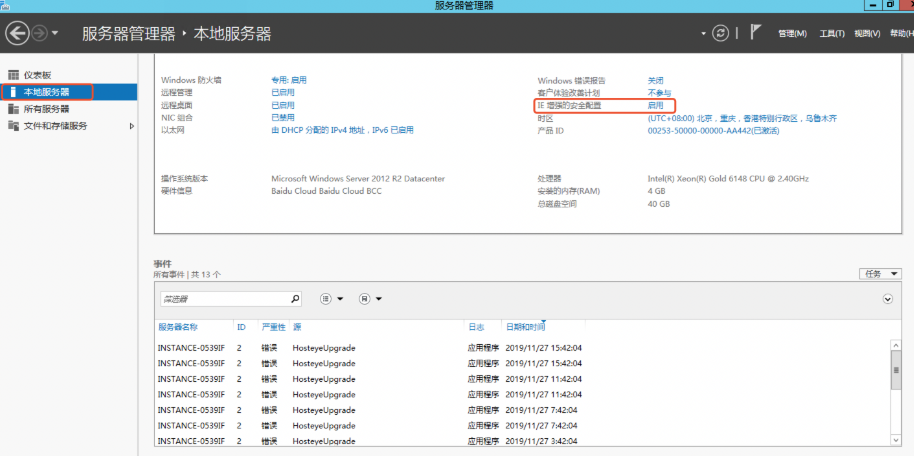
- Click "Enable" next to IE Enhanced Security Configuration, then close the dialog box.
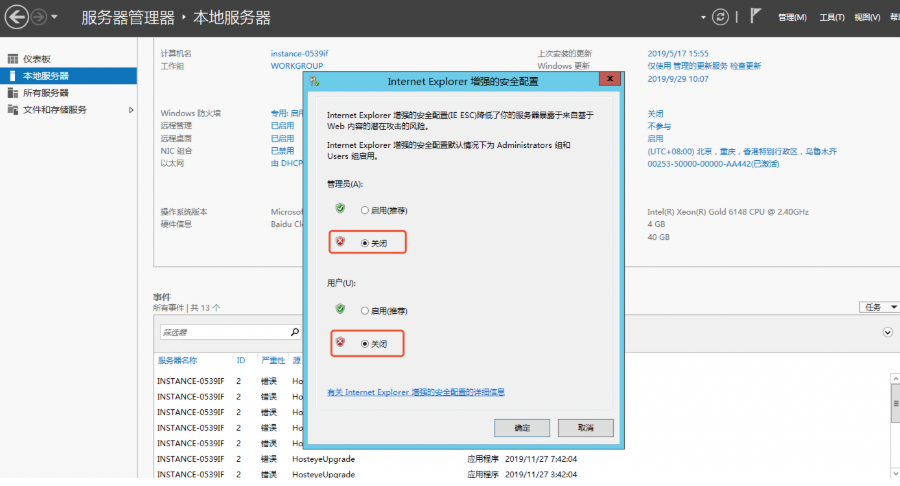
- Once the above steps are completed, you can browse websites using Internet Explorer without issues.