Building a Website Using IIS Service on Windows 2008 and Windows 2012
Updated at:2025-10-20
windowsServer 2008
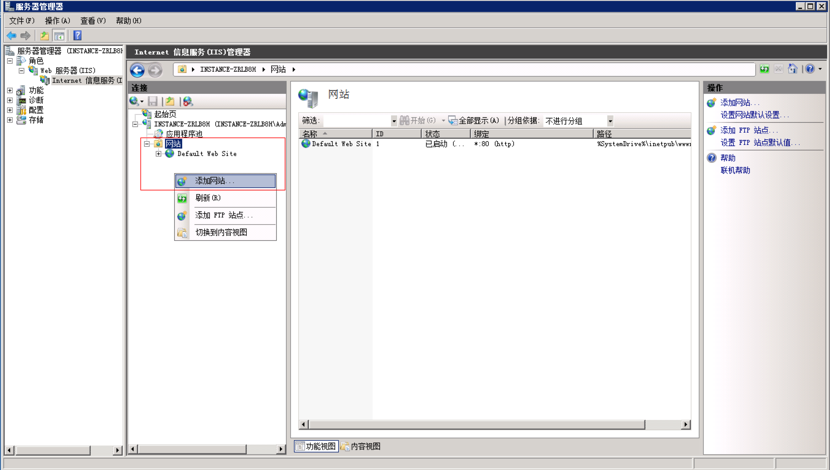
- Left-click to select the site, then right-click on a blank area and choose Add Website.
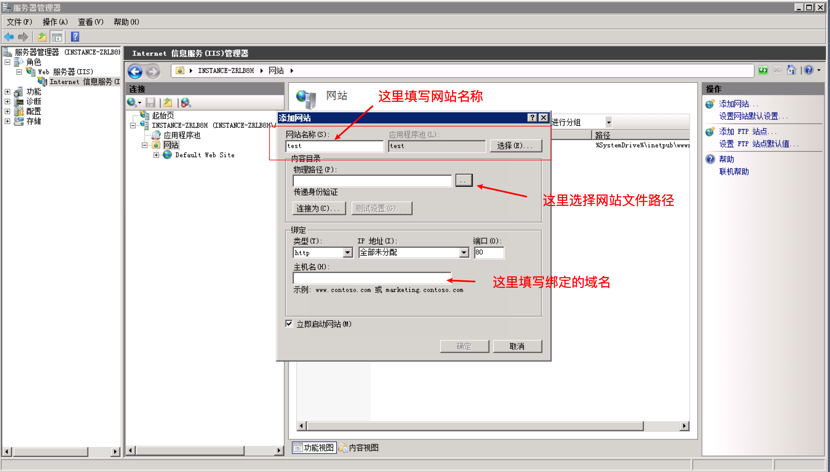
- Enter the website name, and for the physical path, enter the directory where the website files are located, typically wwwroot (create it if it doesn't exist). Enter your domain name in the hostname field and click OK when done. An example is as follows:
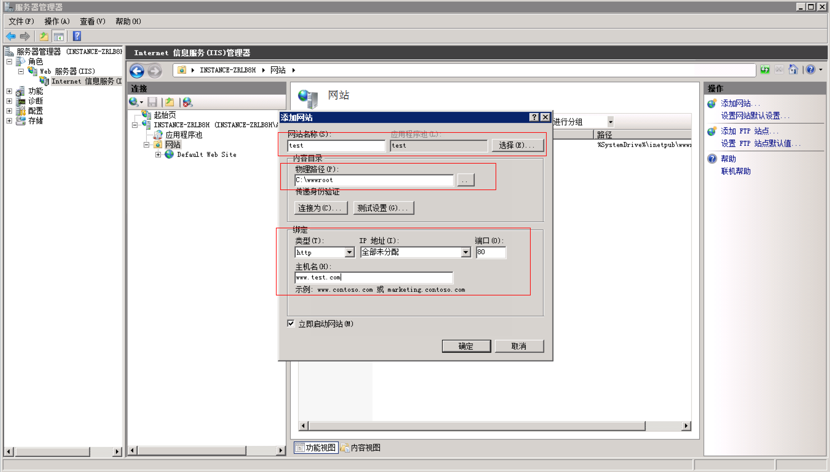
- Leave the assigned IP address as the default (all unassigned) and the port as the default port 80. After entering your domain name, you also need to set up domain name resolution to the public IP of the BCC, enabling access to the website hosted on BCC via the domain name.
- Upload a test page to the server using FTP and place it in the website’s root directory, wwwroot.
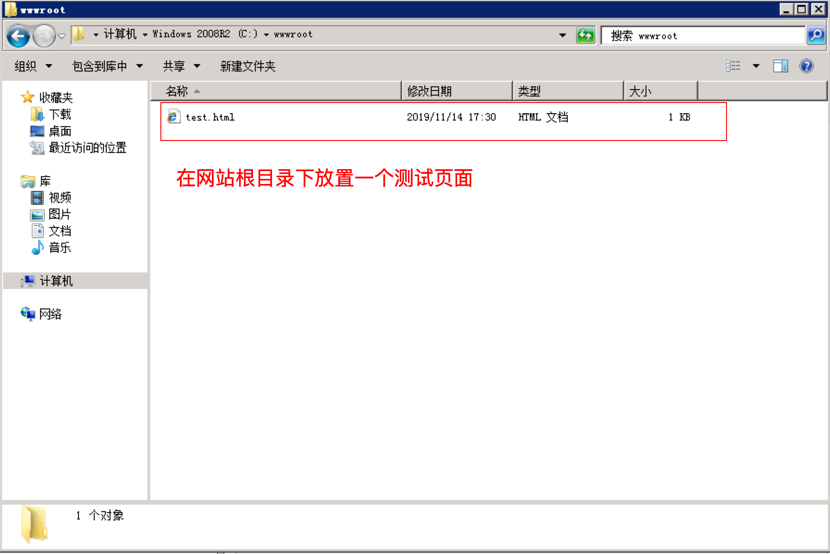
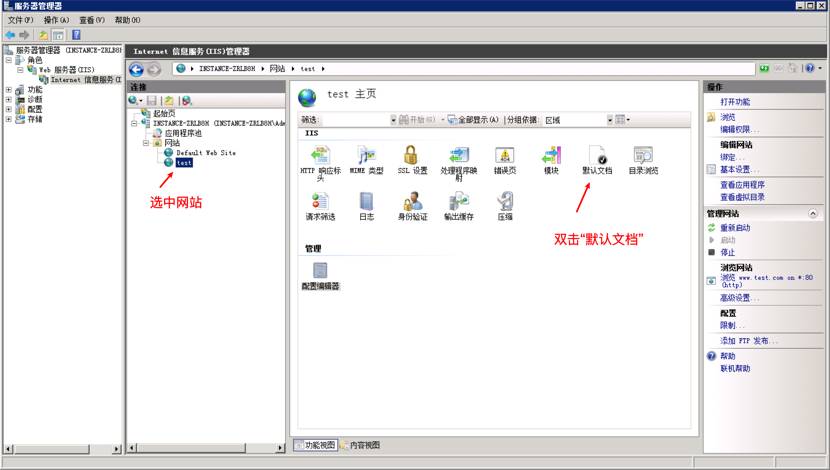
- Set up the default homepage for the website by selecting the site and double-clicking Default Document.
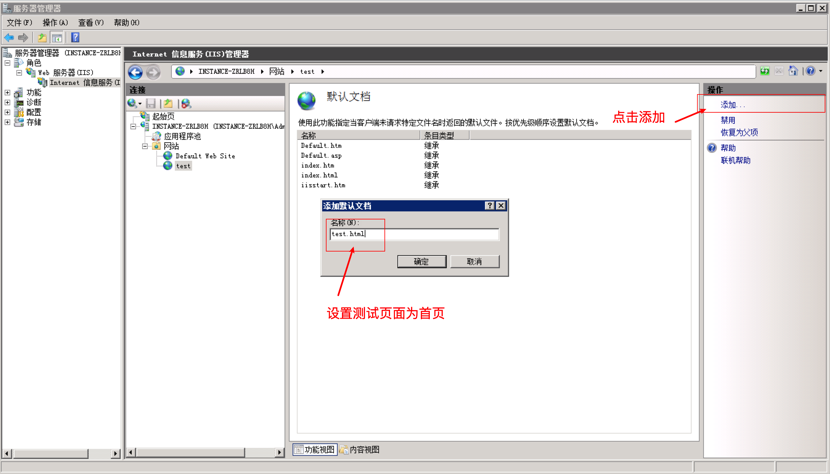
- Click Add, type in the name of the test page, and click OK.
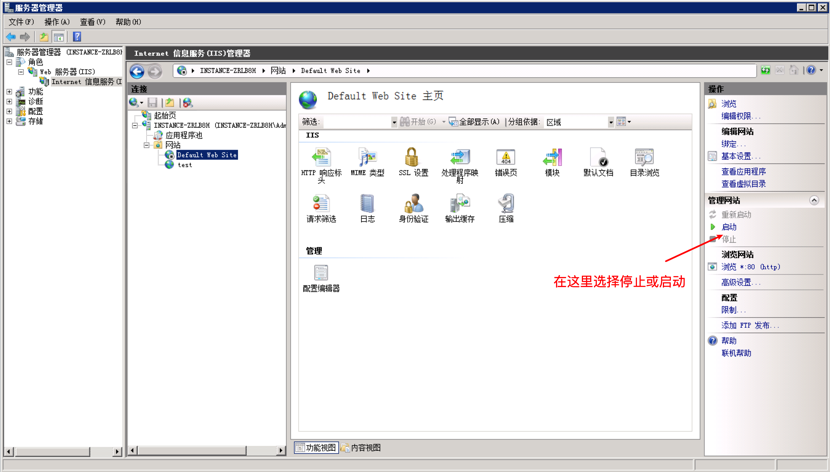
- Stop the built-in default website and start the custom-built website you just created.
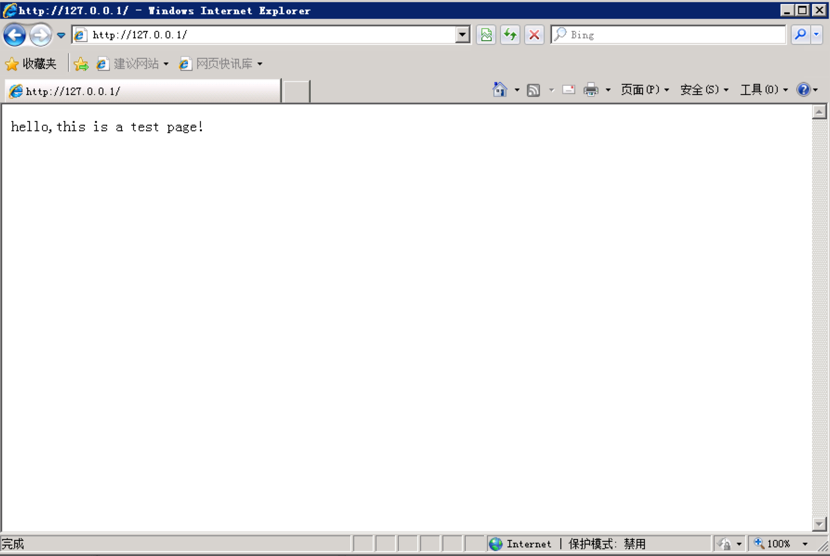
- Use a browser to open the site by entering the EIP of the BCC or the local loopback address 127.0.0.1. The homepage should load successfully.
Windows Server 2012
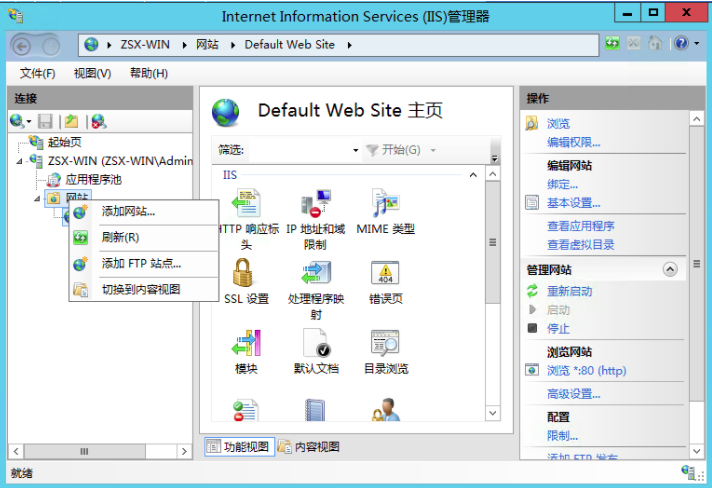
- Left-click to select the site, then right-click on a blank area and click Add Website.
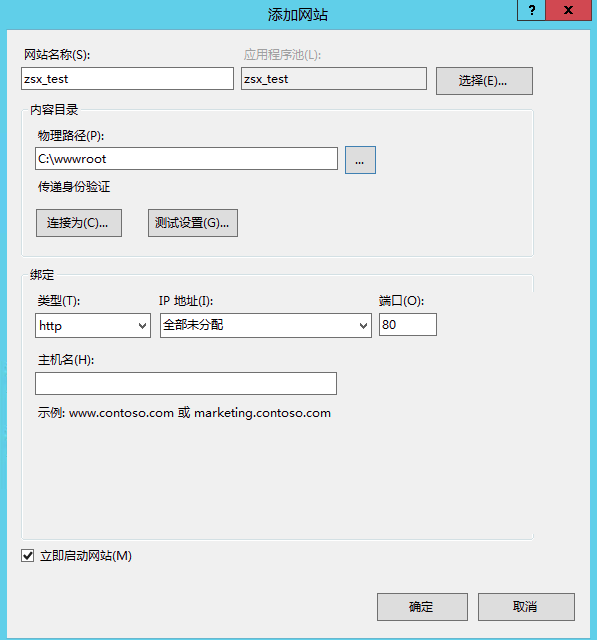
- Enter the website name and, for the physical path, browse to select the folder where the website is located, typically wwwroot (create it if it doesn't already exist). Leave the assigned IP address as the default (all unassigned) and the port as the default port 80. If you have a custom domain name, enter it into the host address field and set up domain name resolution to the public IP of the BCC, allowing access to the website hosted on BCC via the domain name.
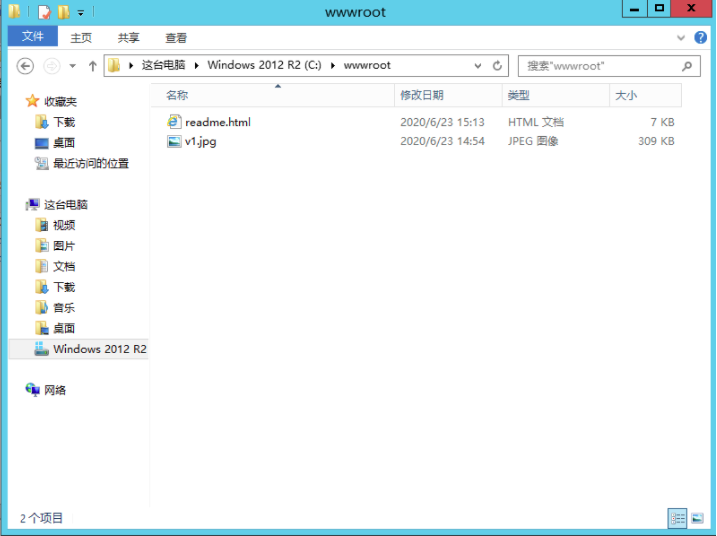
- Upload a test page to the server using FTP and place it in the website’s root directory, wwwroot.
- Set up the default homepage for the website by selecting the site and double-clicking Default Document.
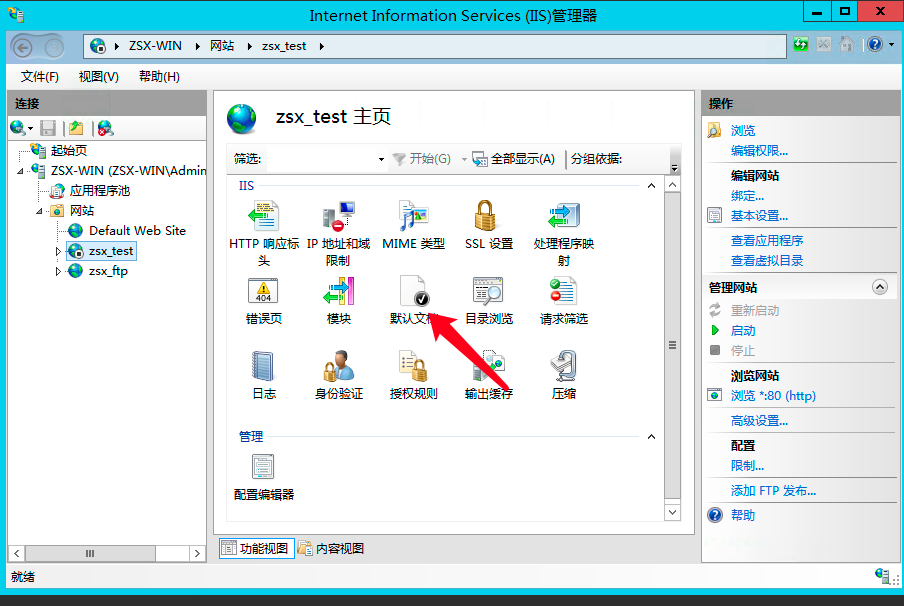
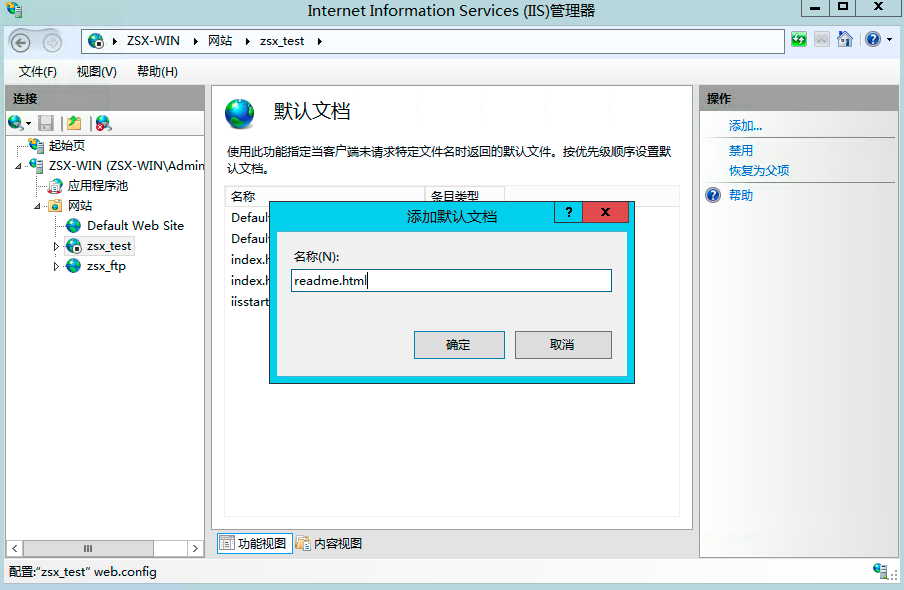
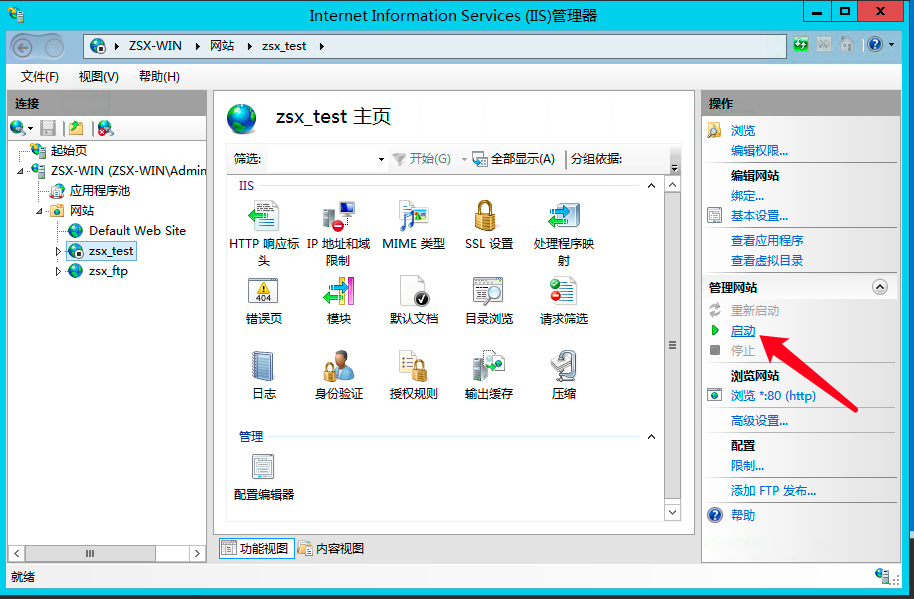
- Click Add, input the name of the test page, click OK and start the website.
- Use a browser to open the site via the public EIP of the BCC or localhost (the local loopback address 127.0.0.1) to confirm successful access.