Install GUI on OpenSUSE 42_3 and Connect via VNC Viewer
This tutorial explains how to install a graphical user interface on a Baidu AI Cloud Public Image running opensuse42.3 and connect to it locally via a VNC client.
Note: Installing a graphical desktop can significantly impact server performance, and incorrect installation might lead to boot failures. Before proceeding, back up the BCC instance by creating a manual snapshot, enabling rollback in case of any issues.
Step I: [Install the desktop environment](#Install the desktop environment).
Step II: [Run VNCserver service](#Run the VNCserver service).
Step III: [Connect to the instance using the viewer client software](#Connect to the instance using the viewer client software).
Install the desktop environment
- Connect to the server remotely and sign in.
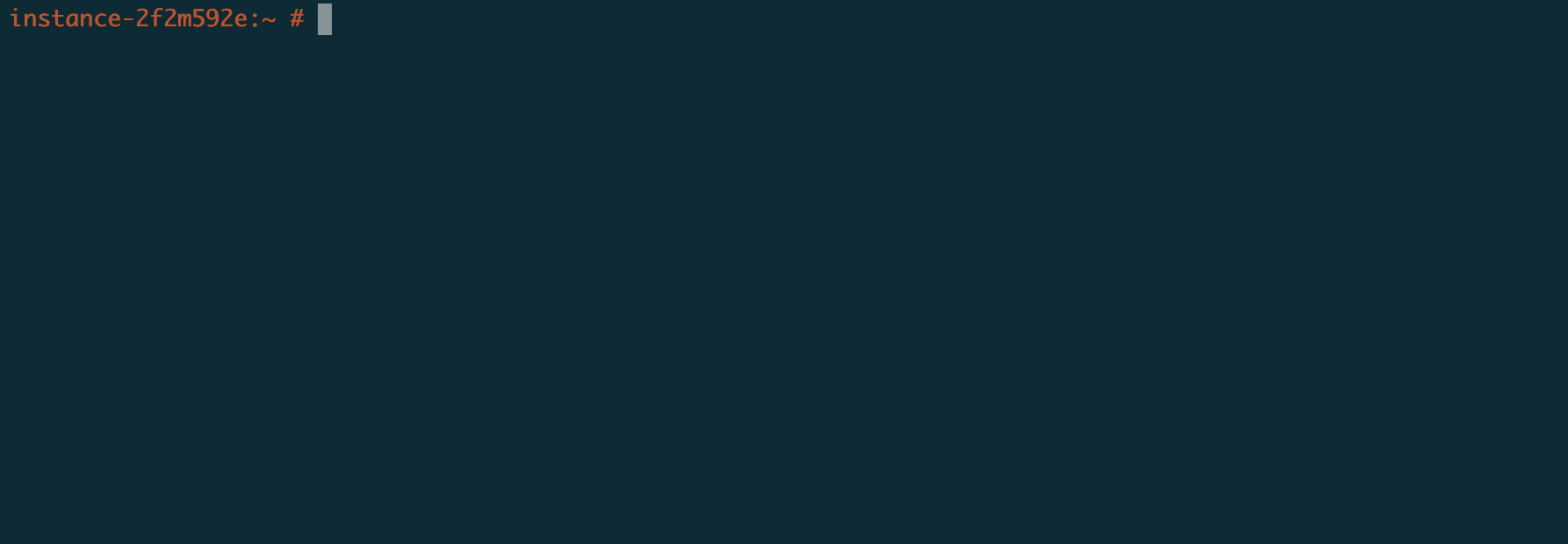
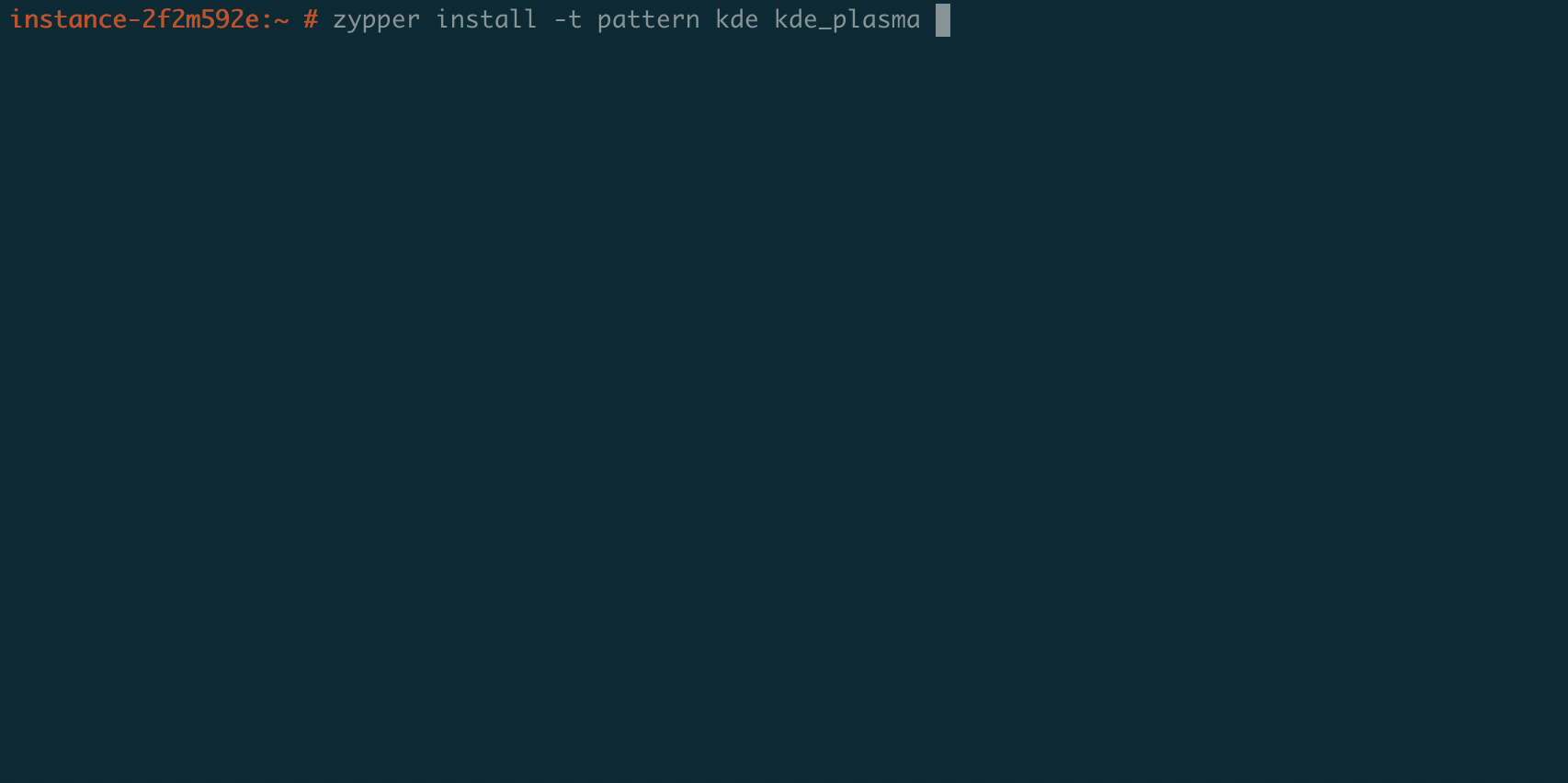
- Execute the command:
zypper install -t pattern kde kde_plasma. This command will automatically enable the installation of the dependencies. Wait until all dependencies are installed sequentially, progress showsdone, and there is no error prompt. The graphical application is installed.
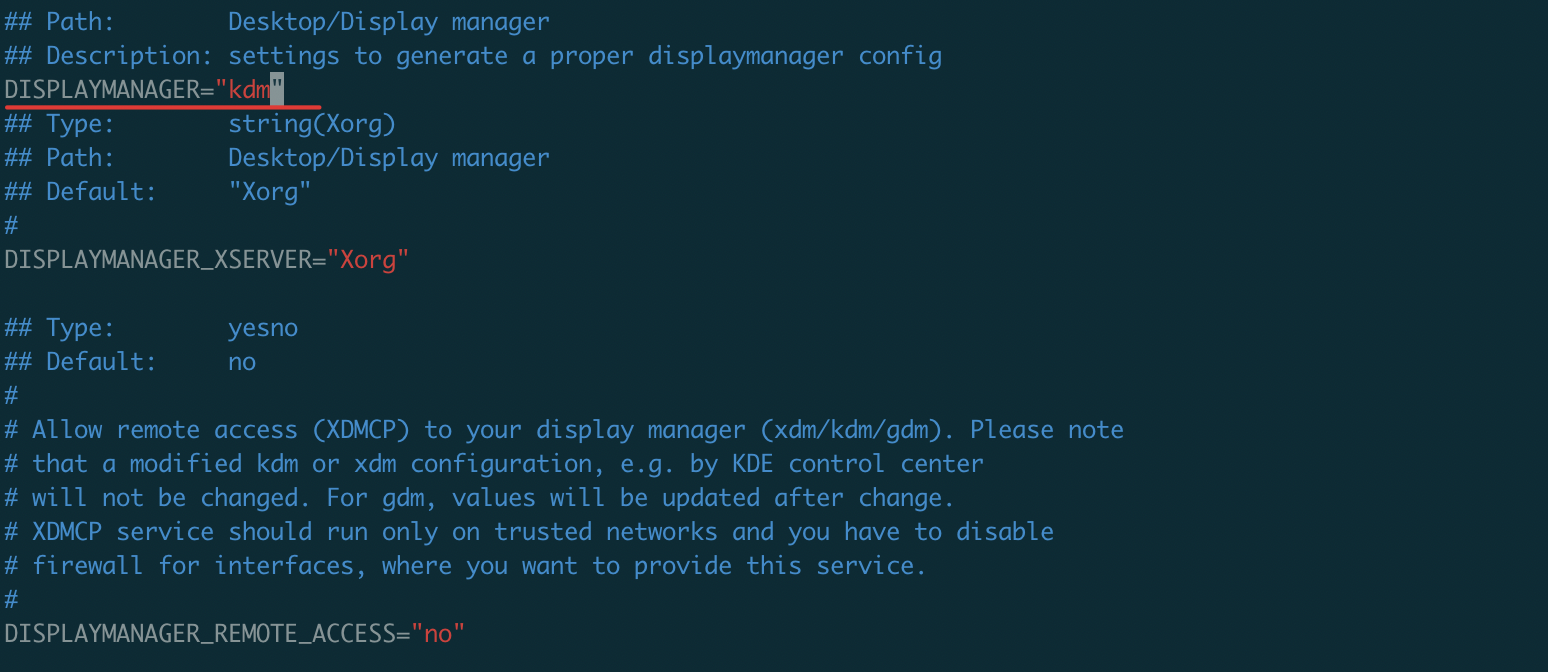
- After installation, edit the
/etc/sysconfig/displaymanagerfile and setDISPLAYMANAGER="kdm".
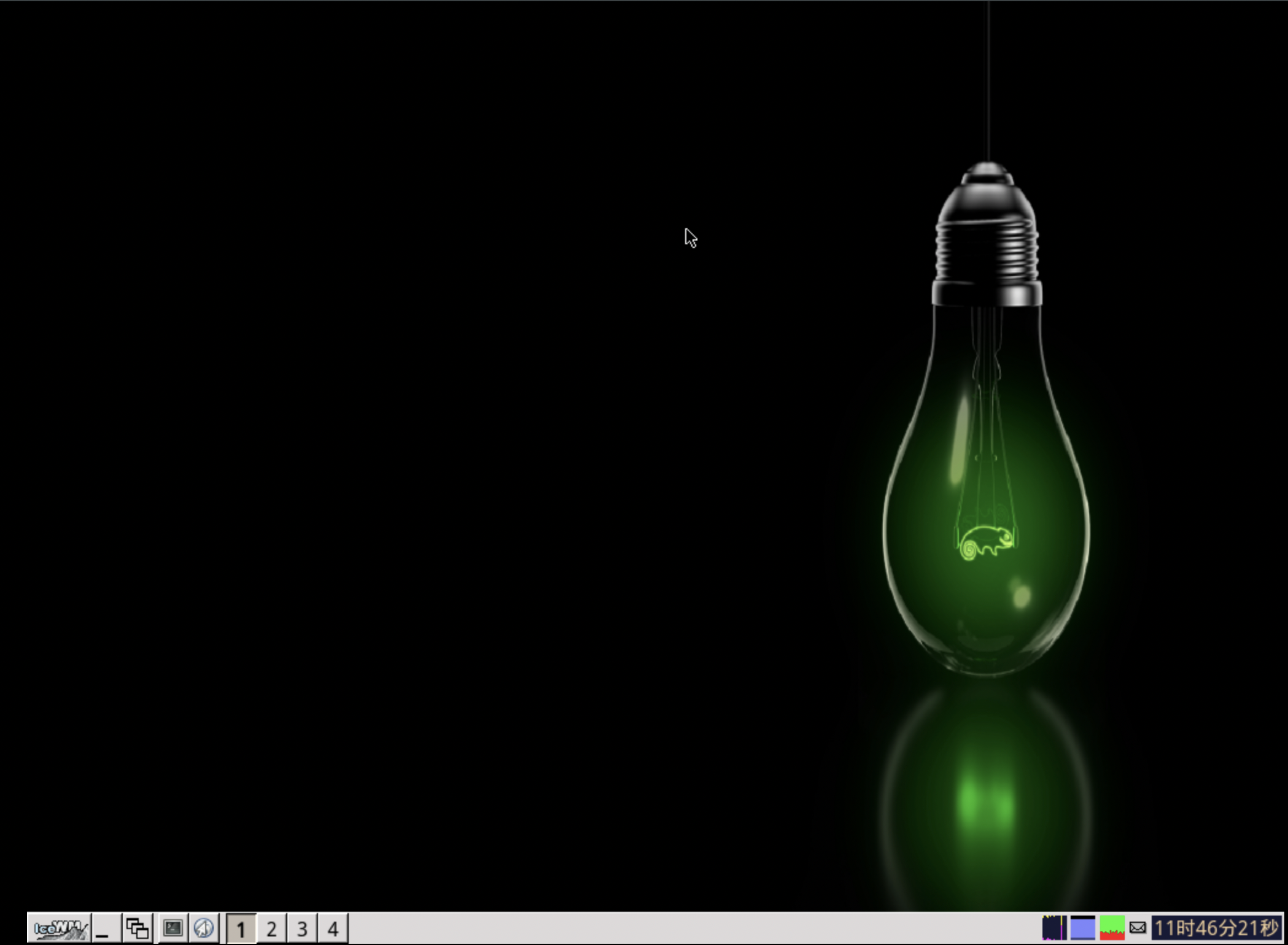
- At this stage, the graphical interface installation is complete. Simply run startx to launch the graphical desktop via VNC.
Run the VNCserver service
- Run the
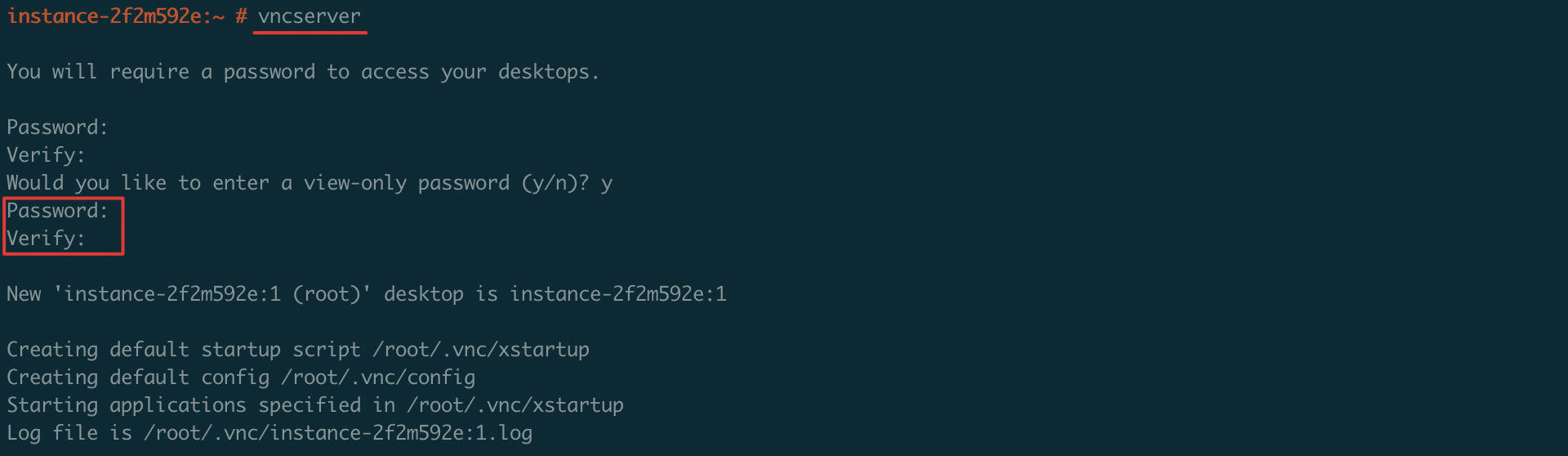
vncservercommand to start the VNC service and set the connection password as prompted by the interface.
- Run the command
ps -ef | grep vncto verify whether the service has been started. If the following similar results are returned, it indicates that the service has started.

The returned results indicate that the service utilizes TCP Port 5901.
Connect to the instance using the viewer client software
- Open VNC Viewer and input the corresponding details.
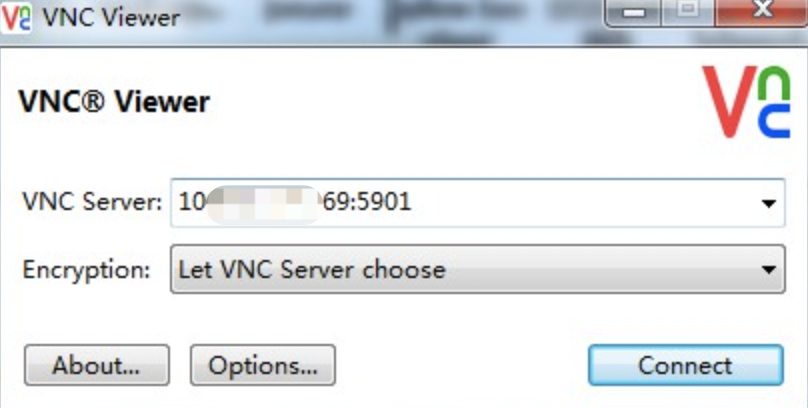
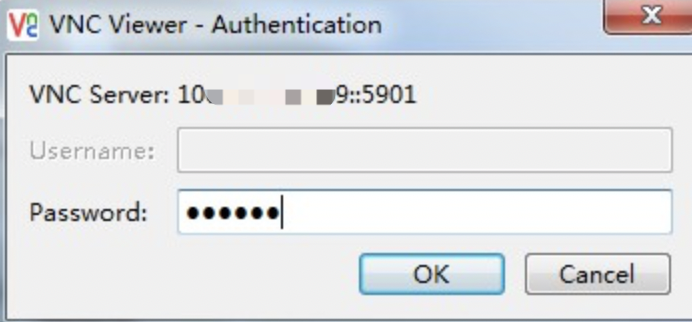
- Click "Connect" and enter the password set when initializing VNC.
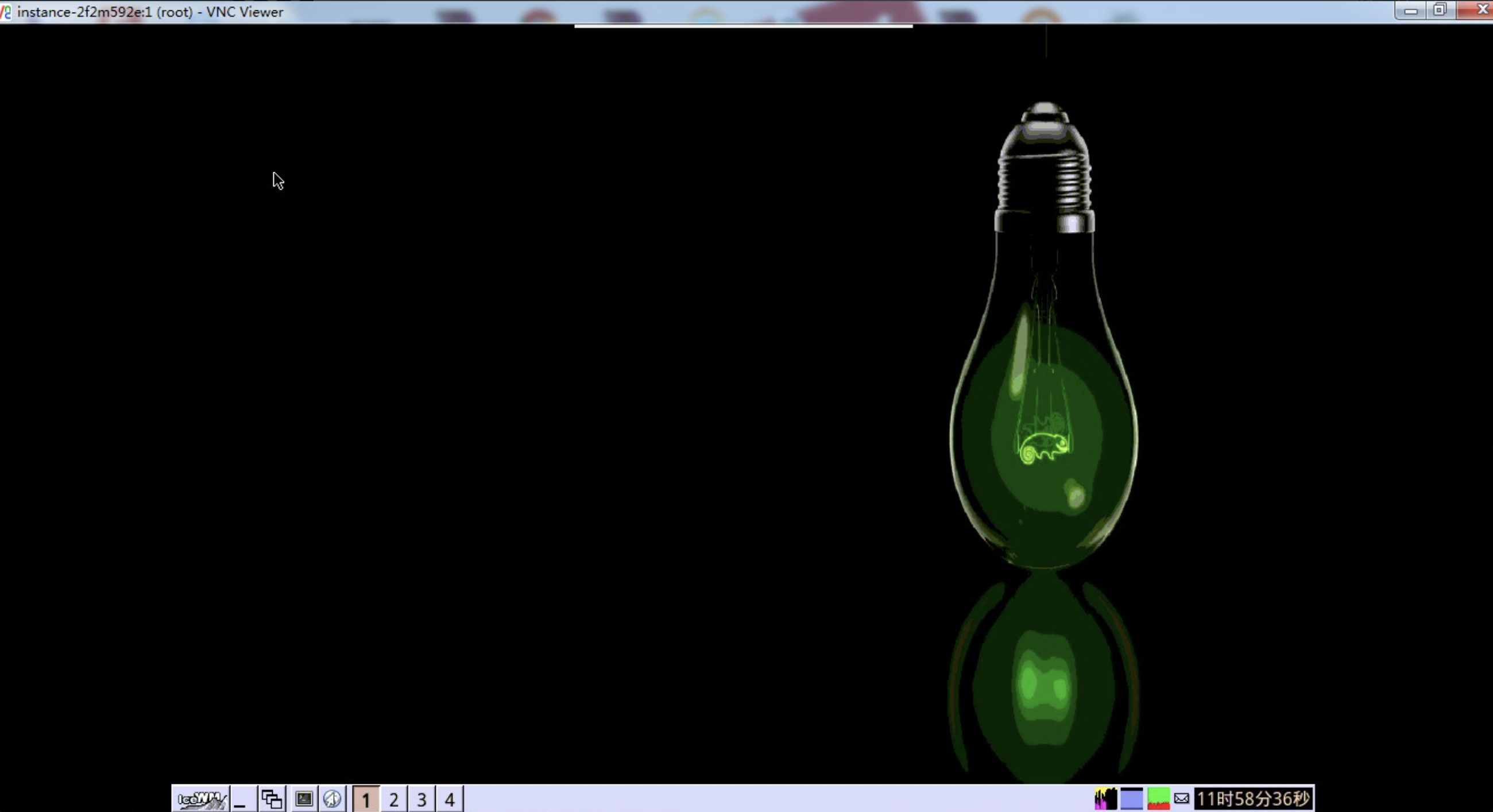
- The connection was successful.