

Create a custom image
Introduction to custom image
The file describes Baidu AI Cloud "Custom Image Creation" method (including instructional video for operation). You may refer to the file or video below for specific operations. Click here to watch the video BCC Creates Custom Image.
Description:
If the interface elements or operation methods shown in the video guidance are updated, please rely on the AI Cloud console interface for the most accurate information. The video aims to demonstrate the functional operation process, and minor interface changes will not affect the overall functionality or presentation.
Users can craft custom images when redeploying complex initialization systems, repeatedly setting up servers with identical configurations, or performing large-scale testing and rapid deployment of proprietary software developed by software teams.
A custom image is created from a snapshot of the Baidu Cloud Compute system disk at a specific point in time. This saves the current system disk as a private image visible only to the account owner.
Operation preparation
- You can create a custom image without stopping the instance. However, do not alter the status of the instance during image creation or perform any operations such as stopping, starting, or restarting, as this may result in failure.
- The time required for creating a custom image depends on the size of the instance disk.
Create a custom image
- Select Instance in the left navigation bar to enter the Instance List page.
- Select the corresponding instance, click More in the operation bar, click Cloud Disk and Image, and finally click Create Custom Image.
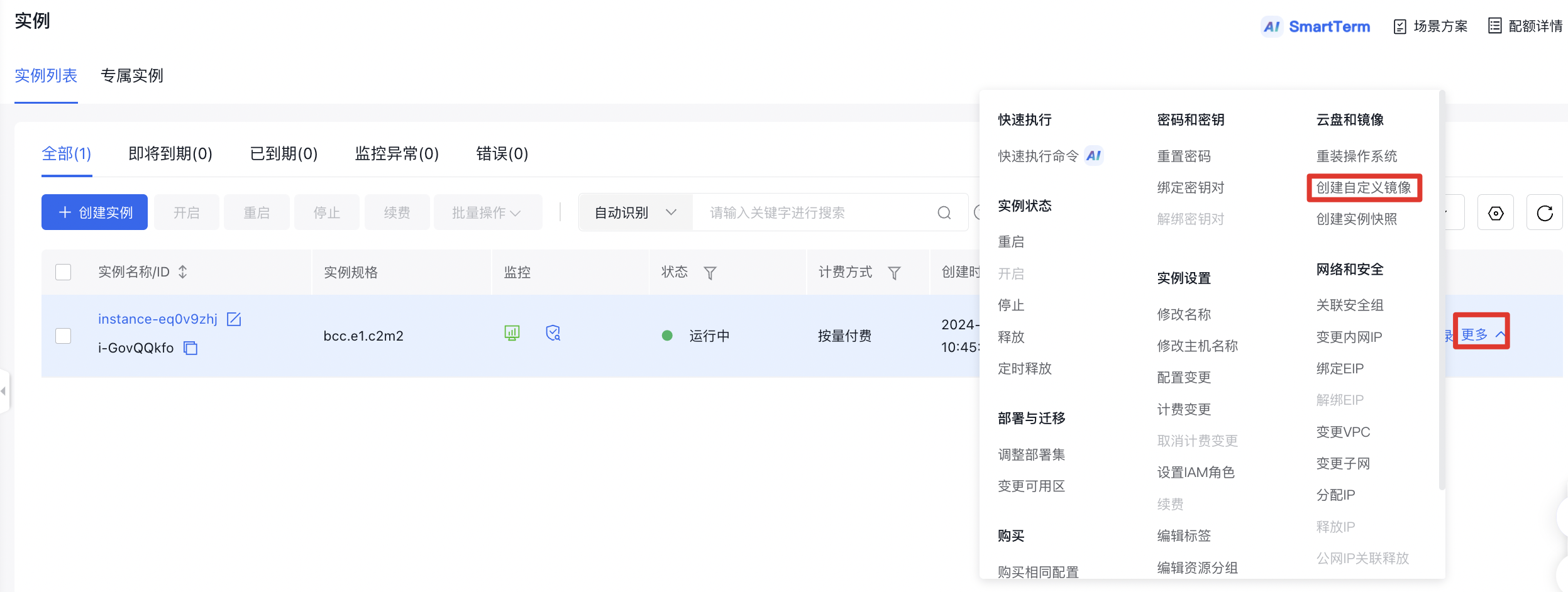
- Enter a new image name and initiate the image creation process, which generally takes 1-10 minutes.
Description:
The name of a custom image can include uppercase and lowercase letters, numbers, and -_ /. special characters. It must start with a letter and have a length between 1 and 65 characters.
- Select Image in the left navigation bar.
- In the Custom Image list, you can view the status of image to be Completed, indicating that the custom image has been created successfully.
Subsequent operations
Once the custom image is successfully created, navigate to the custom image tab and select "Create Instance." When creating an instance using a custom image, the system will default to the custom image as the instance image, although you can opt for a public image or other service-integrated images as needed.
Create custom image via API
You can create custom image via API Create Custom Image. For API, please refer to [Image Related Interface](BCC/API Reference/Image Related Interfaces/Create a custom image.md).