

Local Playback of Sound from Windows Server
Updated at:2025-10-20
This tutorial uses the Public Image 2008 R2 x86_64 (64bit) (Chinese Edition) Operating System on Baidu AI Cloud as an example to demonstrate how to play audio locally from a BCC Windows server. This requires the BCC instance to be bound to a public IP.
Step 1: Sign in to the server
You can connect to the server by the built-in Windows remote connection tool mstsc. For detailed steps, refer to Windows Quick Login.
Step 2: Remote connection configuration
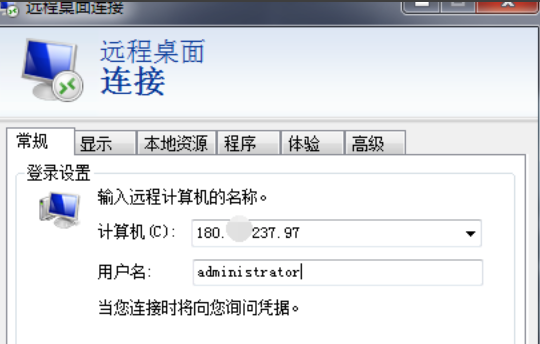
- On the Remote Desktop Connection interface, enter the IP address for remote connection in the Computer field. The username is Administrator.
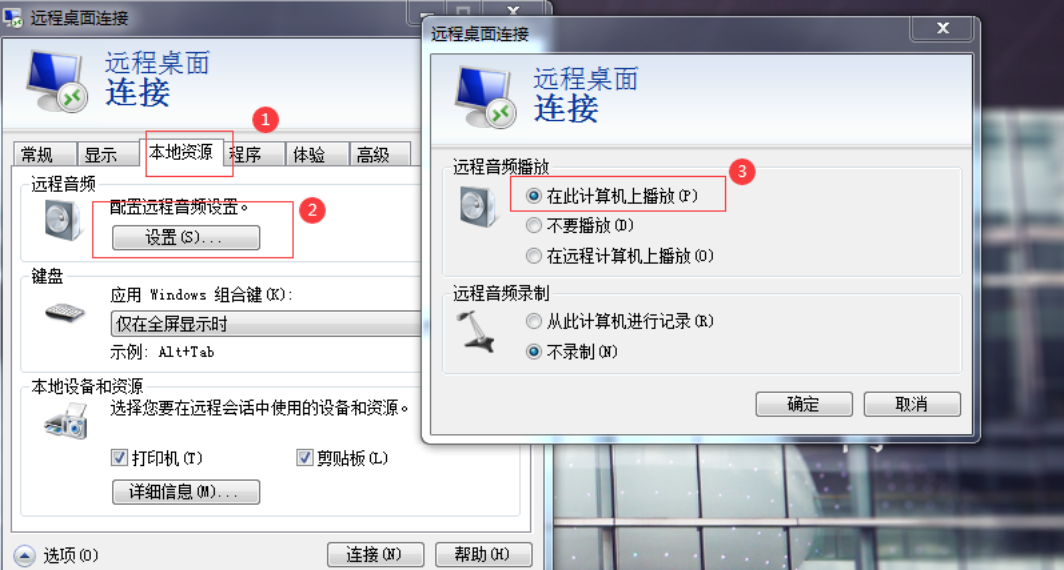
- Navigate to Local Resources > Remote Audio > Configuration, check the option for Play on this computer, and then click OK.
Step 3: Establish connection and verify audio effects
- After establishing a remote connection, ensure that the audio icon is displayed correctly in the lower right corner.

- Click the playback icon to hear the sound and complete the verification.
Step 4: If the above solutions still fail to enable audio playback, follow the steps below
- Use VNC or a remote connection to access the Windows system.
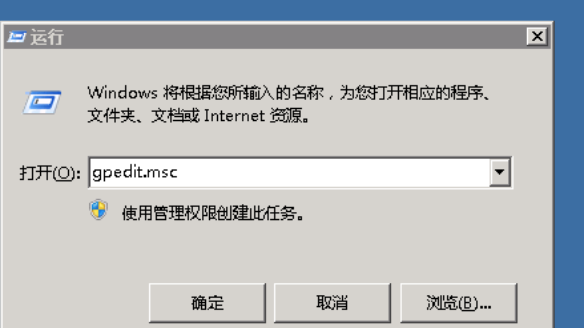
- Press Win+R, type in the command gpedit.msc, or search for "edit group policy" to open the Local Group Policy Editor.
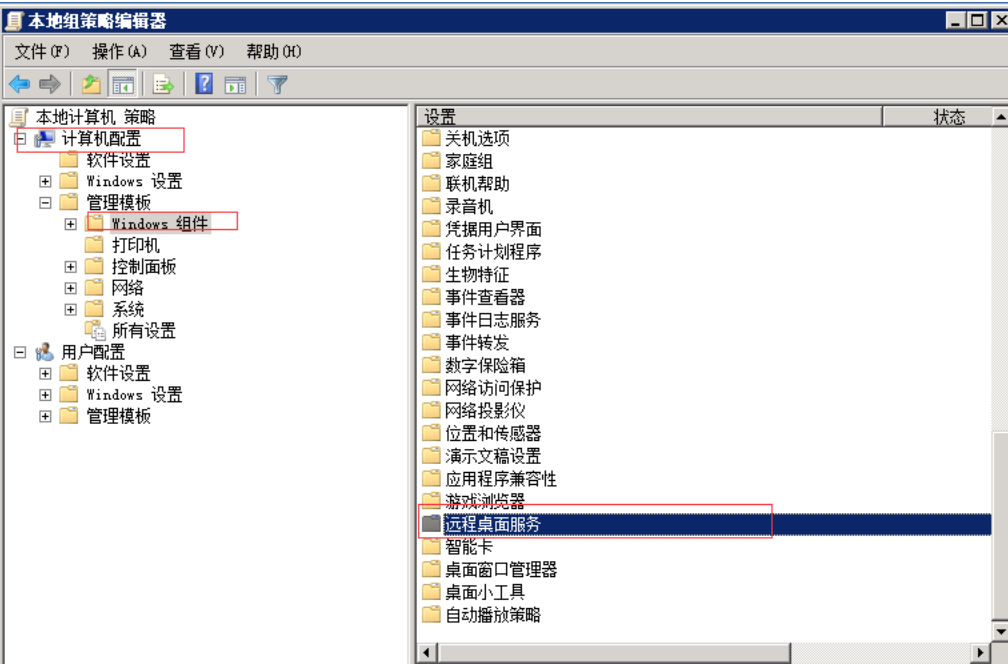
- Navigate to Computer Configuration → Administrative Templates → Windows Components → Remote Desktop Services.
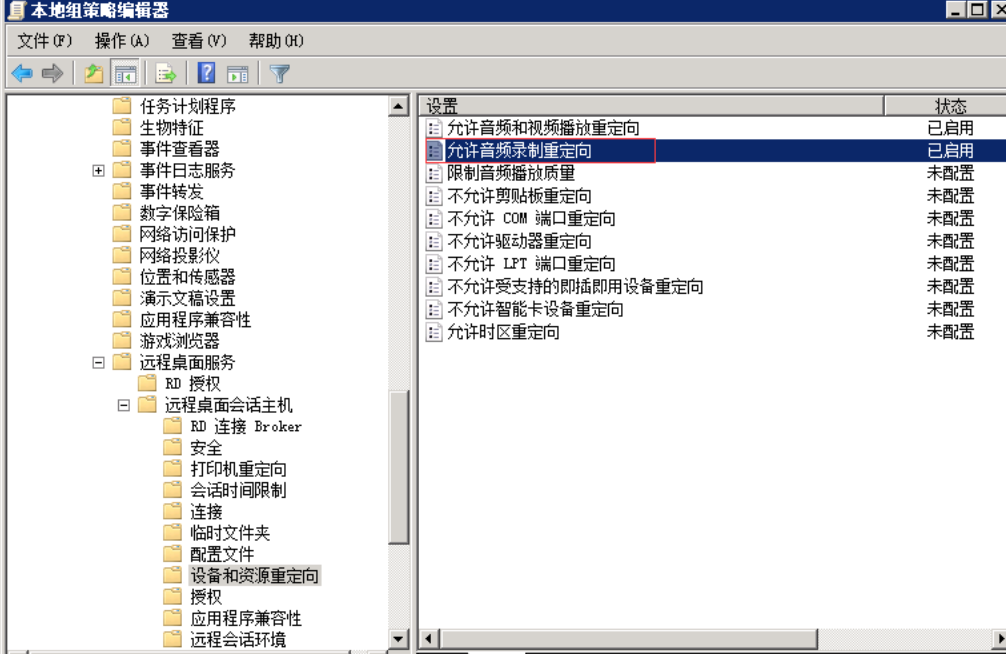
- Go to Remote Desktop Session Host → Device and Resource Redirection.
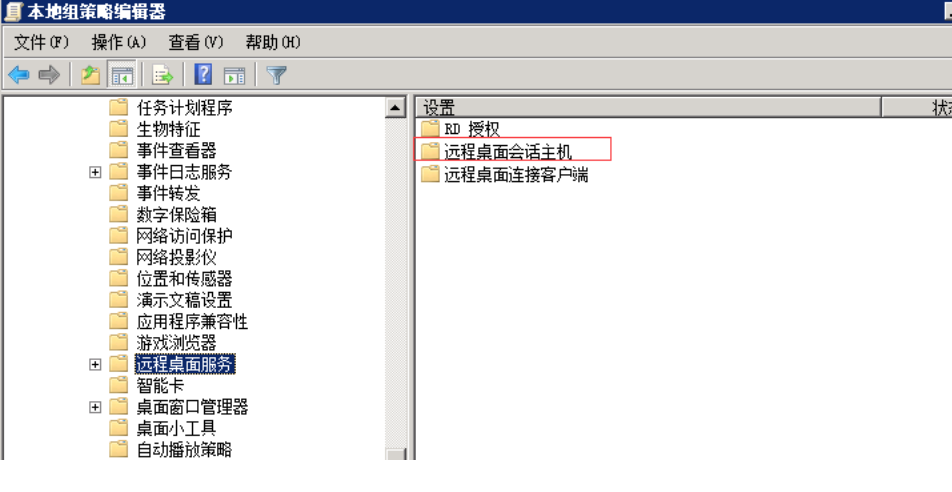
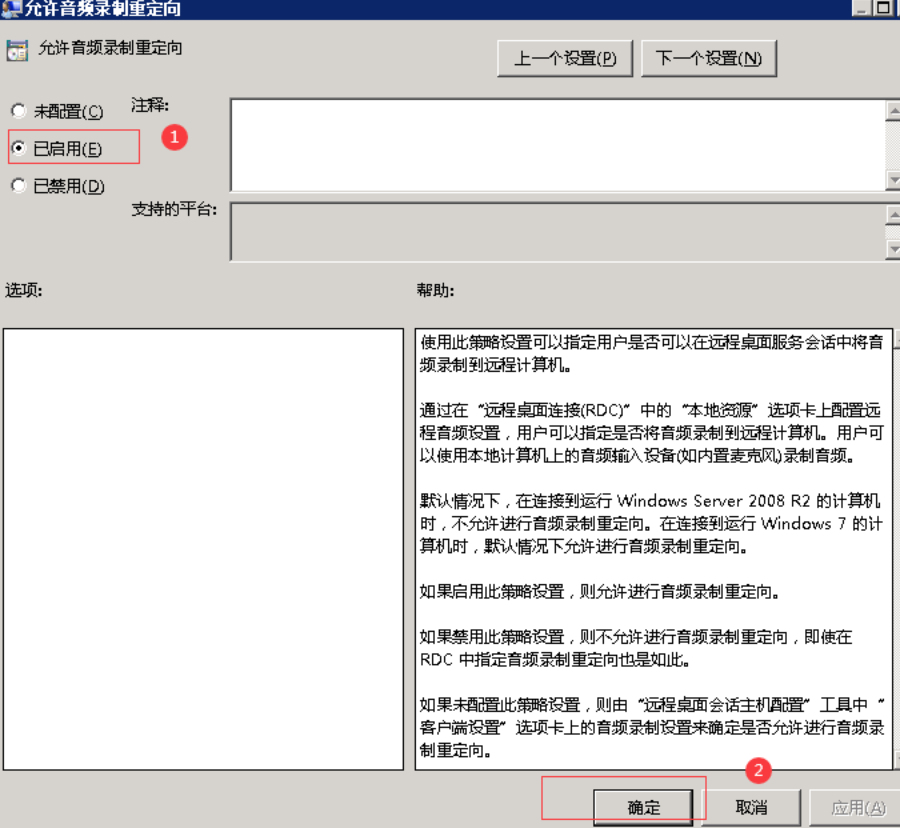
- Double-click "Allow Audio Recording Redirection" and "Allow Audio and Video Playback Redirection."
- Choose Enabled, then click Apply and OK.
- Press Win+R and type: services.msc.
Alternatively, click Server Manager in the bottom-left corner, then go to Configuration > Services to open the Service Management interface.
- Find the services: WindowsAudio and WindowsAudioEndpointBuilder. Set their startup type to Automatic, and ensure they are running.
- Reboot the server, reconnect remotely, and check if the sound settings are functioning properly.