

Cross-AZ migration
Updated at:2025-10-20
Cross-AZ migration
Note: This function is only available to users with resources in availability zones pending relocation in the North China-Beijing, South China-Guangzhou and East China-Suzhou regions, facilitating resource cross-AZ migration
Introduction
Cross-AZ subnet instance migration is supported, keeping the instance's private IP address unchanged.
- During the migration process, the instance will be shut down and become unavailable. Please ensure that important data is backed up before migration.
- Before starting the subnet migration, change the target availability zone of the subnet. A single migration task allows you to select some or all instances within the subnet for simultaneous migration. Any attached disks will also be migrated along with their instances.
- Ensure all BCC instances are in either the "running" or "stopped" state before migrating; otherwise, the migration cannot proceed. Migration is not supported for stopped instances that incur no charges.
- If the target availability zone lacks the same generation or model of instance, the system will automatically select a newer generation model available in the target zone. If no identical configuration exists, the system will choose the closest available configuration for adjustments.
- If the BCC instances being migrated provide external service access via BLB and security group or ACL rules are configured on the BCC instances or associated subnet, but not on the BLB, traffic accessing the BCC instances through the BLB after migration will not adhere to these rules. You will need to manually configure the corresponding rules on the BLB.
Unsupported scenarios description
The following is an overview of scenarios not supported for cross-AZ subnet migration and corresponding handling suggestions:
| Scenario overview | Handling suggestions |
|---|---|
| Local disk instance migration | For BCC instances with system or data disks as local disks, cross-AZ migration is not supported. As an alternative, create a custom image from the local disk instance, then use this image to create a new BCC instance in the target availability zone. |
| ROCV1 instance migration | Cross-AZ migration is not supported if the BCC system disk uses ROCV1 (instance families ic1/c1/g1/m1). It is recommended to create a custom image of the instance and use it to create a new BCC instance in the target availability zone. |
| Migration of deprecated CDS disks (system disks) | If the BCC system disk is a previous-generation CDS cloud disk server, perform a CDS resizing before initiating subnet migration. |
| Migration of deprecated CDS disks (data disks) | If the BCC data disk is a previous-generation CDS cloud disk server, perform a CDS resizing before initiating subnet migration. |
| Migration of deprecated instance families (with local data disks) | BCC instances with local data disks do not support cross-AZ migration. Please complete a manual migration before proceeding with subnet migration. |
Create task
Note:
- Sign in to the Baidu AI Cloud official website, click Management Console in the top-right corner to quickly access the console interface.
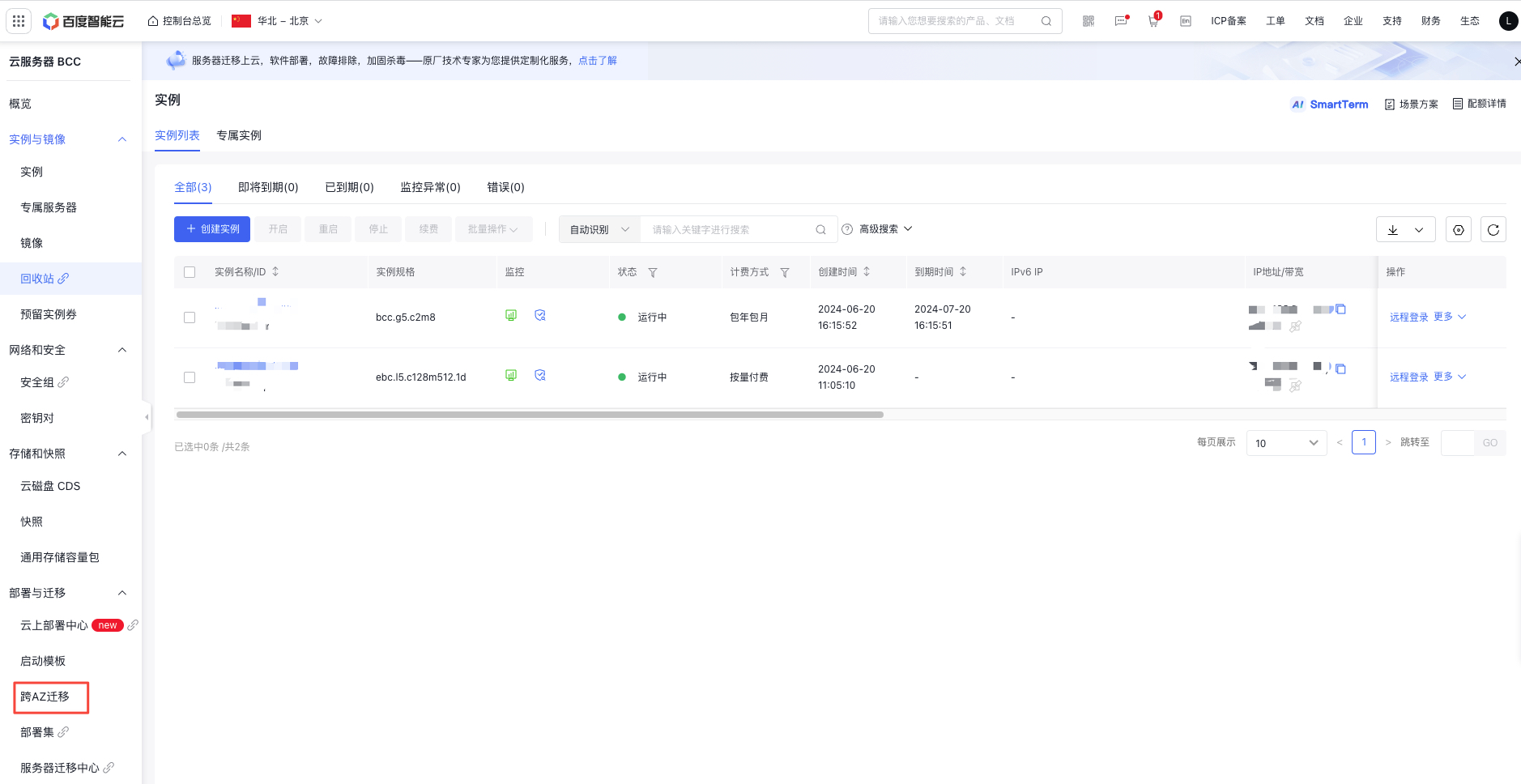
- Go to Baidu Cloud Compute (BCC) - Deployment & Migration - Cross-AZ Migration to access the Task List page.
- Click on Create Task to open the task creation page. Select the subnet to be migrated. If the target availability zone for the subnet has not yet been updated, click Select Now to change the availability zone before proceeding to select instances for migration.
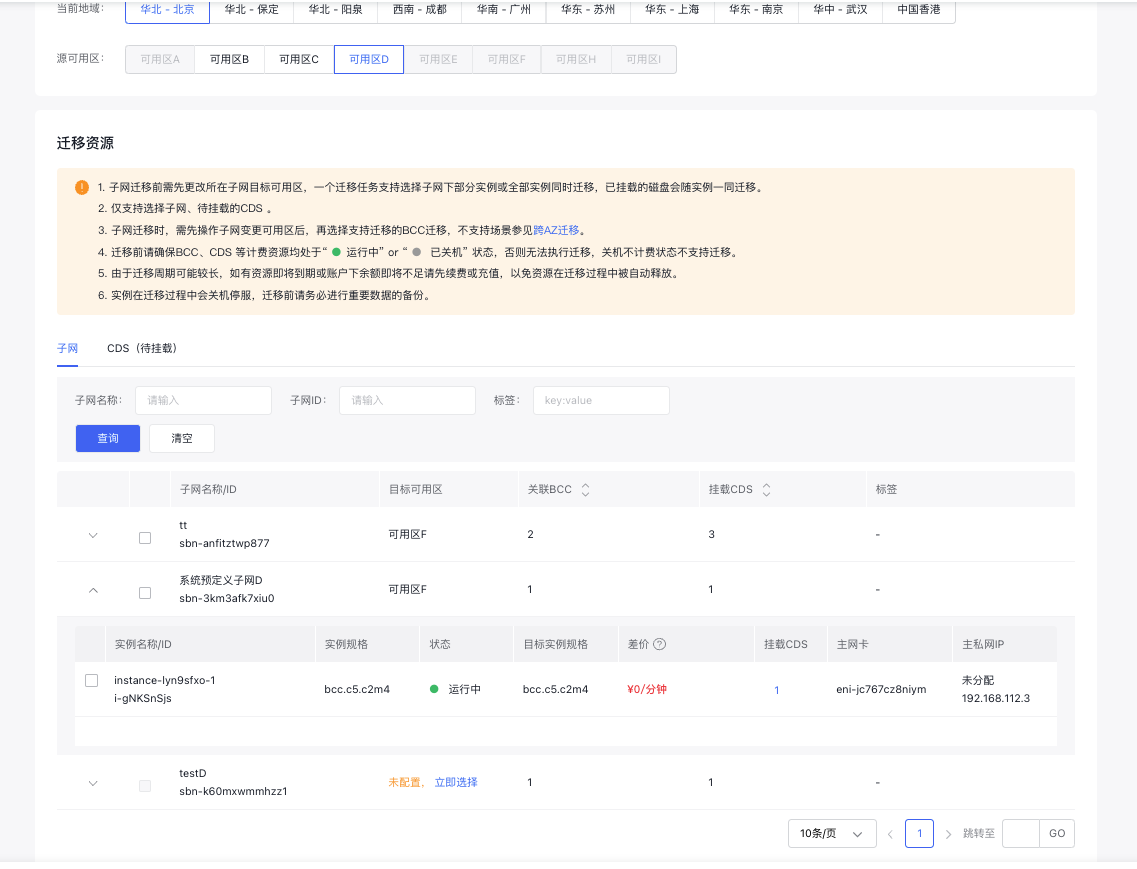
- Choose a start time for the migration. If no start time is selected, migration will begin immediately after task creation. The earliest possible start time is the current time plus one hour.
- After completing the configuration, click OK to confirm the resources to be migrated.
- Navigate back to the Task List page.
View tasks
View migration task information
- Select "Cross-AZ Migration - Task List" to navigate to the Task List page.
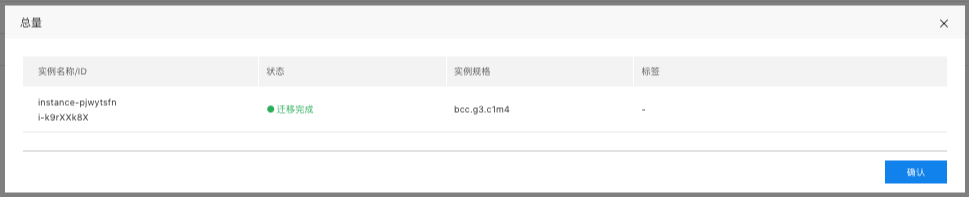
- Click on the number of migrated BCC/DCC/CDS instances to access the Migration Resources page.
Retry tasks
- For tasks that fail to migrate, click "Retry" in the operation list to attempt migration again.
Revoke tasks
- Migration tasks that are not started immediately can be revoked via the operation list.
FAQs
- How long does a general migration take? Answer: The duration of migration is influenced by the following three factors:
- The count of tasks being migrated simultaneously in the current data center. Currently, we support the simultaneous migration of 200 BCC instances. If there are many migration tasks at this time, queuing will be required
- Related to the written capacity of the Cloud Disk Server (CDS) of the instance to be migrated, 100g/3min
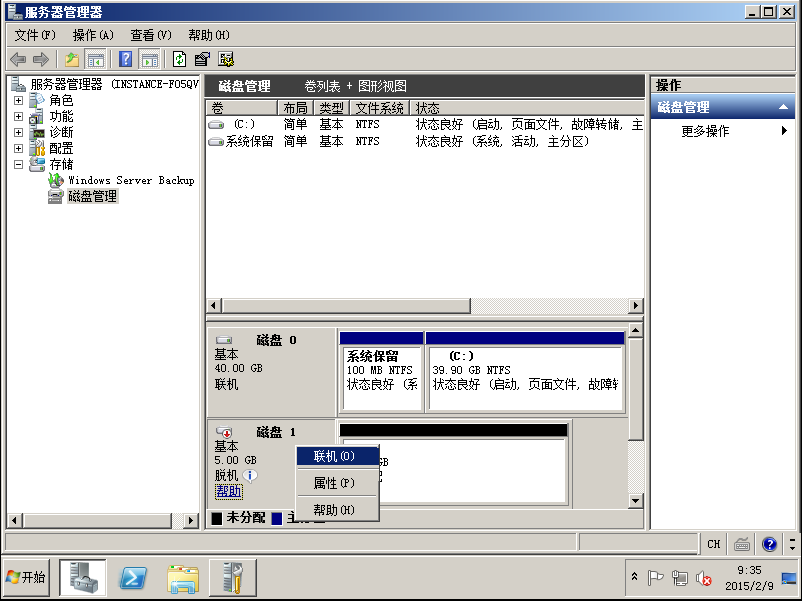
- Why can't the data disk be seen inside the system after using the tool to migrate a host with a Windows system? Answer: For some existing users' Windows system hosts, due to version issues and other problems, after migration using the cross-AZ migration tool, the data disk will automatically be offline and needs to be manually connected before it can be used normally. For the operation method of connecting the disk, please refer to the following steps:
- After signing in to the Windows host, click Server Manager in the lower-left corner to open the "Server Manager" window.
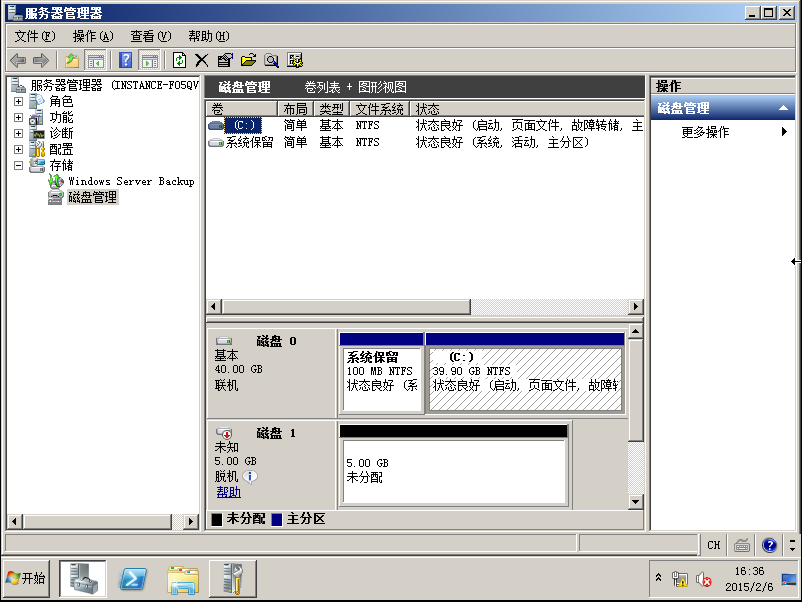
- Find the data disk that needs to be brought online at the bottom of the page, for example, "Disk 1", right-click it and select Connect.
Note: If multiple Windows hosts require cross-AZ migration, consider submitting a ticket for guidance on avoiding potential issues, thereby enhancing migration efficiency.