

Instances
What is BCC?
Baidu Cloud Compute (BCC) is a scalable computing service with dynamic processing capacity. Its management is simpler and more efficient than physical servers. Users can create or delete any number of Baidu Cloud Compute instances as needed to optimize operational efficiency. BCC provides a stable and reliable platform for rapid application deployment, reduces the complexity of large-scale network computing, and allows users to focus on core application innovation. It eliminates the need to spend time and money on purchasing or maintaining hardware for virtual machine hosting, effectively lowering IT costs.
Can BCC dynamically adjust CPU and memory sizes?
Currently, purchased BCC instances support on-demand resizing, allowing you to modify CPU and memory sizes by adjusting the instance specifications.
Does BCC support VMware?
Currently, BCC does not support virtualization software such as VMware or secondary levels of virtualization.
Does BCC provide a database by default?
BCC does not come with a pre-installed database. You can install the required database yourself. Alternatively, we recommend considering the Relational Database Service (RDS) offered separately by Baidu AI Cloud.
Does BCC support Oracle databases?
BCC imposes no restrictions on installing Oracle databases. You can refer to the relevant Oracle database installation tutorials for guidance.
Can BCC be used as the load balancer?
BCC can be configured as a load balancing service if needed. However, we recommend using the dedicated Baidu Load Balance (BLB) offered by Baidu AI Cloud. This product provides four-layer and seven-layer load balancing services with specific optimizations. You can conveniently purchase and use it directly.
Can BCC be purchased in a specified region?
Yes, if you need to create BCC instances in multiple regions, please refer to [Region Selection Guide](Reference/Region Selection Instructions/Region.md).
How to change OS/upgrade the configuration?
- If a user needs to switch to another OS, they can reinstall OS for a single instance. For instructions on changing OS, please refer to Reinstall OS
- For instructions on upgrading configurations, please refer to [Upgrade CPU and Memory](BCC/Operation guide/Instance/Change Instance Configuration.md).
What are the limitations of online resizing (hot upgrades)?
- Only instance specifications with a 6271 CPU model (corresponding to instance families: general-purpose g4, compute-optimized c4, intensive compute ic4, memory-optimized m4) support online resizing.
- The maximum allowable online configuration is 42c176g, while the minimum is 1c1g.
- The CPU specification can be reduced to as low as 1c through hot resizing, but memory does not currently support hot reduction.
- All 32-bit Windows/Linux instances do not support hot resizing. Images such as Win2016, Fedora, FreeBSD, and OpenSUSE also do not support hot resizing.
| Image | CPU | Memory |
|---|---|---|
| Linux64 (excluding fedora/freebsd/opensuse) | Support hot upgrade and hot reduction | Support hot upgrade, but does not support hot reduction |
| Windows64 (excluding Win2016) | Support hot upgrade | Support hot upgrade, does not support hot reduction |
- An instance can support up to 8 consecutive hot resizing.
- GPU models do not currently support online resizing.
- CPU and memory must be upgraded or reduced simultaneously; they cannot be upgraded/reduced one at a time.
- Newly created instances (created after the function launch time point) have hot resizing capabilities by default.
- Historical instances (created before the function launch time point) can only undergo hot resizing after undergoing a cold resizing (i.e., a resizing that requires a reboot).
Why don't online resizing (hot upgrades) take effect for instances with ubuntu or debian 64-bit images?
You need to perform the following operations in OS. For instances that have already undergone online resizing, the configuration takes effect through the manual method; after configuring the automatic method, incremental online resizing take effect directly without manual configuration.
- Manual method:
1The commands are as follows (cpunum is the newly inserted CPU number):
2echo 1 >/sys/devices/system/cpu/cpunum/online
3echo 1 >/sys/devices/system/cpu/cpu21/online- Automatic method:
11) You need to add a udev rule. Add the following content to the file /etc/udev/rules.d/40-cpu-mem-hotplug.rules:
2cat /etc/udev/rules.d/40-cpu-mem-hotplug.rules
3SUBSYSTEM=="cpu", ACTION=="add", TEST=="online", ATTR{online}=="0", ATTR{online}="1"
4SUBSYSTEM=="memory", ACTION=="add", ATTR{state}=="offline", ATTR{state}="online"
52)service udevd restart
After modifying the CPU specification, you can verify the change using commands like lscpu or cat /proc/cpuinfo.
After modifying the memory specification, you can verify the change using commands like free or cat /proc/meminfo.
If the configuration selected during BCC creation is incorrect, can it be modified after creation?
For purchased BCC instances, you can change the OS by selecting a different system image for reinstallation, enabling interchange between Windows and Linux OS types. At the same time, configuration upgrades are also supported.
How to do if I cannot find a BCC instance in the console?
If the server you purchased is not visible in the BCC interface, we recommend using the region-switching function in the top-left corner of the instance page to check other regions.
How to check BCC resource usage?
You can sign in to the management console and view it through Product Service / Baidu Cloud Compute (BCC) - Instance List / Instance Details / Monitor or view it within the system.
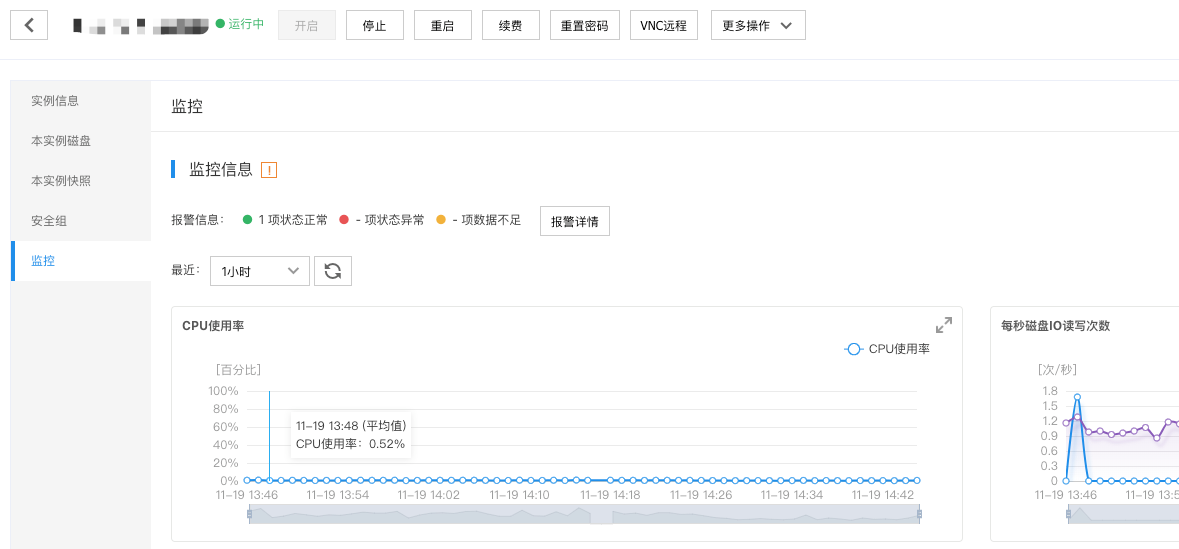
Can BCC send SMS or email alerts if it detects abnormal CPU or disk operation?
If you want BCC to send SMS or email alerts after detecting abnormal CPU, disk, or other operations, you can add an alarm strategy in the console-BCM monitor.
The system's available memory appears to be less than the nominal value
This is typically caused by normal differences in hardware resource reservations and system overhead. In a cloud server, some memory is reserved for the system kernel, hypervisor, and other essential services to ensure the system operates stably and other functions run normally. As a result, the memory available to the user's OS will be less than the nominal total memory size. To check the nominal memory value within the system, you can run the dmidecode -t memory command.