Create an instance (by specifying instance package specifications)
Users can apply for public network bandwidth services by creating EIP instances and binding them to products that require public network access (e.g., Baidu Cloud Compute instances). Products bound to EIP instances will then receive public network bandwidth services.
Operation steps
- Sign in to Baidu AI Cloud official website.
- Sign in to Baidu AI Cloud Platform:
- If no username exists, sign up first. Refer to [Register](UserGuide/Register an account.md#Register a Baidu Account) for operations.
- If a username exists, refer to {Sign in for operations.
- After successfully logging in, go to Product Services - Elastic Public IP (EIP) to access the Instance List page.
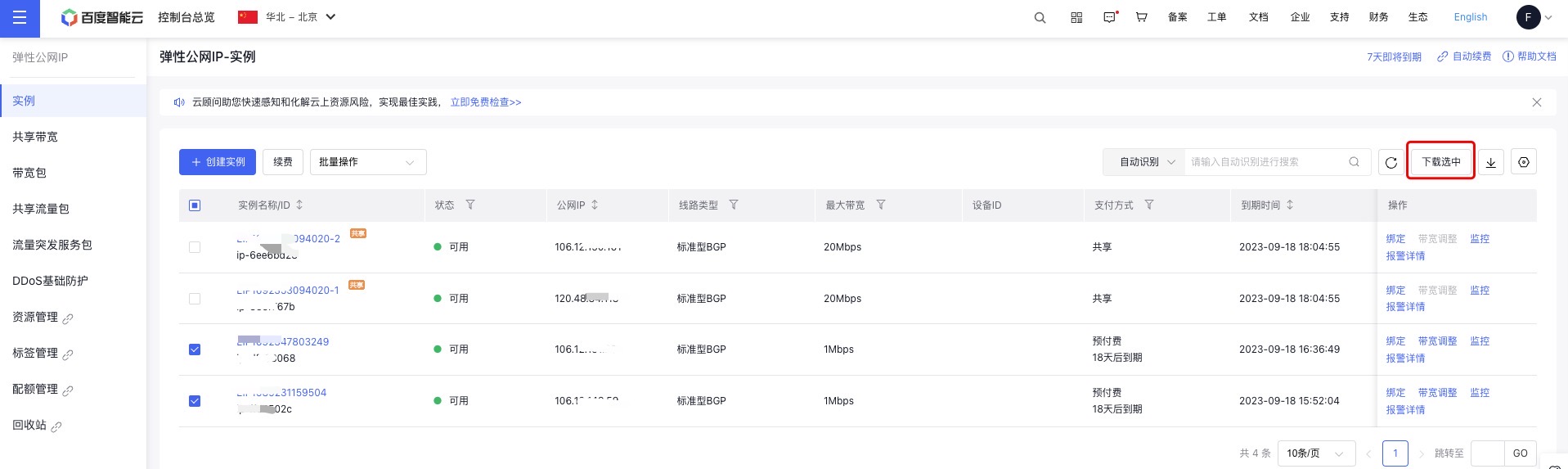
- (Optional) To help customers manage EIP instances in batches more easily, such as bandwidth and binding devices, the Instance List page allows downloading the resource list. The downloaded file is in CSV format, encoded as UTF-8, and named as "Product Region Date \ _ list. CSV". The instances in the file match the current filter criteria and include all fields of the EIP instances.
- Choose a region and switch if necessary.
- Baidu AI Cloud currently supports multiple regions. If you need to create EIP instances in multiple regions, please refer to[Region Selection Guide](Reference/Region Selection Instructions/Region.md).
- Instances from different regions operate independently.
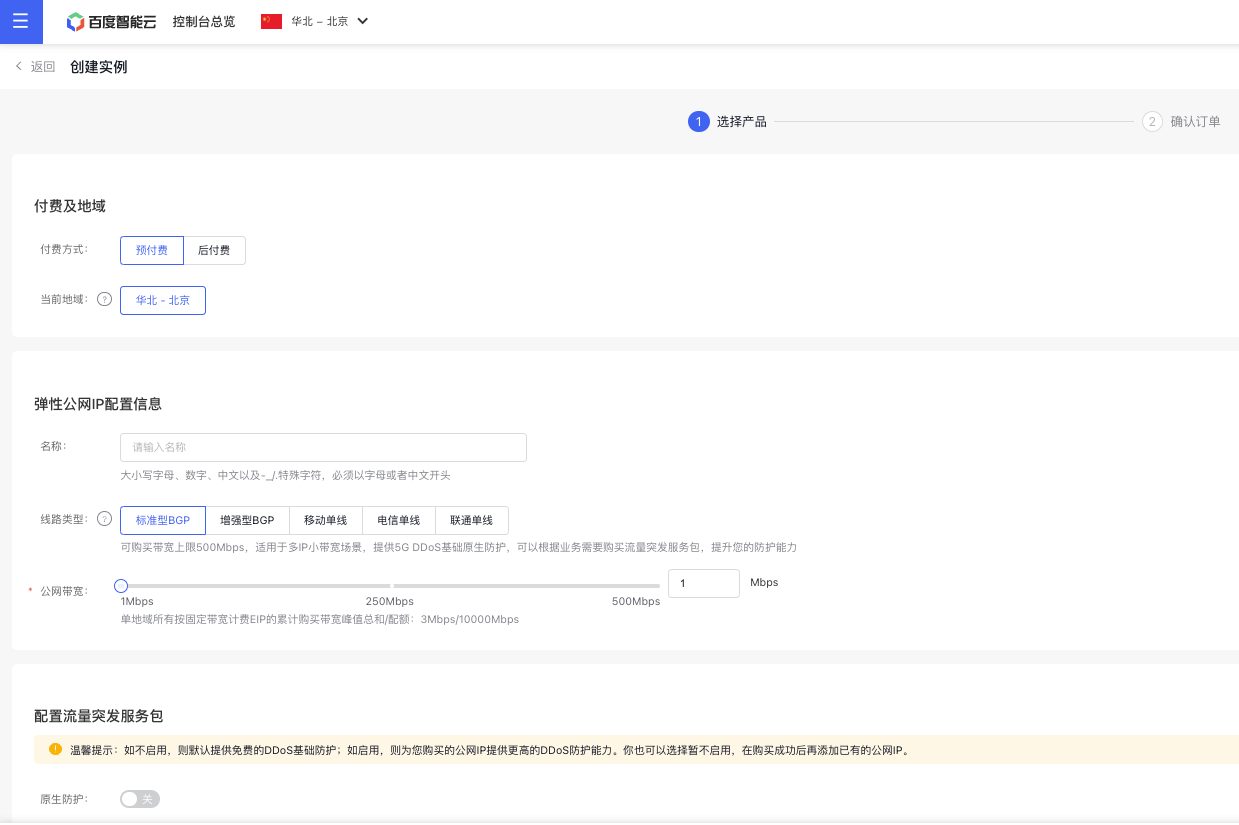
- Click Create Instance to open the Create Instance interface. Select the billing type and region as required, and fill in the necessary configuration details. Once done, click OK Order to proceed to the Order Confirmation page.
Fill in Elastic public IP configuration information
- Name: Limited to 1-200 characters, starting with a letter or Chinese character, and may only contain letters, numbers, Chinese characters, and - _ . /
- IP Version: Choose either IPv4 or IPv6.
- Internet connection type: Options include standard BGP, enhanced BGP, China Mobile single-line, China Telecom single-line, or China Unicom single-line. The connection type cannot be changed after it is created.
- Public network bandwidth: Set the desired bandwidth for public network access.
Configure TBSP, tags, and resource grouping
- TBSP: If not enabled, free basic DDoS protection is provided by default. If enabled, enhanced DDoS protection is available for your purchased public IP. Users can also choose to enable this later and add an existing Public IP after purchase.
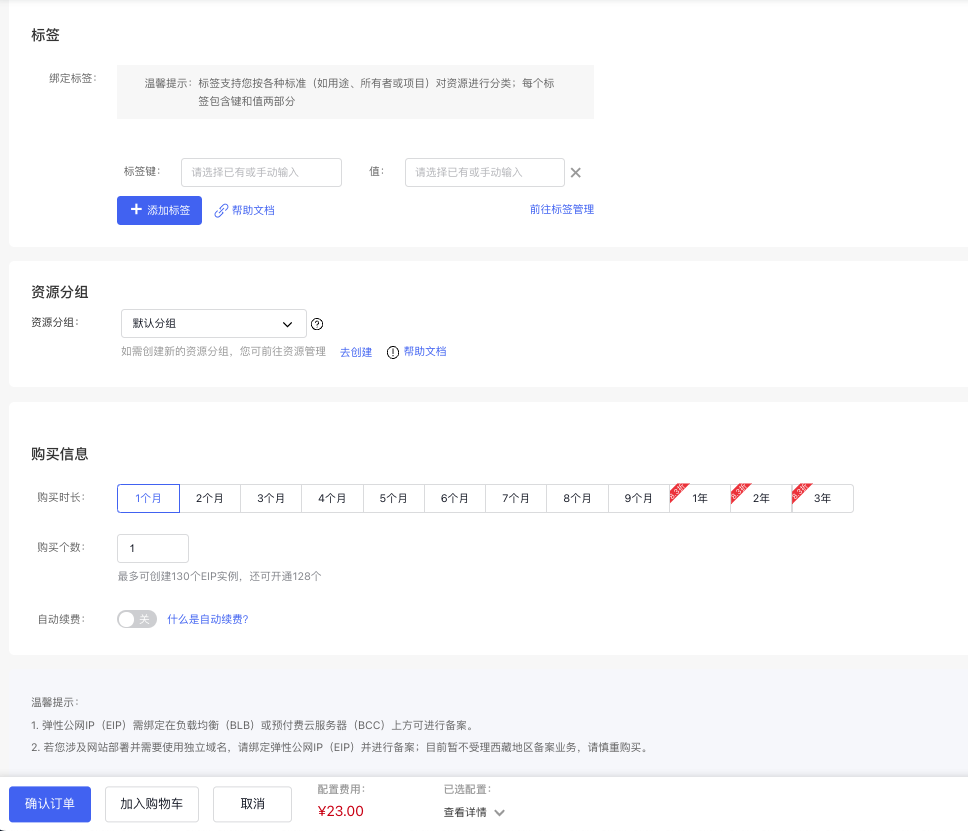
- Tag: For those managing multiple instances, tags can help organize and classify resources on Baidu Cloud Compute.
- Resource Group: Resource Groups enable categorization of cloud resources based on various dimensions. You can select an existing group or create a new group in the console.
Fill in purchase information
- Purchase period: Options range from 1-9 months or 1-3 years. The period starts from the instance creation date. For example, purchasing a one-month server on May 20, 2020, sets the usage period to May 20, 2020 - June 20, 2020.
- Purchase count: Specify the number of instances to purchase at once based on your needs.
- Auto-renewal: Enable automatic instance renewal by checking this option.
- Review the order details carefully, then click Submit Order to proceed to payment.
Note: If you have Baidu AI Cloud coupons, you can use them to offset costs. If the coupon value is insufficient, the remaining balance can be paid via bank card.
- Choose a payment method and click Confirm Payment to complete the transaction. Upon payment success, the system will create the EIP instance in the backend.
- Click the Management Console link to access the Instance List interface and view the instance creation status. Once created successfully, the instance status will show as "Available."
- After successful instance creation, the system will send the order information to the user via SMS.
View instance
Before viewing EIP instances, first select the specified region. The EIP List page will display all EIP instances purchased by the user in that region, with each EIP instance containing the following attributes:
| Name | Description |
|---|---|
| Instance ID/name | The internal system ID and user-defined name associated with the EIP instance. |
| Status | Including "Expired", "Debt", "Bound", and "Available". "Unbound" indicates this EIP instance is unused and can be bound to a BCC or load balancer instance; "Bound" indicates this EIP instance has been bound to a BCC or load balancer instance; "Unavailable" indicates insufficient balance for pay-as-you-go users or subscription expiration. |
| Public IP address | The public IP address assigned to the EIP instance. |
| Maximum bandwidth | The maximum bandwidth purchased by the user. |
| Device ID | This EIP is already associated with a BCC or BLB instance. |
| Payment method | It includes three options: Pay-as-you-go (by bandwidth), Pay-as-you-go (by traffic), and Subscription (by bandwidth). |
| Operation | Operations include releasing, editing tags, renewing, shifting charges, binding, adjusting bandwidth, and monitoring. |
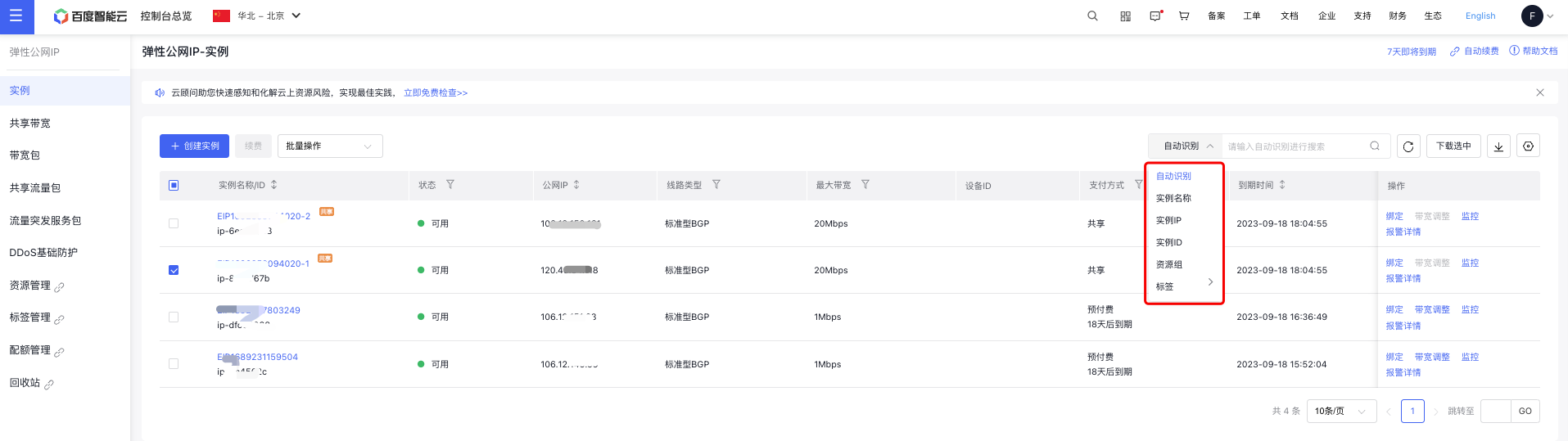
Users can also search for EIP instances by "Instance Name," "Instance IP", "Instance ID", "Resource Group", or "Tag", as shown below: