Windows Delete Hardware Reserved Memory
Updated at:2025-10-20
Problem description
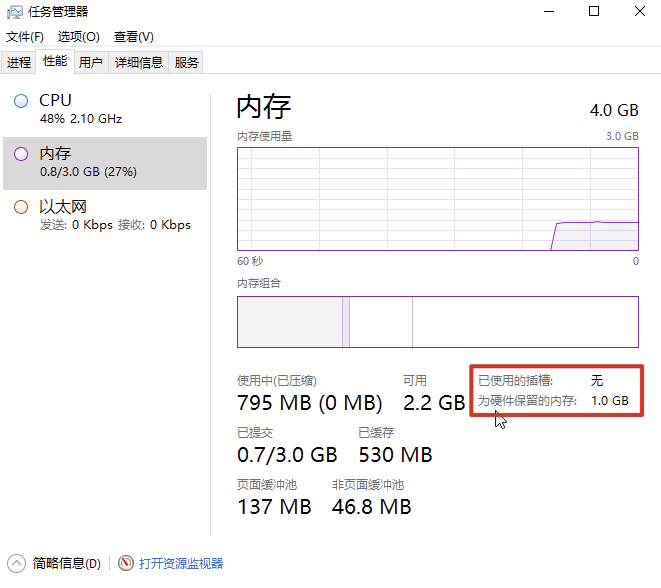
Task Manager detects a significant discrepancy between total physical memory and installed memory, and Hardware-reserved Memory consumes most memory resources.
Solution
Method 1: Configure maximum memory via msconfig
-
Check the activation status of Windows. If Windows is not activated, proceed to activate it.
For activation methods, refer to: System Activation.
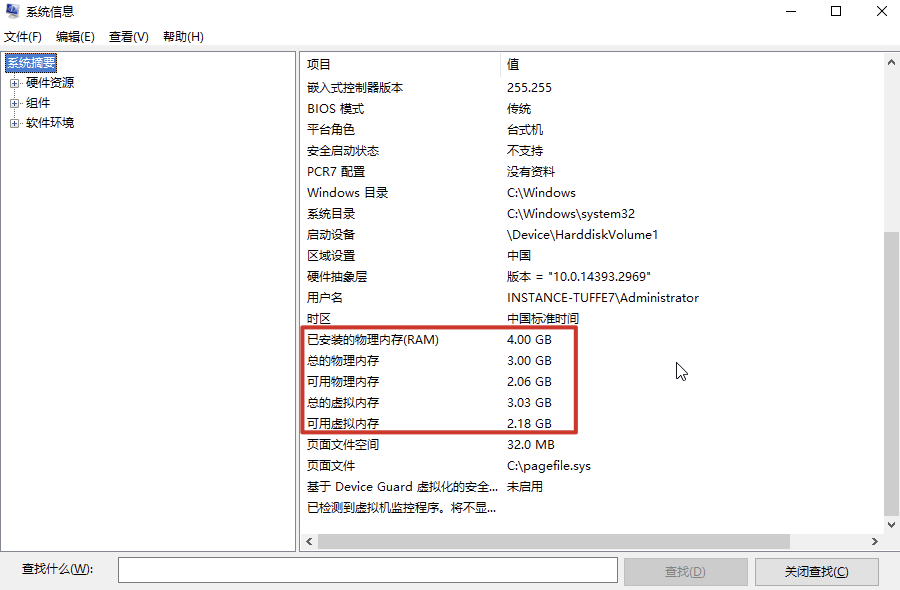
- Open the cmd command window, type msinfo32, and review the system summary to identify any notable differences between available memory and total memory.
- In the cmd command window, enter msconfig to enter the System Configuration page, select the Guide tab, and click Advanced Options.
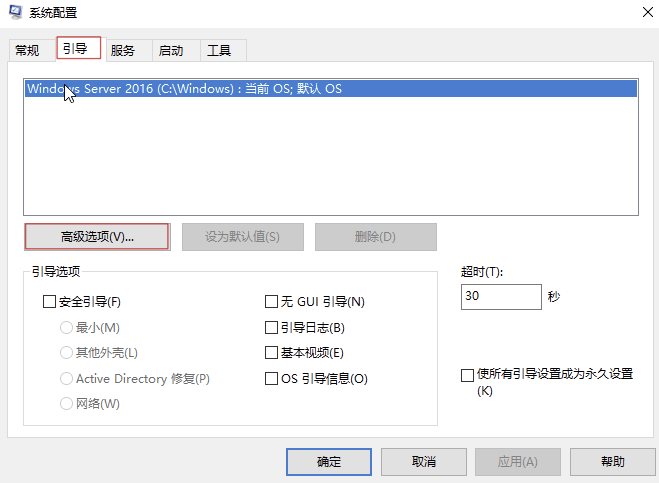
- Uncheck Maximum Memory, then click OK.
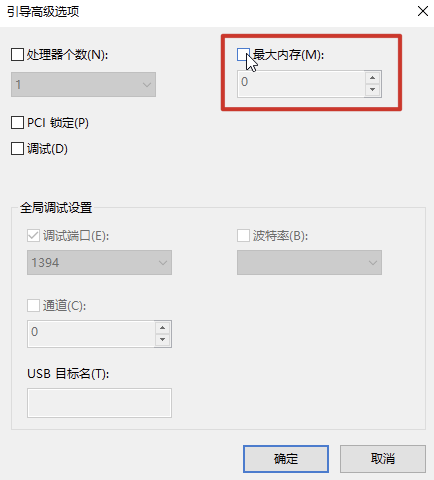
- After confirming again, restart the system to fix the issue. Once the system starts, the Hardware-reserved Memory in Task Manager will normalize (reduce to under 128MB).
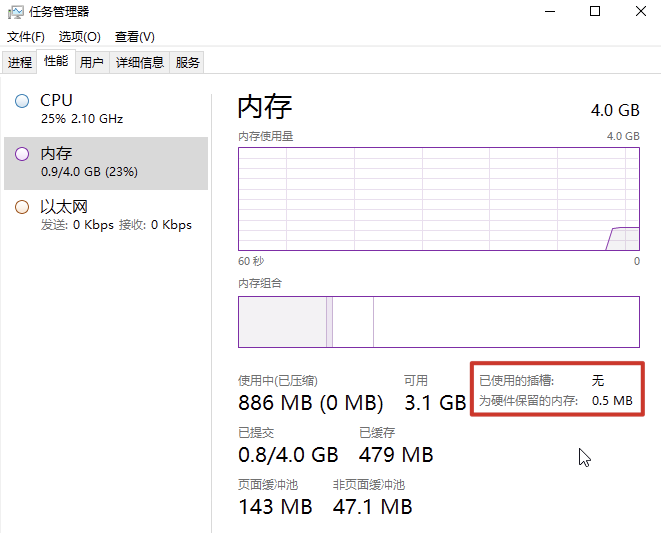
- If hardware-reserved memory still takes up space after the above steps, repeat the process beginning from step 3.
Method 2: RamMap
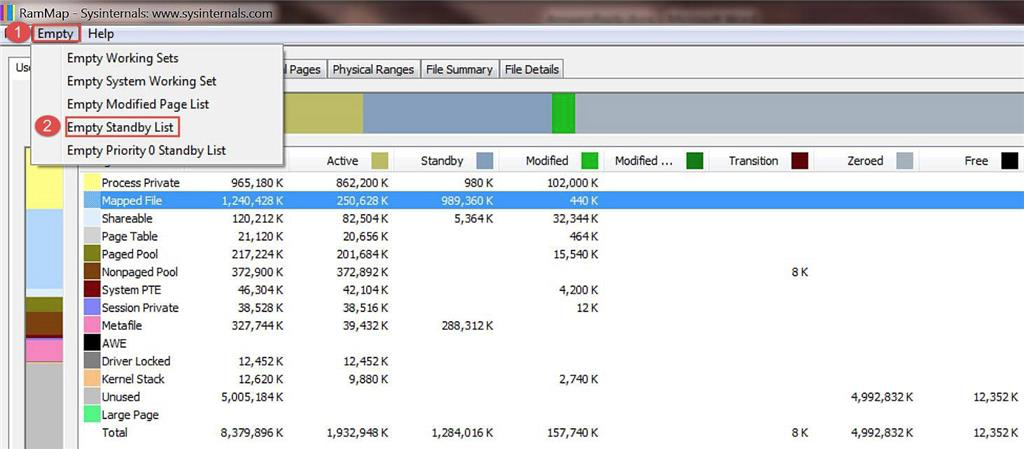
Download the RamMap tool to clean standby memory. The official Microsoft download link is as follows:
https://docs.microsoft.com/zh-cn/sysinternals/downloads/rammap
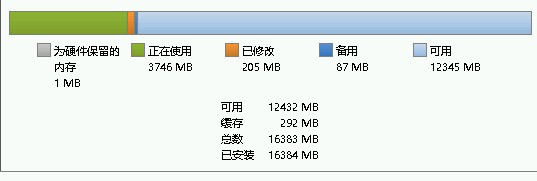
Click Empty in the menu, then click Empty Standby List to release standby memory.