

Linux Server CPU and Memory Full Issue Troubleshooting
Updated at:2025-10-20
This document provides troubleshooting steps for internal server resource issues, using CentOS 7 as an example, to address problems such as performance lag during server usage or unexpected exits after login.
Step 1: Sign in to the server
You can use SSH to remotely connect to the server. If remote connection fails, use VNC to log in.
Step II: View process resource usage
- Run "top" to monitor the current CPU and memory usage.
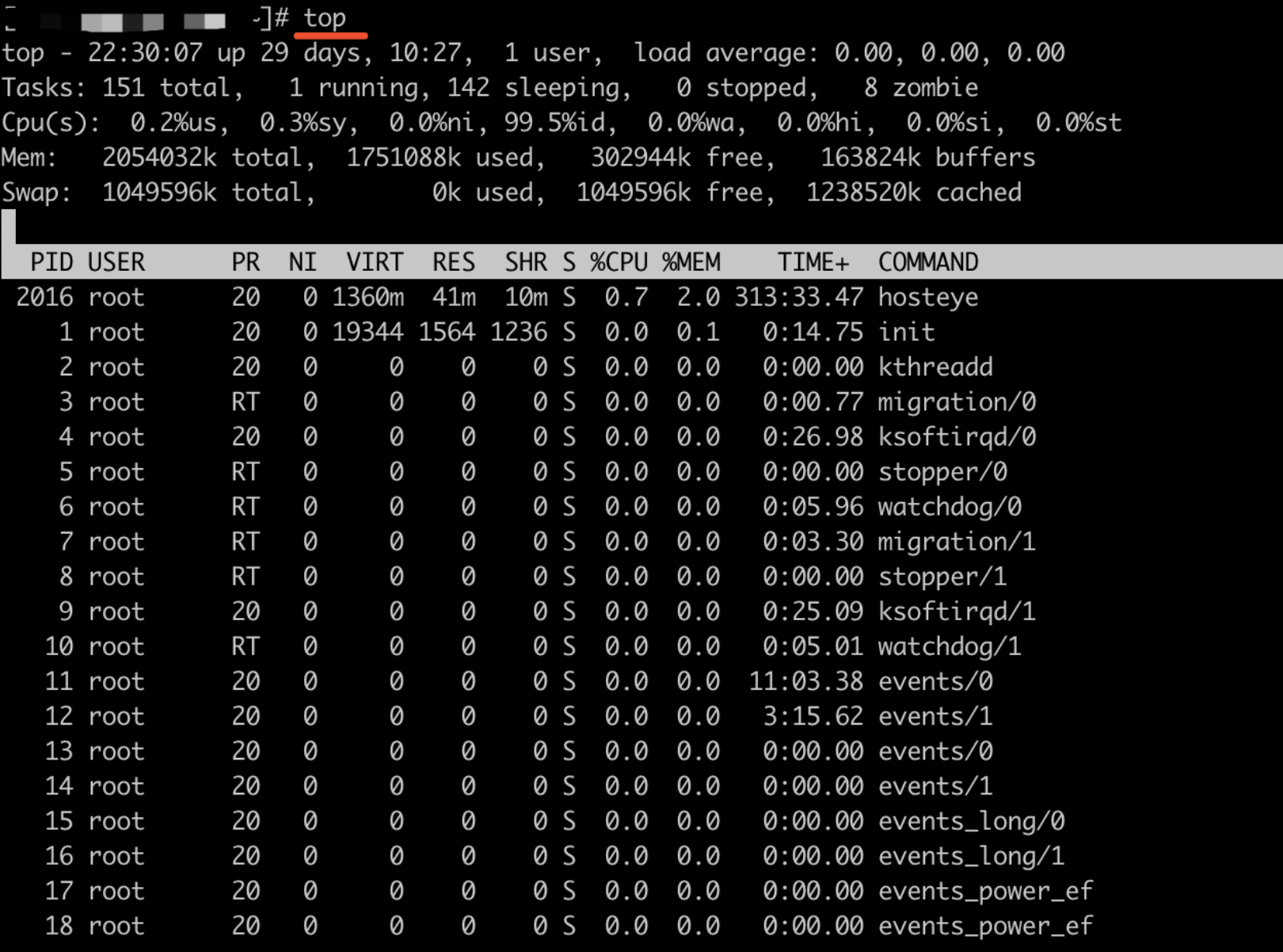
- If normal processes are consuming significant resources, consider upgrading CPU and memory capacity; If abnormal processes are consuming significant resources, terminate the processes on the premise of making a snapshot. The specific steps are as follows:
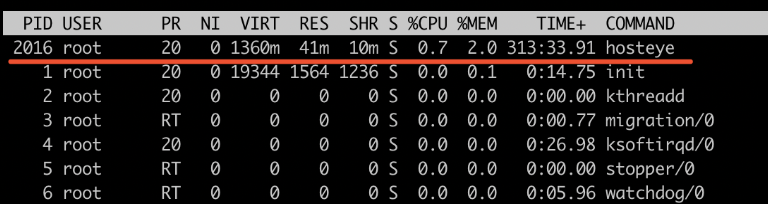
- The first column displayed when executing the
topcommand shows the Process ID. For example, in the case of the hosteye process listed on the first line, its Process ID is 2016.
- Use the
ps -ef | grep 2016command to check detailed process information. If you determine that the resource-intensive process is abnormal and not initiated by you, you can terminate it with thekill -9 IDcommand. Afterward, monitor the server to see if its status returns to normal.
