

CentOS-7_2 LNMP Environment Deployment
This document explains how to set up an LNMP environment on CentOS 7.2. The steps for configuring LNMP are as follows:
1. Configure firewall
Systems running CentOS 7.0 or later use firewalld as the default firewall.
Disable firewall:
1systemctl stop firewalld.service  # Stop firewall
2 systemctl disable firewalld.service   # Disable firewall from starting at boot
2. Install and configure nginx
(1) Install directly using the built-in yum repository on the server;
yum install -y nginx
(2) Modify the default nginx configuration file;
1cd    /etc/nginx/                              # Default Nginx configuration directory
2 mv    nginx.conf    nginx.conf.swf             # Rename the configuration file automatically generated by yum installation, no longer used.
3 mv     nginx.conf.default  nginx.conf          # Rename the default file as the loading configuration file
(3) Start Nginx and check its accessibility.
1systemctl start nginx.service                     # Start Nginx
2 systemctl stop nginx.service                      # Stop
3 systemctl restart nginx.service                   # Restart
4systemctl enable nginx.service
5 At this time, you can open nginx's default welcome page by public IP access.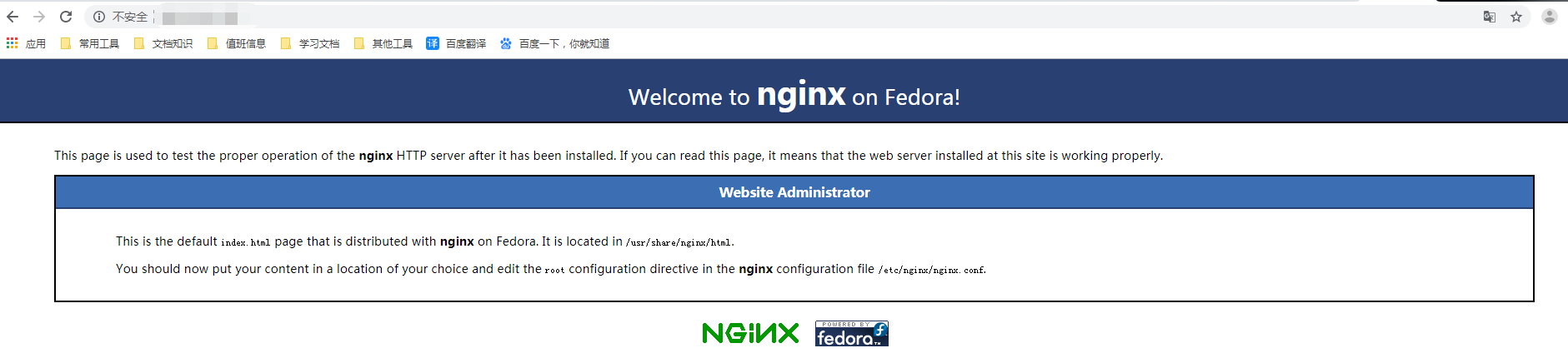
3. Install PHP environment and its dependent extensions and enable PHP
(1) Install the environment;
1yum install -y php-fpm php php-mysql php-gd libjpeg* php-ldap php-odbc php-pear php-xml php-xmlrpc php-mbstring php-bcmath php-mhash(2) Start php-fpm;
1systemctl start php-fpm.service             # Start php-fpm
2 systemctl enable php-fpm.service            # Set start at boot
(3) Modify the configuration file to make nginx compatible with php;
vim /etc/nginx/nginx.conf
Add index.php within the location block, uncomment the PHP handling line, and adjust fastcgi_param as needed.
1location / {
2root html;
3index index.php index.html index.htm;
4}
5error_page 500 502 503 504 /50x.html;
6location = /50x.html {
7root html;
8}
9location ~ \.php$ {
10root html;
11fastcgi_pass 127.0.0.1:9000;
12fastcgi_index index.php;
13fastcgi_param SCRIPT_FILENAME    $document_root$fastcgi_script_name;
14include fastcgi_params;
15}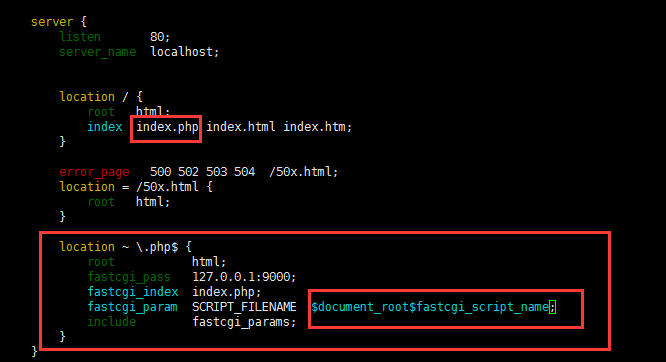
(4) Restart nginx and php-fpm;
1systemctl restart php-fpm.service
2systemctl restart nginx.service
(5) Verify by accessing phpinfo;
Navigate to the nginx default root directory cd /usr/share/nginx/html/
vim index.php
1<?php
2echo phpinfo();
3?>
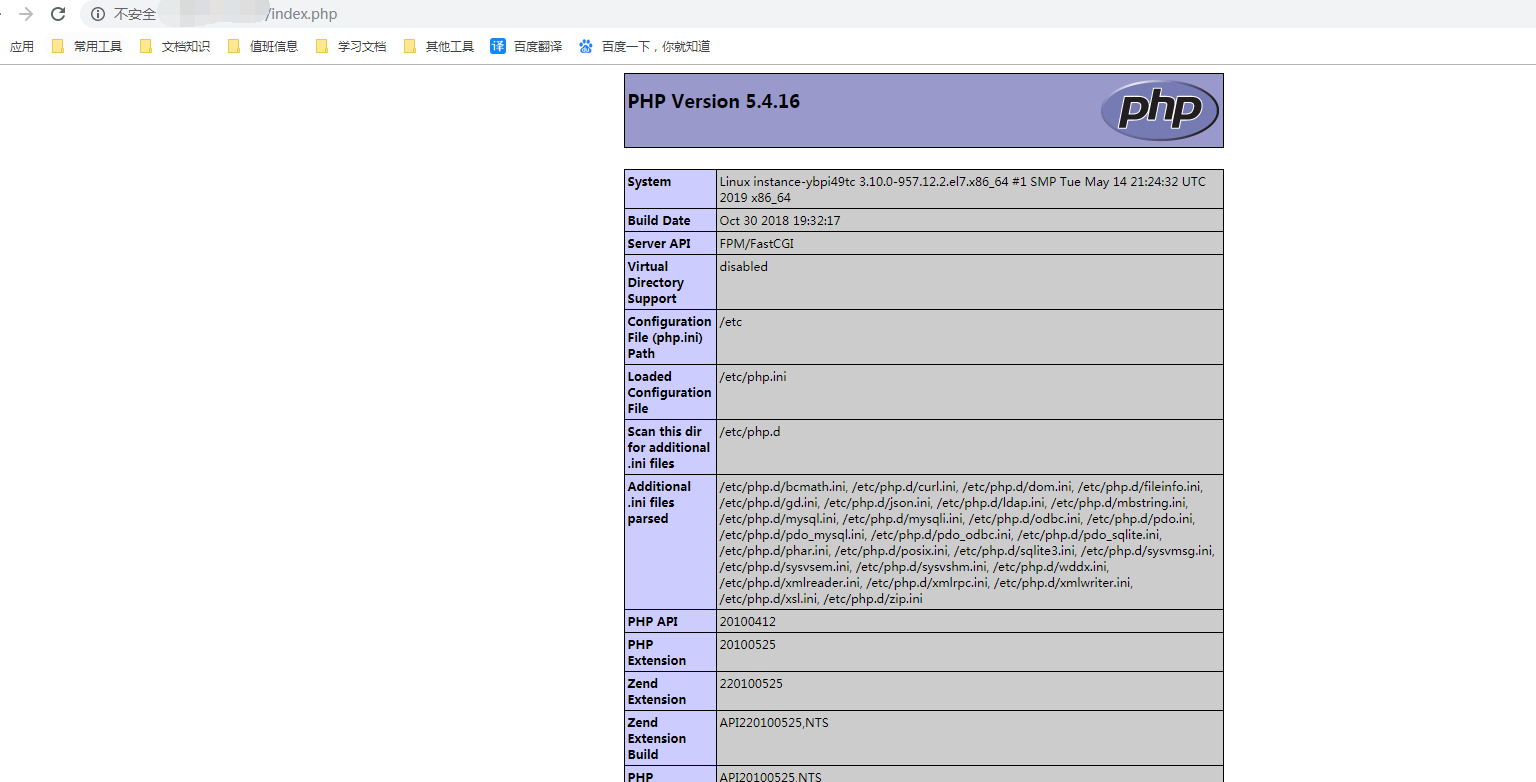
At this time, you can see the probe page of php by accessing the public IP/index.php:
4. Install MySQL and connect it to PHP for verification
(1) For systems running CentOS 7 or later, MariaDB is the default database, so you need to download the MySQL repository for installation.
1wget http://dev.mysql.com/get/mysql-community-release-el7-5.noarch.rpm
2rpm -ivh mysql-community-release-el7-5.noarch.rpm
3yum install -y mysql-community-server
After successful installation, restart the MySQL service:
systemctl start mysqld
(2) The installed MySQL database does not have a password. Enter the database to grant permissions and set a password.
1mysql -u root
2mysql> use mysql;
3 mysql> update user set password=PASSWORD("Enter the root user password here") where user='root';
4mysql> flush privileges;
5mysql> exit
(3) Write PHP code to test MySQL connectivity and verify access.
vim /usr/share/nginx/html/test.php
1<?php
2 $link=mysql_connect("localhost","root","The database password just set");
3if(!$link) echo "FAILD!error";
4else echo "OK!You succeeded.";
5?>
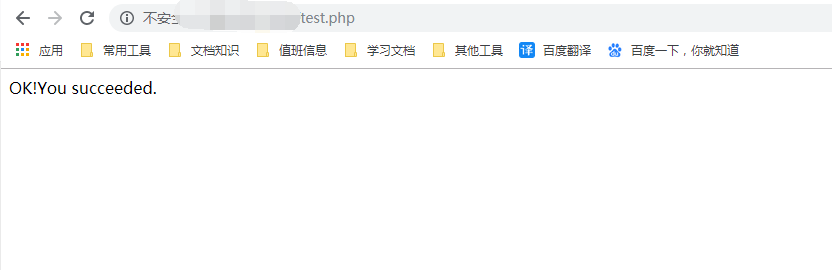
After saving, you can see it by accessing IP/test.php
The LNMP environment for the CentOS 7.2 system has been successfully set up.