

Performance Resources
Resolving discrepancies between Windows Available memory and purchased memory allocation
A user purchased a specific memory package (e.g., 2G) but noticed through the task manager that the available memory did not correspond to the purchased amount. The system attributes display the issue as follows.
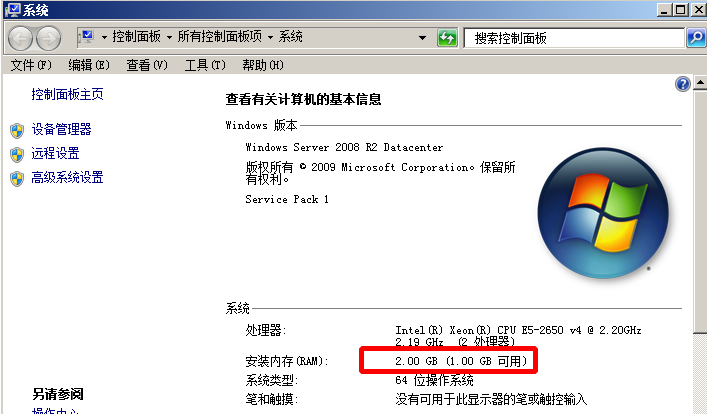
Problem analysis
This discrepancy results from restricted available memory. Windows systems inherently support a maximum memory capacity while also providing options to restrict memory usage for scenarios like system or kernel debugging. This ensures sufficient memory for debugging and allows memory usage adjustments without hardware changes. Baidu AI Cloud virtual machines do not impose any memory usage restrictions; such modifications are generally user-initiated.
Maximum memory supported by Windows system
https://msdn.microsoft.com/zh-cn/library/windows/desktop/aa366778(v=vs.85).aspx
Solution
Simply remove the memory restrictions by following these steps:
- Go to [Start] -> [Run], type "msconfig," and press Enter to open the Microsoft System Configuration.
- On the Guide page, select the current system, click Advanced Options, and uncheck Maximum Memory.
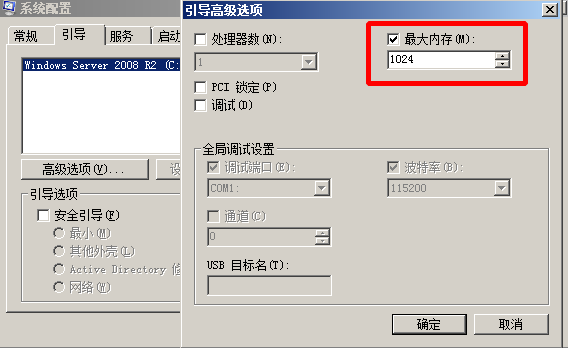
- Restart the computer, and the available memory will no longer be restricted.
Windows virtual memory settings
As memory costs are significantly higher than hard disk expenses, Windows offers a method to extend memory by utilizing a portion of the hard disk (known as a paging file) as RAM. The size of this simulated RAM matches the Windows virtual memory capacity.
Enabling virtual memory can lead to reduced I/O performance, so users can decide whether or not to enable it depending on their needs.
The default size of virtual memory can be adjusted using the following steps.
- Open Control Panel, click System, then click Advanced System Settings in the left window.
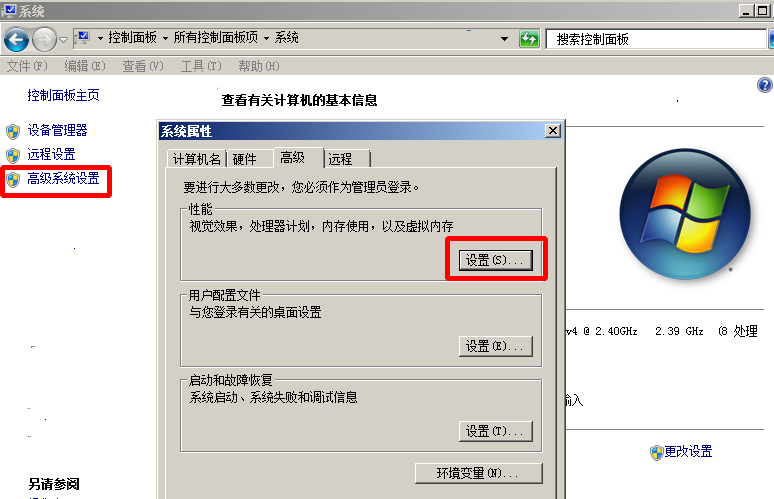
- In the Advanced System Settings window, navigate to the Advanced page, click Performance settings to enter the Advanced page, and then double-click Change to modify virtual memory.

- Modify the paging file size, click Settings to confirm the size of the modified file, then click the OK button and reboot the computer.
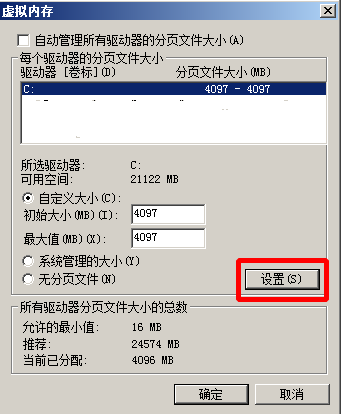
According to Microsoft's recommended strategy
- It is generally recommended that the paging file size exceeds the physical memory size but does not go beyond twice the memory capacity.
- To achieve better I/O performance, it is preferable to place the paging file on a non-system disk.
- This is based on the Dump requirements during system outages.
- Currently, Baidu AI Cloud generates small dump files, eliminating this concern. For details, see Windows core dump settings .
Note:
Increasing virtual memory may degrade disk I/O performance. It is recommended to prioritize physical memory dilatation. Some existing computers in Baidu AI Cloud will automatically set virtual memory according to the system memory. When applying for larger physical memory, it is recommended to disable virtual memory.
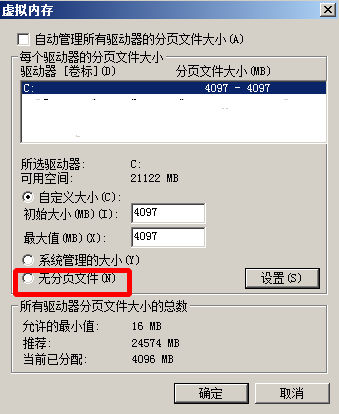
To disable virtual memory, select No Paging File on the Virtual Memory Settings page.
Handling of insufficient remaining space on the system disk after Windows virtual machine creation
Problem phenomenon
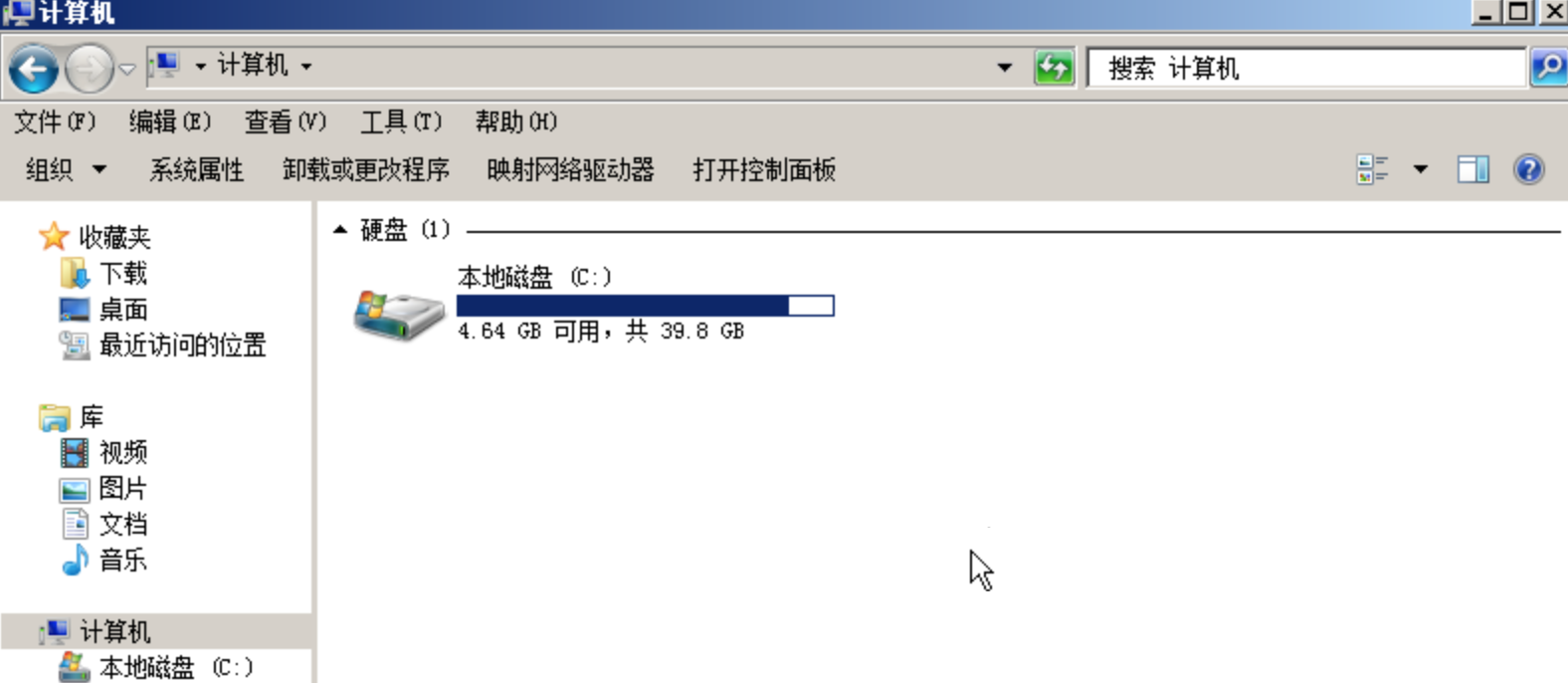
A Baidu AI Cloud user created a Windows virtual machine and noticed very limited available system disk space after startup, as depicted below.
Problem analysis
In the scenario above, the user created an 8-core 16GB virtual machine. Upon checking the file explorer, a hidden file named "pagefile.sys," occupying 16GB of disk space, was discovered. The pagefile.sys file is the paging file for virtual memory. Thus, the limited disk space issue arises because the system automatically creates virtual memory equivalent to the physical memory size, using up system disk space.
Solution
Since the virtual memory file occupies space on the system disk, users can either disable or reduce the virtual memory or relocate the virtual memory file to the system disk. For configuration instructions, please refer to [Windows virtual memory settings] (#Windows virtual memory settings).
The process svchost uses CPU100% processing after Windows virtual machine creation
Problem phenomenon
A Windows Server 2008 R2 virtual machine configured with 1 core and 1GB of memory exhibited 100% CPU utilization after logging in. Upon opening the task manager, it was found that the svchost.exe application was consuming the CPU.
Problem analysis
Svchost is a generic term for processes running services from DLL files. To resolve issues with svchost, it is necessary to identify which specific process or service is utilizing it. Open the task manager, right-click on svchost in the processes tab, and navigate to the services tab. Multiple services may rely on svchost, with Windows Update often being a significant consumer of CPU resources. Inspection of Windows Update revealed ongoing updates. Windows updates can lead to prolonged high CPU and memory usage, especially when the network is unstable or the update volume is large.

Solution
Baidu AI Cloud advises opting for higher CPU and memory configurations to enhance the user experience and discourages using the 1-core 1GB option. For users with a 1-core 1GB setup, it is recommended to temporarily disable automatic updates and schedule system updates during periods of low activity. Additionally, the latest Baidu AI Cloud images come pre-equipped with the newest system updates, reducing the volume of updates needed and mitigating similar issues.