

Remote Connection to Windows Unable to Use Clipboard
This document explains a solution to the issue where locally copied content cannot be pasted into the server when remotely accessing a BCC Windows instance (using Windows 2016 as an example).
Step 1: Sign in to the server
Log in to the server using the built-in remote connection tool on Windows. If remote connection fails, try logging in using VNC.
Step II: Open the task manager
Right-click on the taskbar and select Task Manager by left-clicking.
Step III: Locate the rdpclip.exe process and end the task
You can either directly locate the RDP Clipboard Monitor in the Processes section or find the rdpclip.exe process under the Details tab.
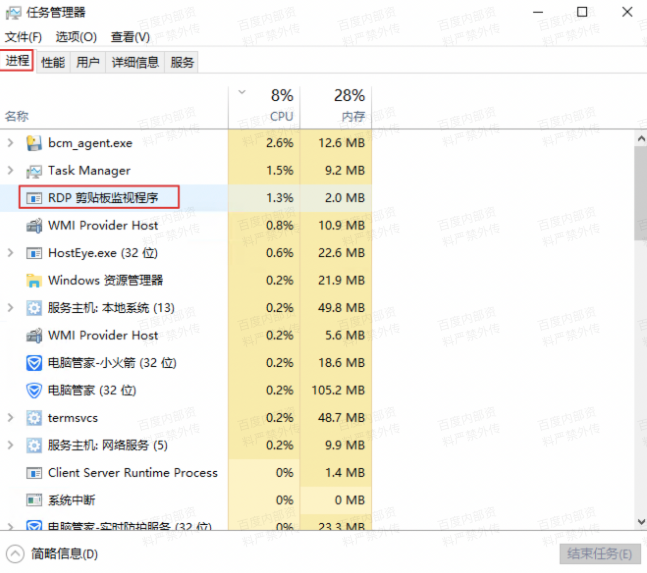
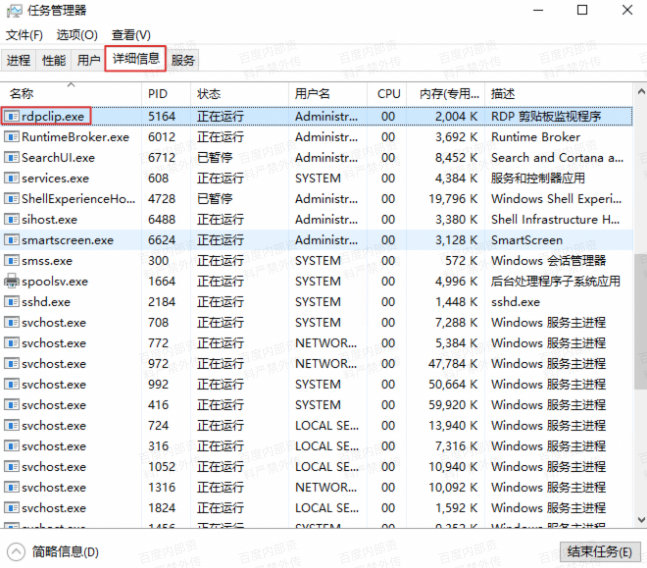
Select the process and click "End Task" at the bottom right corner.
Step IV: Create new rdpclip task
In the Task Manager, click "File" in the top left, select "Run New Task," type "rdpclip," and then click OK.
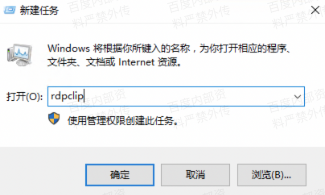
Step V: Verify content pasting function
First, verify that the RDP Clipboard Monitor is running in the Task Manager. If it’s operational, try copying content locally and pasting it into the server to test the clipboard functionality.