

Postpay Instance No Charge for Stopped Instances
Description of no charge for stopped instances (postpaid)
No charge for stopped instances refers to the status of no charge for stop achieved by stopping a postpaid instance. In this status, computing resources (such as CPU and memory) of the instance will no longer incur charges, while associated resources such as cloud disk servers (including system disks and data disks) and EIPs (billed based on bandwidth) will continue to be charged.
Usage restrictions
The functionality of "no charge for stopped instances" applies only to postpaid cloud server instances with both system and data disks as cloud disks.
The function of no charge for stopped instances is not applicable in the following scenarios:
- It does not apply when initiating or stopping operations within the virtual machine system.
- It is not applicable to instances with local disks.
- It does not support Dedicated Computing Cluster (DCC) instances.
- It does not support Elastic Baremetal Compute (EBC) instances.
- It does not support Elastic High-performance Computing Cluster (EHC) instances.
- It does not support spot instances.
- It does not support instances used for CCE nodes.
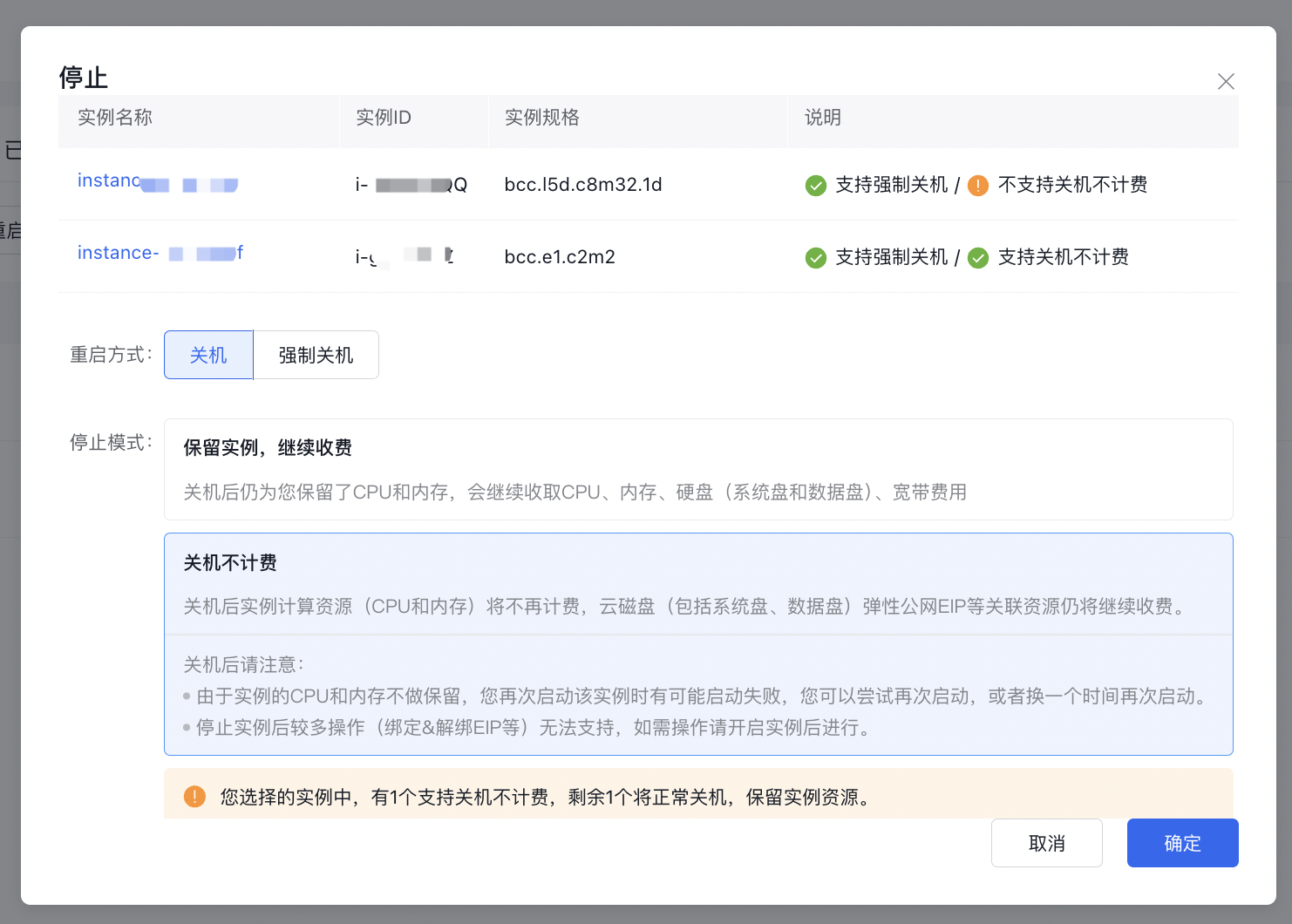
If a batch stop operation includes instances that support no charge for stopand and instances that do not support no charge for stop, the following will occur:
- For instances that support no charge for stop, charging for resources such as CPU and memory will be stopped after stop.
- For instances where free stopping is unsupported, normal charges will apply even after stopping.
Impact of enabling
After enabling the function of no charge for stopped instances, the following impacts will occur after the instance is stopped:
- The instance's CPU and memory will not be reserved, which may result in a failure to restart. If this happens, you can try restarting again or at a different time.
- While an instance is stopped, many operations—such as configuration adjustments, disk modifications, network adjustments, OS reinstallation, instance restarts, password resets, converting payment methods, and renewal-related actions—are unavailable. Please start the instance before performing these operations.
Operation steps
- Sign in to Baidu Cloud Compute (BCC) Console and enter the Instance List page.
-
On the Instance List page, you can choose to manage a single instance or multiple instances based on your requirements.
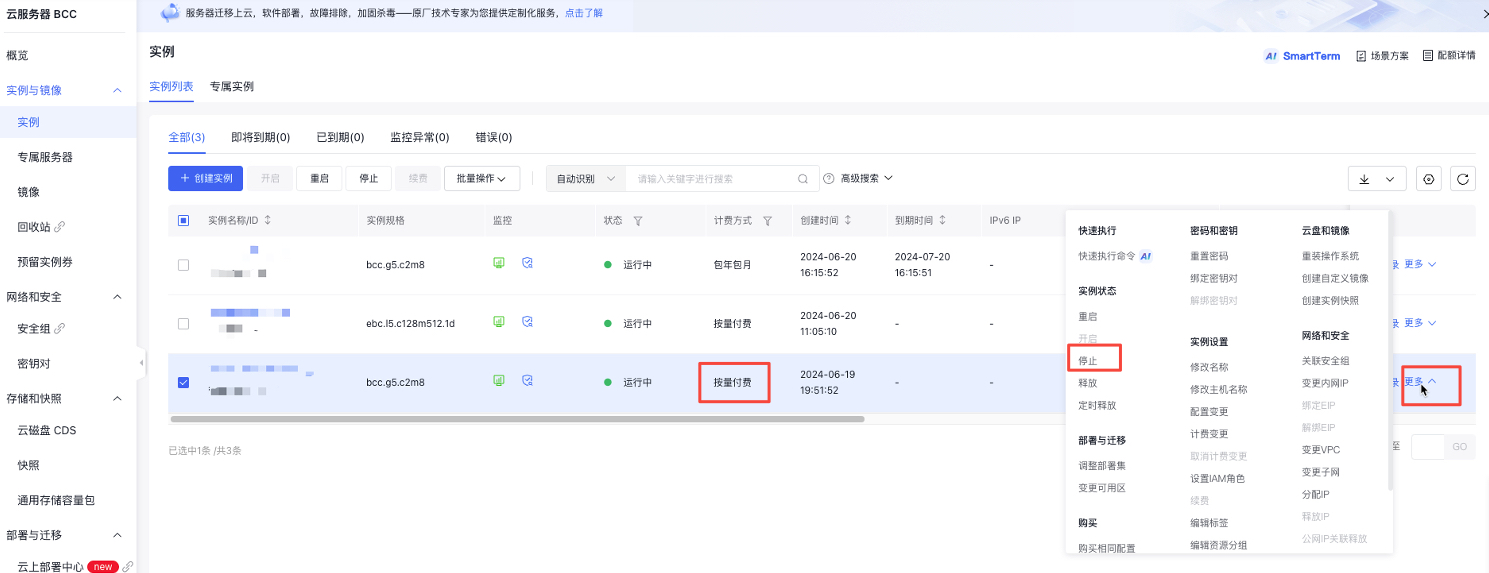
- Stopping a single instance: Select the instance that needs to be stopped, and click More - Instance Status - Stop in the right operation bar, or click the instance name to enter the Instance Details page and click the Stop button at the top.
1*Stopping multiple instances: Check all instances that need to be stopped, and click the **Stop** button at the top of the list to stopped the instances in batch.
2
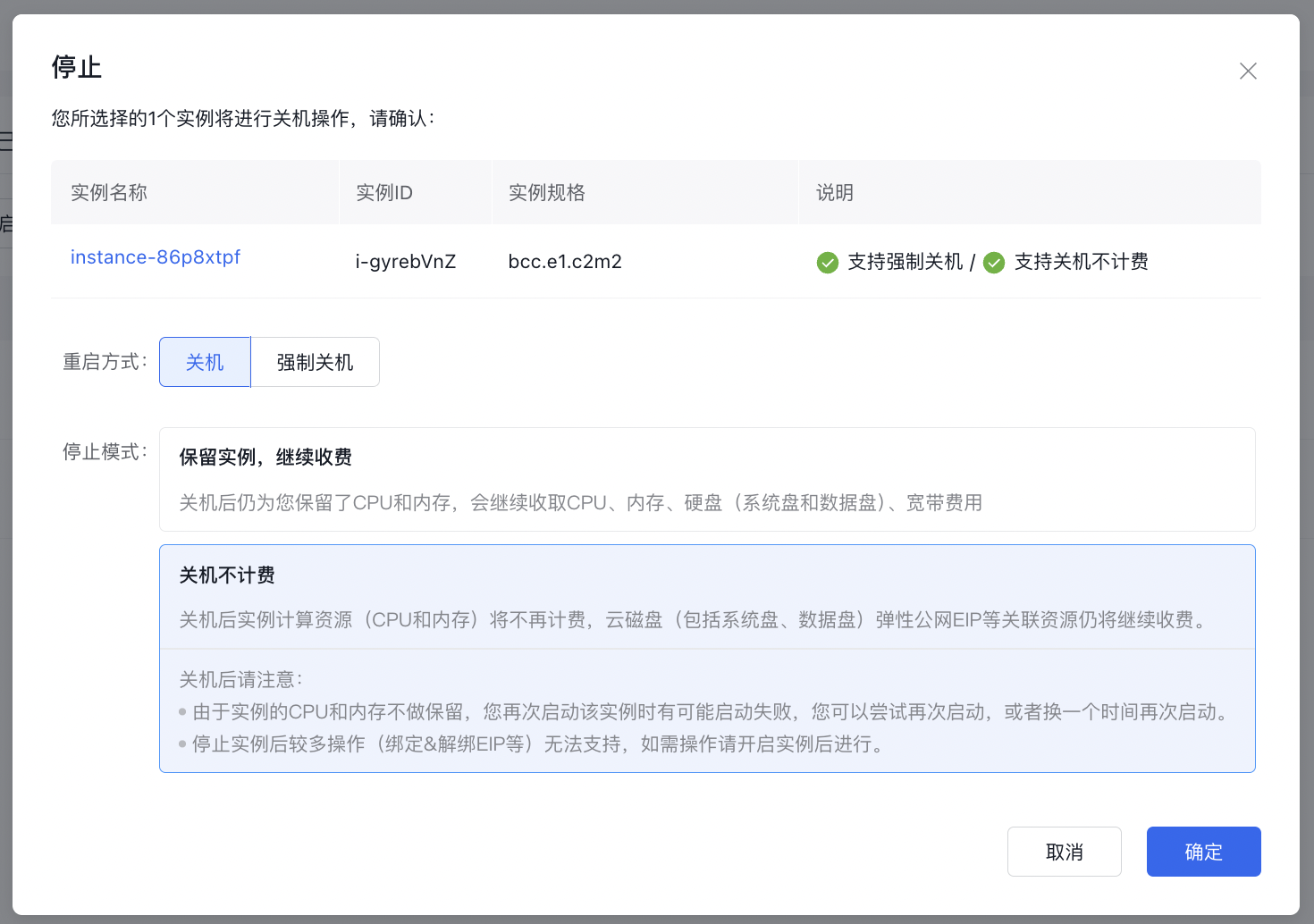
3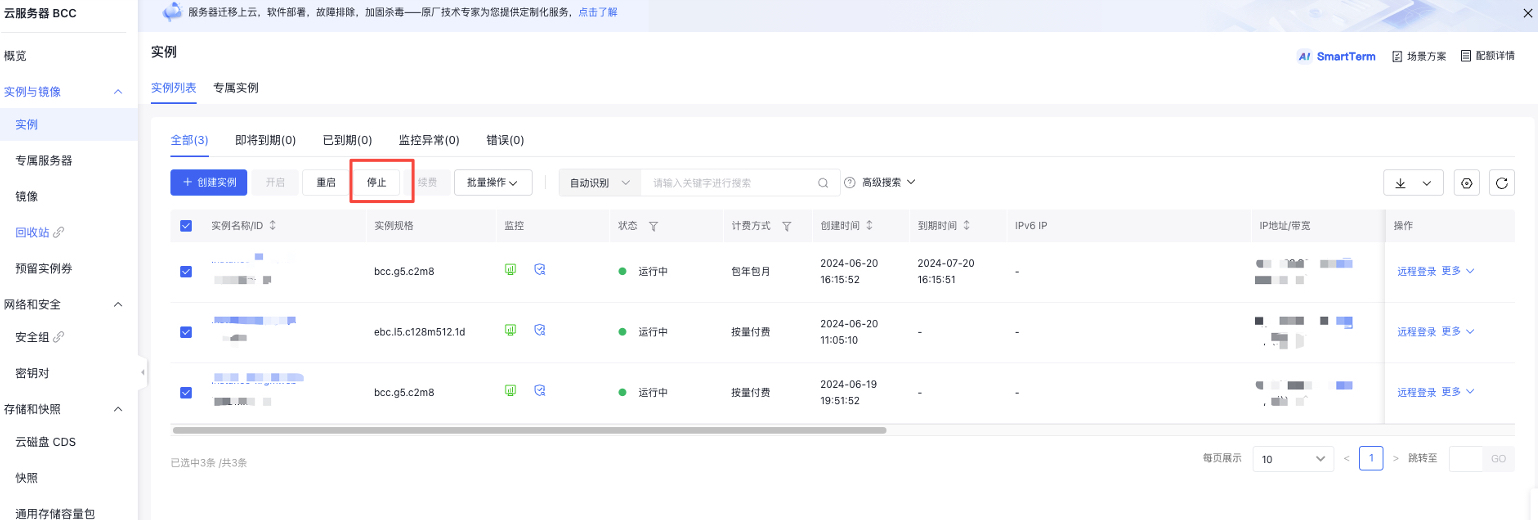- In the pop-up "Stop" window, you can selectno charge for stopped instances . If not supported, the instance list will indicate that no charge for stopped instances is not supported.
- After stopping, the status of instances that support no charge for stop will change to no charge for stopped instances, while the status of instances that do not support no charge for stop will change to stopped with normal charges.