

My commands
My commands
User-created commands are displayed in My Commands and can only be viewed, used, and maintained by the current user. After command creation, commands can be executed again, as well as edited, cloned, deleted, or viewed.
Operation step
- Sign in to BCC Console.
- Click Cloud Assistant in the left menu bar, then select My Commands to view all user-created commands.
-
Click Command ID to view detailed information such as command content, execution user, and command parameters on the opened page.
Description:
- Commands are region-specific and cannot be utilized across different regions. Please confirm your current region before creating commands.
- Filter Shell or PowerShell-type commands by clicking Command Type.
- Click the Replicate button after command content to replicate it.
Execution command
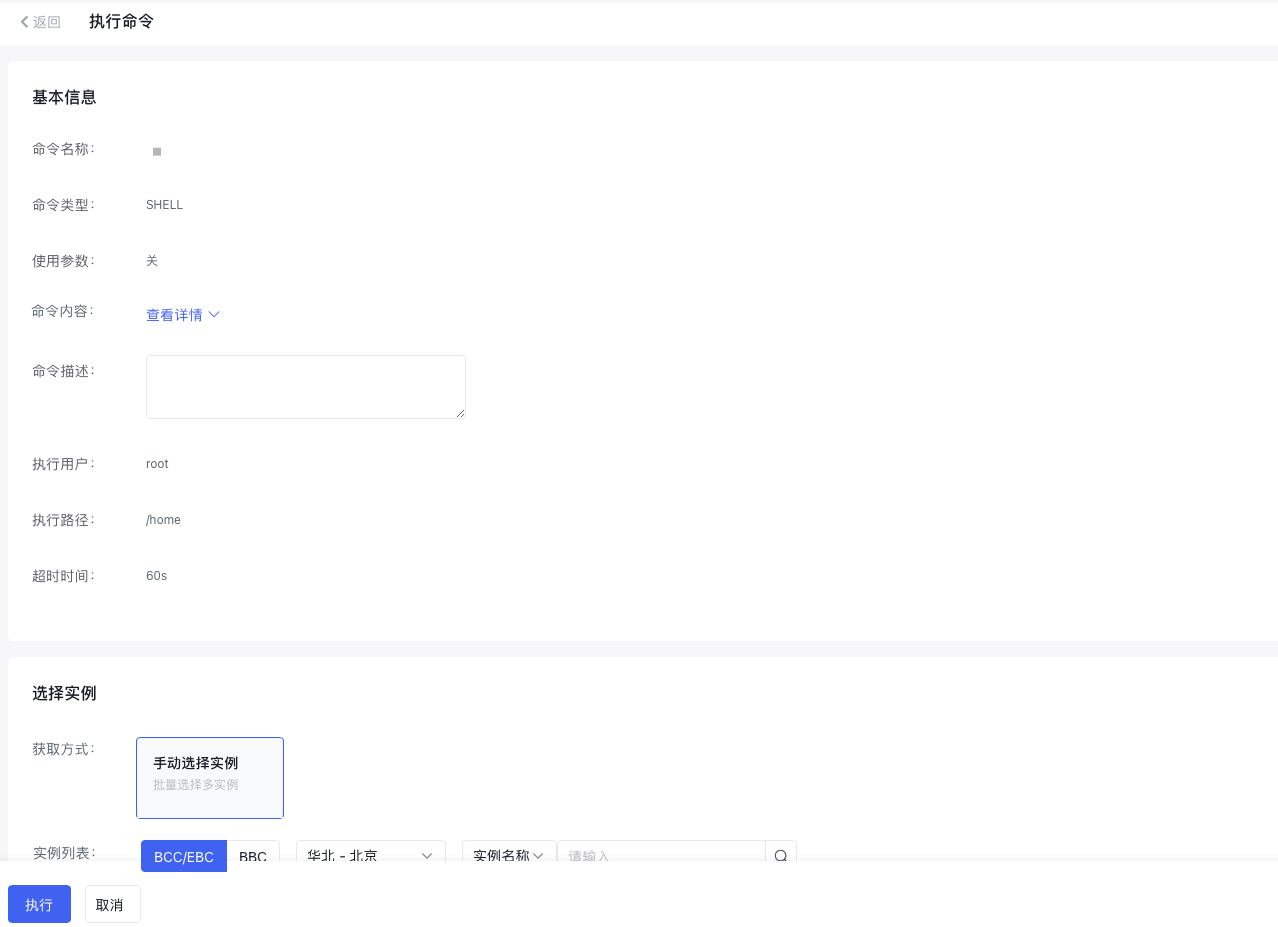
To re-execute an existing command, use the quick execution feature.
Operation step
- In the My Commands list, click Execute button in the action column of the desired command.
- On the opened Execute Command page, adjust parameters as needed and click the Execute button to execute the command.
Description:
- Command content cannot be modified during execution. To modify, click the Modify button in My Command list.
- Commands are specific to their regions. Commands created in region A cannot be executed on instances in region B. Ensure you switch to the relevant instance's region before creating and executing commands.
Modify command
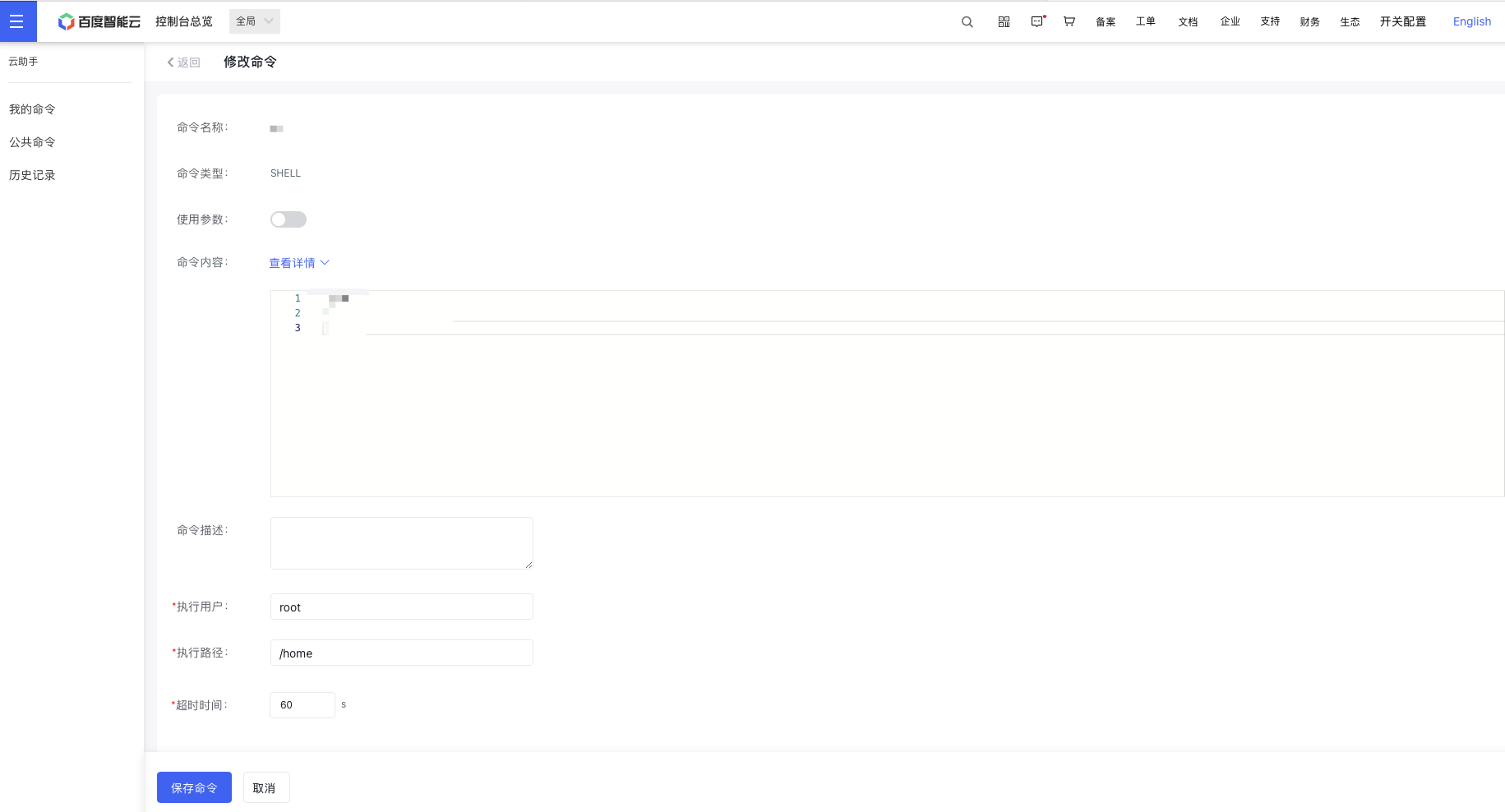
To update the command content or its related configurations, utilize the "Modify Command" feature.
Operation step
- In the My Commands list, click Modify button in the action column of the desired command.
- On the opened Modify Command page, adjust parameters as needed and click the Save button to modify the command.
Description:
- You can edit everything except the name and type.
Execution history
To view command execution history, click the Execution History button in the command line, which redirects to the Historical Records page. For details, refer to the Historical Records page.
Clone command
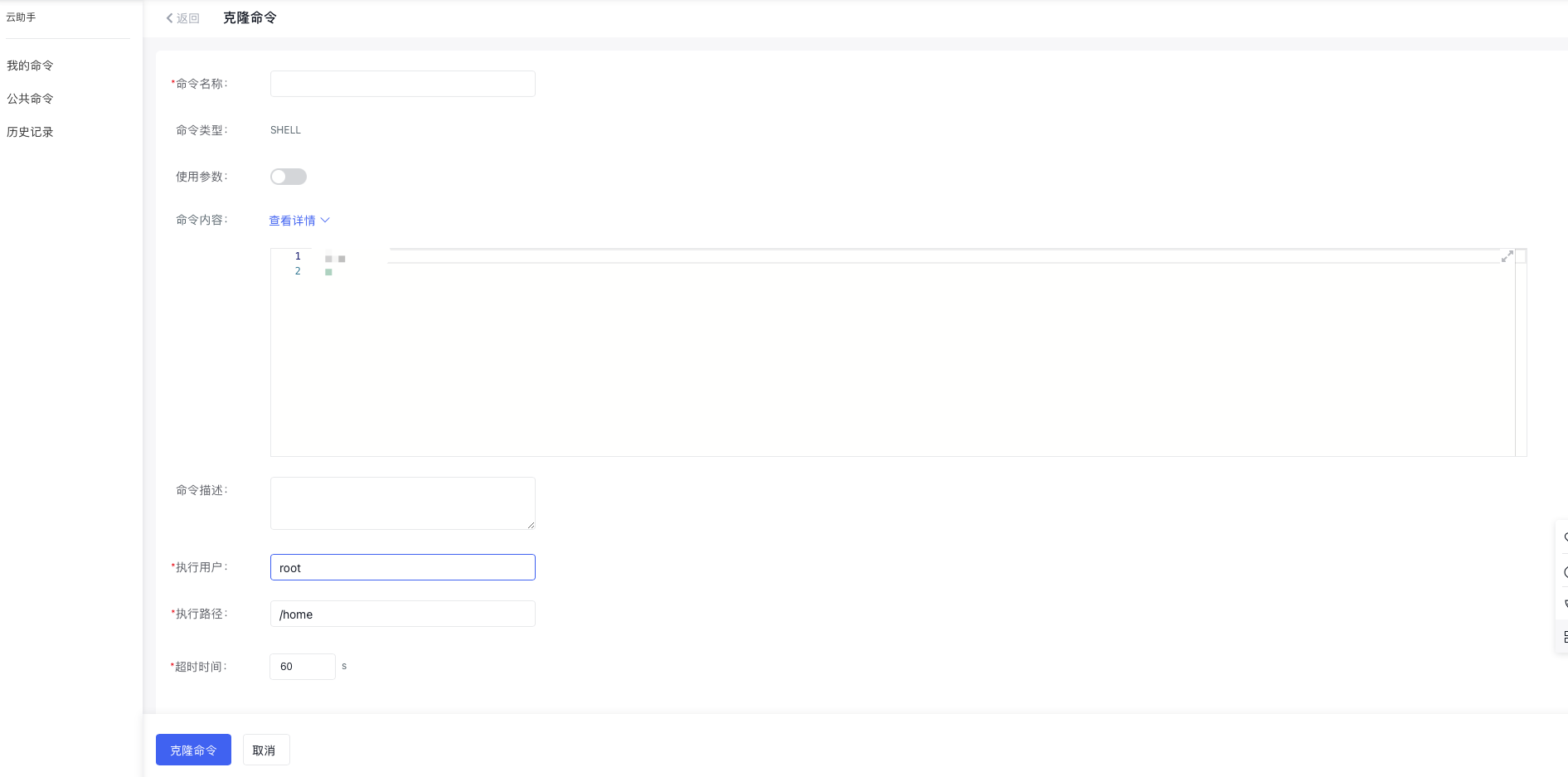
The command cloning feature allows you to create an exact duplicate of a command quickly. Users can retain all original parameters and settings or adjust details as needed for the new command.
Operation step
- In the My Commands list, click Clone button in the action column of the desired command.
- On the opened Clone Command page, adjust the command information as needed and click the Clone button to complete the cloning process.
Delete command
If a command becomes unnecessary, it can be deleted.
Operation step
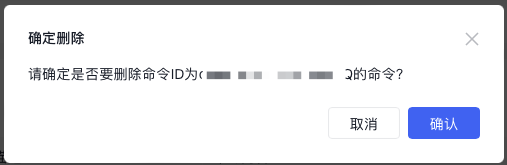
- In the My Commands list, click Delete button in the action column of the desired command.
- Confirm deletion in the opened Delete Commandpop-up to delete the command.
Description:
- Deleted commands cannot be restored. Please proceed with caution.