Install cloudbase-init
Install a cloud-init (Linux)
Cloud-init is primarily used to provide custom configurations during an instance's initial setup (e.g., setting the hostname).
Currently, Linux distributions that support installing cloud-init include CentOS, Ubuntu, Debian, and openSUSE.
If cloud-init is not pre-installed in your image, you can install it using the methods provided below.
Note: It is recommended to create a snapshot or image backup of the system before proceeding with the following steps to ensure recoverability in case of errors.
Download and install a cloud-init tool
- Download a cloud-init installation package
Download the installation package from the links below, based on your OS version, and transfer it to the server.
Ubuntu
Ubuntu 24.04: cloud-init_18.5.6.1-0-u24.deb
Ubuntu 22.04: cloud-init_18.5.6.1-0-u22.deb
Ubuntu 20.04: cloud-init_18.5.6.1-0-u20.deb
Ubuntu 18.04: cloud-init_18.5.6.1-0-u18.deb
Ubuntu 16.04: cloud-init_18.5.6.1-0-u16.deb
CentOS
Rocky Linux 9/AlmaLinux 9/CentOS Stream 9: cloud-init-18.5.6.1-1.el9.x86_64.rpm
CentOS 8/Rocky Linux 8/AlmaLinux 8/Centos Stream 8: cloud-init-18.5.6.1-1.el8.x86_64.rpm
CentOS 7: cloud-init-18.5.6.1-1.el7.x86_64.rpm
Debian
Debian 12: cloud-init-18.5.6.1-1-deb12.deb
Debian 10/11: cloud-init-18.5.6.1-1-deb10.deb
Debian 9: cloud-init-18.5.6.1-1-deb9.deb
openSUSE
openSUSE 15.2: cloud-init-18.5.6.1-1-opensuse152.x86_64.rpm
- Install
Install an Ubuntu and Debian
If the current version or above is installed, you need to uninstall a cloud-init before reinstalling. The uninstalling command is as follows:
1apt-get --purge remove cloud-initExecute installation command:
1dpkg -i cloud-init_xxxxxx.debInstall a CentOS and openSUSE
If the current version or above is installed, you need to uninstall a cloud-init before reinstalling. The uninstalling command is as follows:
1rpm -e cloud-initExecute installation command:
1rpm -i cloud-init-xxxxxx.rpmConfigure a cloud-init
Depending on your OS, download the cloud_xxxxx.cfg file from the links below and update the /etc/cloud/cloud.cfg file on your server.
cloud.cfg of CentOS/Rocky Linux/Almalinux/CentOS Stream
{-1-cloud.cfg of Debian](https://wanjuan-docs.bj.bcebos.com/cloud-init/cloud-debian.cfg)[
Execute cp cloud-xxxxx.cfg /etc/cloud/cloud.cfg after downloading.
Install a cloudbase-init (Windows)
After installing cloudbase-init, restarting the instance will trigger a password reset. If you previously set a password during instance creation, it will revert to that password; otherwise, it will reset to a randomly generated one. Passwords can be reset again via the console.
One-click installation (recommended)
Open the cmd command window and run the following command:
powershell "IEX (New-Object Net.WebClient).DownloadString('http://mirrors.baidubce.com/baidu/windows/cloudbase-init/Cloudbase-Init-Install.ps1')"

Manually install cloudbase-init
- Download [CloudbaseInit.zip] to your Windows instance, and execute the installation process.
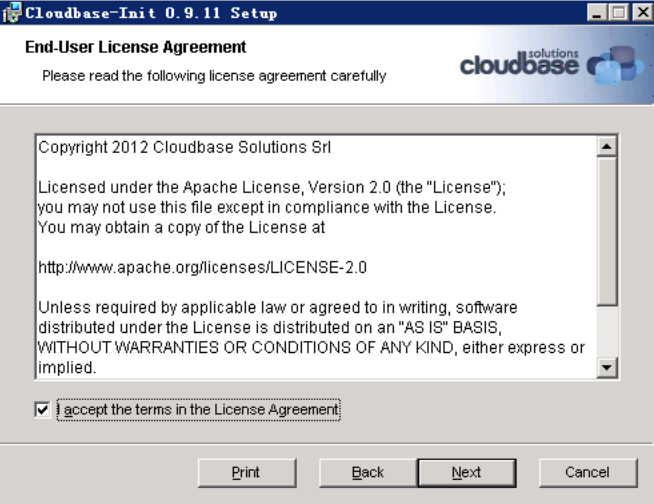
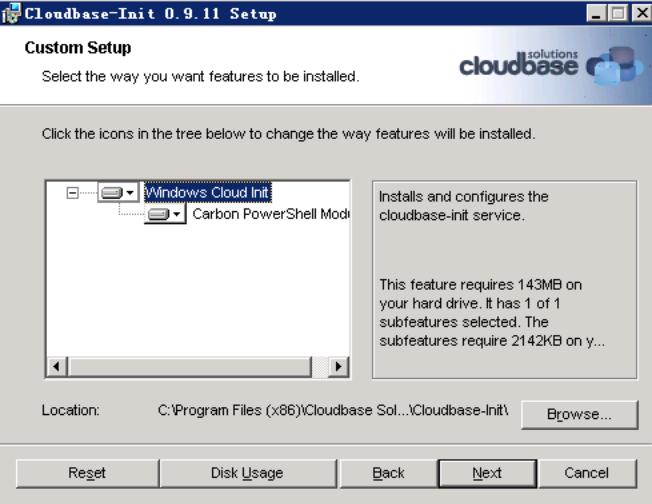
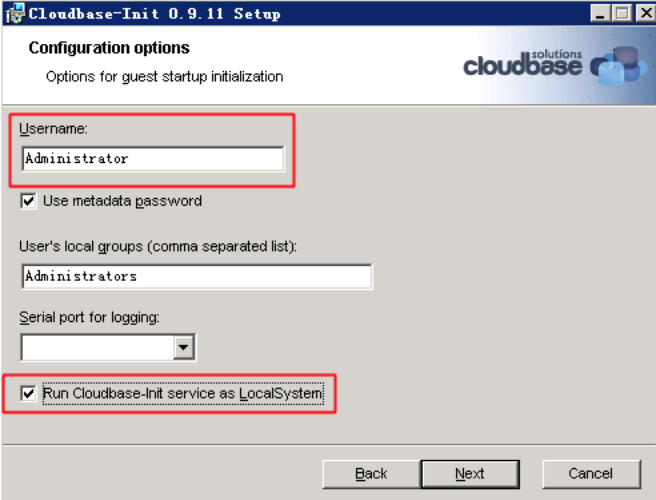
- Change the Username to: Administrator, and check Use metadata password and Run Cloudbase-Init service as LocalSystem
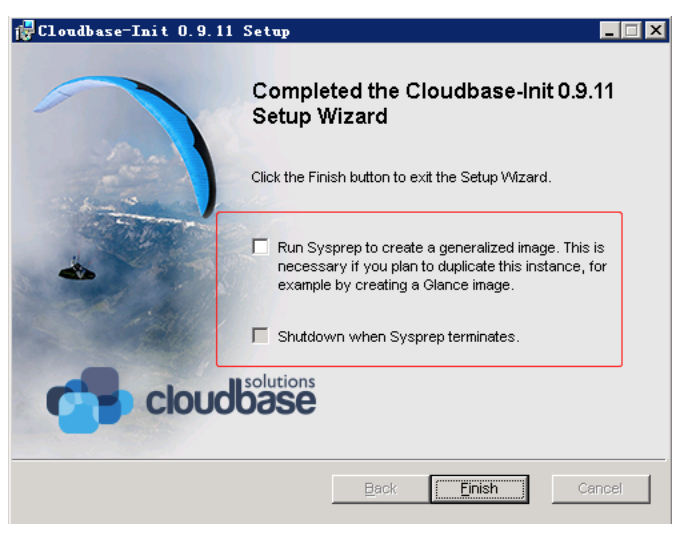
- After the installation, do not select the option shown in the image below (it is deselected by default).
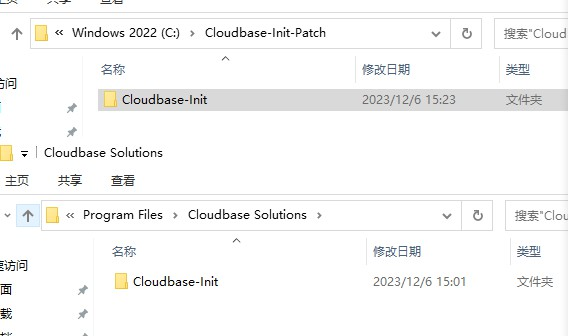
- Download [Cloudbase-Init-Patch.zip] to your Windows instance, unzip it, replicate the Cloudbase-Init folder to C:\Program Files\Cloudbase Solutions, and overwrite the original folder.
- Verify that the key values in the registry path HKLM\SOFTWARE\Cloudbase Solutions\Cloudbase-Init\{vm uuid}\Plugins match those depicted in the image. If there are differences, update them to align with the image values.
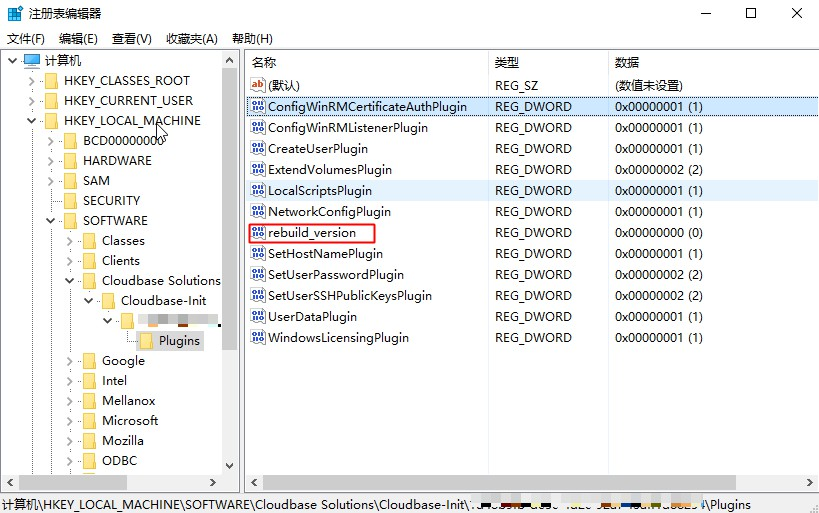
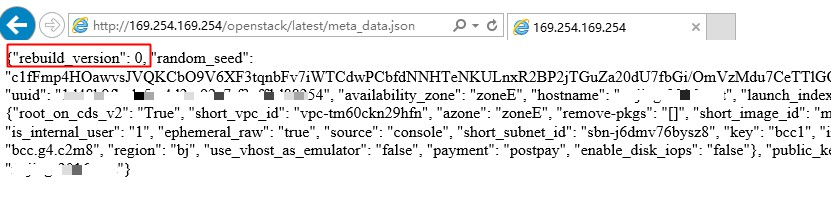
The value of rebuild_version needs to be queried from the metadata server. Open the link in your Windows instancehttp://169.254.169.254/openstack/latest/meta_data.json