

Reserved Instance Purchase
Updated at:2025-10-20
Function description
This document illustrates the process of purchasing reserved instances through the Baidu Cloud Compute console.
Prerequisites
- Certification must be completed before creating a reserved instance. Please perform "Enterprise Certification" or "Personal Certification" based on your situation. For details, please refer to Personal Certification and Enterprise Certification.
- Payment types, including zero prepay and partial prepay, are activated based on your usage of Baidu AI Cloud products. If the appropriate payment type is not visible on the console, please submit a ticket for assistance.
- To create a partial prepaid or zero prepaid reserved instance, the account balance must be no less than RMB 100.
Operation steps
- Sign in to Baidu Cloud Compute Console, select Reserved Instance from the left sidebar to enter the Reserved Instance List page.
- Select a Target Region from the top left corner of the top menu bar.
- Click Reserved Instance.
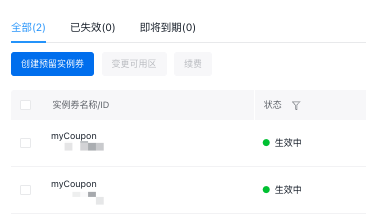
- Select Region and Available Zone (AZ). The BCC instance bills can only be deducted only when the reserved instance and the postpaid BCC instances to be deducted are in the same available zone.
- Select Instance Configuration, with the specification matching the postpaid BCC specification to be deducted.
- Select Elastic High-Performance Computing Cluster, which shall be consistent with the postpaid instances to be deducted; the reserved instance only supports deducting instances within the same EHC cluster.
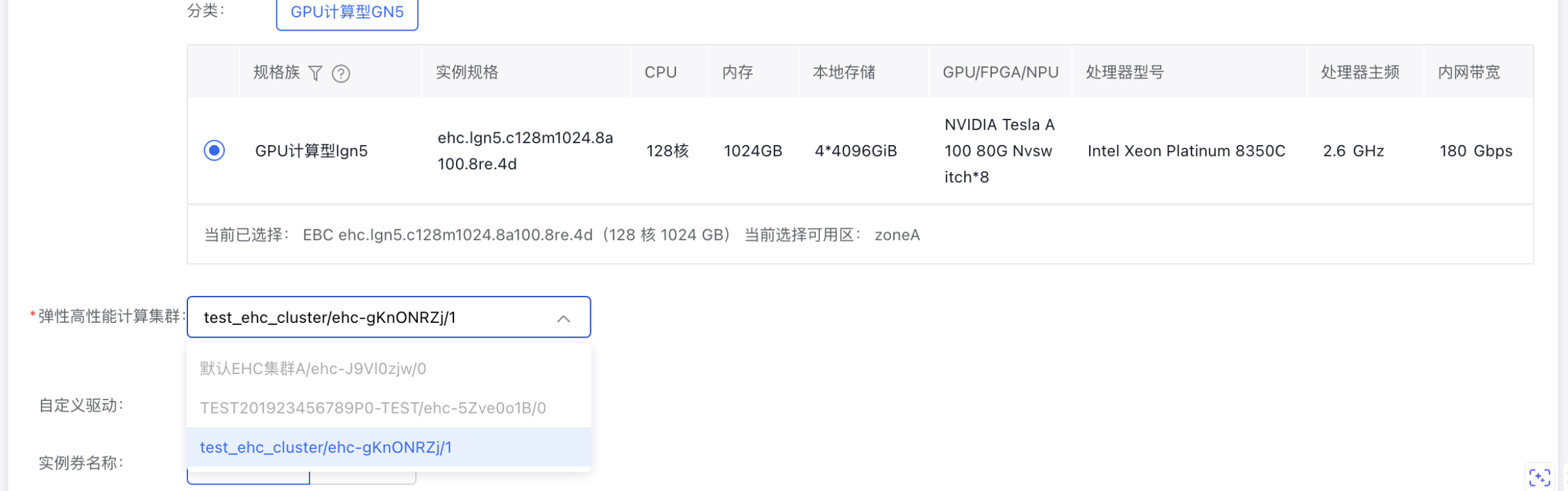
- Set the Reserved Instance Name, optionally selecting User-defined or Randomly Generated as needed.
- Set Instance Count; currently, one reserved instance supports deducting one BCC instance.
- Select Payment Type, choosing full prepay, partial prepay, or zero prepay as needed.
- Set Count of Reserved Instances, with a default value of 1. If you need to deduct multiple BCC instances, enter the corresponding count of reserved instances. The default quota is 50. Submit a ticket if higher quota is required.
- Set whether to enable Auto-renewal after the reserved instance expires. For reserved instances nearing expiration, disabled is in default.
- Set Renewal Period for auto-renewal, currently auto-renewal based on the purchase duration is supported.
- Set the Effective Time, defaulting to Immediate Effect. You can also Customize the Effective Time, up to 24 hours, with minute-level precision.
- Set Binding Tags, either selecting existing Tag Keysand Value or adding new tags.
- Confirm the cost and verify if the console-displayed price meets expectations. Prepaid fees represent upfront payments before the reserved instance takes effect, installment fees are hourly payments in the validity, and monthly estimates show the installment fees converted to a monthly basis.
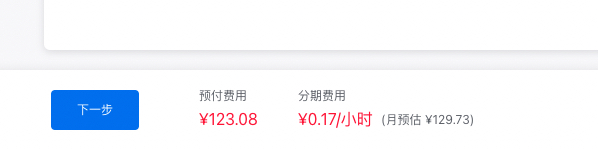
- Click Next, check Agree to Baidu AI Cloud Online Ordering Agreement on the Order Confirmation page, and click Confirm Order.
Final result
On the Reserved Instance List page, you can view Reserved Instances successfully created. These instances can deduct the postpaid BCC instance bills of the same specification.
View deduction details
You can review the deduction details of how the reserved instance offsets BCC instance charges on the Deduction Details page.
Entry 1: On the Reserved Instance List page, select the reserved instance to query, and click View Deduction Details under Operation

Entry 2:
- Click Finance in the console's upper-right corner to access the Finance Center

- On the Finance Center page, click Resource Packets Management in the left sidebar, then click Deduction Details
in the Header Tabs page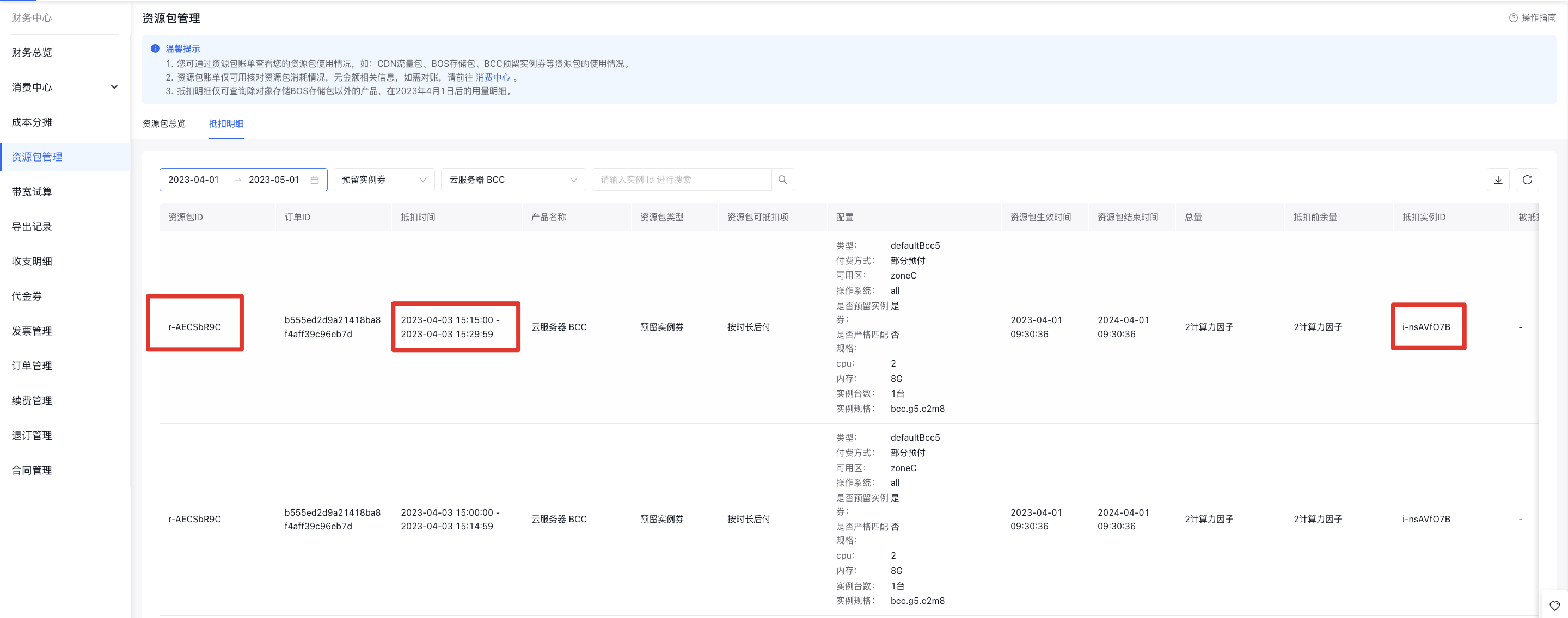
View the HOUR BILL of reserved instances
- Navigate to HOUR BILL
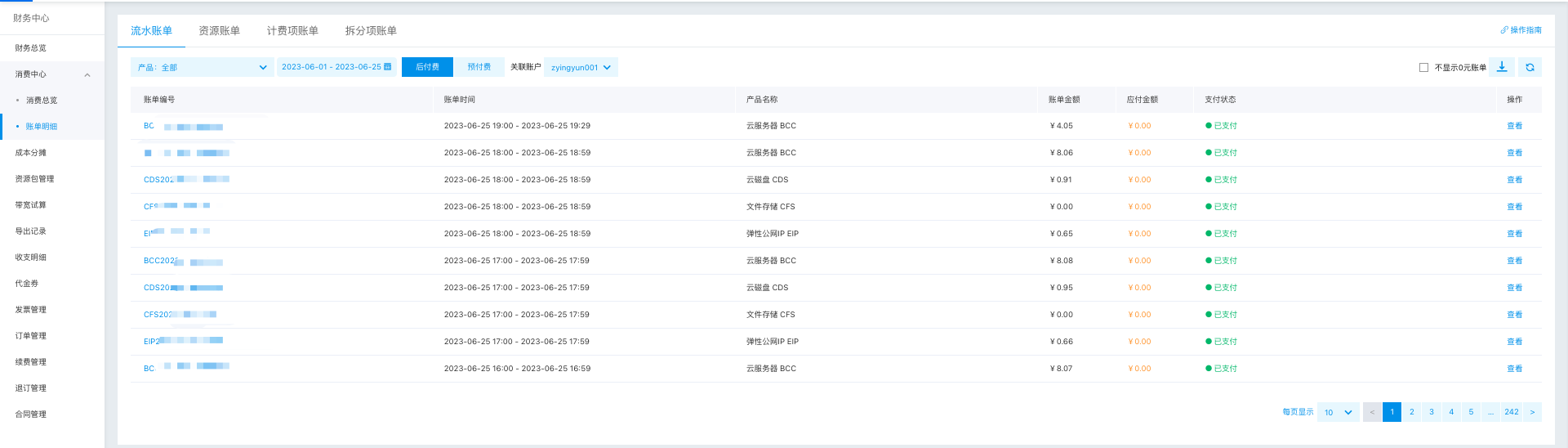
- Click the recent bill number to enter the Bill Details
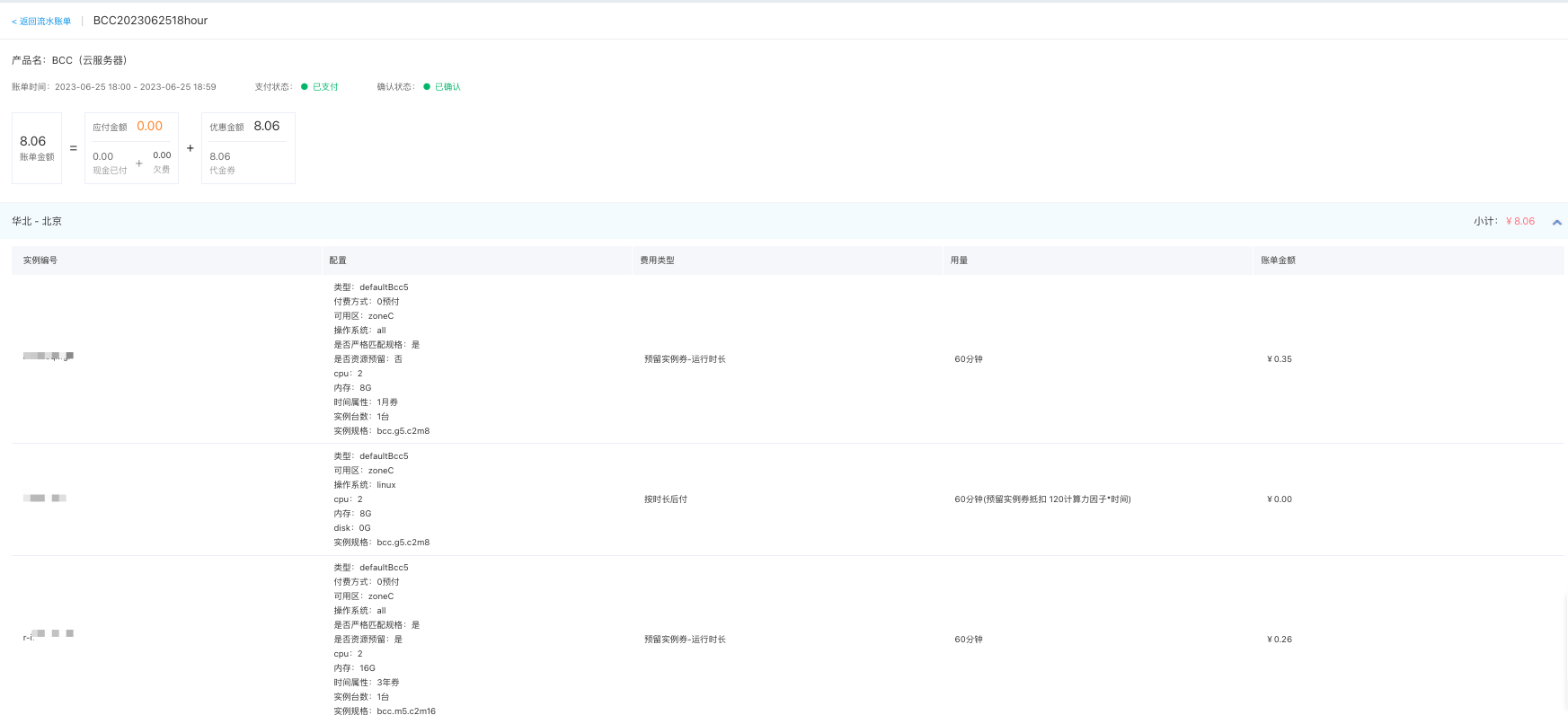 Note: Both reserved instances and postpaid BCC are billed every 15 minutes, with hourly billing