Sign in to Linux instances via SSH key in Putty
Prerequisites
-
Download and install Putty and Puttygen tools:
- You own a BCC instance with a bound key pair. If no key pair is bound, please refer to [Bind Key Pair](BCC/Operation guide/Security/Key pair/Bind SSH Key Pair.md).
- When signing in to a Linux instance via SSH, ensure that your Baidu Cloud Compute has port 22 open (port 22 is open by default when creating a Linux instance).
Create private key file with puttygen
-
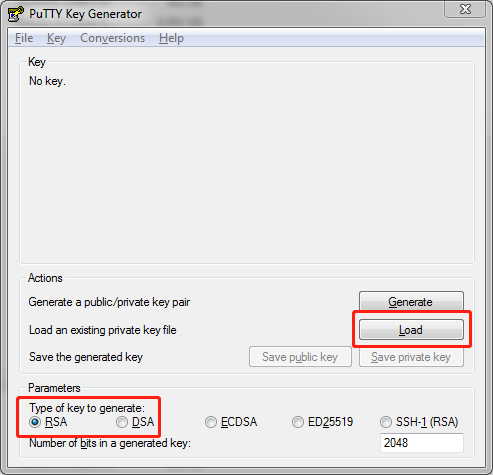
Open puttygen, select RSA under Type of key to generate, and then click Load
-
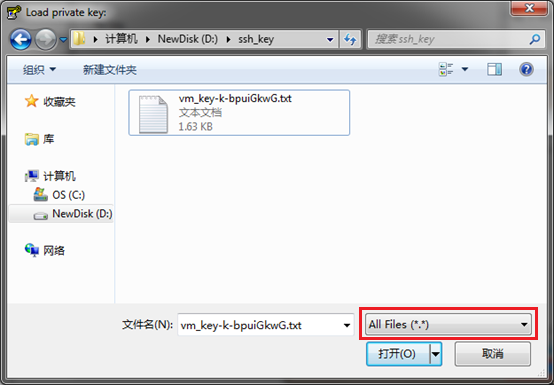
Select Show All File Types, choose the private key file downloaded locally during creation of the key pair, and click Open.
-
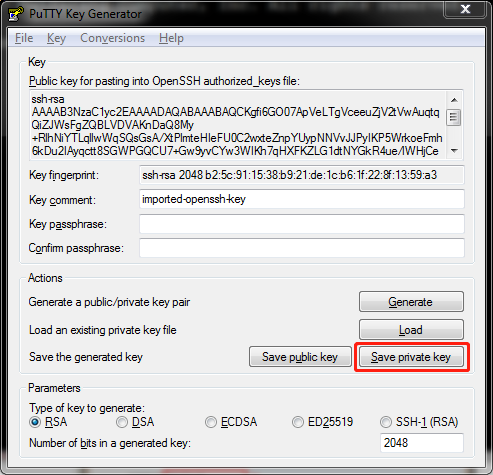
Then click Save private key to generate the private key file.
-
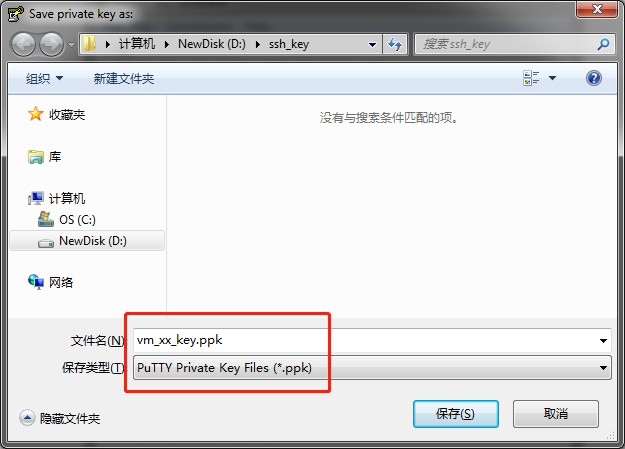
Select the save path for the private key file and click Save.
Configure key for login with Putty
-
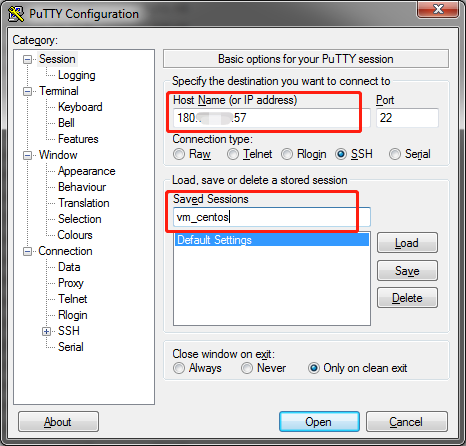
Open PuTTY and enter the remote host's IP address in the Hostname field under Session.
Note: To save the session, enter the session name under Saved Sessions and click Save
-
Configure the SSH certification method under SSH > Auth, click Browse, and select the private key file created with puttygen.
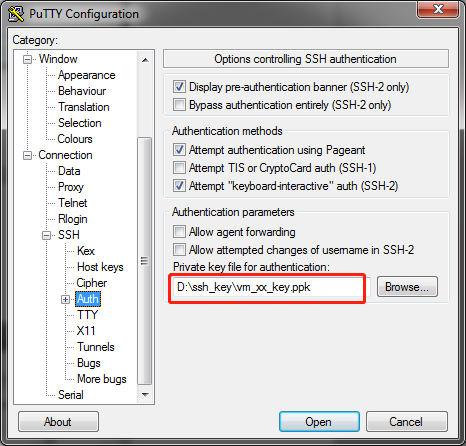
- After completing the above configuration, click Open to connect to your Baidu Cloud Compute using the private key.
-
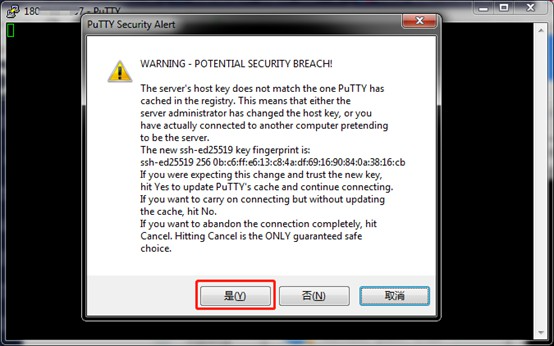
During the first login, if prompted that Putty has not cached the Host Key, click Yes.
-
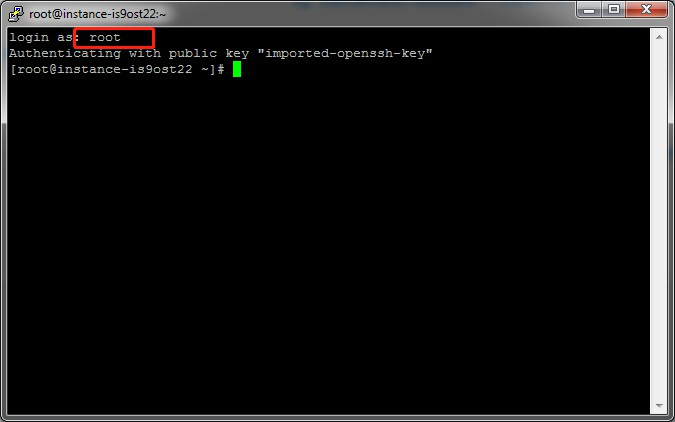
Enter the user name root, and press Enter to sign in to the Baidu Cloud Compute system.