

Windows automatic update-related configuration
Windows automatic update-related configuration
On all Windows cloud servers provided by Baidu AI Cloud, the default update source is Baidu AI Cloud’s internal update servers, rather than Microsoft’s official servers. The reasoning behind this approach is as follows.
- Even if the user's virtual machine does not have a public IP, it can still obtain the latest system update packages.
- Reduce external network traffic.
- Conduct appropriate screening and review for Microsoft update packages to avoid system slowdown due to excessive number of update packages installed.
Baidu AI Cloud's current update configuration is as follows
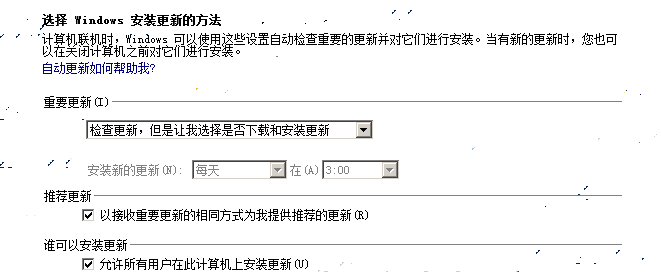
Baidu AI Cloud's internal update server configuration is as follows
Update server: http://windowsupdate.baidubce.com:8530
Statistic server: http://windowsupdate.baidubce.com:8530
Test server connectivity
To confirm whether the current Baidu Cloud Compute is connected to Baidu AI Cloud's update server, you can use the following verification method.
- Open the command line and type: ping windowsupdate.baidubce.com to check if the ping is successful.
- Open the command line and type: telnet windowsupdate.baidubce.com 8530 to verify if the port is accessible.
Note:
For installation of telnet tool, refer to [Microsoft Documentation] https://technet.microsoft.com/en-us/library/6da83bed-c357-4dd7-af1e-26cc2f6c0364。
Change update source
Baidu AI Cloud's update servers retrieve corresponding update packages from Microsoft's update sources, verify them, and then make them available on the servers. As a result, the update packages on the internal update servers are filtered and may experience some delay compared to those on Microsoft's update servers. If you prefer to download update packages directly from Microsoft's update sources, you can adjust the relevant group policy as follows:
Run -> Enter gpedit.msc -> Select Computer Configuration -> Select Management Templates -> Select Windows Components -> Select Windows Update -> Select Specify Intranet Microsoft Update Service Location
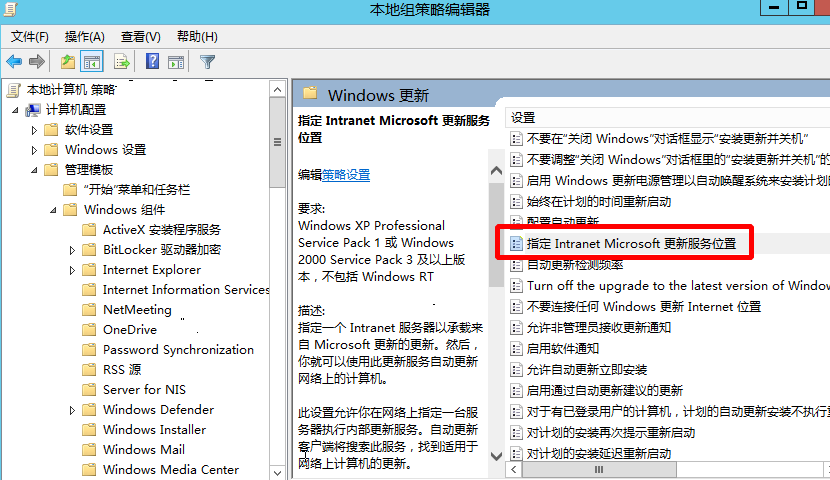
Configuration

Note:
After adjusting the group policy, to apply the changes without restarting your computer, open CMD with administrator privileges and run the command gpupdate /force.
Windows update failure handling
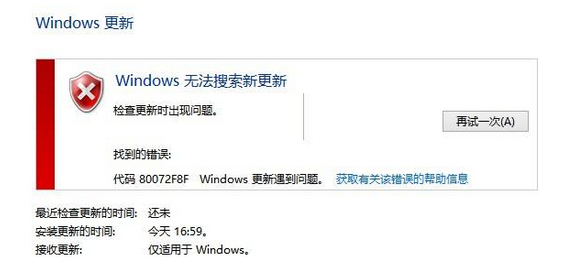
Handling Windows system update error, with error code 0x80072F8F
Phenomenon
When performing "Check for Updates" in Windows OS, the system reports an error, and you receive an error code 0x80072F8F, as shown below:
Cause analysis
If there is a discrepancy between the system time and time zone on your OS and those on the Windows update servers, time deviations may cause update failures.
Handling method
- Check the system clock in the bottom-right corner of the desktop to see if there’s a noticeable discrepancy. If needed, manually synchronize the time and time zone.
- Using the command-line tool CMD.exe with administrator privileges, type net start W32Timew32tm /resyn to complete the synchronization. Then, recheck for updates.
Handling Windows system update error, with error code 0x80243004
Problem phenomenon description
When performing "Check for New Updates" in Windows 2008, you receive a Windows update error code 0x80243004, as shown below:

Cause of problem
An error occurred in Windows Update when generating badge notifications. The original text is as follows:
0x80243004 WU_E_TRAYICON_FAILURE A failure occurred when trying to create an icon in the taskbar notification area.
Solution
The simplest approach is to display all badge notifications.
-
Click the triangle in the notification area of the status bar to show the taskbar icons, and then click Customize.
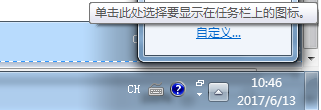
- In the Notification Area Iconssettings, select Choose which notifications and icons appear on the Taskbar list, find Windows Update, click the dropdown list on the right, and select Show Icons and Notifications, then click OK. Alternatively, you can directly check Always show all icons and notifications on the taskbar and click OK.
- Afterward, recheck for system updates.